Assignment
The Assignment activity (mod_assign) lets students submit work — files or online text — for the teacher to grade. The AI generates the full activity: title, description, complete instructions (task statement, submission requirements, and evaluation steps), and every form setting the teacher requests, including rubrics.
AI-generated settings
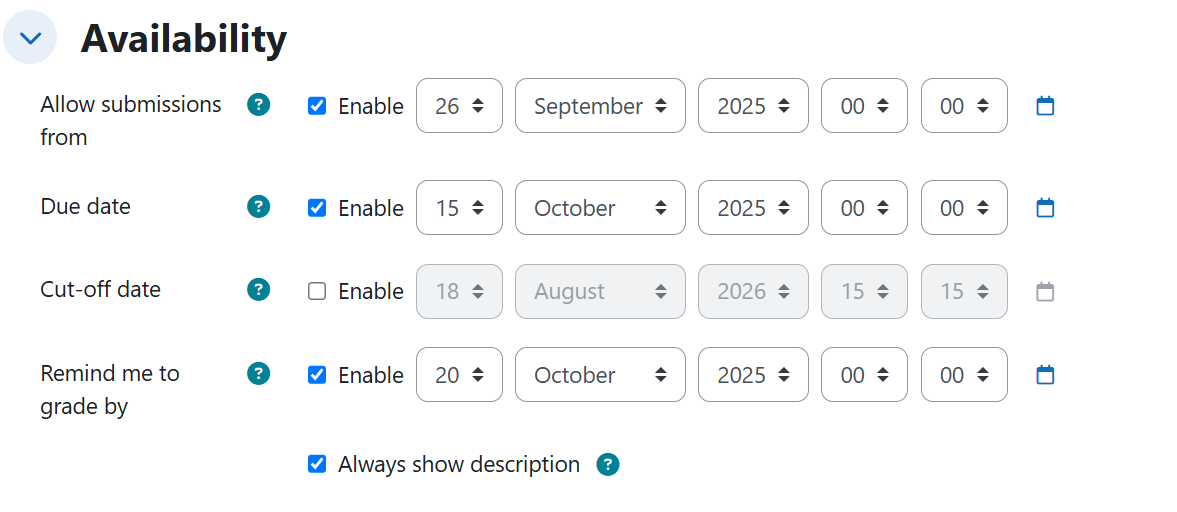
Availability
| Setting | Description | Possible values | Default |
|---|---|---|---|
| Allow submissions from | Date from which students can submit. A day named as an opening starts at 00:00. | Disabled, or an absolute date / relative period | Disabled |
| Due date | Expected submission date. A day named as a due date ends at 23:59. | Disabled, or an absolute date / relative period counted from the opening date | Disabled |
| Cut-off date | Hard deadline after which nothing is accepted. | Disabled, or an absolute date / relative period counted from the due date | Disabled |
Submission types
| Setting | Description | Possible values | Default |
|---|---|---|---|
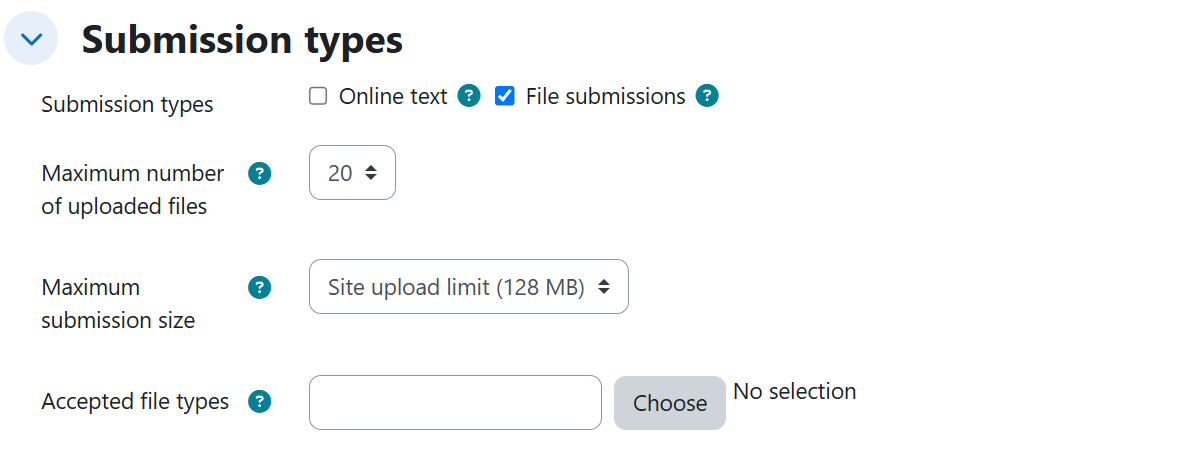
| Online text | Students type their submission directly in the platform. | Checked / unchecked | Unchecked |
| Word limit | Maximum number of words for online text. | Enabled with a number (e.g. 500) | Disabled |
| File submissions | Students upload one or more files. | Checked / unchecked | Checked (when the prompt implies files) |
| Maximum number of uploaded files | How many files each student can upload. | Number (e.g. 3) | Site default |
| Accepted file types | Restriction on the file types of the submission. | File type groups from the site catalog (e.g. PDF, Video files) | Unrestricted |
| Maximum submission size | Size limit per submission. | Size value (e.g. 50 MB) | Site default |
| Submission comments | Lets students leave a comment when submitting. | Checked / unchecked | Unchecked |
Submission settings
| Setting | Description | Possible values | Default |
|---|---|---|---|
| Require students to click the submit button | Students must click submit to declare the work final. | Yes / No | No |
| Require that students accept the submission statement | Students must accept the declaration that the work is their own. | Yes / No | No |
| Maximum attempts | Number of submission attempts allowed. | 1, a specific number (e.g. 2, 3), or Unlimited | 1 |
| Additional attempts | How new attempts are granted (attempt reopening). | Manually / Automatically / Automatically until pass | Never |
Group submission settings
| Setting | Description | Possible values | Default |
|---|---|---|---|
| Students submit in groups | The submission is shared by a group. | Yes / No | No |
| Require group to make submission | Only students who belong to a group can submit. | Yes / No | No |
| Require all group members submit | The submission is not final until every member clicks submit. | Yes / No | No |
Notifications
| Setting | Description | Possible values | Default |
|---|---|---|---|
| Notify graders about submissions | Alerts the teacher on every submission. | Yes / No | No |
| Notify graders about late submissions | Alerts the teacher only for late submissions. | Yes / No | No |
| Default setting for "Notify students" | Preselects the notify-students option when grading. | Yes / No | Site default |
Grade
| Setting | Description | Possible values | Default |
|---|---|---|---|
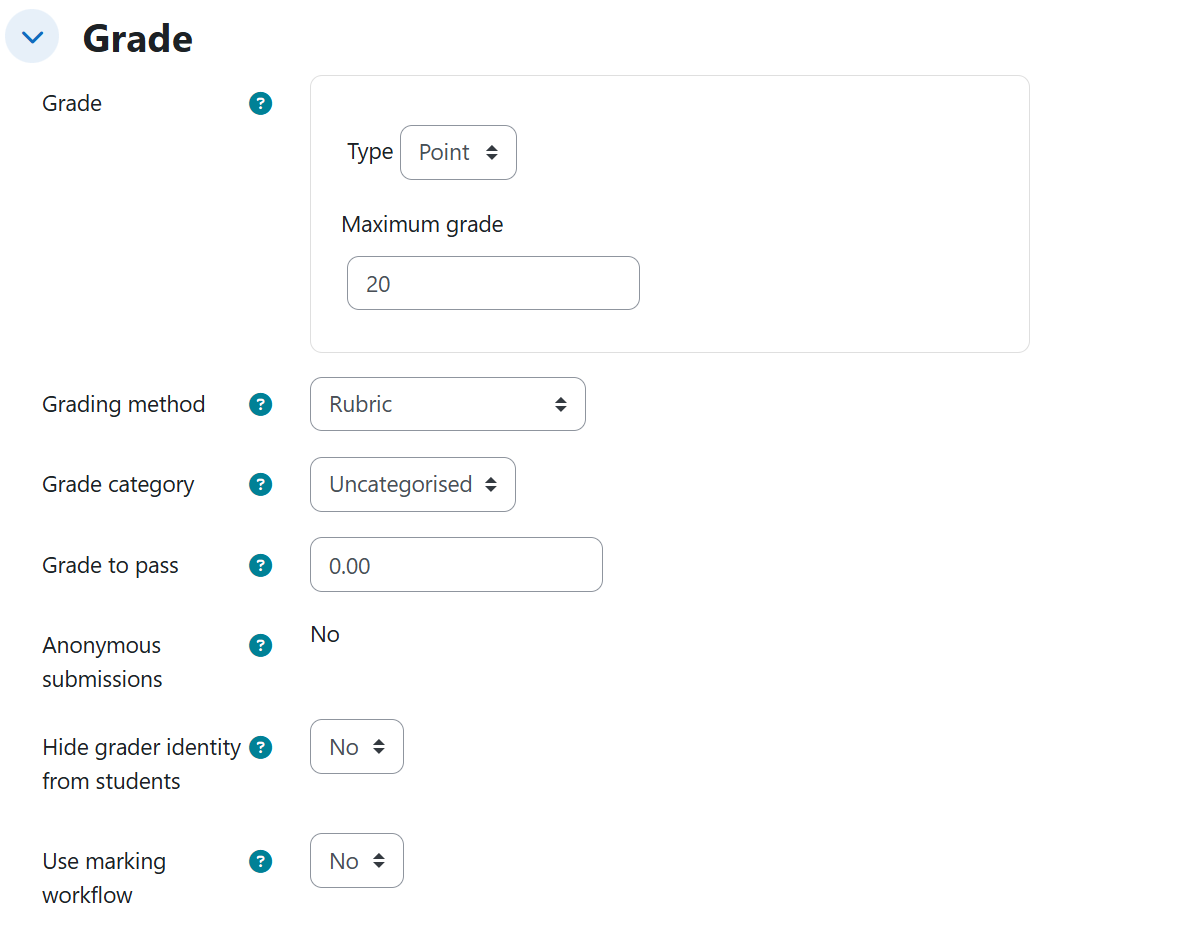
| Grade | Maximum points for the assignment. | Number (e.g. 20, 40, 100) | 100 |
| Grade to pass | Minimum grade to pass; also visible on the gradebook item. | Number below the maximum grade (e.g. 12, 28) | Empty |
| Grading method | How the grade is determined. | Simple direct grading / Rubric | Simple direct grading |
| Anonymous submissions | Blind marking: the grader does not see who submitted each work. | Yes / No | No |
| Hide grader identity from students | Students do not see who graded them. | Yes / No | No |
| Use marking workflow | Grades go through review states before being released. | Yes / No | No |
| Use marking allocation | A specific grader can be assigned to each student. | Yes / No | No |
| Allow partial release of grades while marking anonymously | Grades can be released progressively during anonymous grading. | Yes / No | No |
Feedback types
| Setting | Description | Possible values | Default |
|---|---|---|---|
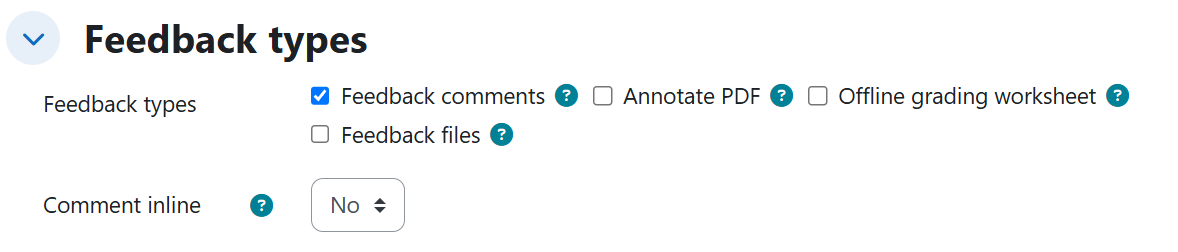
| Feedback comments | The grader can leave a feedback comment per submission. | Checked / unchecked | Unchecked |
| Comment inline | The feedback comment is preloaded with the student's online text so the grader can comment over it. | Yes / No | No |
| Annotate PDF | The grader can annotate directly on submitted PDFs. | Checked / unchecked | Unchecked |
Generated content
- Title and description of the assignment.
- Complete instructions: the task statement, the submission requirements, and the evaluation steps.
- Rubric, when the grading method is Rubric:
- If the teacher specifies the size, the rubric has exactly that many criteria and performance levels (e.g. 6 criteria with 5 levels each), with the lowest level at 0 points and integer steps of 1 (0, 1, 2, 3, 4...).
- If the teacher only asks for "a rubric" without a size, it comes with 3 to 5 criteria, all with the same number of levels (4), lowest level at 0 points, and integer steps of 1.
- When a syllabus or source document is uploaded, the statement, requirements, and rubric criteria are drawn strictly from it.
Rules and behavior
- Asking only for a file size limit or only for certain file types — without saying "students upload files" — is enough to enable File submissions on its own.
- Accepted file types is also inferred from the material students are asked to hand in (a video, an audio, a photo), even if no extension is named — e.g. asking for a short video sets the Video files group.
- The inferred or requested file type is validated against the site's own file type group catalog: on a Moodle site with custom groups the saved value must come from that catalog, and a non-existent type is discarded rather than saved.
- Word limit is only saved when Online text is enabled.
- Require all group members submit is only emitted when Students submit in groups is active and the submit button is required.
- Use marking allocation is only emitted when Use marking workflow is active.
- Allow partial release of grades while marking anonymously requires both Use marking workflow and Anonymous submissions to be active.
- Reopening attempts Automatically until pass relies on the Grade to pass of the grade item.
- Notify graders about submissions and Notify graders about late submissions are independent: asking to be notified only about late submissions sets the late notification to Yes and the general one to No.
Example prompts
Without syllabus
A minimal prompt that produces an assignment with full instructions and every setting at its default value:
I need an assignment for the Academic Writing course where students submit an argumentative essay on the impact of social media on everyday life. Explain clearly what is expected of the work and what it will be evaluated with.
A file submission with exact dates, a custom 6x5 rubric, grade to pass, submission statement, manual attempt reopening, and late-submission notifications:
Build an assignment for the Digital Photography course where each student uploads their portfolio for the unit: at most 3 files, PDF only, no more than 50 MB per submission, and let them leave a comment explaining their decisions when they submit. Students must click the submit button to declare their work final and accept the statement that the work is their own, with up to 3 attempts that I reopen manually. It opens on September 1, 2026, the due date is September 15, 2026, and nothing is accepted after September 20, 2026. I only want to be notified about submissions that arrive late. Grade it out of 40 points, passing with 28, with a rubric of exactly 6 criteria and 5 performance levels, and let me leave them feedback comments and annotate directly on the PDF.
With syllabus
A group online-text submission with relative dates, unlimited attempts reopened automatically until pass, and inline feedback comments, anchored to unit 3 of the syllabus:
Create an assignment based on the independent work of unit 3 of the document I uploaded: each team writes their digital transformation action plan focused on products and services directly on the platform, with a 500-word limit and no file uploads. Submission is by groups and only students who belong to a group can submit; all members must click the submit button and the submission is not final until they all do. Have it open in 3 days, give them two weeks to submit, and make the hard cut-off 4 days after the due date. Give them unlimited attempts with automatic reopening until they pass: it is graded out of 20 and passed with 12. Notify me every time a team submits, and have students be notified by default when I grade them. When grading I want the feedback comment preloaded with the student's text so I can comment over it.
Anonymous (blind) marking with marking workflow, marker allocation, partial release, an inferred video file type, and a default-size rubric, anchored to unit 2 of the syllabus:
Build an assignment on unit 2 of the syllabus I uploaded, based on its independent video presentation work: each student uploads a short video of at most five minutes presenting their case study on change management, data governance, and ethics. Marking must be blind: I must not see whose work each submission is, and students must not see who graded them either. Grades have to go through a review workflow before being released, I want to assign a specific grader to each student, and I want to be able to release grades partially while I keep grading anonymously. Allow 2 attempts with automatic reopening and evaluate it with a rubric.