Folder
The Folder resource (mod_folder) groups a set of documents in a single place inside the course. The AI generates the folder with its name, description, and the support documents already created and uploaded inside it, organized into subfolders when grouping adds value.
AI-generated settings
Content and Appearance
| Setting | Description | Possible values | Default |
|---|---|---|---|
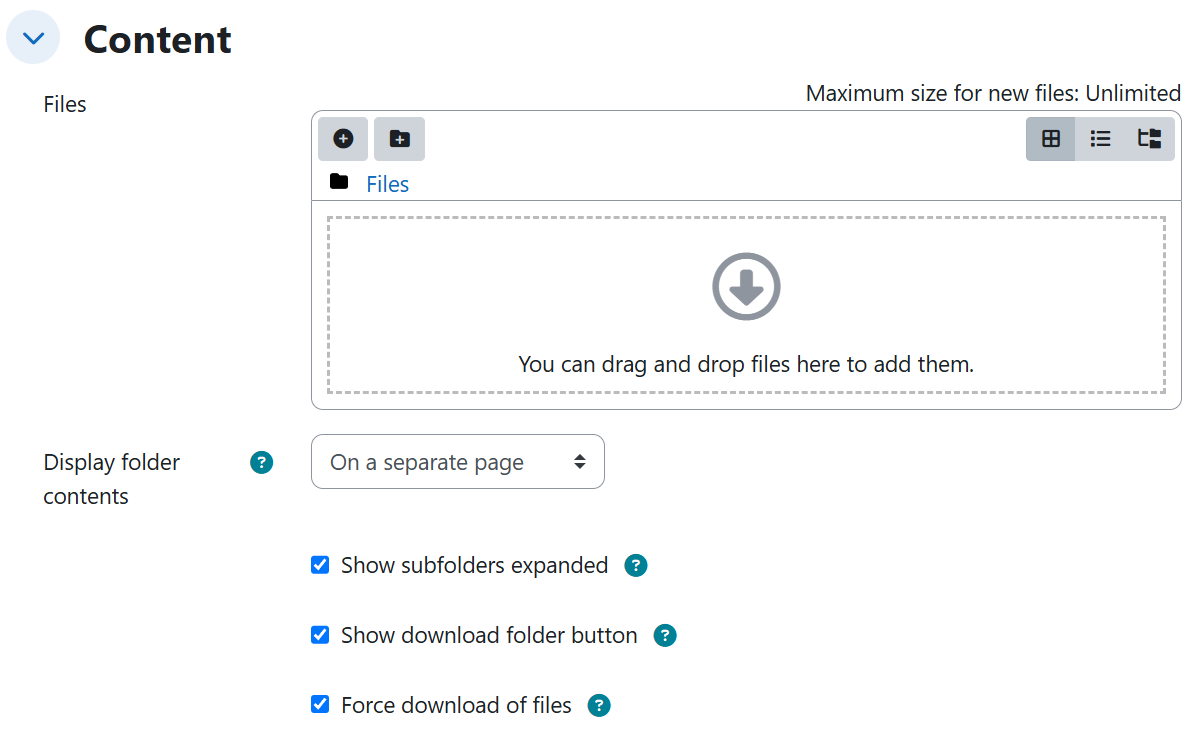
| Display folder contents | Where the folder contents are shown to students. | On a separate page, Inline on a course page | On a separate page |
| Show subfolders expanded | Whether subfolders appear expanded from the start in the folder tree. | Yes, No | Yes |
| Show download folder button | Whether the button to download the whole folder as a compressed file is shown. | Yes, No | Yes |
| Force download of files | Whether clicking a file downloads it instead of opening it in the browser. | Yes, No | Yes |
| Display description on course page | Whether the folder description is shown on the course page. | Yes, No | Yes |
Generated content
- The documents inside the folder are always generated as PDF files. Each document has its own title, a summary, and a body developed in sections.
- The system generates only the documents the unit needs. When the teacher asks for a specific number of documents and topics, the folder contains exactly one document per requested topic.
- Documents are organized into subfolders only when grouping adds value, or when the teacher explicitly requests a grouping. Up to two levels of subfolders can be requested (for example, by risk type and, inside each, its protocols).
Rules and behavior
- An appearance setting only changes when the prompt requests it explicitly. Everything not mentioned stays at its default value, even if the generated plan or content talks about downloads or subfolders.
Teachers do not need to use the exact Moodle labels: natural phrasings such as "with the button to download all files at once" or "files should open in the browser instead of downloading" are mapped to the corresponding form settings.
Example prompts
Without syllabus
A minimal request that produces a folder with its PDF documents and every setting at its default value:
I need a folder with the support materials for the Chemical Bonds unit of the General Chemistry course, so that students have the reference documents for the topic gathered in one place.
A request for 6 documents in two levels of subfolders, contents inline on the course page, subfolders collapsed, no download-folder button, files opening in the browser, and no description on the course page:
I need a folder with the materials for the Industrial Safety unit of the Occupational Engineering course. Generate 6 documents organized into two levels of subfolders: by risk type and, inside each one, its protocols. Show the contents directly on the course page, with the subfolders collapsed so the view stays clean, without the button that downloads the whole compressed folder, with files opening in the browser instead of downloading, and without showing the description on the course page.
With syllabus
A request for 5 documents in subfolders by topic for unit 2 of the source document, with all appearance options requested explicitly:
Put together a folder with the materials for unit 2 of the syllabus I uploaded. Generate 5 documents: change management in digital environments, adaptability to technological change, data governance, artificial intelligence ethics, and cybersecurity, organized into subfolders by topic. Have the contents open on a separate page, with the subfolders expanded from the start, with the button to download all files at once, with files downloading on click, and showing the description on the course page.