Quickstart (Create your first rule)
In this quickstart you will create a working rule that detects learners who have not accessed the course recently and sends them a reminder.
✅ Outcome: A rule that automatically notifies inactive learners.
Before you start (1 minute)
- You need teacher or administrator access in the course.
- The site must have Moodle cron running for rules to execute automatically (see Prerequisites).
Step 1 — Open Smart Rules AI in your course
- Open the course where you want automation.
- Go to More → Smart Rules AI.
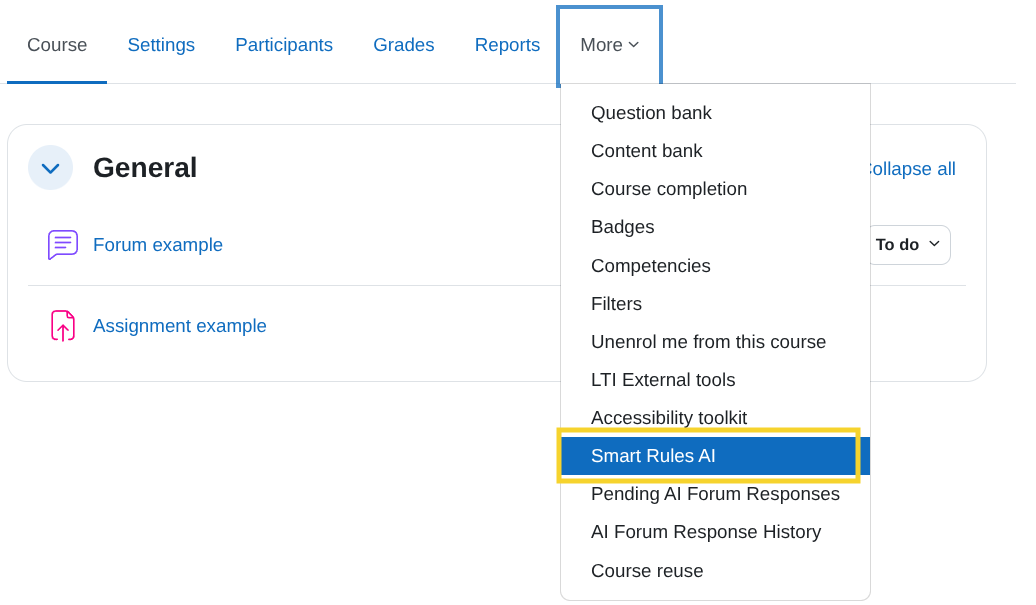
✅ You should see: a Rules page (a list of rules for the course).
Step 2 — Create a new rule
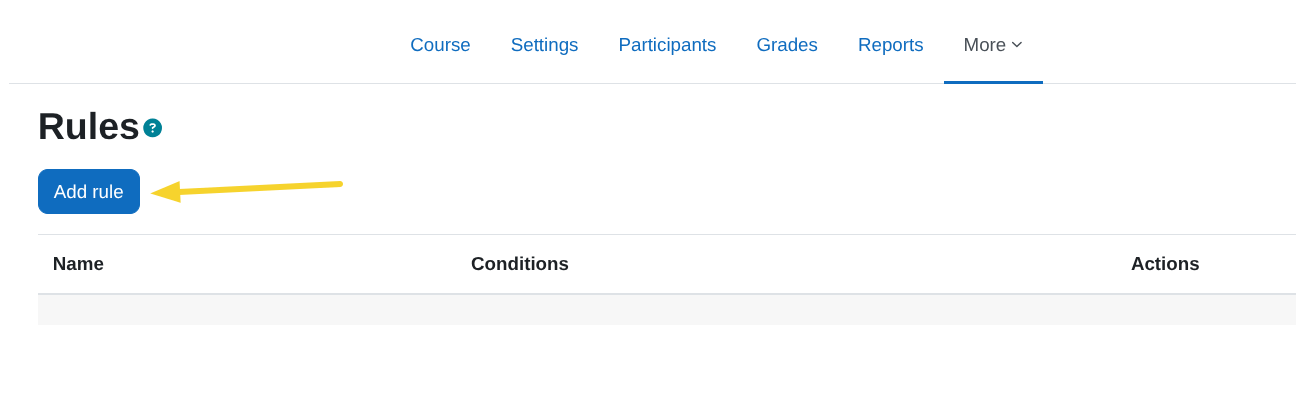
- Click Add rule.
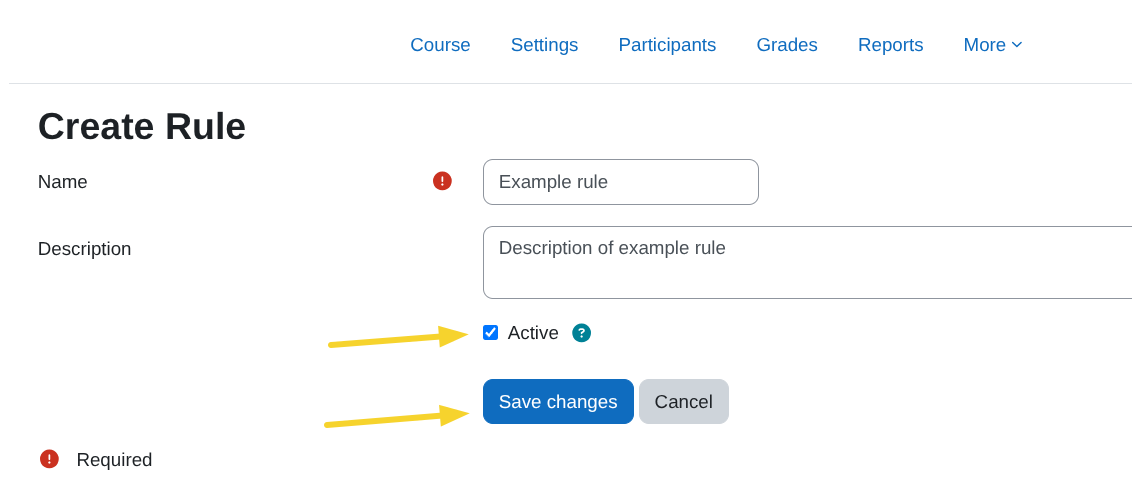
- Fill in:
- Name:
Inactivity reminder (7 days) - Description:
If a learner has not accessed the course for 7 days, send a reminder. - Turn Active ON
- Name:
- Click Save changes.
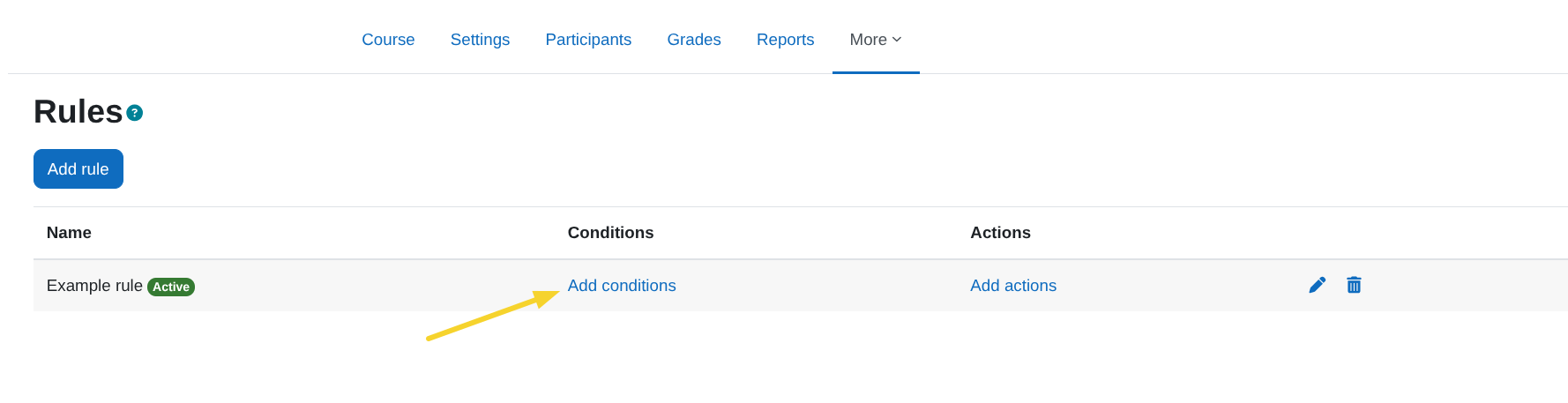
✅ You should see: your rule listed in the Rules page.
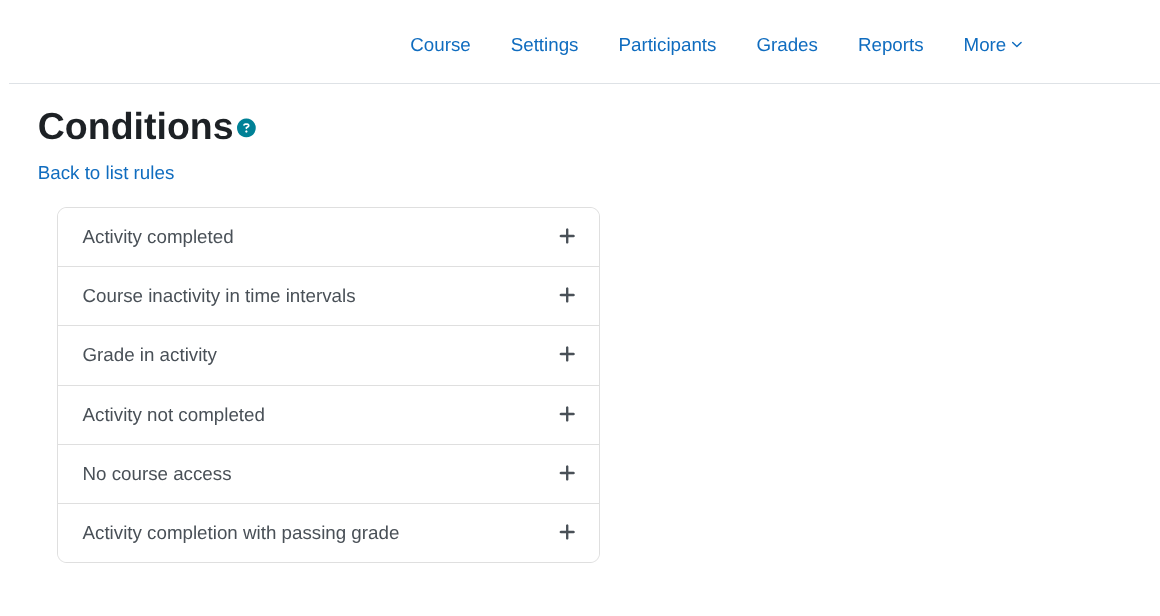
Step 3 — Add a condition (No course access)
- In your rule row, click Add conditions.
- Find No course access and click + to add it.
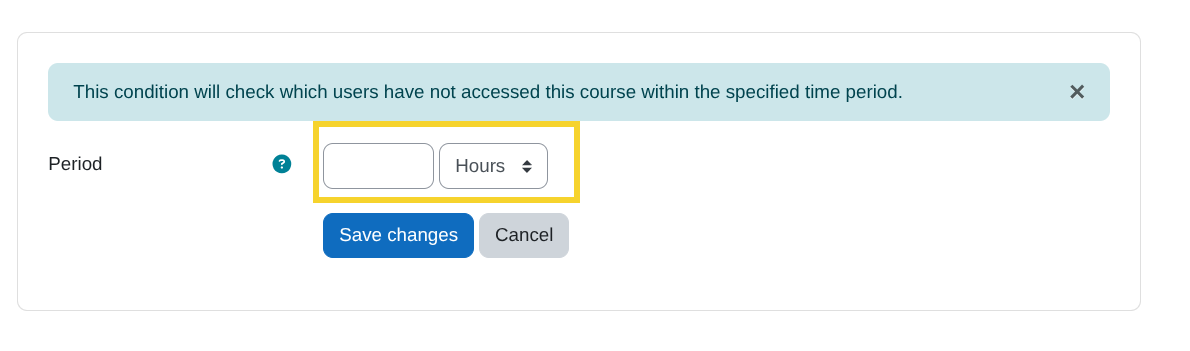
- Set the Period to
7 days(or your preferred interval). - Save the condition.
✅ You should see: the condition attached to your rule.
Step 4 — Add an action (Send notification)
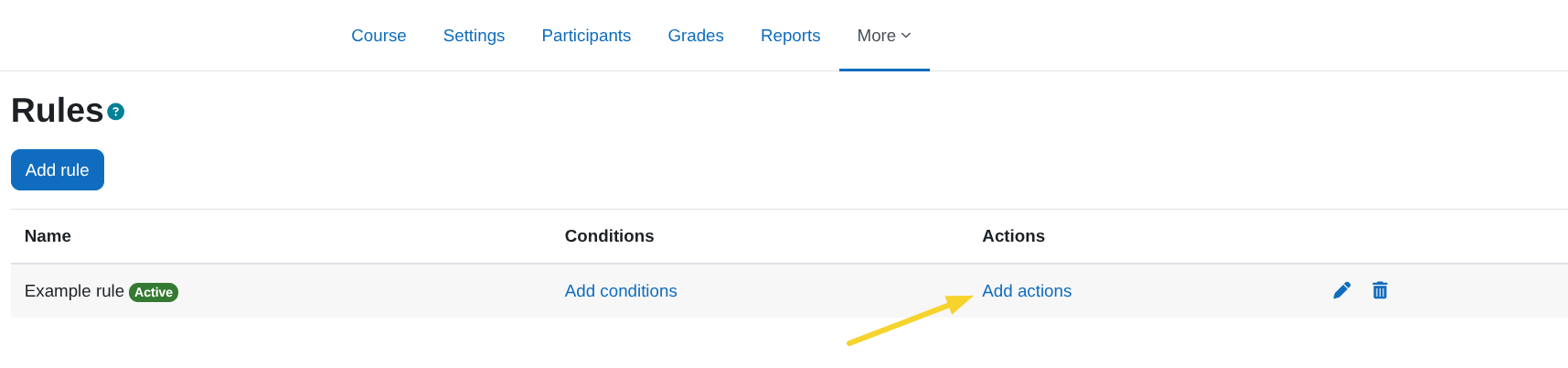
- In your rule row, click Add actions.
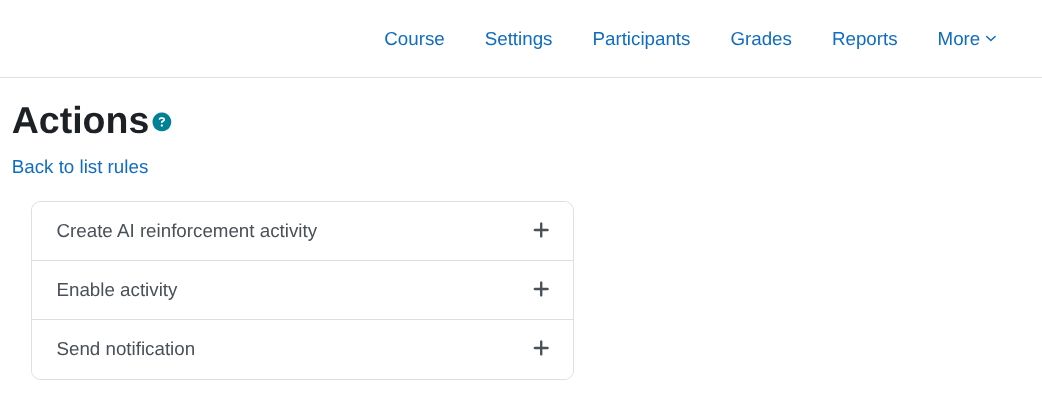
- Find Send notification and click + to add it.
- Configure:
- Subject:
We miss you in {$a->coursename} - Body:
Hi {$a->firstname}, we noticed you haven’t accessed the course recently. You can continue here: {$a->courselink}
- Subject:
- Under Roles to notify, select Student (and optionally Teacher if you also want teachers notified).
- Save the action.
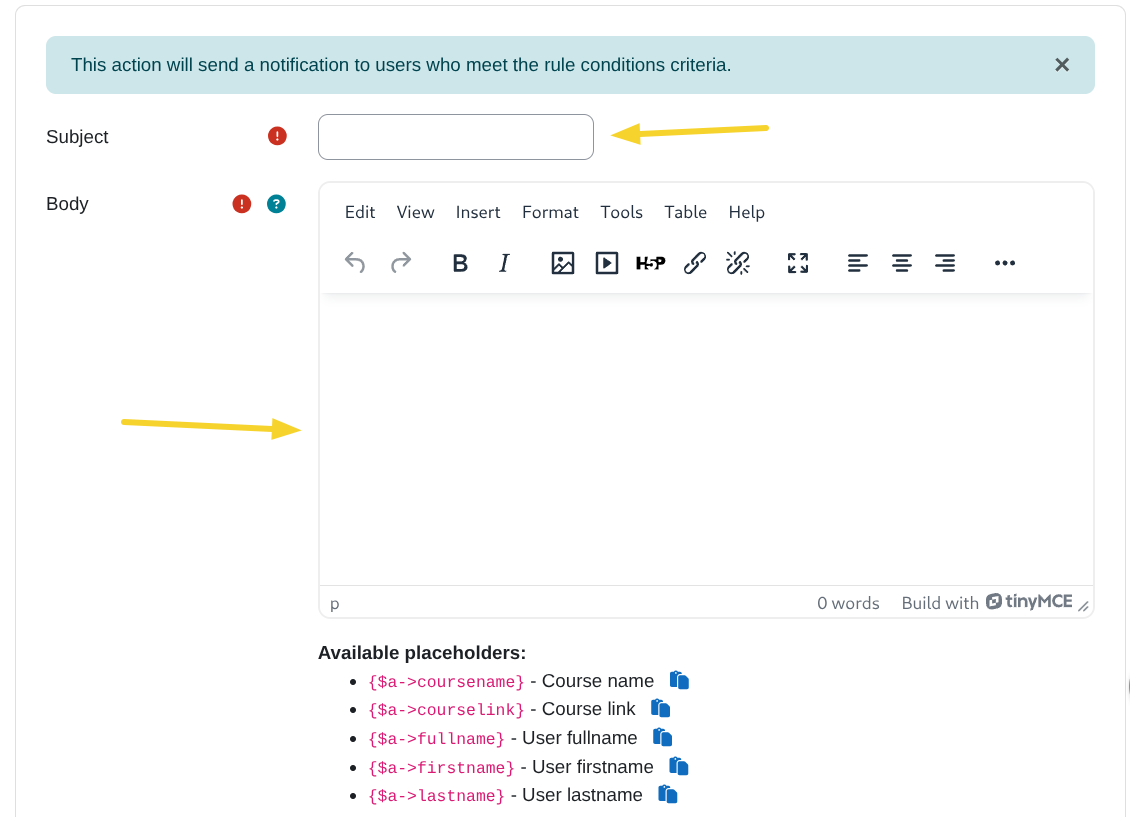
✅ You should see: the action attached to your rule.
Step 5 — Confirm the rule is active
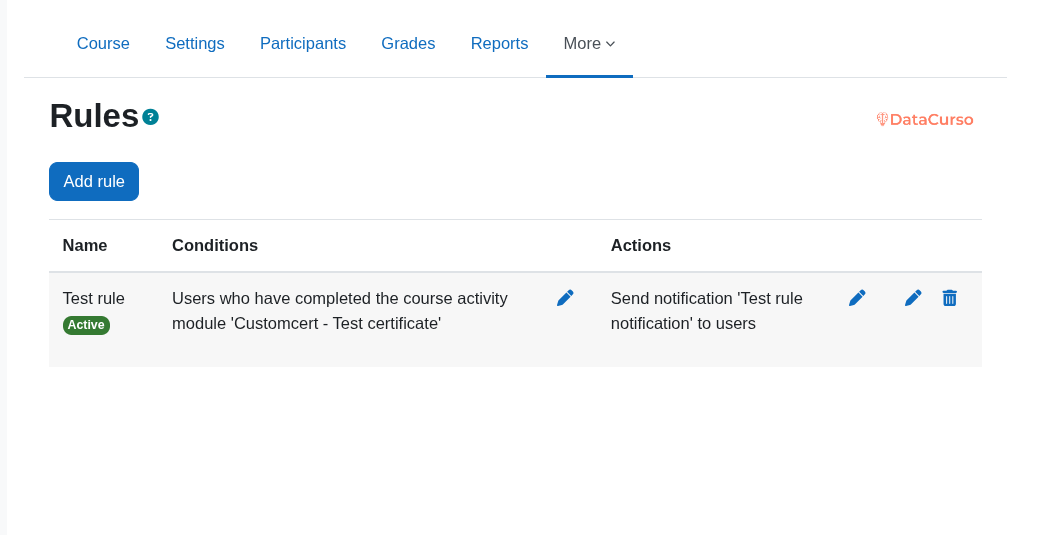
Back on the Rules page, confirm:
- The rule shows as Active
- It has 1 condition and 1 action
What happens next?
- When a learner matches the condition (no course access for 7 days), Smart Rules AI will run the rule and send the notification.
Not working?
If the rule doesn’t run automatically, the most common cause is cron not running. Check Prerequisites.
Next steps
- Learn other triggers in Available conditions
- Explore automation outcomes in Available actions