How to use
This page explains how to use Smart Rules AI in real course workflows (step-by-step thinking), so you can build rules that are reliable and easy to maintain.
If you want the click-by-click UI steps, start here: Quickstart.
The workflow (how Smart Rules AI works)
A Smart Rules AI automation is always:
- Rule (name + active/inactive)
- Condition (who matches and when)
- Action (what happens for matched learners)
A practical way to think about it:
Condition = detection
Action = intervention
Step-by-step: build a good rule (recommended approach)
Step 1 — Define the learning problem (one sentence)
Examples:
- “Learners stop coming to the course.”
- “Learners pass an activity but don’t continue.”
- “Learners score low and need extra practice.”
This keeps the rule focused and prevents overly complex automations.
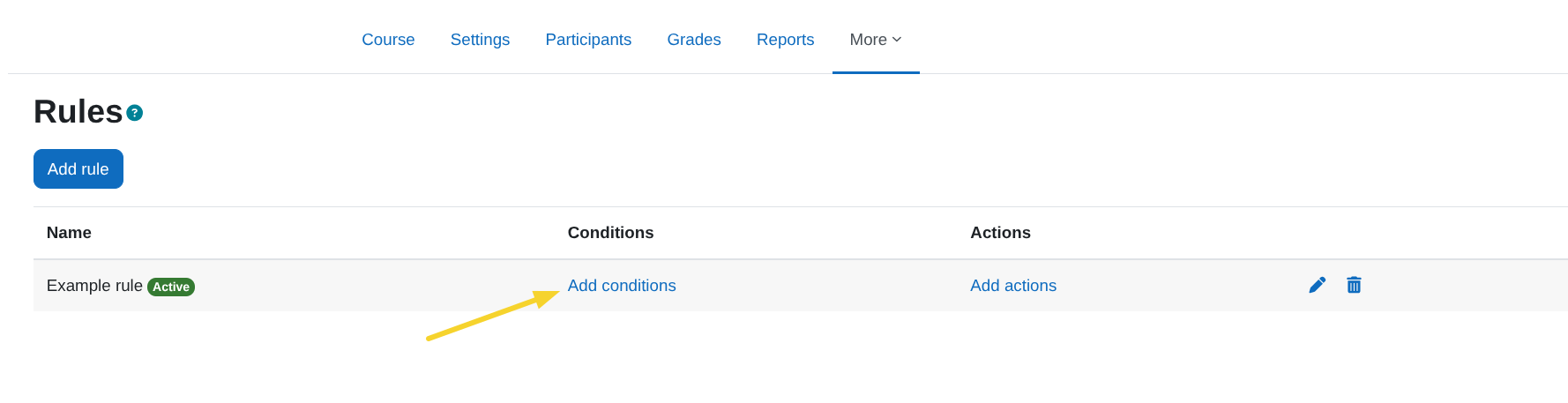
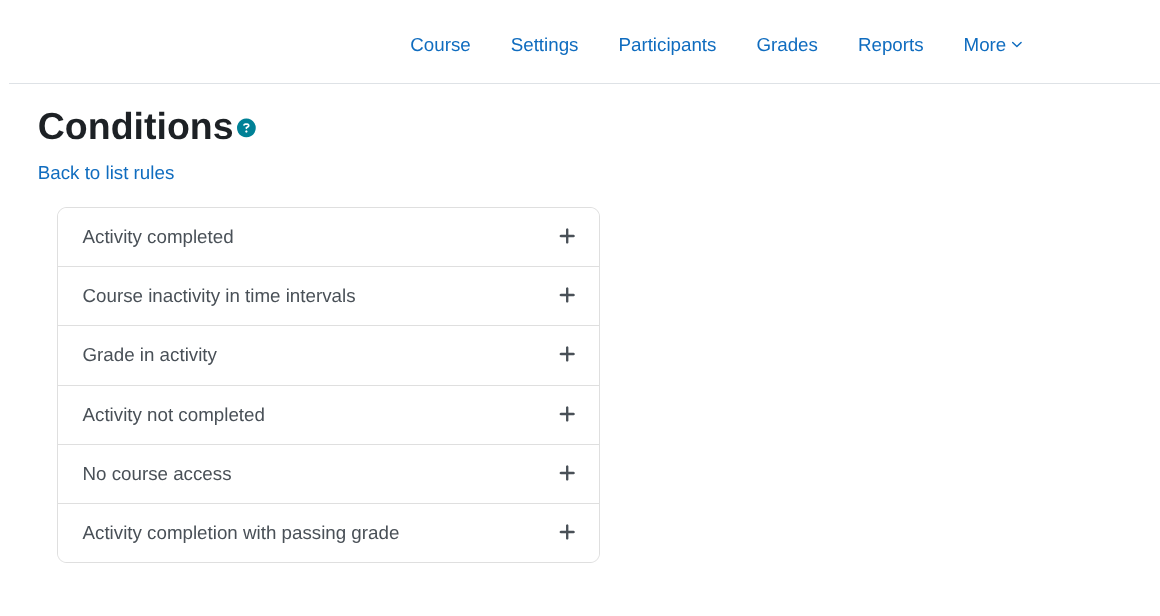
Step 2 — Pick the condition that best matches the problem
Use this as a quick guide:
- No course access → learners are not entering the course
- Course inactivity at time intervals → learners are inactive relative to a base date (enrolment/course start)
- Activity completed → learners finished a specific activity
- Activity not completed → learners missed completion by an expected date
- Grade in activity → learners scored below/above a threshold
- Activity completion with passing grade → learners completed and passed
See the full list and configuration details here: Available conditions.
Start with one condition per rule. Add complexity only when the basic automation works reliably.
Step 3 — Choose the action (what you want to happen)
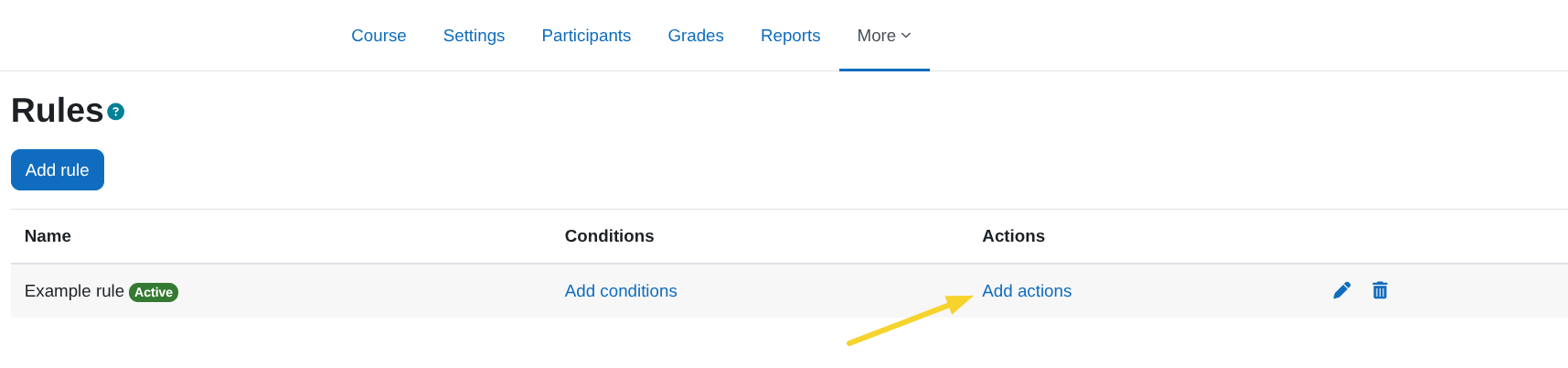
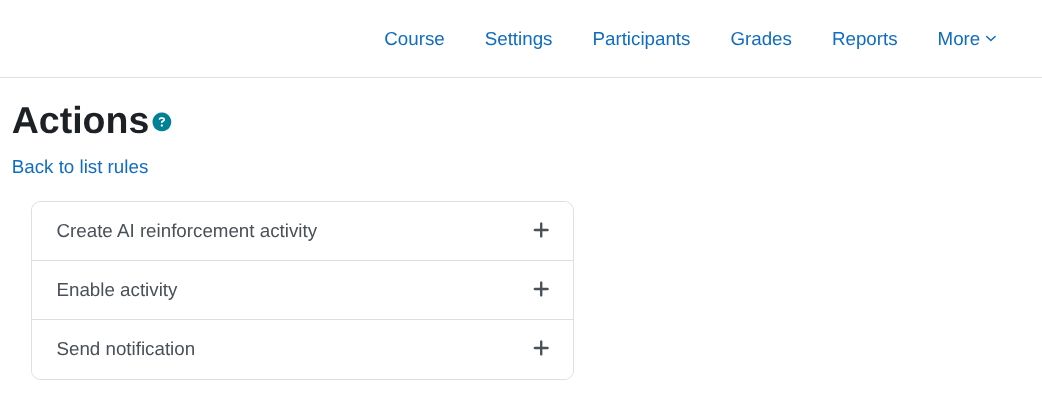
Common actions:
- Send notification → reminders, encouragement, teacher alerts
- Enable activity → unlock content only for specific learners
- Create AI reinforcement activity → generate extra practice automatically (requires extra plugins)
See configuration details here: Available actions.
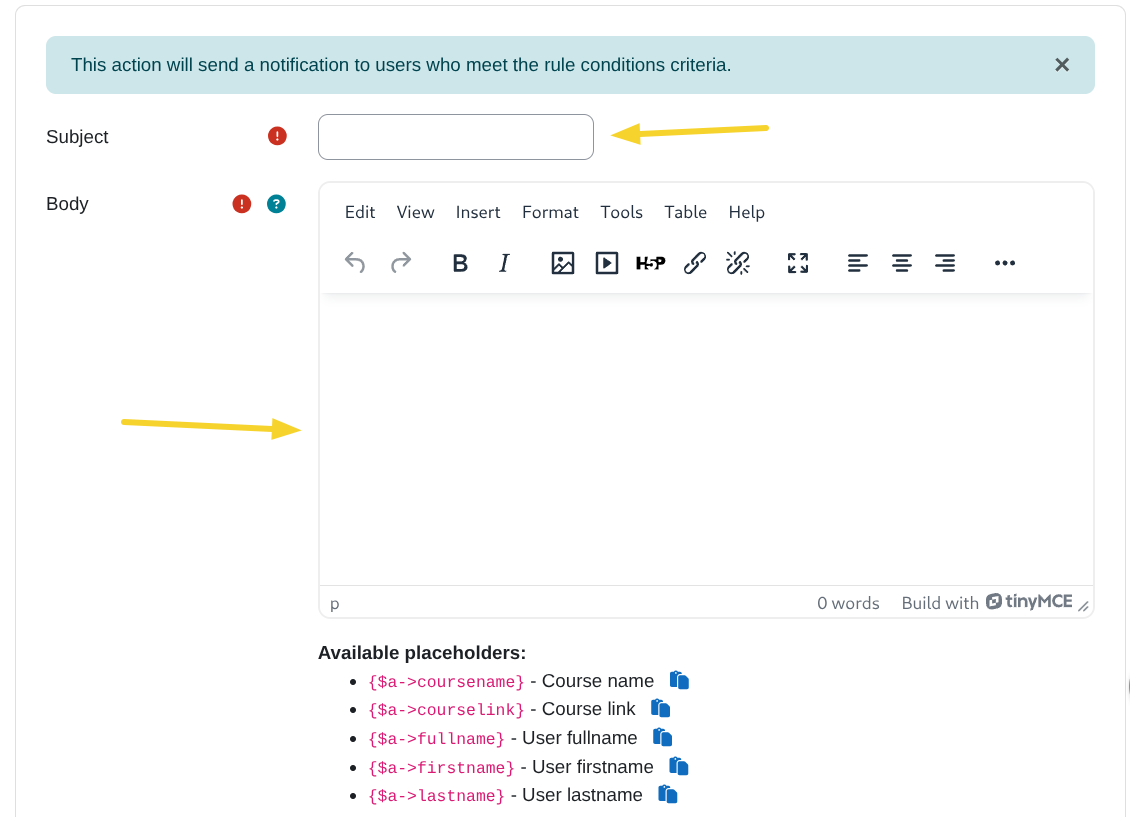
Step 4 — Write the message or prompt (make it useful)
For notifications, include:
- A friendly reason (“We noticed you haven’t accessed the course…”)
- A clear next step (“Continue here:” + course link)
- A supportive tone (avoid blame)
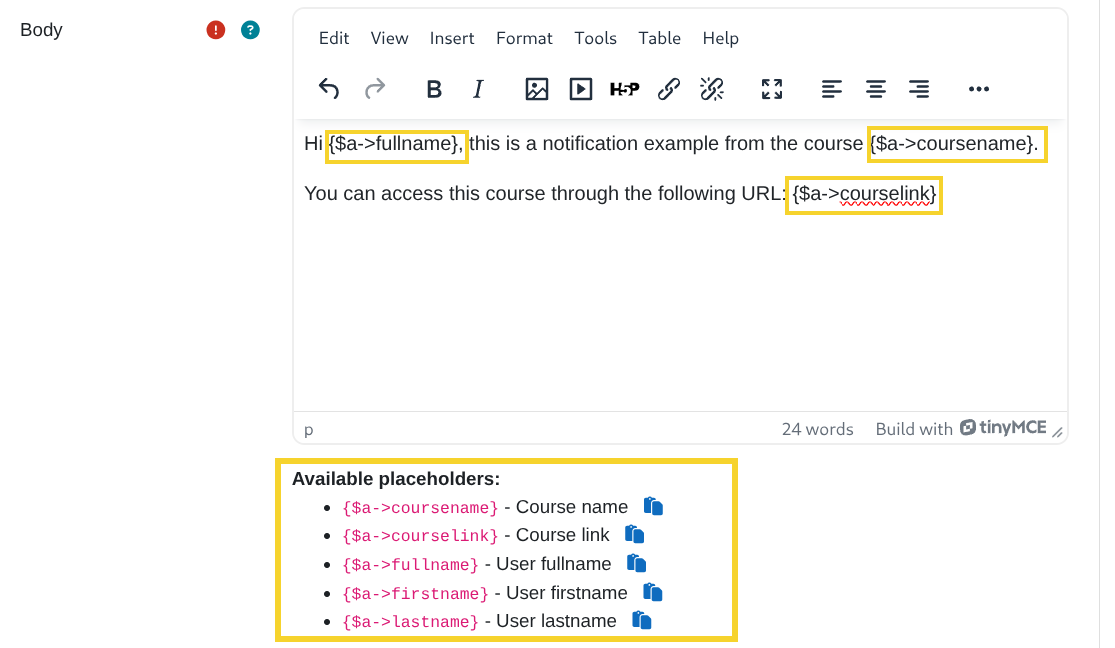
You can personalize text using placeholders (for example learner name and course link). These are documented in the Send notification action.
Step 5 — Activate, then monitor
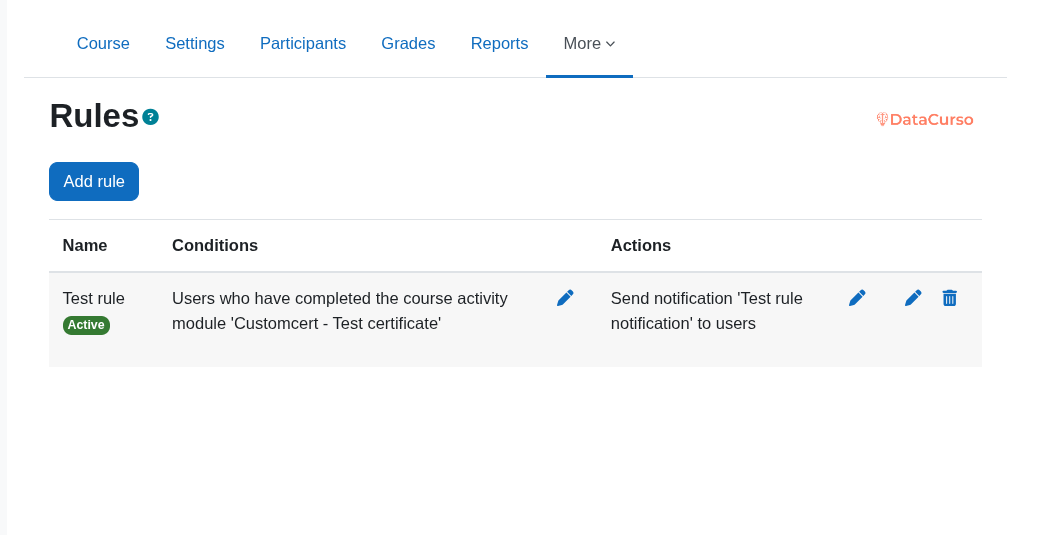
- Turn the rule Active when it’s ready.
- Verify it behaves as expected (especially in a test course first).
If nothing seems to happen, check Prerequisites (cron is the most common cause).
Recommended patterns (best practice)
Pattern A — One rule = one purpose
Good:
- “Inactivity reminder (7 days)”
- “Congrats on passing Activity 2”
- “Low grade follow-up for Quiz 1”
Avoid:
- “All interventions in one mega-rule”
Why: smaller rules are easier to debug, explain, and maintain.
Pattern B — Prevent notification spam
If you send notifications:
- Use longer intervals for reminders (for example weekly instead of daily)
- Keep messages short and actionable
- Notify teachers only when necessary
Also review your site-level notification setup if you use Message Hub: Configuration.
Pattern C — Make completion and grading consistent
Several conditions depend on Moodle’s completion/grading configuration. If an activity does not appear in a condition selector, it usually means completion or grade settings are missing.
See the notes in: Available conditions.
Common “how do I…” scenarios
I want learners to come back to the course
Use:
- Condition:
No course access - Action:
Send notification
Ready-to-copy version: Use cases (Templates) – Template 1
I want to congratulate learners when they pass
Use:
- Condition:
Activity completion with passing grade - Action:
Send notification
Ready-to-copy version: Use cases (Templates) – Template 2
I want to intervene when grades are low
Use:
- Condition:
Grade in activitywith a threshold (for exampleMust be < 60) - Action:
Send notification(or AI reinforcement if enabled)
Ready-to-copy version: Use cases (Templates) – Template 3
I want to follow up after a missed deadline
Use:
- Condition:
Activity not completedwith an expected completion date - Action:
Send notification
Ready-to-copy version: Use cases (Templates) – Template 4
I want to generate personalized practice automatically
Use:
- Condition:
No course accessorGrade in activity - Action:
Create AI reinforcement activity
This requires extra plugins; see: Prerequisites
Ready-to-copy version: Use cases (Templates) – Template 5
Troubleshooting checklist (fast)
If a rule does not behave as expected:
- Is the rule Active?
- Does the condition match real learners right now?
- Are required activity completion / grade settings configured?
- Is cron running reliably? (See Prerequisites)
- For notifications: are the right roles selected in “Roles to notify”?
If you still can’t find the cause, go back to: