Configuration
Most Smart Rules AI setup happens within each course (when you create rules).
At the site level, the focus is ensuring scheduled tasks (cron) run reliably and optionally improving notification delivery (Message Hub).
Course-level configuration (Teachers)
1) Where to configure rules
Rules are created and managed per course:
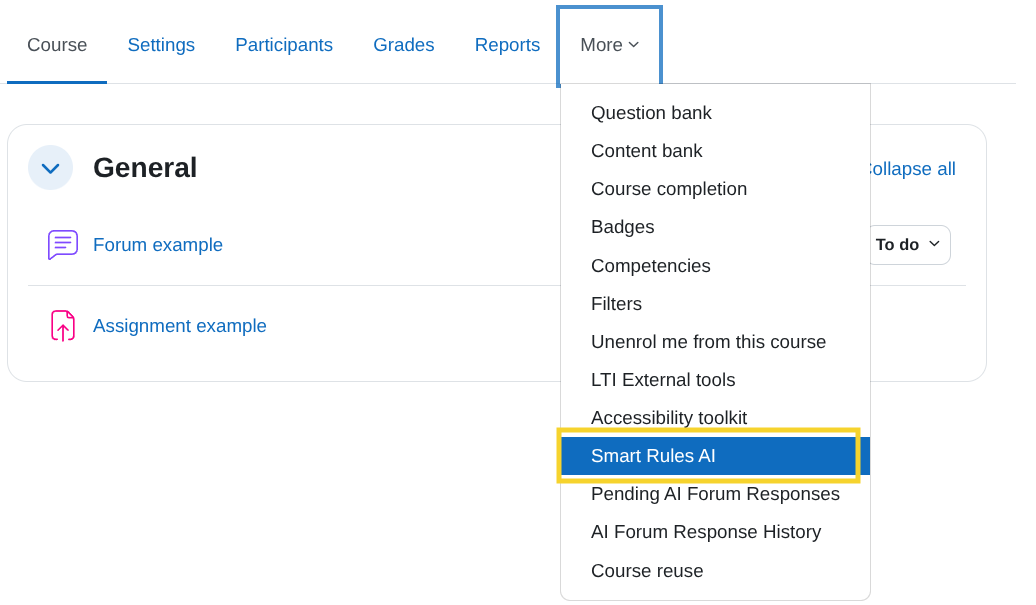
Course → More → Smart Rules AI
2) Activate or pause automation
Each rule has an Active toggle:
- Active ON: the rule can run when conditions are met
- Active OFF: the rule is paused (no actions execute)
Tip: Use Active OFF to pause automation while you tweak conditions or actions.
Permissions and visibility
If a teacher cannot see Smart Rules AI in the course menu, the most common causes are:
- Missing course permissions or role
- The plugin is not installed or enabled site-wide
(See Installation and your site’s role configuration.)
What is NOT configured here
- Conditions and actions are configured within each rule (see Adding rules, Available conditions, and Available actions).
- AI reinforcement activity creation depends on the plugins listed in Prerequisites.
Troobleshoting
This section lists the most common issues when using Smart Rules AI and how to fix them.
I can’t find “Smart Rules AI” in my course menu
Most common causes:
- You don’t have the required role/capabilities in the course (teacher/admin).
- The plugin is not installed or not enabled site-wide.
What to do:
- Confirm you are in the correct course.
- Ask your administrator to verify the plugin is installed and enabled.
- Request teacher-level access in that course.
Tip: The usual path is Course → More → Smart Rules AI.
My rule is not running (nothing happens)
Most common cause: Moodle cron is not running reliably.
What to check:
- Make sure the rule is Active.
- Confirm the site has cron running (see Prerequisites).
- Wait for the next scheduled run (some conditions/actions run on a schedule, not instantly).
Admin note: Some conditions are evaluated by scheduled tasks at specific times or intervals. If those tasks don’t run, the rules won’t execute.
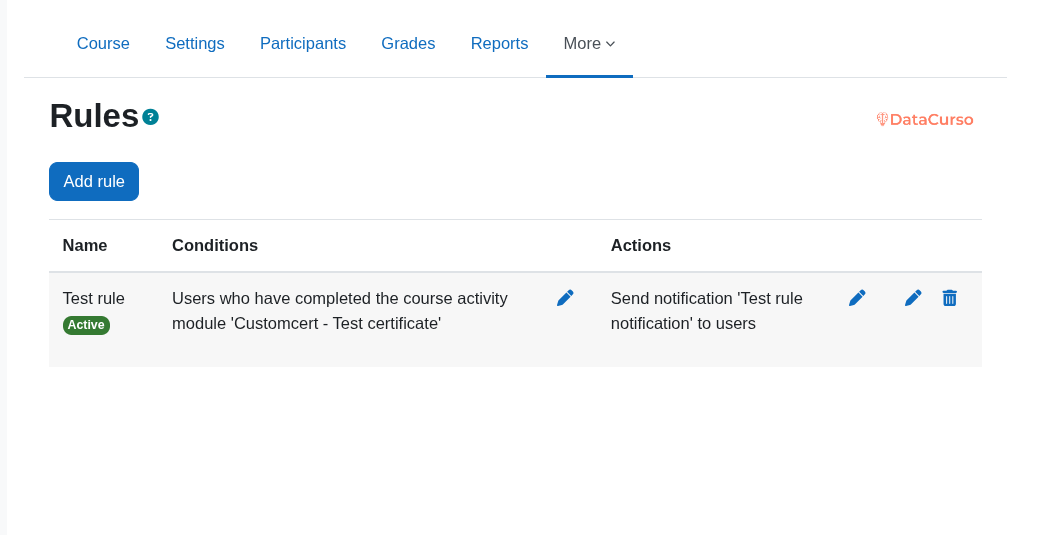
I added a rule, but it matches nobody
Possible causes:
- The condition is too strict.
- The expected data is missing (no grades yet, completion isn’t tracked, etc.).
What to do:
- Start with a simple, easy-to-match condition (for example,
No course accesswith a short period). - Verify that some learners actually meet the condition right now.
- If you are using grade/completion conditions, confirm the activity has grades/completion configured.
An activity does not appear in the selector (I can’t choose it)
This is common with conditions such as Activity completed, Activity not completed, Grade in activity, or Passing grade.
Most likely cause: the activity lacks the required completion and/or grading settings.
What to do:
- Open the activity settings in Moodle.
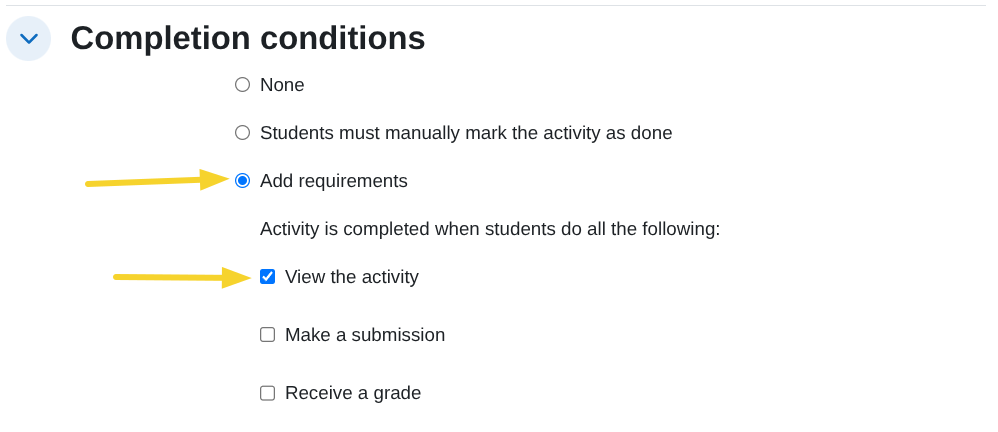
- Check Activity completion settings:
- For completion-based rules, ensure completion tracking is enabled for that activity.
- For grade-based rules, ensure completion/grade requirements are set so Moodle records the data you need.
- Save the activity and return to Smart Rules AI.
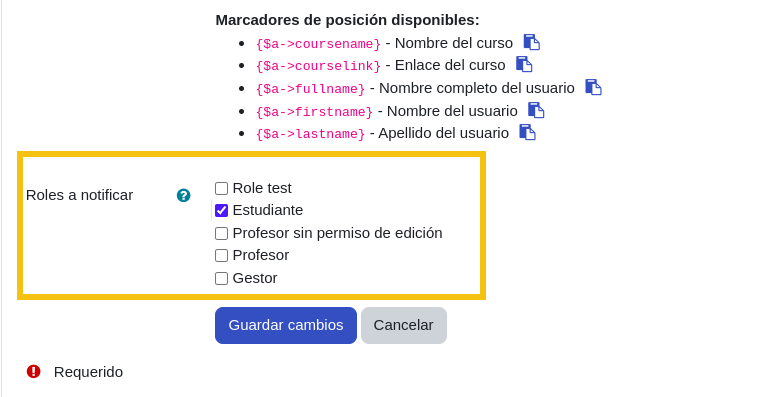
I selected multiple roles in “Roles to notify” and got unexpected recipients
Smart Rules AI uses role-based logic to avoid duplicates:
- The matched user receives the notification only if they hold at least one of the selected roles.
- Other users in the course may receive the notification if they hold any of the selected roles that the matched user does not have.
What to do:
- For simple learner reminders, select only
Student. - Add
Teacheronly when you want teacher alerts.
See details in Available actions → Send notification.
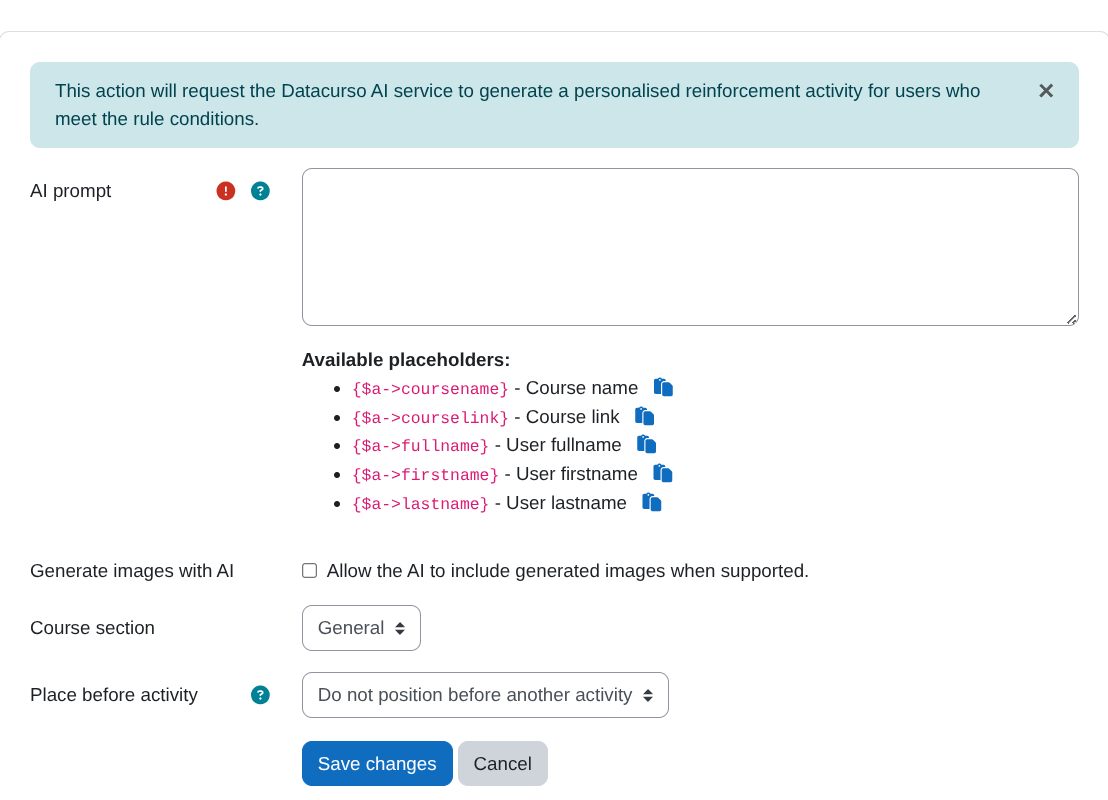
I enabled “Create AI reinforcement activity” but the action is missing or fails
This action requires additional plugins and setup.
What to check:
- Moodle version is 4.5+.
- The Restriction by user plugin is installed and enabled.
- The Course Creator AI plugin is installed and enabled.
See: Prerequisites.
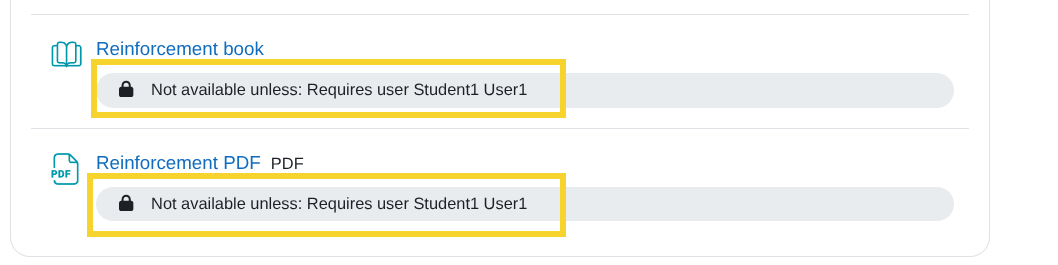
“Enable activity” does not unlock anything
Most common causes:
- The
Restriction by userplugin is not installed or enabled. - The selected activity is not configured in a way that allows restrictions to be toggled.
What to do:
- Verify
Restriction by useris installed and enabled (see Prerequisites). - Re-check that you selected the correct activity modules in the action configuration.
- Confirm the rule is active and that learners actually match the condition.
If your rule uses Send notification but users don’t receive messages, verify:
- Moodle cron is running (rules must execute), and
- Message delivery is configured correctly in Configuration (Message Hub + notification preferences + roles to notify).