Teacher configuration
Course manager: enable the chat for a specific course
The tutor is off by default in every course, unless the administrator turned on Enable the tutor in new courses in the site settings. To make it available to learners:
- Open the course, then click More → AI Tutor Management to reach the course manager. The menu entry is visible only to users with
moodle/course:update(teachers and managers) and only when the administrator has turned on Enable chat at the site level.
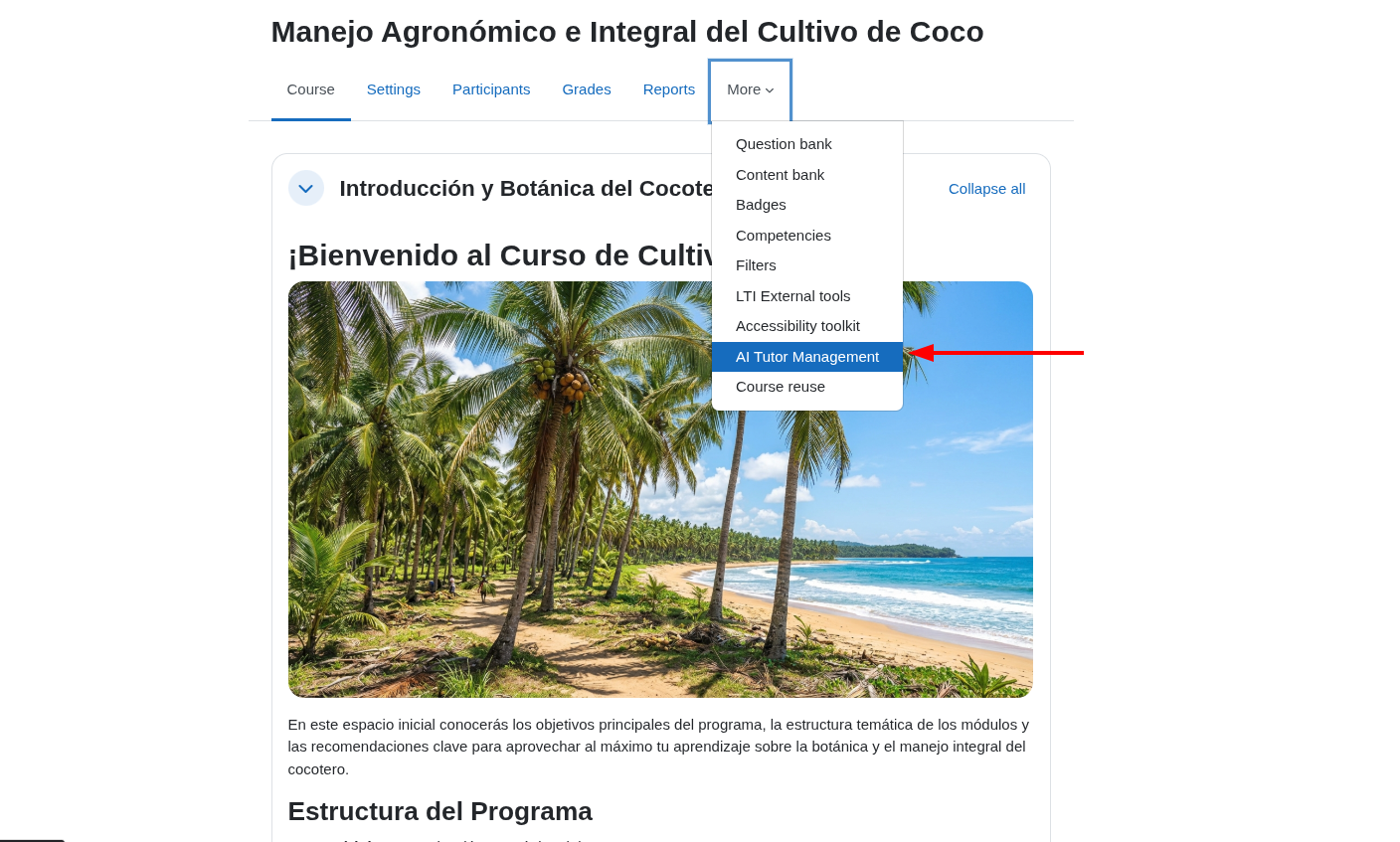
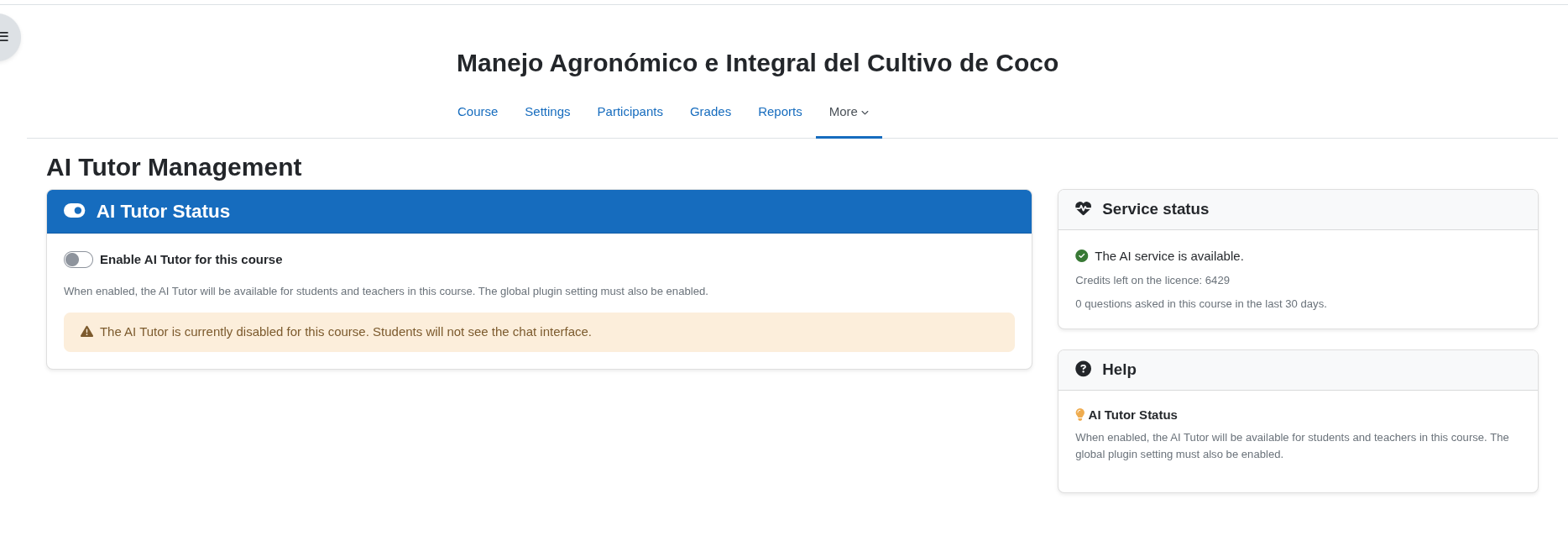
The AI Tutor Management page has three panels:
- AI Tutor Status: the switch to turn the tutor on or off in this course. While it is off, a warning reminds you that students will not see the chat.
- Service status: tells you whether the AI service is available, how many credits are left on the licence and how many questions were asked in this course in the last 30 days.
- Help: a short reminder of what the switch does.
- Turn on the Enable AI Tutor for this course switch. The change is saved immediately; there is no save button and nothing to synchronize or wait for.
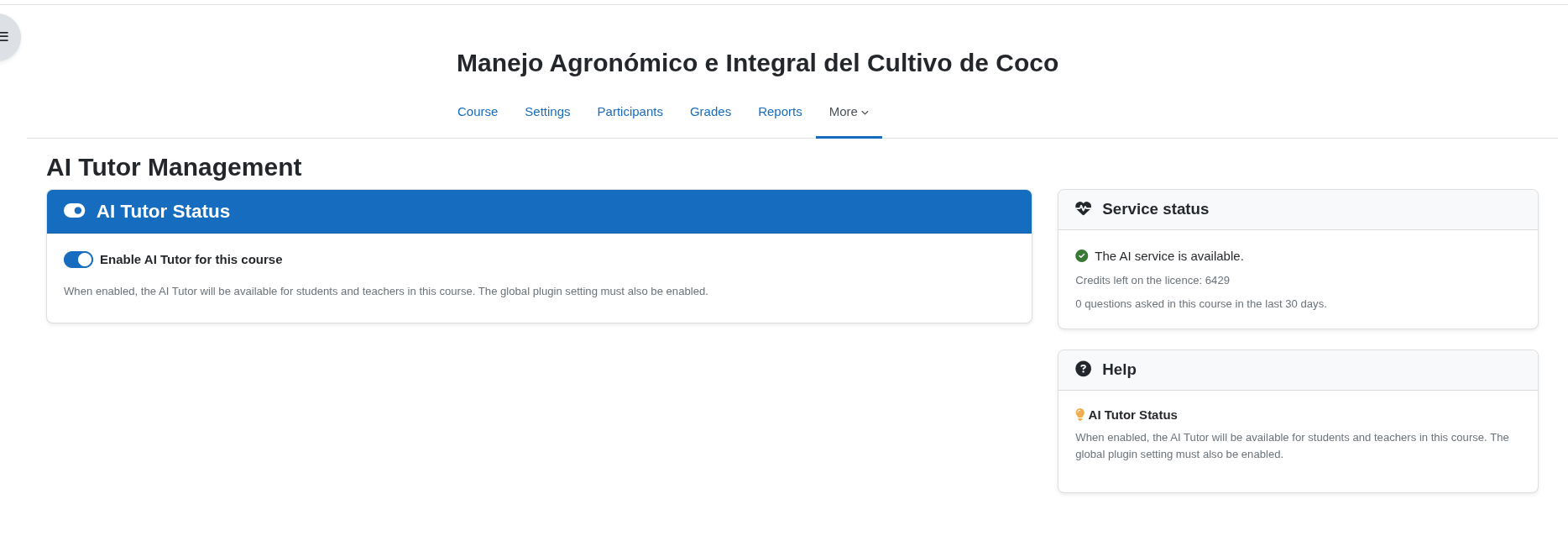
- Open any page of the course: the floating avatar is now shown to enrolled users with the
local/dttutor:usecapability.
To pause the tutor, turn the switch off. The avatar disappears from the course right away.
Teacher configuration (use vs. advanced settings)
Tutor AI must be enabled at the site level by an administrator (Enable chat in the plugin settings) before it can be used in any course. Teachers control only the per-course availability described above.
To change prompts, the welcome message, tutor name, avatar, or which course information the tutor can use, you need access to the plugin’s global settings (site administrator).
➡️ Full guide: Configuration