Quickstart + How to use (Tutor AI)
This page combines the Quickstart (get it working fast) and How to use (student/teacher workflows) to avoid duplicated steps.
✅ Outcome: The floating Tutor AI avatar appears in a course and users can complete a full question → streaming answer interaction.
Before you start
You must have:
- Moodle 4.5 to 5.2 (required by the Datacurso AI Provider dependency)
- Datacurso AI Provider installed and licensed
- Enable chat turned on in the Tutor AI site settings (administrator)
- The tutor enabled in the course from More → AI Tutor Management (teacher)
Recommended: verify the provider setup first (see Prerequisites).
Teachers can enable or pause Tutor AI inside a specific course using the Course manager (More → AI Tutor Management). This is the place to manage availability for learners at the course level.
➡️ See step-by-step: Teacher configuration
Quickstart: Open a course and start a chat
- Enter any course page.
- Look for the floating avatar (bottom corner).
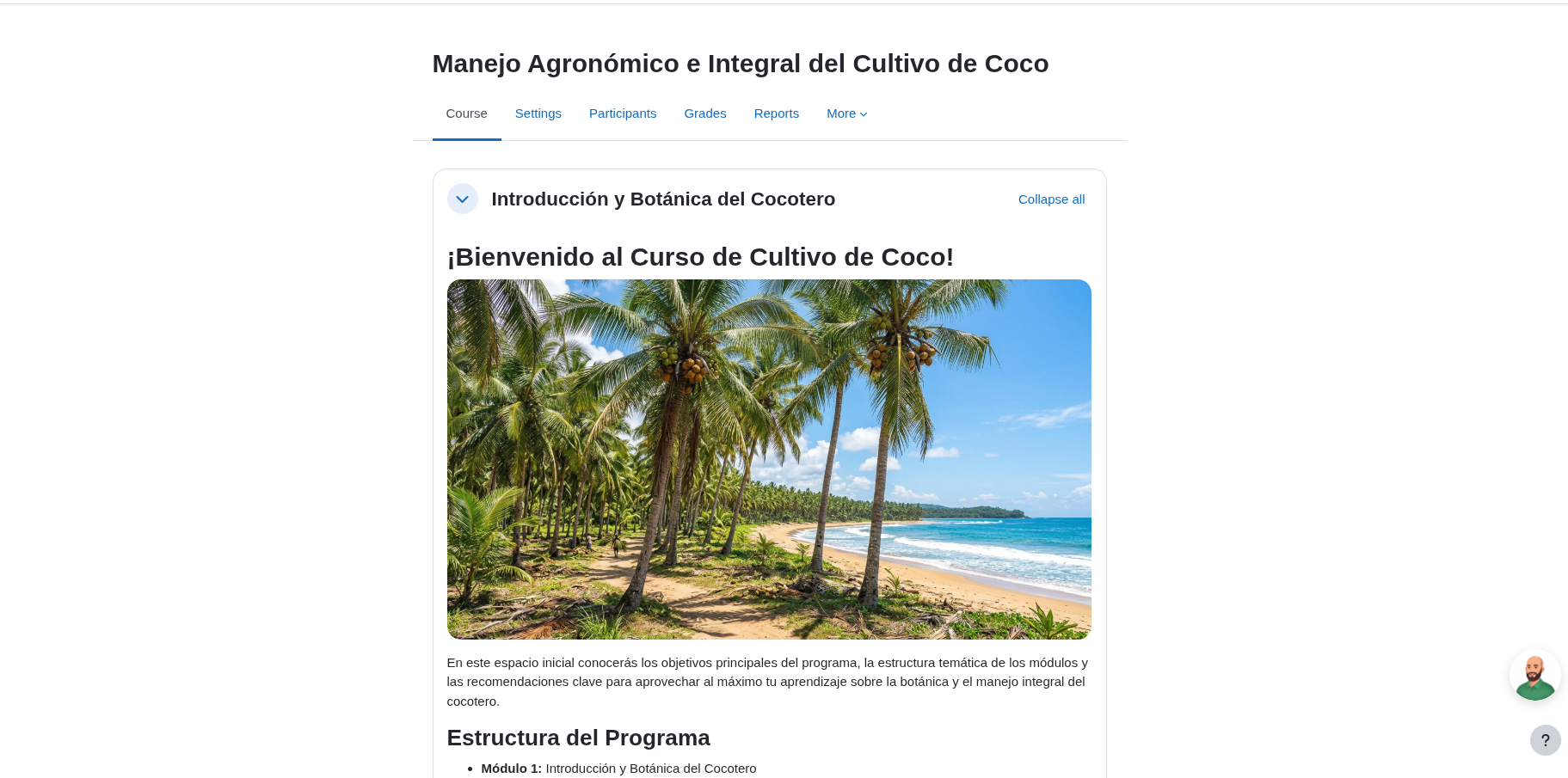
- Click it to open the chat drawer.
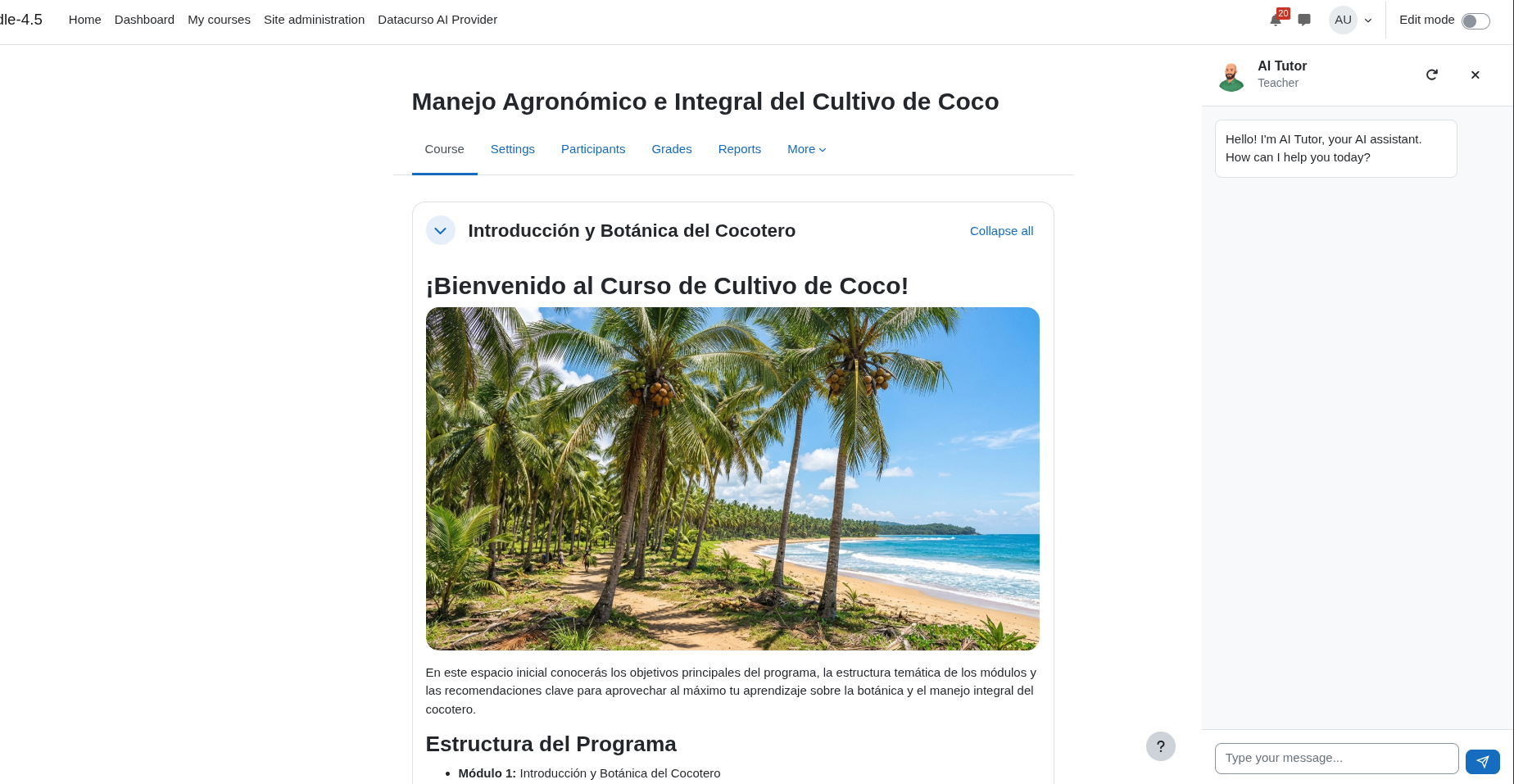
- Ask a simple question, for example:
- “What should I do first in this course?”
- “Summarize what this activity is asking me to do.”
✅ Expected result: Tutor AI replies with a streaming response.
Good to know
- Private history. Each user has their own conversation per course. Teachers cannot read students’ conversations. Conversations are deleted after the number of days set by the administrator (7 by default).
- Ask about selected text. Select text on the page before sending a message and the tutor takes it into account.
- Message length. A message can have at most 4000 characters.
- Edit a sent message. Use the pencil icon on one of your messages to correct it; the conversation is re-sent from that point.
- New conversation. Use the New conversation button at the top of the chat to start over; the previous conversation is deleted.
- Where the avatar is not shown. Quiz activity pages, the site front page and embedded/popup layouts (for example, H5P content inside an iframe). The tutor is also unavailable while you are taking a quiz in the course.
Student: Ask questions inside a course
What students will see
A floating avatar button appears on the course page. Clicking it opens a chat drawer.
What to ask (examples)
- “What should I do first in this course?”
- “Summarize the instructions for this activity.”
- “Explain this concept in simpler terms.”
- “What are my grades so far in this course?” (only if the administrator allows sharing grades)
✅ Expected result: Tutor AI replies in the chat with a streaming response, using the course structure, activities and due dates. It uses the course material and the student’s own grades only if the administrator allows it (Send the course material to the AI tutor and Send the student's grades to the AI tutor).
Teacher: Support learners faster
Teachers use the same chat UI, but Tutor AI can respond differently based on role (role-aware behavior).
Common teacher uses
- Suggest how to explain an activity more clearly
- Help answer repetitive learner questions
- Summarize what learners are struggling with (based on the current context)
What to ask (examples)
- “How can I explain this activity more clearly?”
- “What are common misunderstandings learners might have here?”
- “Give me a short checklist for students to complete this activity.”
✅ Expected result: Tutor AI provides practical, course-aware guidance.
Course manager: enable the chat for a specific course
To confirm the chat is enabled for a specific course (or to pause/enable it):
- Open the course and go to More → AI Tutor Management to reach the course manager.
- Turn the Enable AI Tutor for this course switch on or off. The change is saved immediately; there is nothing to synchronize. The same page shows the service status, the credits left and how many questions were asked in the course in the last 30 days.
➡️ Step-by-step with screenshots: Teacher configuration
If the chat does not work
- If the avatar is missing, check that Enable chat is on at the site level and that the tutor is enabled in the course.
- If you see "API configuration is missing. Please check your settings.", "Your site license does not allow access to the AI Tutor service." or "There are not enough AI credits available to process your request…", contact your administrator: the Datacurso AI Provider setup, license or credits need attention (see Prerequisites).
- If you see "The AI Tutor is not available while you have a quiz attempt open.", submit the quiz attempt or wait for its time to run out.
- If you see "The AI Tutor is switched off for this site." or "The AI Tutor is unavailable because the AI provider is disabled on this site.", contact your administrator.
- If you see "The allowed consumption limit has been exceeded. Please try again at …", a rate limit configured by the administrator was reached; try again at the indicated time.