Configuration
Who is this for? Site administrators.
Tutor AI is configured at the site level. Use these settings to turn the chat on, decide how the tutor looks and where it appears, choose what course information it can use, and customize how it talks to learners. Tutor AI reads the license from the Datacurso AI Provider; there is no connection or token to configure in this plugin.
1) Open Tutor AI settings
You only need to do this once, from an account with site administrator access.
- In the top menu of Moodle, click Site administration.
- Open the Plugins tab. You will see a long list of sections, each one grouping a family of plugins.
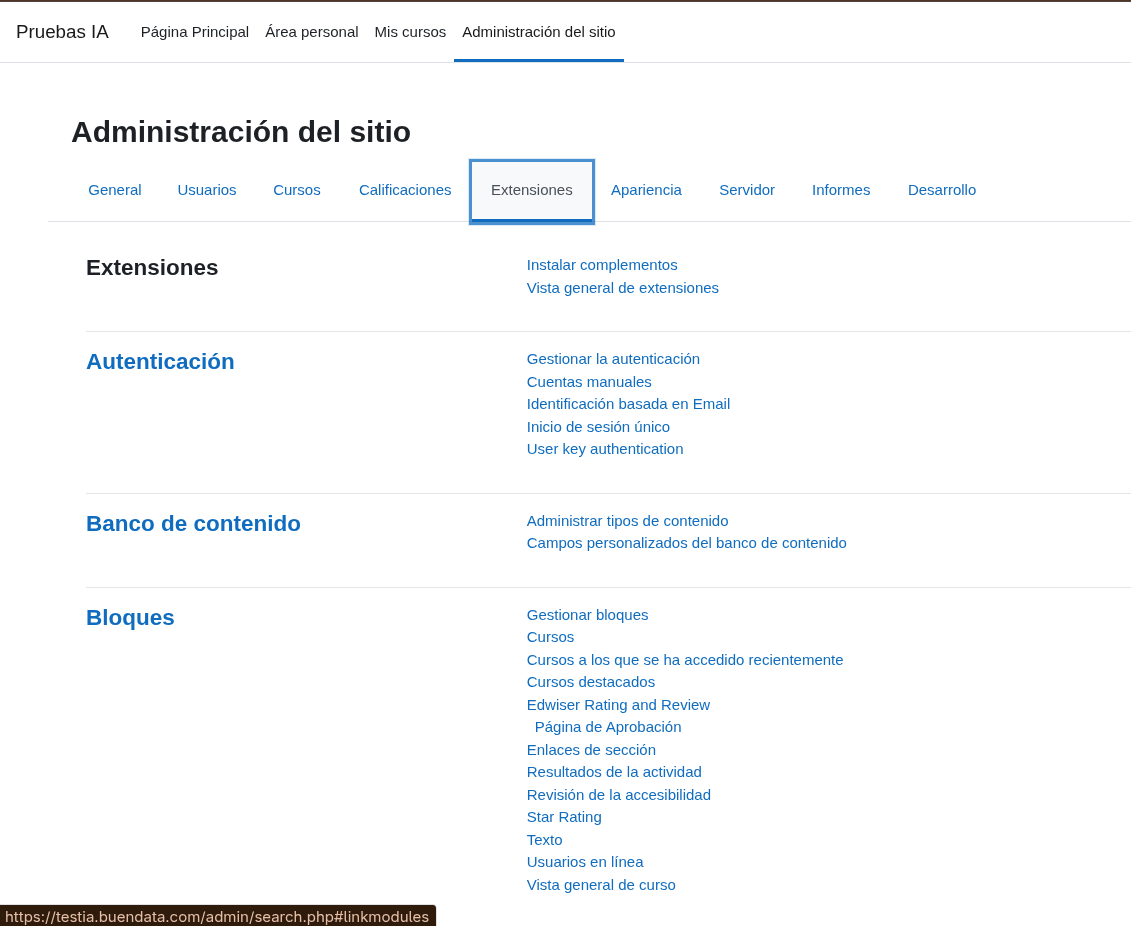
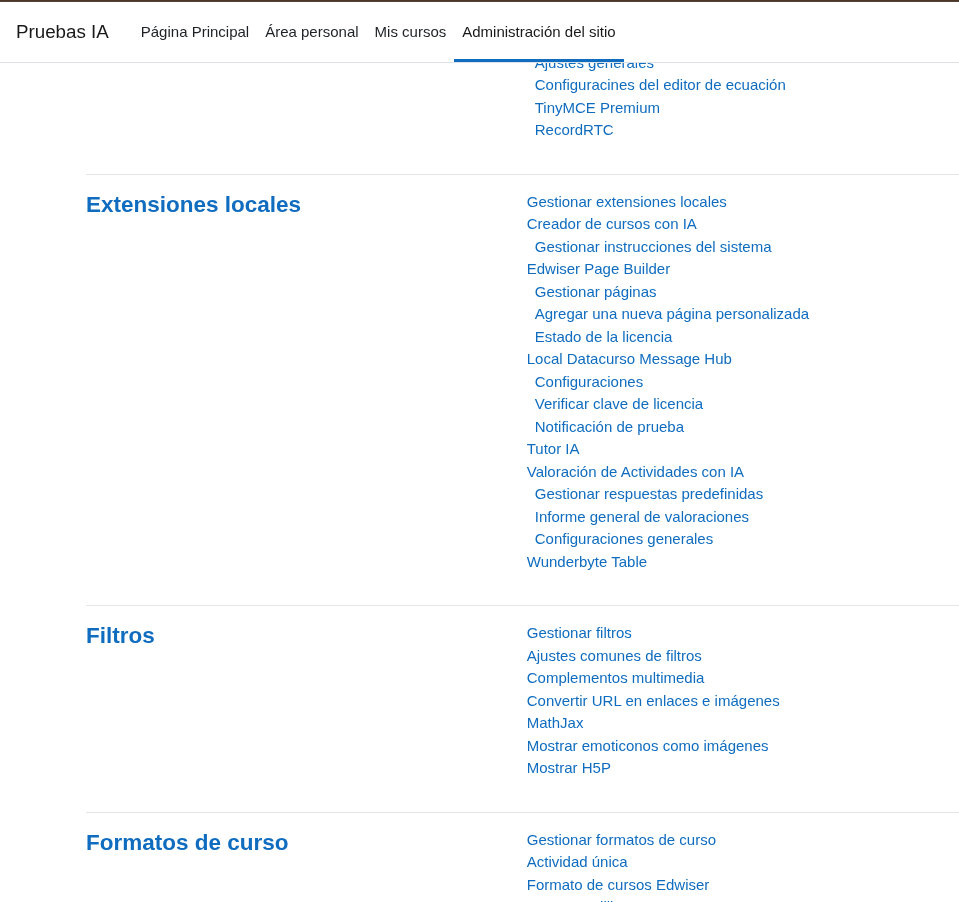
- Scroll down until you find the Local plugins section.
- Click Tutor AI in that list.
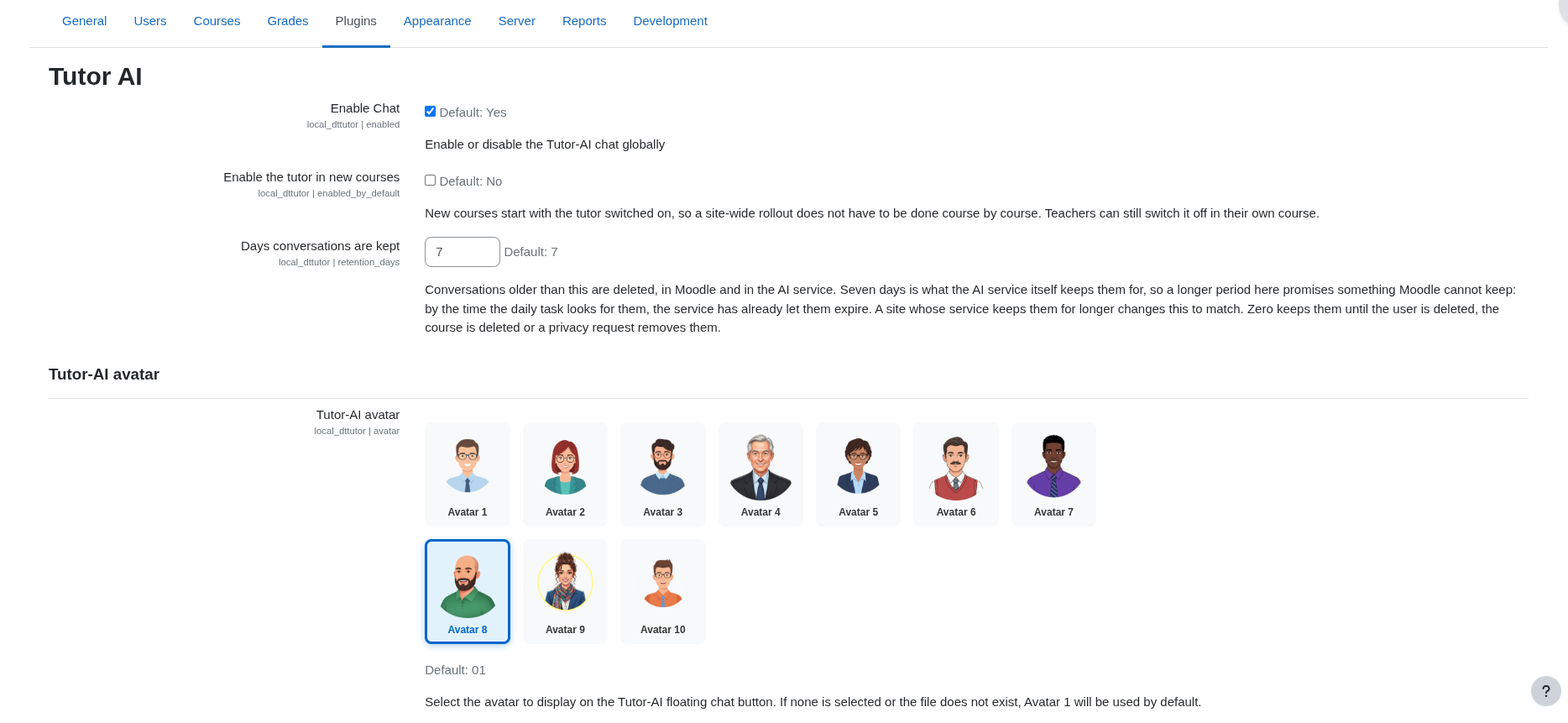
The Tutor AI settings page opens. It is organized in three blocks, which are explained below in the same order you see them on screen:
- General: turn the tutor on and decide how long conversations are kept.
- Tutor-AI avatar: the picture of the tutor, and where its button appears on the page.
- Tutor Customization: the tutor's name, greeting, instructions and the information it is allowed to use.
When you finish, click Save changes at the bottom of the page.
2) General settings
| Setting | Name | Default | Description |
|---|---|---|---|
| Enable Chat | local_dttutor/enabled | Yes | The main on/off switch for the whole site. Required: when it is off, the tutor does not appear in any course and the course option (More → AI Tutor Management) is not available. |
| Enable the tutor in new courses | local_dttutor/enabled_by_default | No | When on, every new course starts with the tutor already switched on, so you do not have to turn it on course by course. Teachers can still switch it off in their own course. |
| Days conversations are kept | local_dttutor/retention_days | 7 | Conversations older than this number of days are deleted, both in Moodle and in the AI service. Seven days matches how long the AI service keeps them, so a higher number here would not make them last longer. Set 0 to keep them until the user is deleted, the course is deleted or a privacy request removes them. |
Enable Chat turns the tutor on for the site. Each course has its own switch as well: unless Enable the tutor in new courses is on, the tutor starts off in every course, and a teacher (or any user with moodle/course:update) must turn it on from More → AI Tutor Management, where they also see the service status, the credits left and how many questions were asked in the course. See Teacher configuration.
3) Avatar
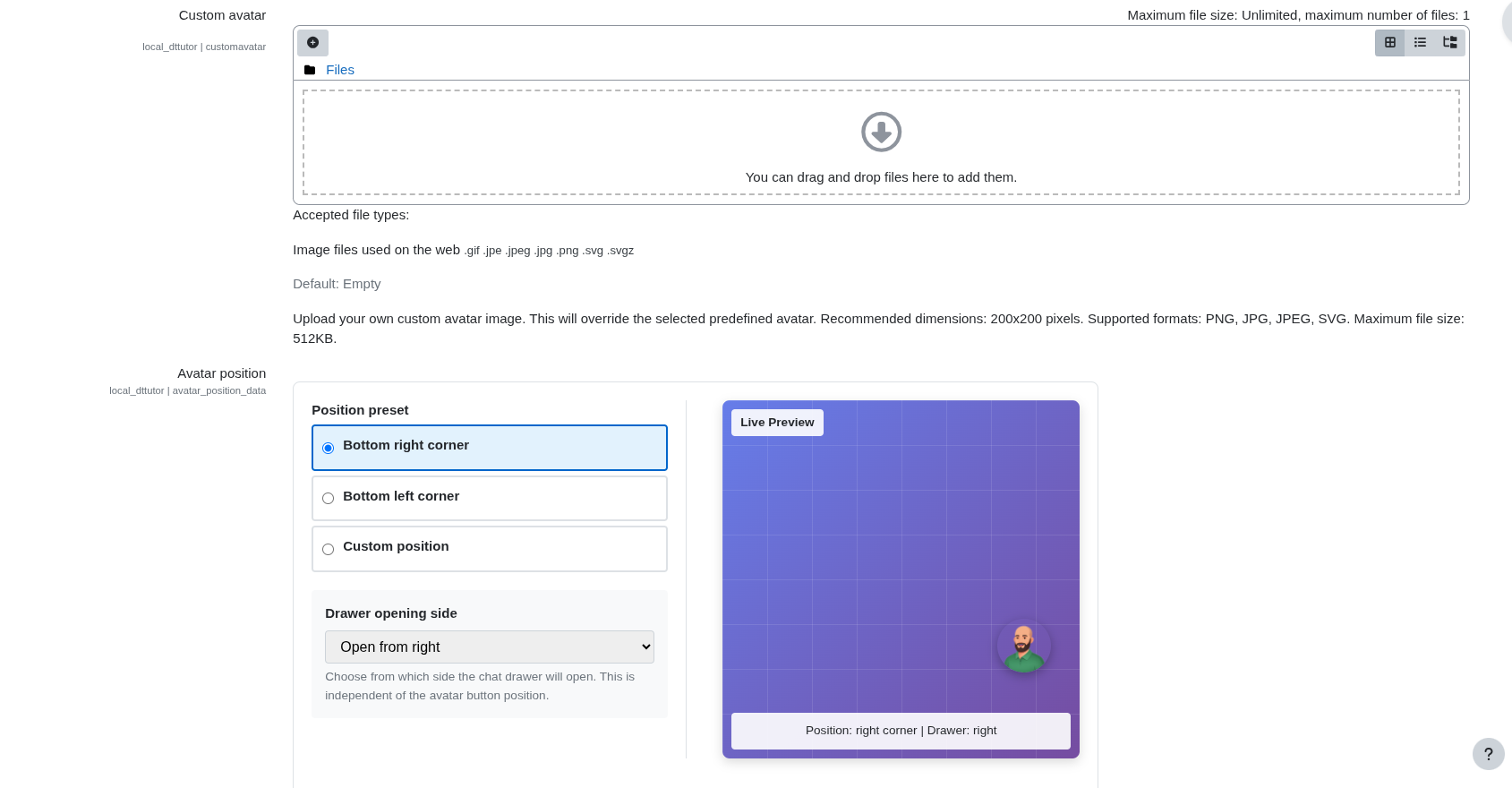
The avatar is the picture shown on the floating button that learners click to open the chat.
| Setting | Name | Default | Description |
|---|---|---|---|
| Tutor-AI avatar | local_dttutor/avatar | Avatar 1 | Pick one of the 10 built-in avatars by clicking it. If none is selected or the file does not exist, Avatar 1 is used. |
| Custom avatar | local_dttutor/customavatar | Empty | Drag and drop your own image here (for example, your institution's mascot). It replaces the built-in avatar you selected. Recommended size: 200×200 px. Formats: PNG, JPG, JPEG, SVG. Maximum file size: 512KB. |
| Avatar position | local_dttutor/avatar_position_data | Bottom right corner, opens from the right | Choose where the button sits: Bottom right corner, Bottom left corner or Custom position (exact X/Y coordinates using CSS values such as 2rem, 20px, 5%). Drawer opening side chooses from which side the chat panel slides in (left or right), independently of the button position. The Live Preview on the right shows the result as you change it. |
4) Tutor Customization
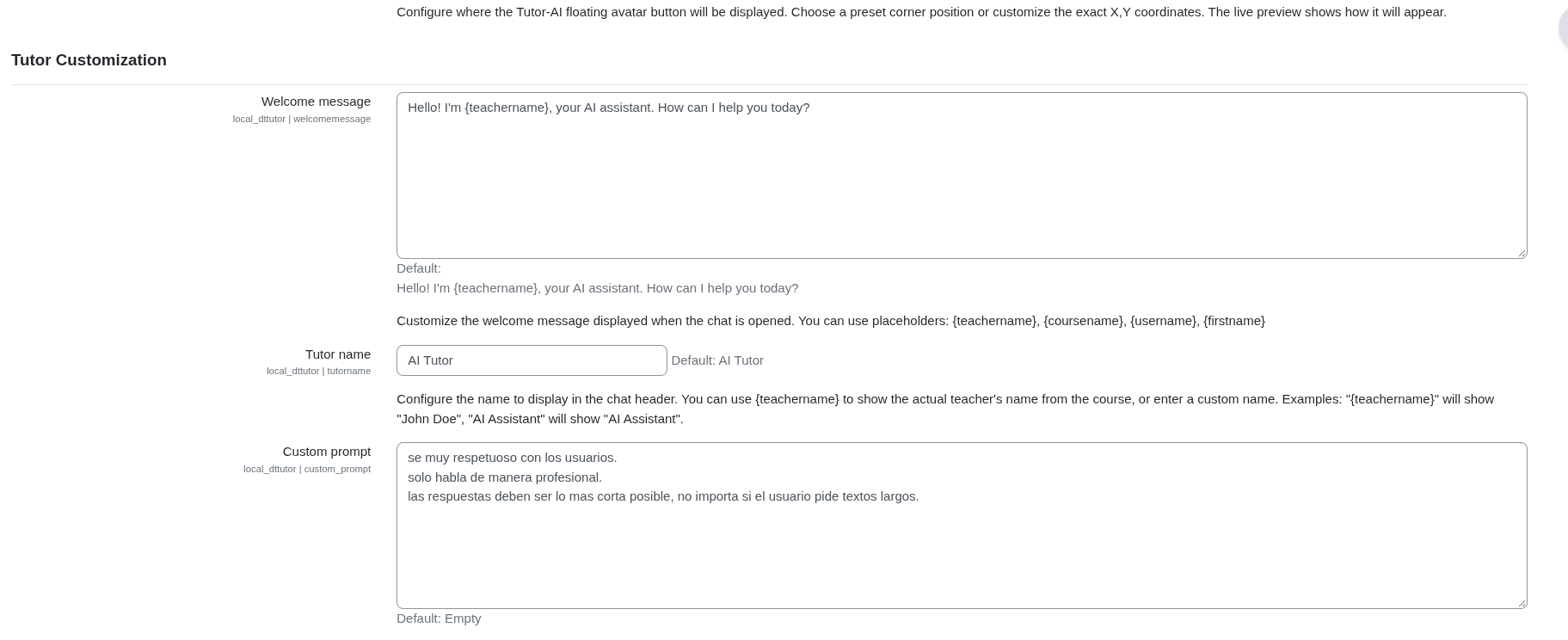
| Setting | Name | Default | Description |
|---|---|---|---|
| Welcome message | local_dttutor/welcomemessage | Hello! I'm {teachername}, your AI assistant. How can I help you today? | The first message learners see when they open the chat. |
| Tutor name | local_dttutor/tutorname | AI Tutor | The name shown at the top of the chat. Type a fixed name (for example, AI Assistant) or use {teachername} to show the real name of the course teacher. |
| Custom prompt | local_dttutor/custom_prompt | Empty | Instructions that guide how the tutor behaves: tone, rules or topics to stay within. For example: "Be very respectful. Speak professionally. Keep answers as short as possible." |
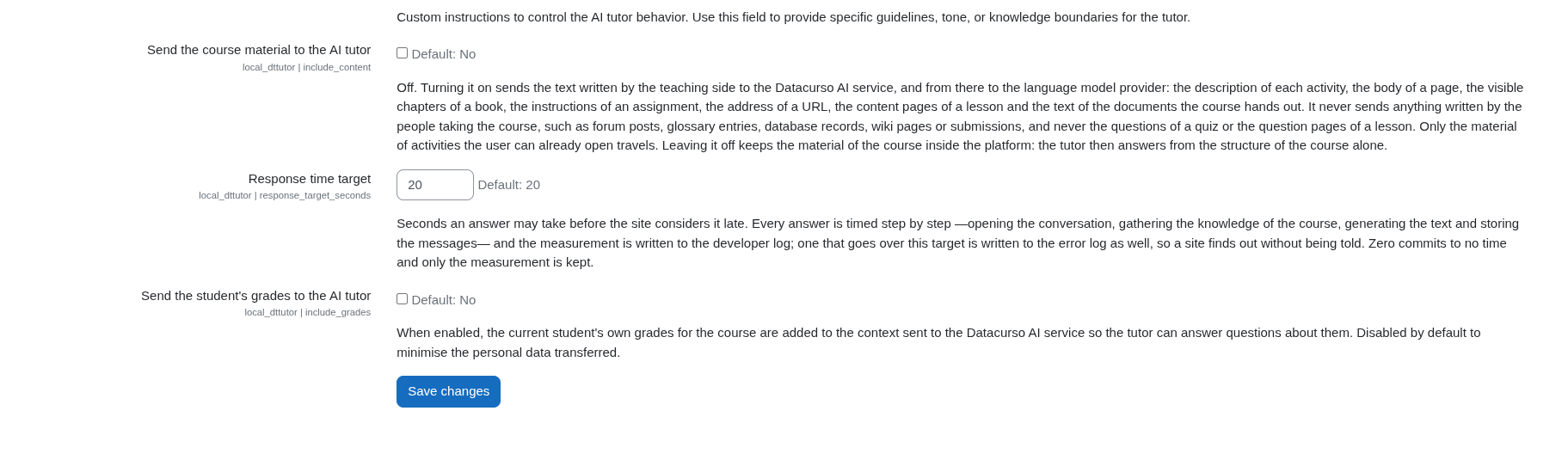
| Setting | Name | Default | Description |
|---|---|---|---|
| Send the course material to the AI tutor | local_dttutor/include_content | No | When on, the tutor can read the content prepared by teachers so its answers are based on it: activity descriptions, pages, visible book chapters, assignment instructions, URL addresses, lesson content pages and the documents the course hands out. This text is sent to the Datacurso AI service and, from there, to the language model provider. It never sends anything written by learners (forum posts, glossary entries, database records, wiki pages, submissions) nor quiz questions or lesson question pages, and only material the user can already open is included. When off, the course material stays inside the platform and the tutor answers from the course structure alone. |
| Response time target | local_dttutor/response_target_seconds | 20 | How many seconds an answer may take before the site considers it slow. Every answer is timed and the measurement is saved in the developer log; answers that go over this limit are also recorded in the error log, so you can spot slowness. Set 0 to only keep the measurement, with no limit. |
| Send the student's grades to the AI tutor | local_dttutor/include_grades | No | When on, the tutor can see the grades of the learner who is chatting (only their own grades in that course) and answer questions about them. Off by default to share as little personal data as possible. |
Placeholders
The following placeholders can be used in the Tutor name, the Welcome message and the Custom prompt. Each one is replaced automatically with real information:
| Placeholder | Replaced with |
|---|---|
{teachername} | The name of the first teacher of the course (falls back to "AI Tutor" if the course has no teacher). |
{coursename} | The full name of the course. |
{username} | The full name of the user who is chatting. |
{firstname} | The first name of the user who is chatting. |
Keep the prompt short and action-oriented. Start simple, observe real learner questions, then refine. Templates are available in the Prompts Guide.
5) How the tutor gets its information
Tutor AI does not use a service account and does not call Moodle web services. For each question it prepares the course knowledge of the user who is chatting (course structure, activities and dates they can see and, if you allow it, the course material and their own grades) and sends it to the Datacurso AI service with the question. Every request is checked on the server: the user must be enrolled in the course, hold local/dttutor:use, and the tutor must be enabled for the site and the course.
- Upgrading from 2.0.8 or earlier. The old service account
tutoriabot_datacursois unenrolled from every course and suspended. You can delete it once you no longer need it in old logs. - Rate limits. Per-plugin rate limits are configured in the Datacurso AI Provider (Per-plugin rate limits), not in Tutor AI. When a limit is reached, users see the message "The allowed consumption limit has been exceeded. Please try again at …".
See Permissions for the capabilities involved.
6) Validate the configuration (fast check)
- Enable the tutor in a test course from More → AI Tutor Management.
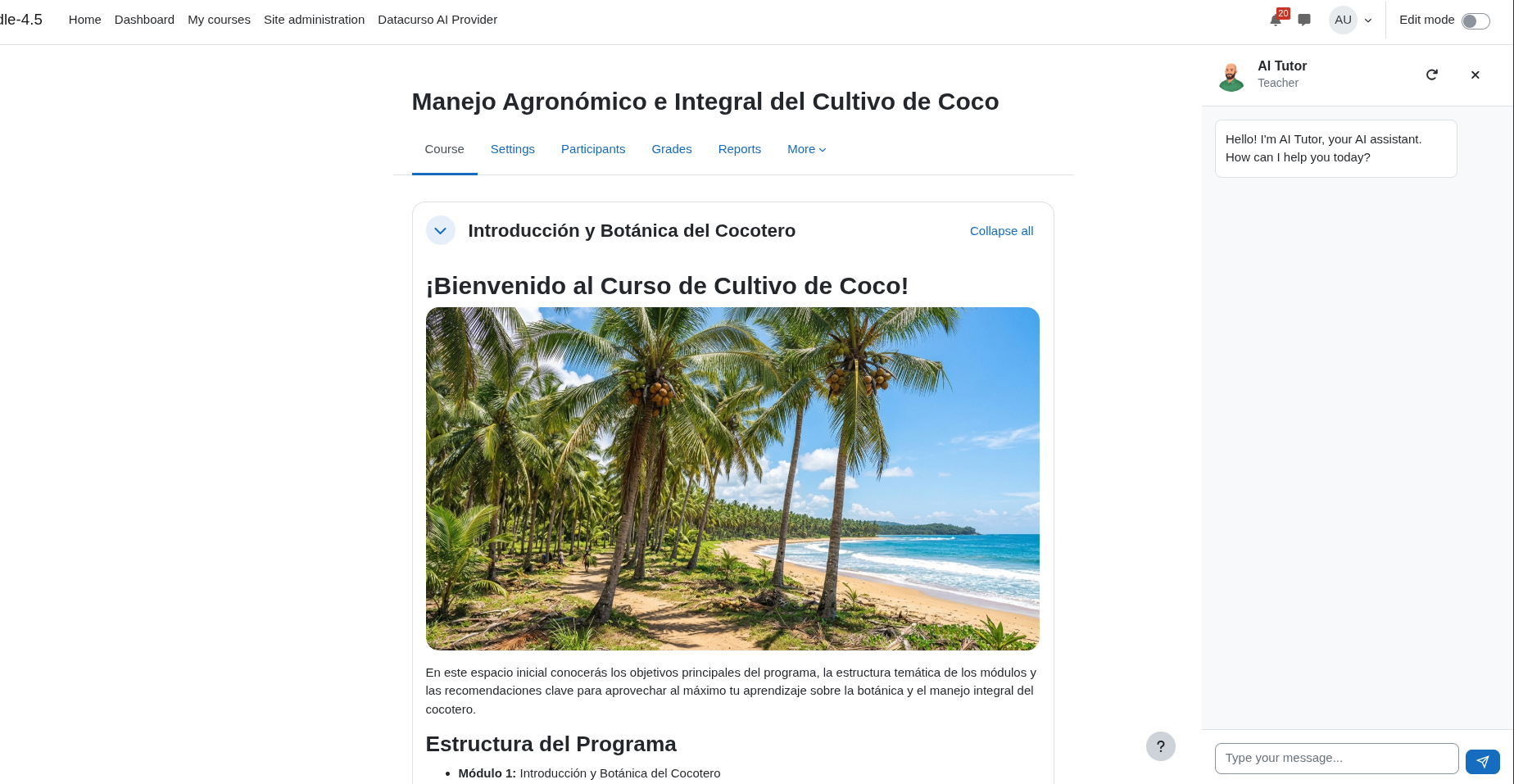
- Open any page of that course and confirm the floating avatar appears.
- Open the drawer and ask a quick question to see the streaming response.
Troubleshooting
This section lists the most common issues when using Tutor AI and how to resolve them.
The avatar does not appear in a course
Most common causes:
- Enable Chat is off at the site level.
- The tutor is not enabled in that course (course-level default is off, unless Enable the tutor in new courses is on).
- The user’s role does not have
local/dttutor:usein the course. - The page is one where the avatar is never shown: quiz pages, the site front page, embedded/popup layouts (e.g. H5P iframes).
- The user is taking a quiz in that course: the tutor comes back when the attempt is submitted or its time runs out.
- The AI provider is disabled in Moodle's AI administration.
What to do:
- Check Enable Chat in Site administration → Plugins → Local plugins → Tutor AI.
- Open the course and enable the tutor from More → AI Tutor Management.
- Verify the capability
local/dttutor:usefor the role (see Permissions).
"The AI Tutor is switched off for this site." (error_tutor_disabled_site)
Cause: Enable Chat is off.
What to do: Turn on Enable Chat in the Tutor AI settings.
"The AI Tutor is unavailable because the AI provider is disabled on this site." (error_provider_disabled)
Cause: The Datacurso AI Provider is disabled in Moodle's AI administration.
What to do: Enable the provider in Site administration → General → AI → AI providers (on Moodle 5.0 or later, enable its provider instance).
"The AI Tutor is not available while you have a quiz attempt open." (error_quiz_in_progress)
Cause: The user is taking a quiz in the course. This is intentional, so the tutor cannot help during an exam.
What to do: Nothing. The tutor comes back once the attempt is submitted or its time runs out.
"API configuration is missing. Please check your settings." (error_api_not_configured)
Cause: The Datacurso AI Provider is not configured.
What to do: Complete the Datacurso AI Provider setup (see Prerequisites).
"The AI Tutor is not available for this course." (error_tutor_not_available)
Cause: The tutor is off in that course, the user is not enrolled or lacks local/dttutor:use, or the page belongs to an activity the user cannot see.
What to do: Enable the tutor from More → AI Tutor Management and check the user's enrolment and role.
License or credit errors
- "Your site license does not allow access to the AI Tutor service." (
error_license_not_allowed): the license configured in the provider does not include Tutor AI. Verify the license status or upgrade the plan. - "There are not enough AI credits available to process your request…" (
error_insufficient_tokens): the site has no AI credits left. Add credits from the Datacurso AI Provider. - "The allowed consumption limit has been exceeded. Please try again at …" (
error_ratelimit_exceeded): a per-plugin rate limit configured in the Datacurso AI Provider was reached. Wait until the indicated time or adjust the limit in the provider.
Tutor AI opens, but responses never arrive (no streaming reply)
Most common causes:
- Network blocks streaming (SSE) connections.
- Provider is not licensed or not responding.
What to do:
- Confirm the Datacurso AI Provider is licensed (license key configured).
- Try from a different network/environment to rule out SSE blocking.
Responses are too slow
What to do:
- If the settings page shows a Failures of the AI service notice, look for the AI service failure event in the site logs to see what failed (license, credits, rate limit or service down).
- Check the error log: answers that take longer than Response time target are recorded there.
- Review the developer log to see which step (opening the conversation, gathering course knowledge, generating the text or storing the messages) takes the most time.
Responses are not course-related (too generic)
Most common causes:
- Custom prompt is too broad or missing.
- Send the course material to the AI tutor is off, so the tutor only knows the course structure.
What to do:
- Go to Tutor AI settings and add a short, course-focused prompt.
- Turn on Send the course material to the AI tutor if your institution allows sharing that content with the AI service.
Tip: Use the templates in the Prompts Guide.
The tutor cannot answer questions about grades
Cause: Send the student's grades to the AI tutor is off (default).
What to do:
- Turn on Send the student's grades to the AI tutor. Each learner only ever sees their own grades.
Old conversations have disappeared
Cause: Conversations are deleted after the number of days set in Days conversations are kept (7 by default).
What to do:
- This is expected. Set the value to 0 if conversations must be kept until the user or course is deleted. Keep in mind the AI service itself keeps them for seven days.
Placeholders in the prompt are not working
Tutor AI supports these placeholders in the tutor name, welcome message and custom prompt:
{teachername}{coursename}{username}{firstname}
What to do:
- Confirm you are using the placeholder exactly as shown (lowercase, curly braces, no
$a->). - Keep placeholders inside the setting field (do not modify the syntax).