Per-user credits limits
Datacurso per-user credits limits allow administrators to define how many AI credits a specific user can consume.
Access to per-user credit limits
To access this section in Moodle:
-
Go to
Site administration > Users > Datacurso per-user credits limits.
From this page, you can add, edit, search, reset, or remove individual user credit limits.
Add user credit limit
When you click Add credit limit

a window will open where you must complete the following:
-
User: Choose the user who will have a specific credit limit.
You can use the search option to quickly find and select the correct user.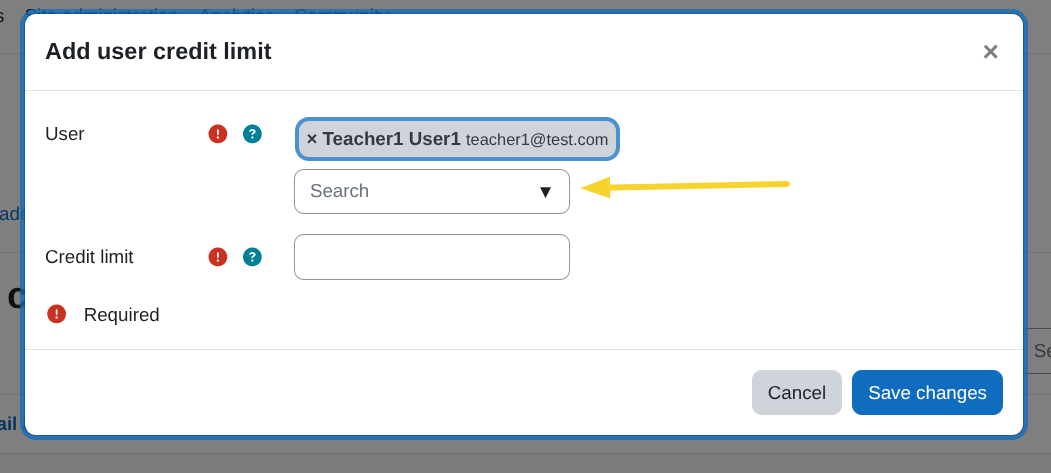
-
Credit limit: Enter the maximum number of AI credits that this user will be allowed to use. This value is required.
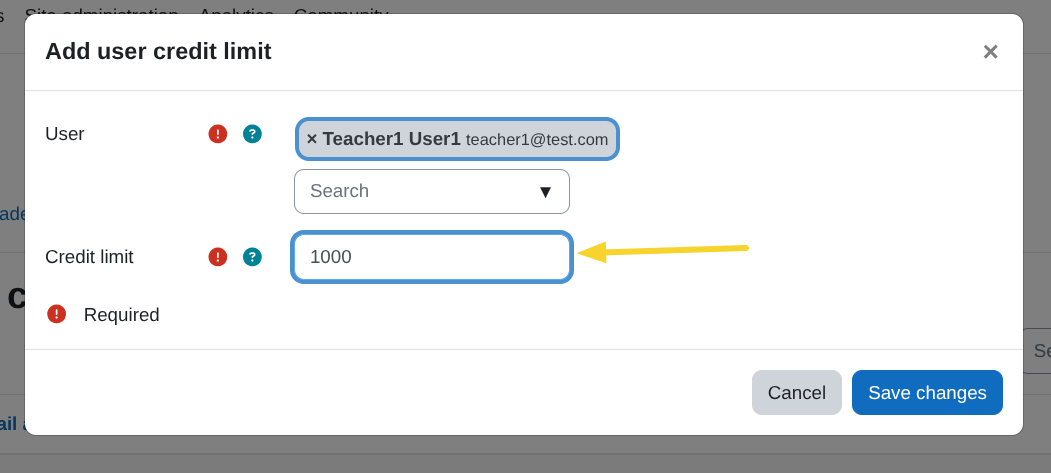
After completing the information, click Save changes.
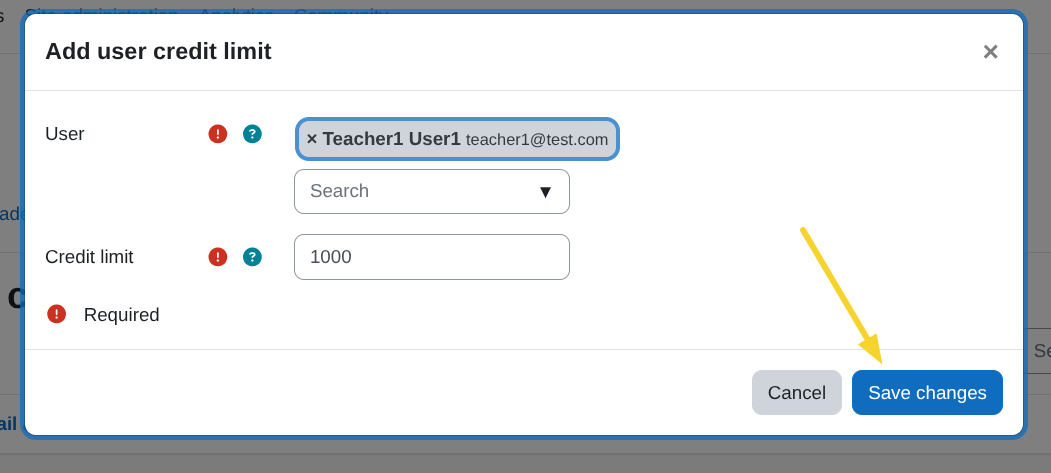
Per-user credit limits table
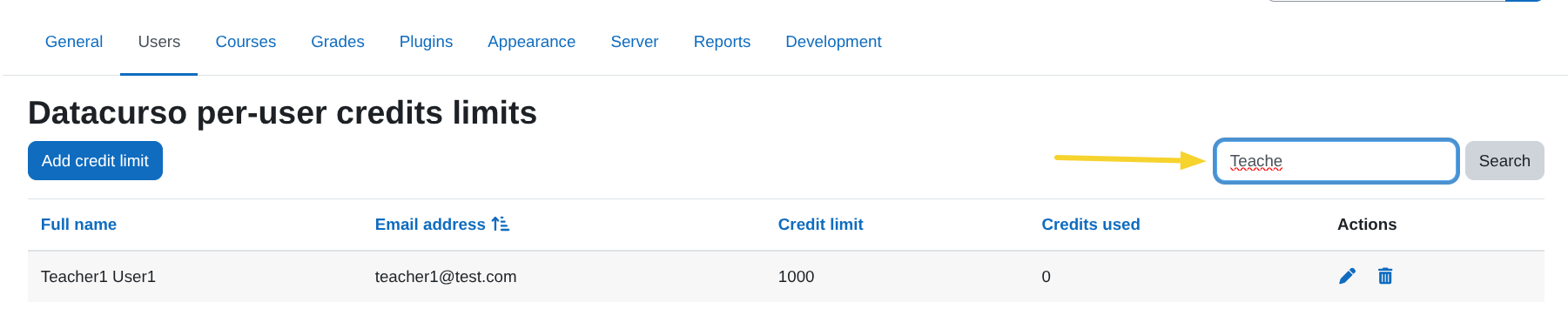
After adding a user, the limit appears in the table with the following columns:
- Full name – The user’s name.
- Email address – The user’s email.
- Credit limit – The maximum number of credits assigned to that user.
- Credits used – The number of credits the user has already consumed.
- Actions – Available management options.
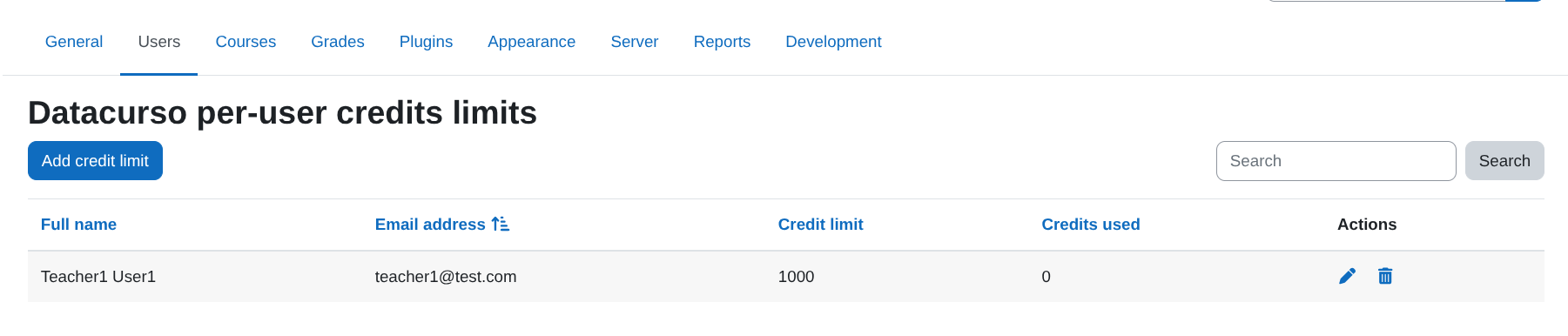
You can also use the search field to quickly find a specific user.
Edit a user credit limit
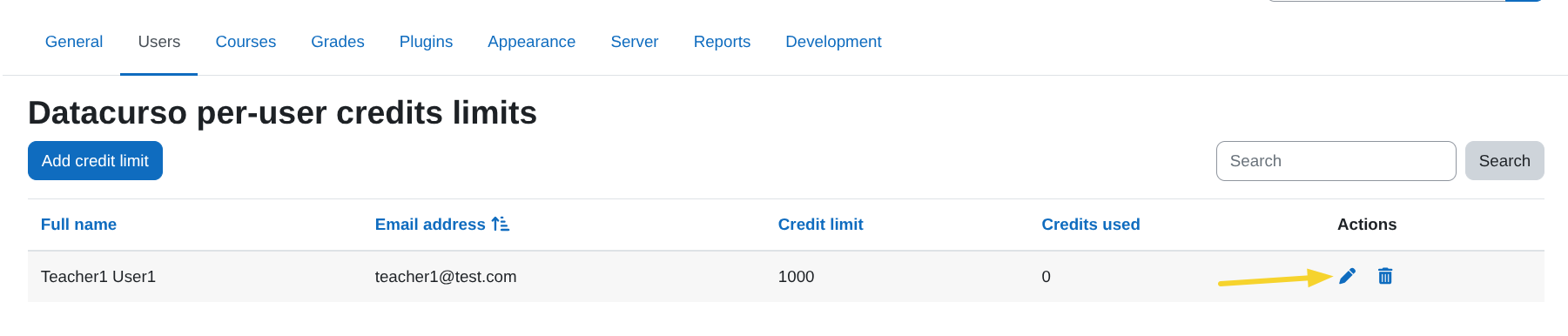
In the Actions column, click the edit icon.
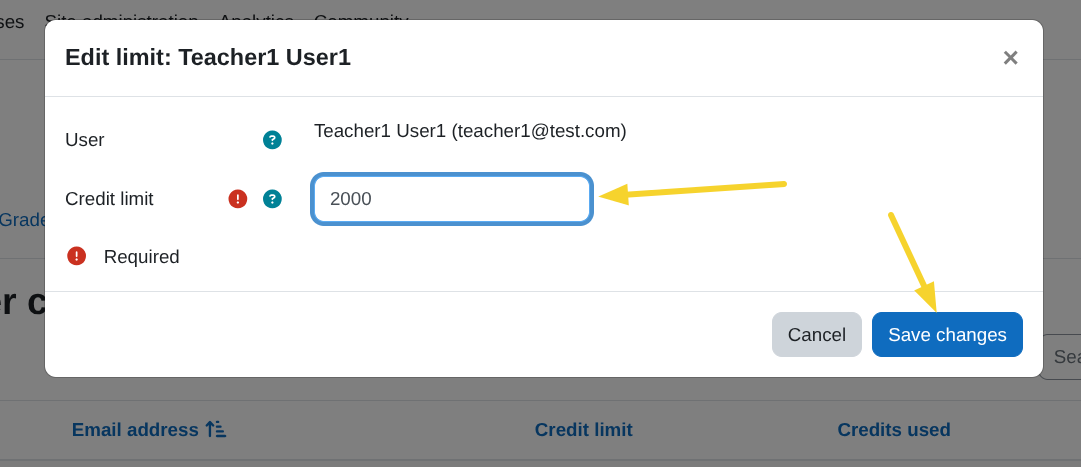
A window will open showing the current credit limit assigned to that user.
Modify the Credit limit value with the new number of credits you want to assign.
Then click Save changes to apply the update.
The new limit will take effect immediately.

Delete a user credit limit
In the Actions column, click the delete icon.

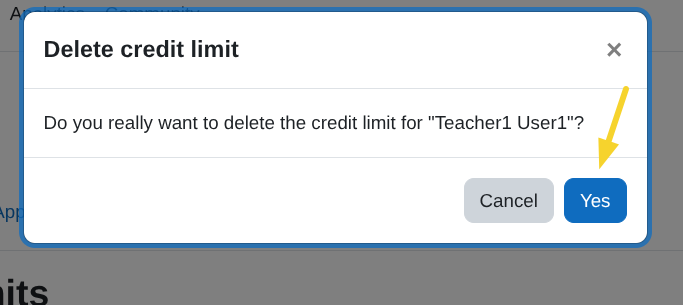
A confirmation window will appear.
Click Yes to remove the credit limit for that user.
After deletion, the user will no longer have a specific per-user credit restriction.
Reset credit usage
If a user has already consumed part or all of their assigned credits, you can reset their usage.
Click the Reset usage button in the corresponding row.

A confirmation window will appear.
Click Yes to confirm.
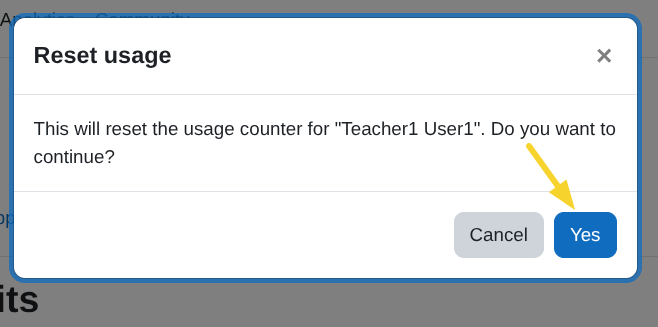
After resetting:
- The Credits used value will return to
0. - The user will again have the full amount of their assigned Credit limit available.

This is useful when a user has exhausted their credits and you want to restore their available balance without changing the assigned limit.