Moodle’s built-in AI actions
Moodle includes built-in AI actions that define what the AI can do, such as generating text, creating images, or summarising content. These actions are part of Moodle’s standard AI features.
From this section, you can enable and configure those default AI actions when using the Datacurso AI Provider, deciding which AI features will be available for use across your Moodle site.
Access to AI Providers settings
To access these settings in Moodle:
-
Go to
Site administration > General > AI > AI Providers.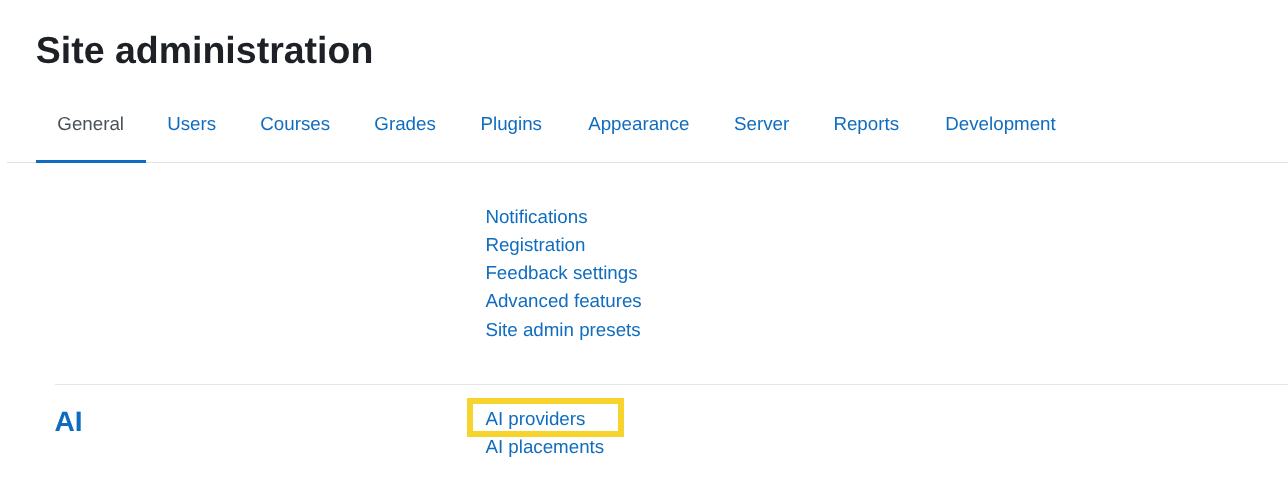
-
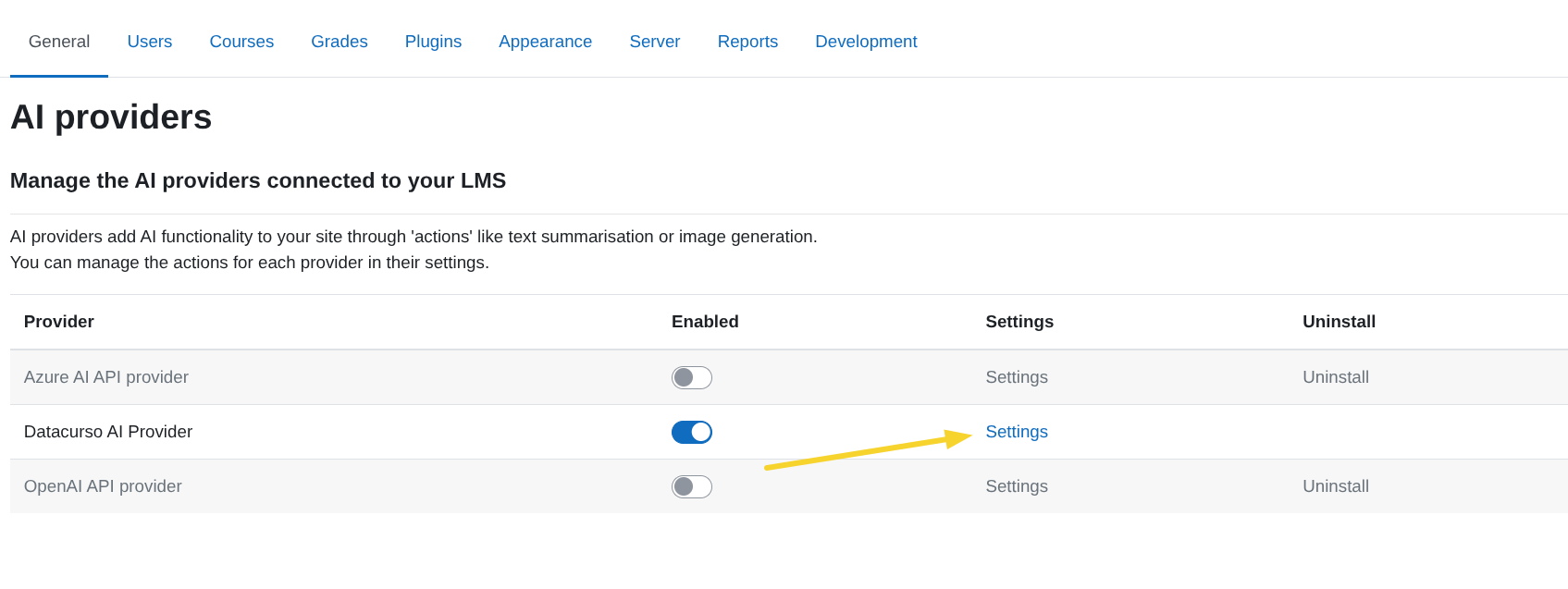
In the Datacurso AI Provider row, click Settings.
-
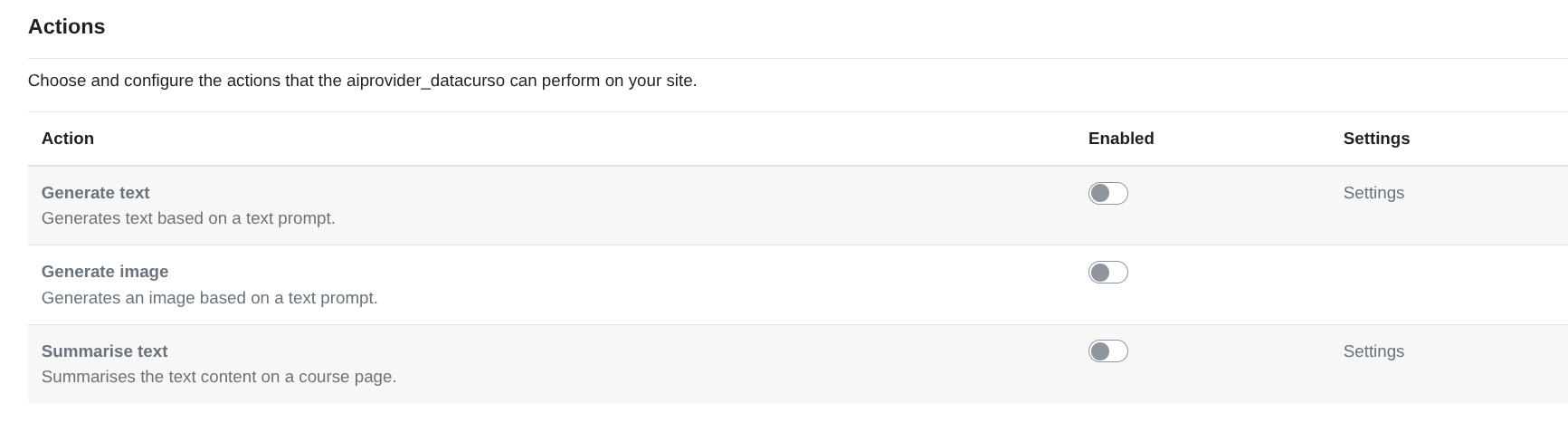
Locate the Actions section.
What does it enable inside Moodle?
When this provider is enabled, you can activate Moodle’s built-in AI actions and make them available across the platform.
The standard actions included in Moodle are:
-
Generate text
Allows users to generate text based on a prompt. -
Generate image
Allows users to create an image from a text description. -
Summarise text
Allows users to generate a summary of course content.
By enabling these actions, you decide which AI features can be used in your Moodle site. These actions work within Moodle’s AI system, ensuring a consistent experience for teachers and students.
Generate text
Allows text generation based on a prompt provided by the user.
Enable the action
In the Actions section, activate the toggle in the Generate text row.
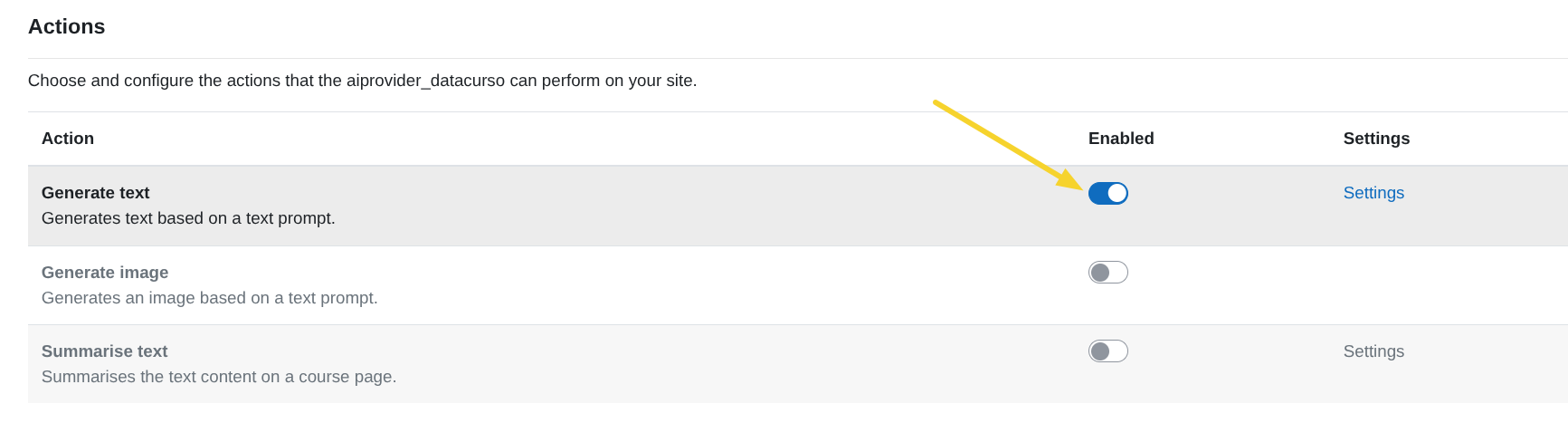
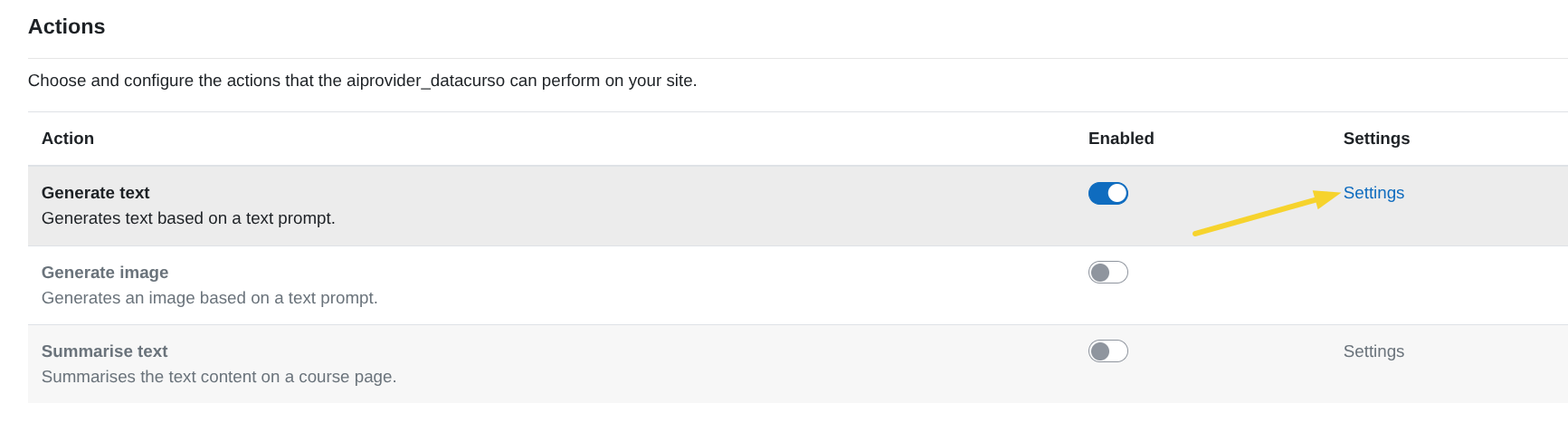
Once enabled, the Settings link will become available.
Configure Generate text
Click Settings on the right side of the Generate text row.
System instruction
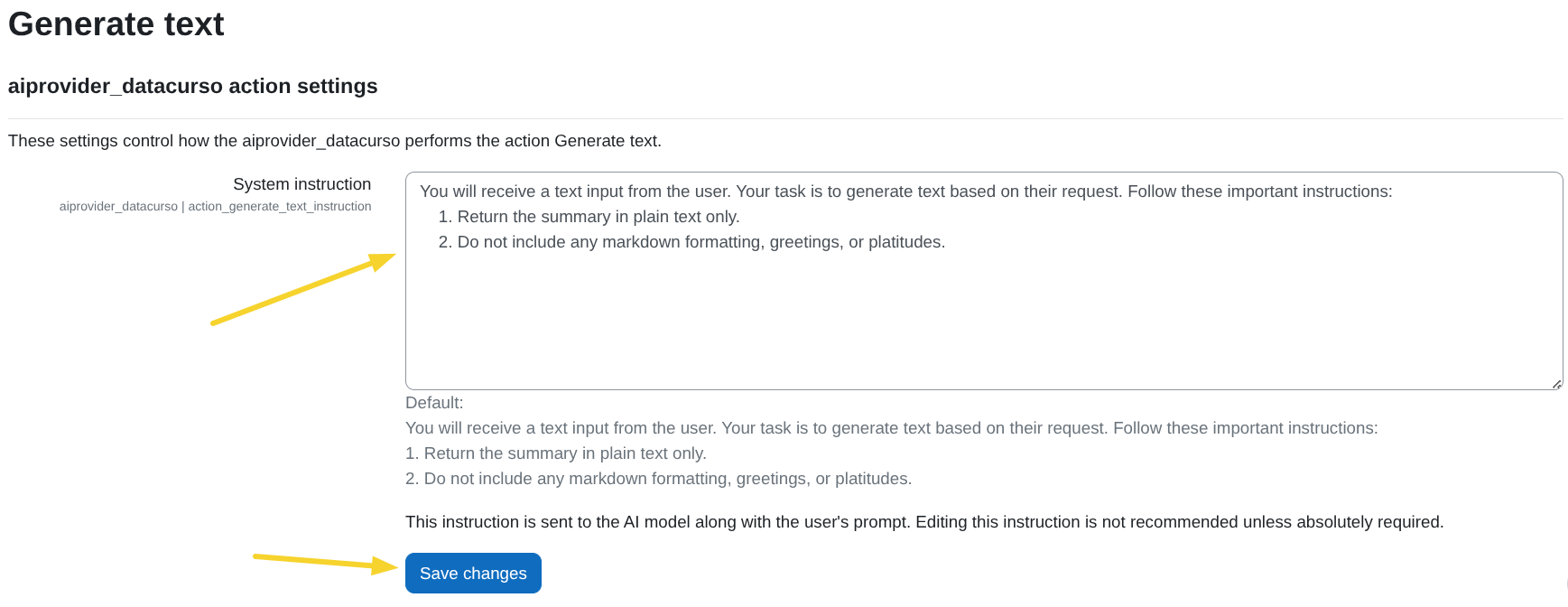
This field is where you define how the AI should generate the text response.
The text entered here is sent to the AI together with the user’s prompt and acts as a guideline for the model’s behaviour. You can use it to specify rules such as the response format, tone, level of detail, or any restrictions the AI must follow.
By default, it includes instructions such as:
You will receive a text input from the user. Your task is to generate text based on their request. Follow these important instructions:
1. Return the summary in plain text only.
2. Do not include any markdown formatting, greetings, or platitudes.
After making changes, click Save changes.
Generate image
Allows image generation from a text prompt.
Enable the action
This action does not require additional configuration.
Simply activate the toggle in the Generate image row.
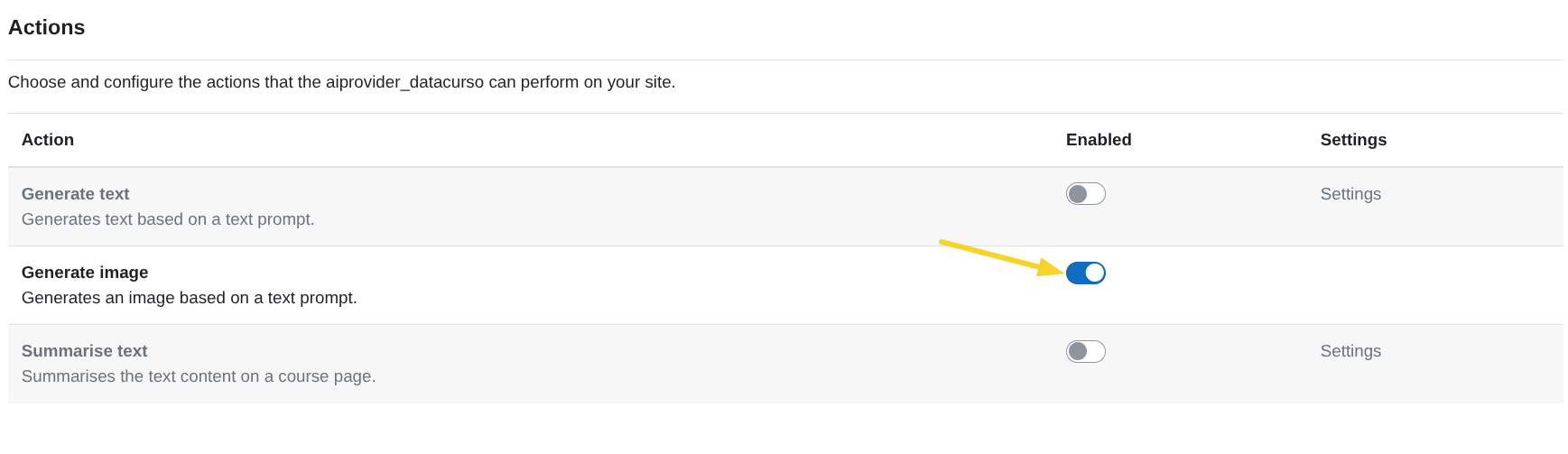
This action does not require any additional configuration.
Summarise text
Allows users to generate a summary of the text contained within a course activity.
Enable the action
In the Actions section, activate the toggle in the Summarise text row.
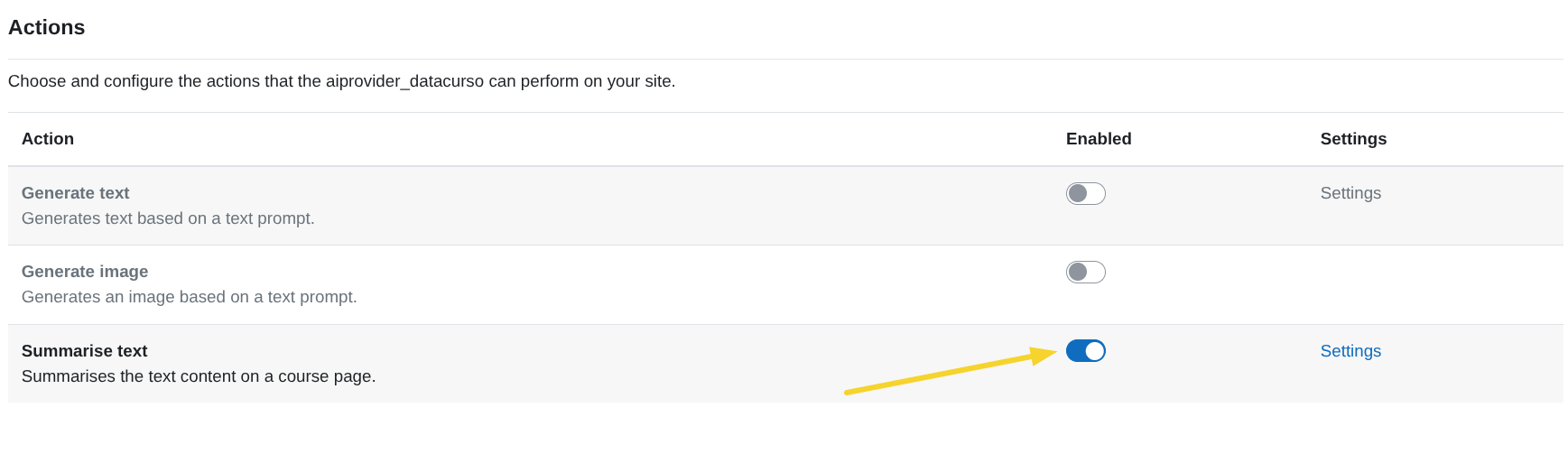
Once enabled, the Settings button will become available.
Configure Summarise text
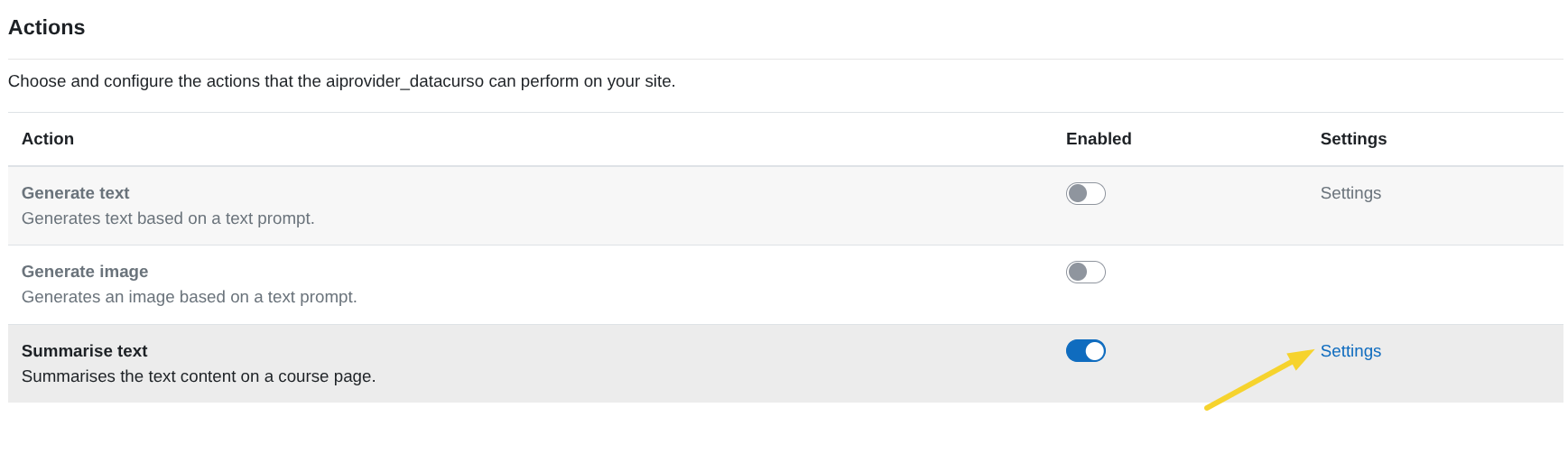
Click Settings.
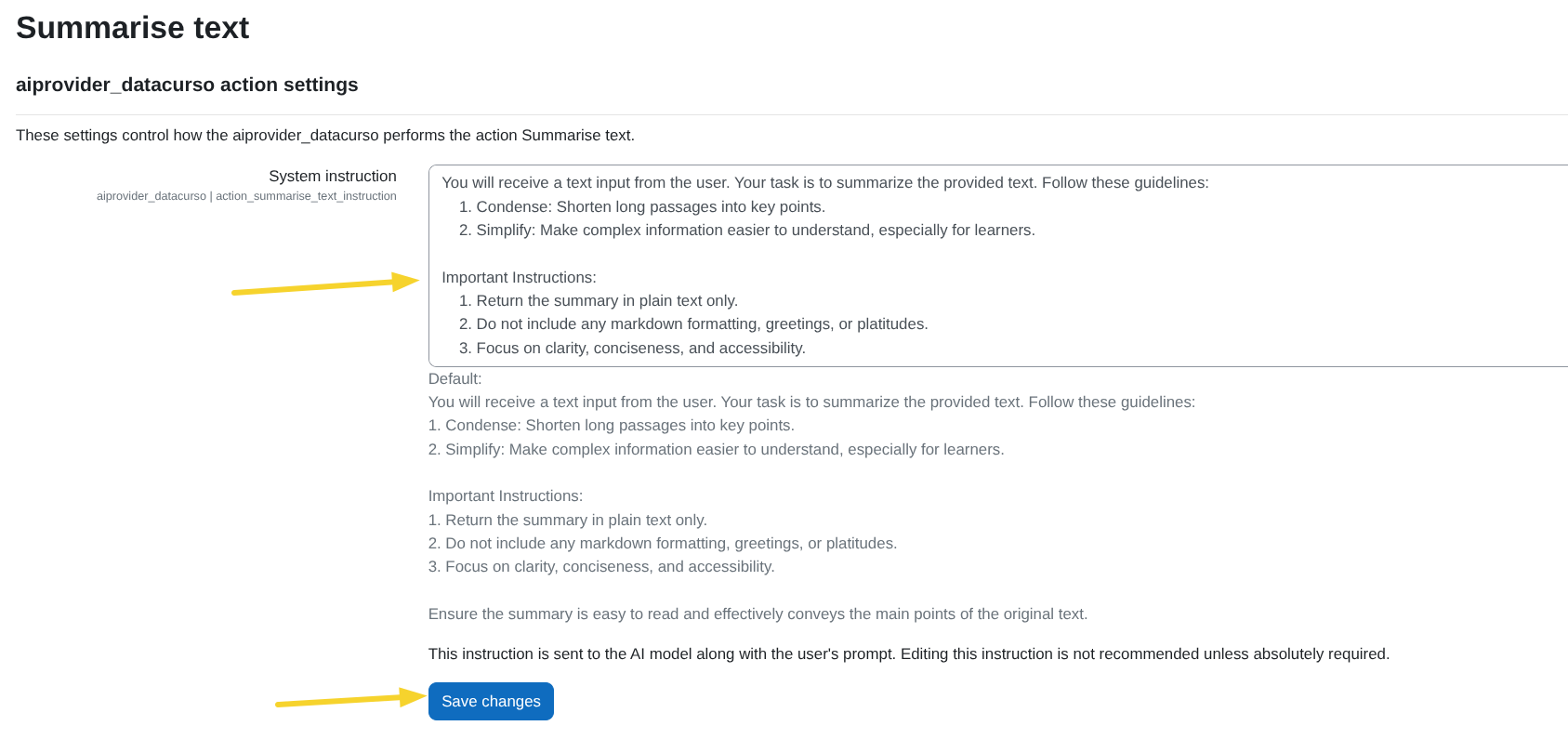
System instruction
This field is where you define how the AI should generate the summary.
The text entered here is sent to the AI together with the user’s prompt and acts as a guideline for the model’s behaviour. You can use it to specify rules such as the response format, tone, level of detail, or any restrictions the AI must follow.
By default, it includes instructions such as:
You will receive a text input from the user. Your task is to summarize the provided text. Follow these guidelines:
    1. Condense: Shorten long passages into key points.
    2. Simplify: Make complex information easier to understand, especially for learners.

Important Instructions:
    1. Return the summary in plain text only.
    2. Do not include any markdown formatting, greetings, or platitudes.
    3. Focus on clarity, conciseness, and accessibility.

Ensure the summary is easy to read and effectively conveys the main points of the original text.
Click Save changes to apply your changes.