Teacher Guide
This section covers how teachers can use the Ranking Activities AI plugin to analyze student feedback.
Enabling the Plugin for the Course
In the course settings (Course > Settings), teachers will find a Ranking Activities AI section with the Enable ratings for this course Yes/No option. When set to No, students will not see the rating buttons in the course activities and resources.
- The section is shown only while the site-level Enable plugin in courses setting is enabled by an administrator; otherwise ratings are disabled everywhere.
- Courses that have never saved a value are treated as enabled (Yes) by default.
Accessing the Course Report
On the main course page, teachers can access the report from the Reports section.
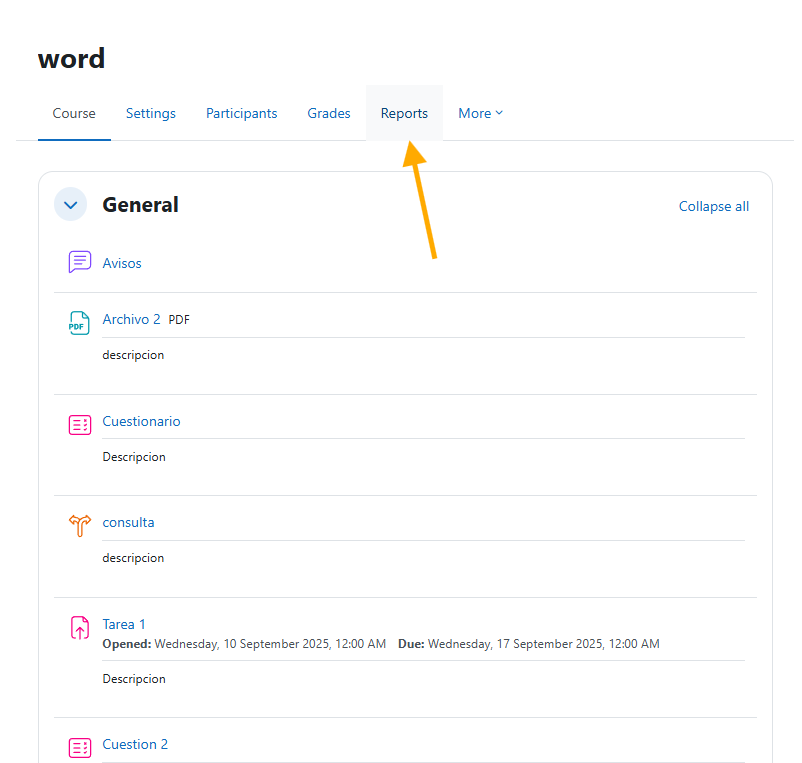
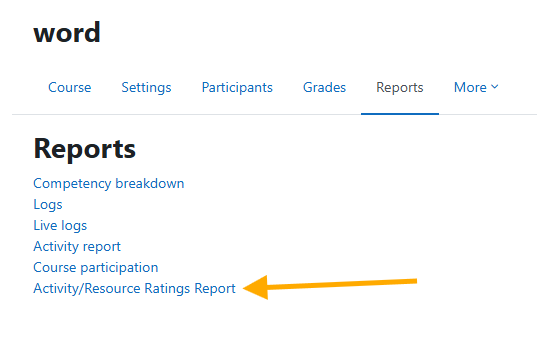
Navigate to Activity/Resource Ratings Report.
Viewing Course Ratings
Here, teachers will see the report summarizing ratings for all activities within their course.
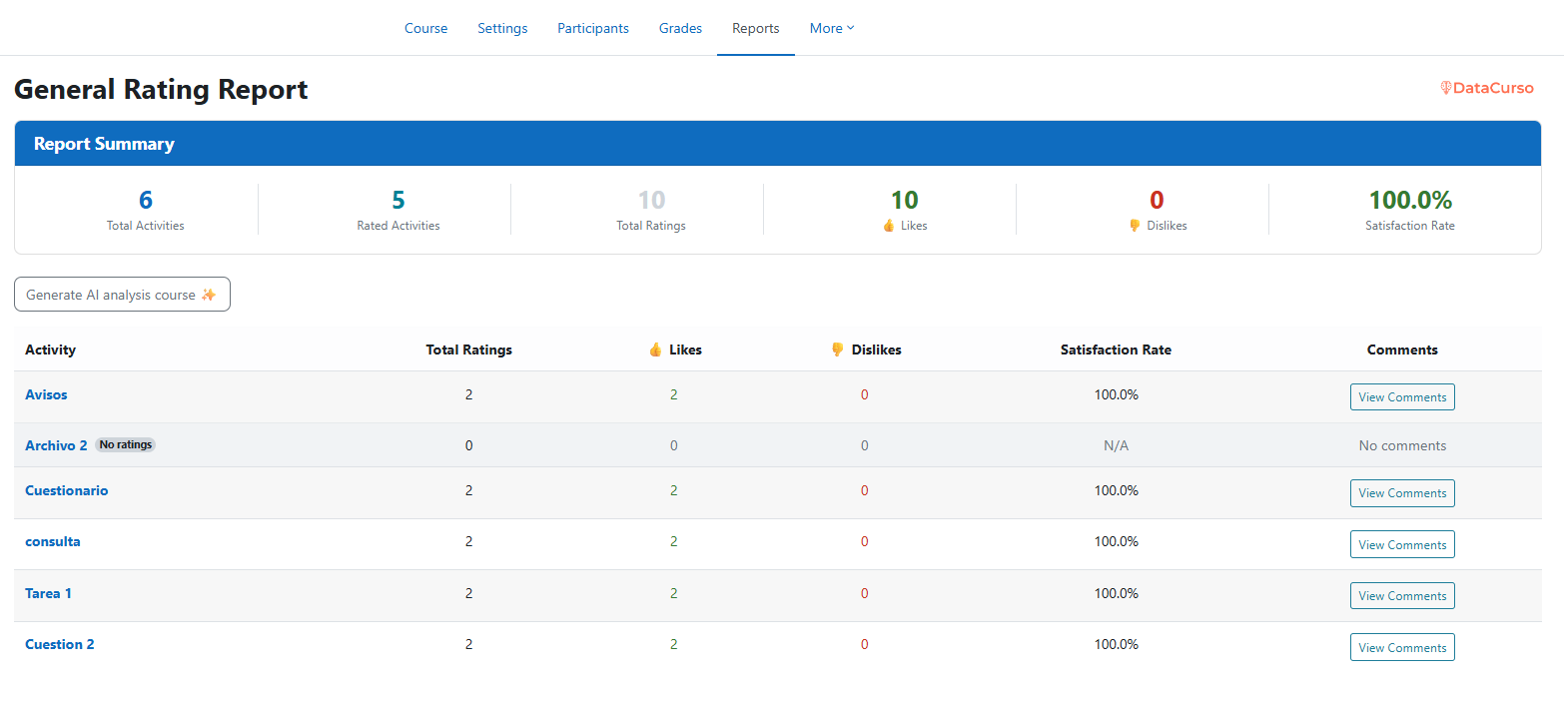
The report offers the following controls:
- Sortable columns – Click a column header (activity, total ratings, likes, dislikes, satisfaction) to sort the table.
- View Comments / Hide Comments – Toggle the comments of each activity directly under its row.
- Export CSV – Download the report as
course_report_<course-name>_YYYY-MM-DD.csv(the course name is normalised to letters, digits and underscores; file name and headers are localised). - Refresh – Shown when the course has no ratings yet; reloads the page.
Generating AI Analysis
Similar to administrators, teachers have a Generate AI analysis course button to generate a general AI analysis of activity ratings. The button is shown only to users with the local/datacurso_ratings:generateanalysiscourse capability (Manager, Editing teacher and Course creator by default); since version 1.0.5 the web service also rejects requests from users without it.

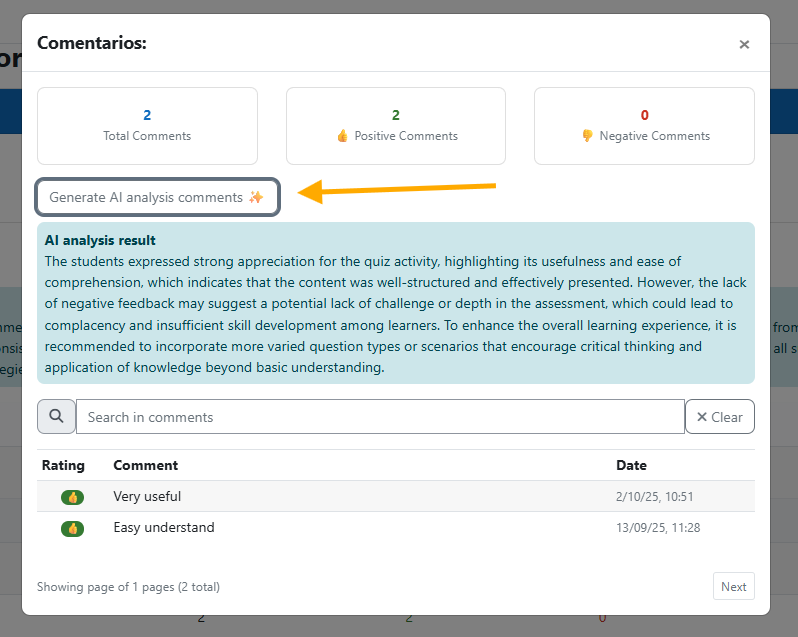
Analyzing Activity Comments
Click on the button to view the comments of a specific activity.

Additionally, teachers can generate AI analyses of activity comments to understand student feedback in detail. The Generate AI analysis comments button requires the local/datacurso_ratings:generateanalysisactivity capability (see Permissions).