Enable AI features
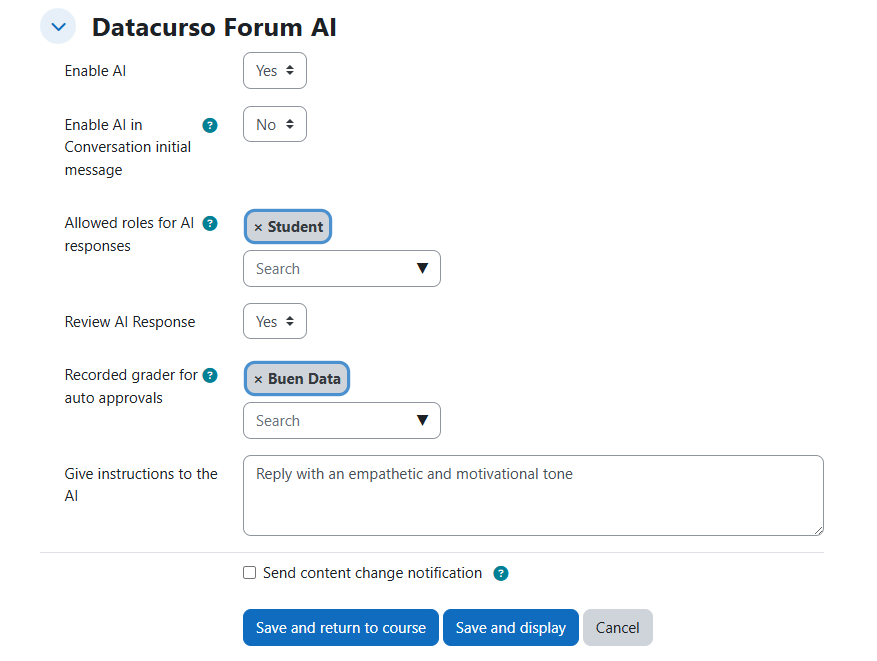
This section explains each setting available in Datacurso Forum AI and how it impacts forum behavior.
You can apply these settings when creating a new forum or by editing an existing one.
- Open the forum settings page.
- Scroll to the Datacurso Forum AI section.
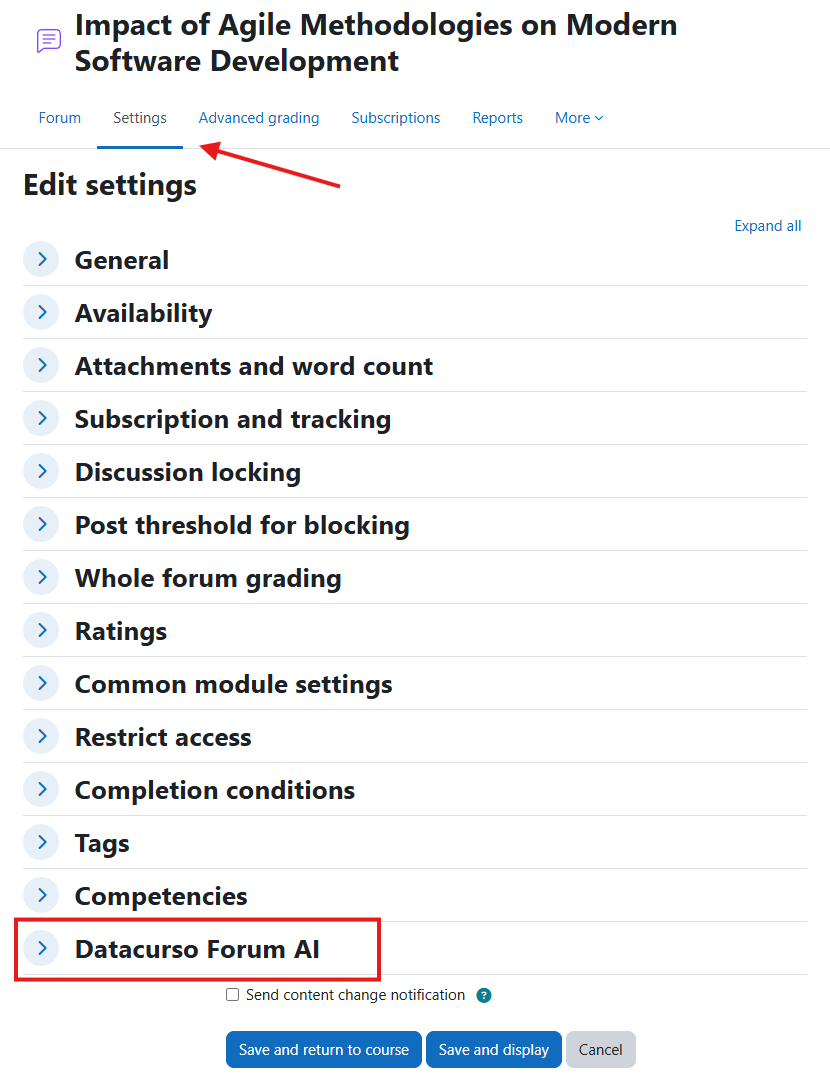
- Configure the options according to your teaching workflow.
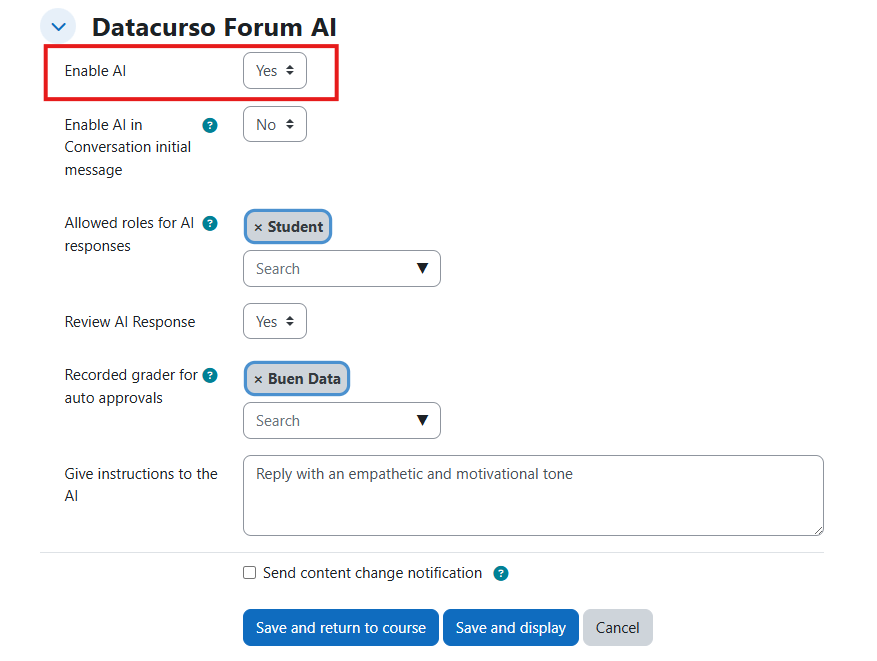
Enable AI integration
This is the main switch for Forum AI in the selected forum.
- When set to Yes, Forum AI can process forum activity and generate AI-assisted feedback.
- When set to No, no AI responses or AI grading actions are executed for that forum.
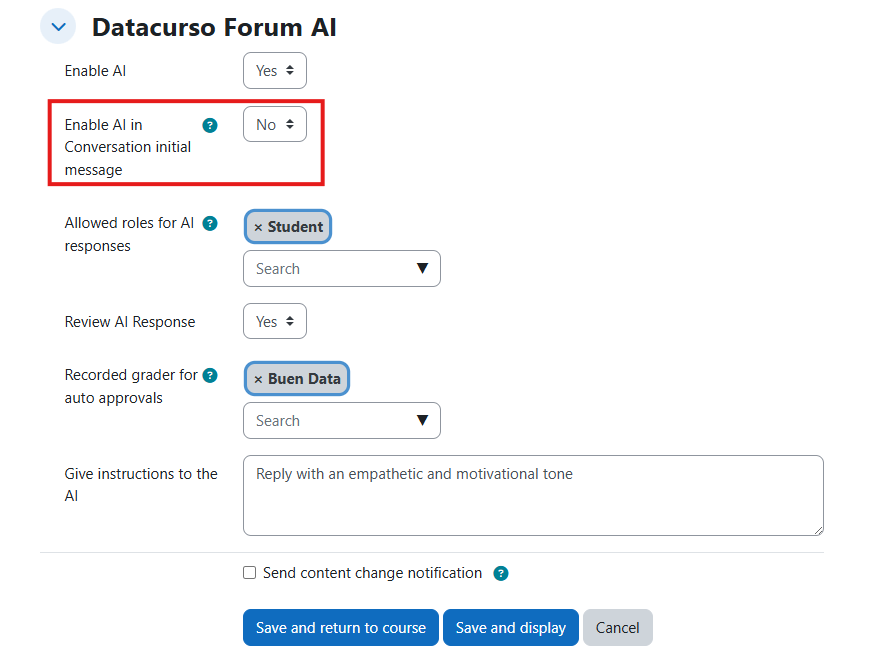
AI response in initial message
This option allows AI processing from the first post of a discussion thread.
- When set to Yes, AI support starts from the first post of each topic.
- When set to No, AI only interacts with follow-up replies.
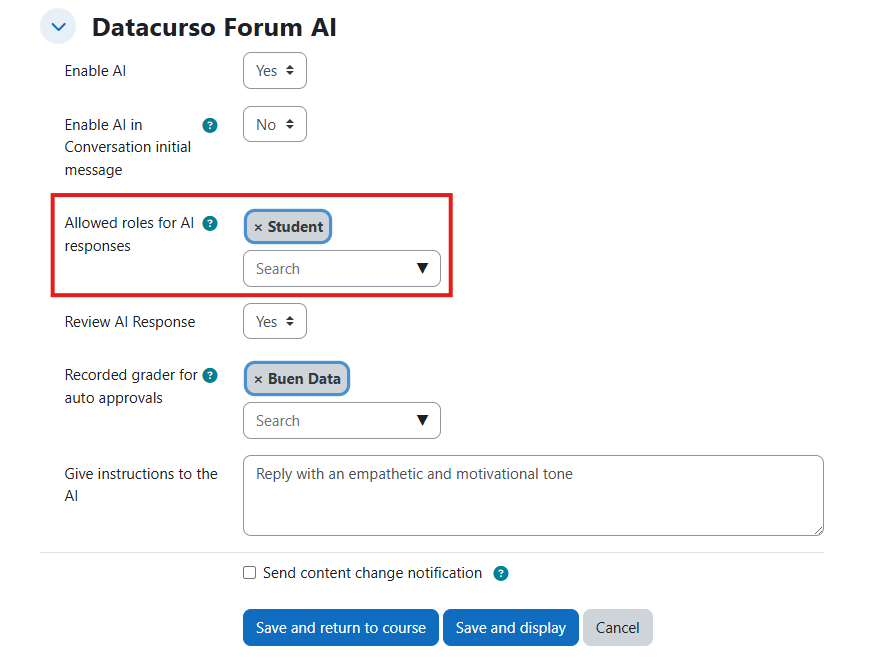
Allowed roles for AI responses
Use this setting to define which participant roles can receive AI-generated responses.
- Helps limit AI interaction to specific roles based on course policy.
- Commonly used to keep AI support focused on student contributions.
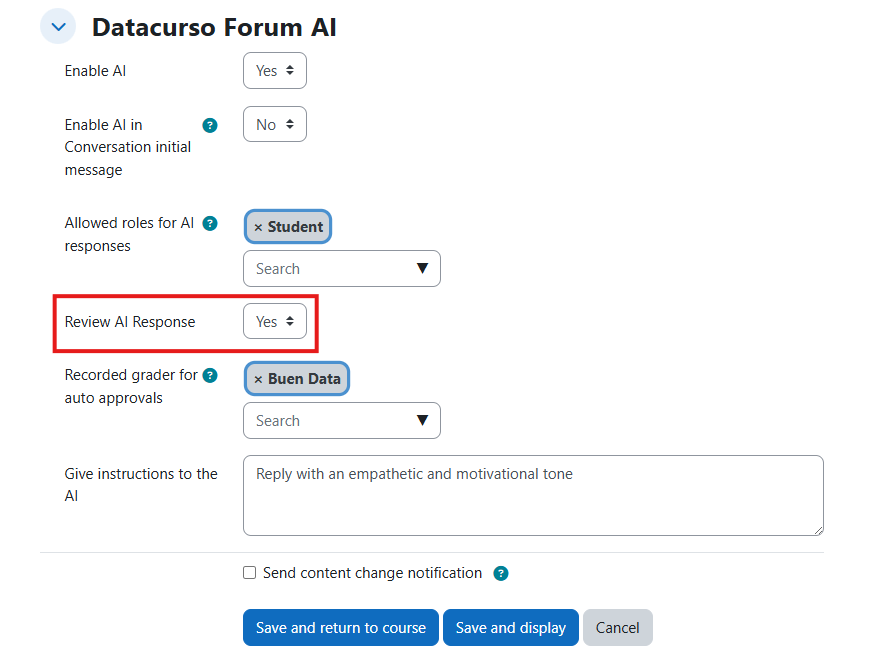
AI response review
When set to Yes, AI-generated responses require manual review before publication.
When set to No, AI-generated responses are published without manual review.
- Teachers can edit the generated response.
- Teachers can approve or reject each proposal.
- This is recommended when strict pedagogical control is required.
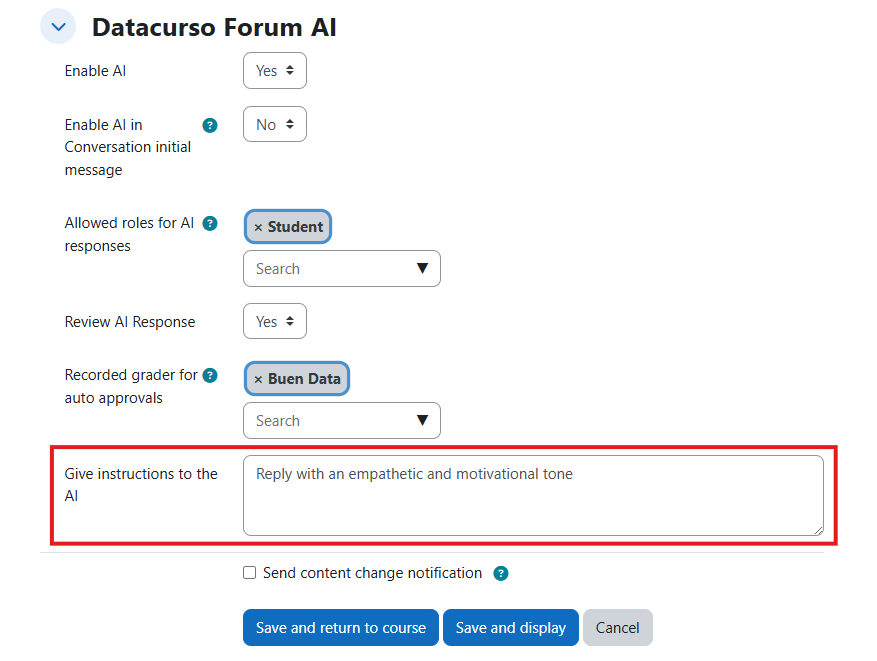
Extra directions for AI
This field lets you add forum-specific instructions for the AI model.
You can define:
- expected tone,
- response length,
- pedagogical approach,
- academic level,
- language preferences.
Using clear instructions improves consistency and alignment with course objectives.
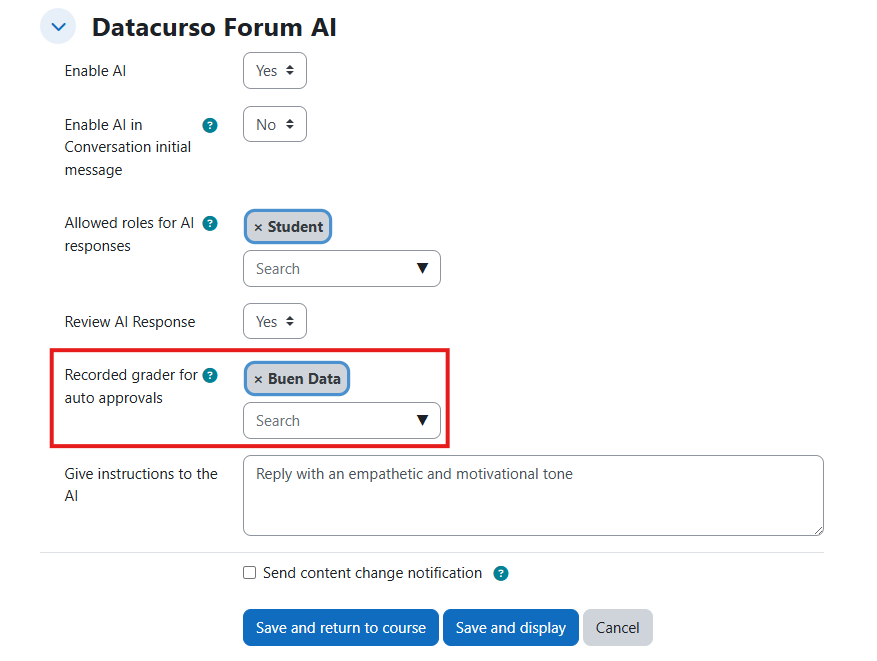
Grader user for automatic review
When automatic review/approval is enabled, this setting lets you choose the user that will appear as the grader for AI-approved grading actions.
Use this option to define the visible grader identity in Moodle records.
- Select the teacher or service account that should appear as the grader.
- Choose this carefully, because students will see this user as the source of the published grade.