Review homework manually with AI
This workflow applies when Auto-approve AI feedback is set to No in the Datacurso Assign AI settings.
In this mode, AI can propose grades and feedback, but teachers must review and approve results before students can see them.
Use this workflow when you need strict control over grading quality and publication timing.
For every submission, AI analyzes the student evidence (uploaded file or online text) and cross-checks it against the assignment title, assignment description, and grading configuration (rubric or marking guide).
Access the AI review section
Inside the assignment interface, open the Review with AI section.
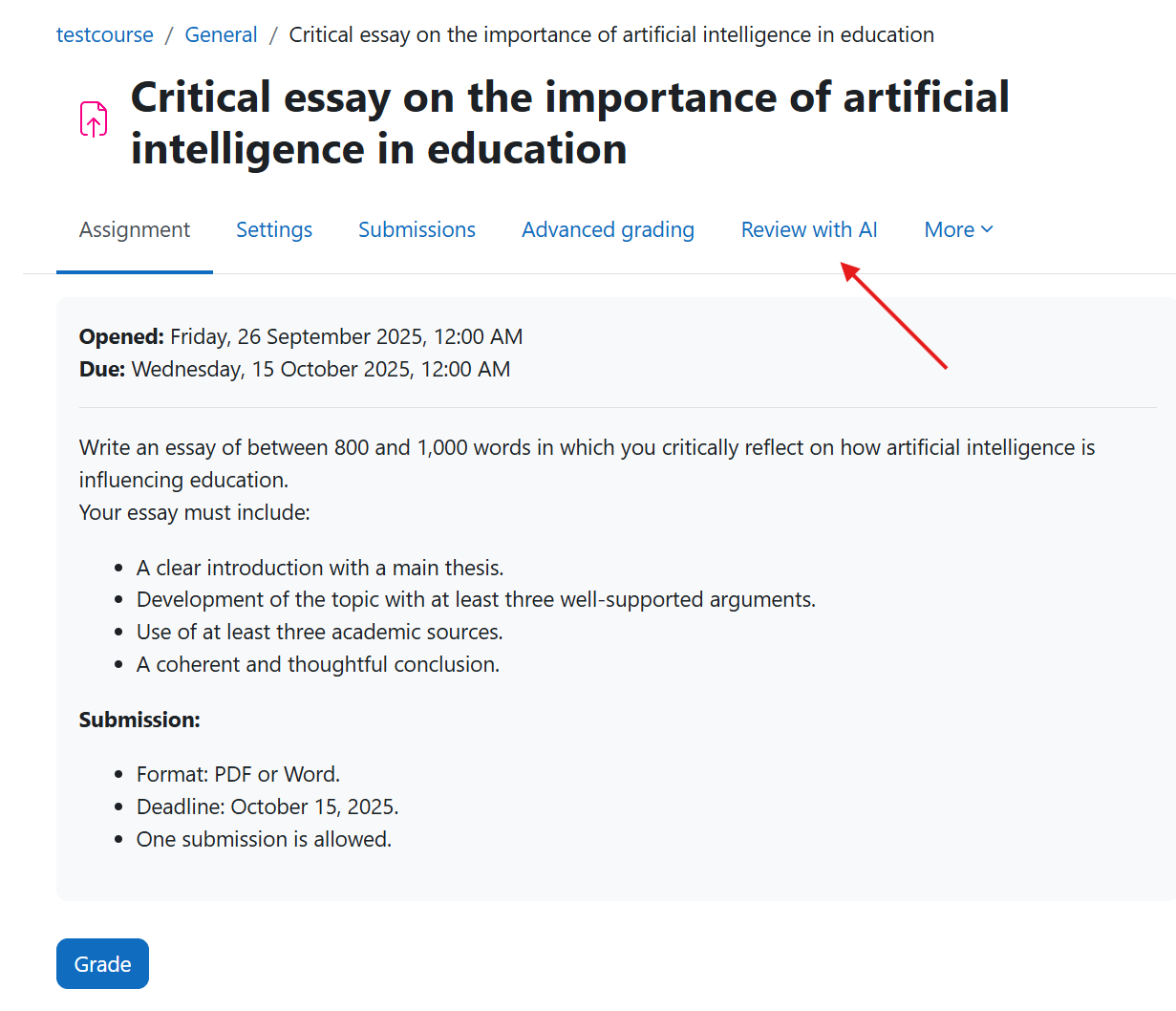
This section shows student submissions and their review status, for example pending, reviewed, or feedback generated.
When AI starts processing, each submission is evaluated using the assignment title, description, and grading setup to keep feedback and grading aligned with the activity requirements.
Review all submissions
Click Review all to send all submitted assignments to the AI engine.
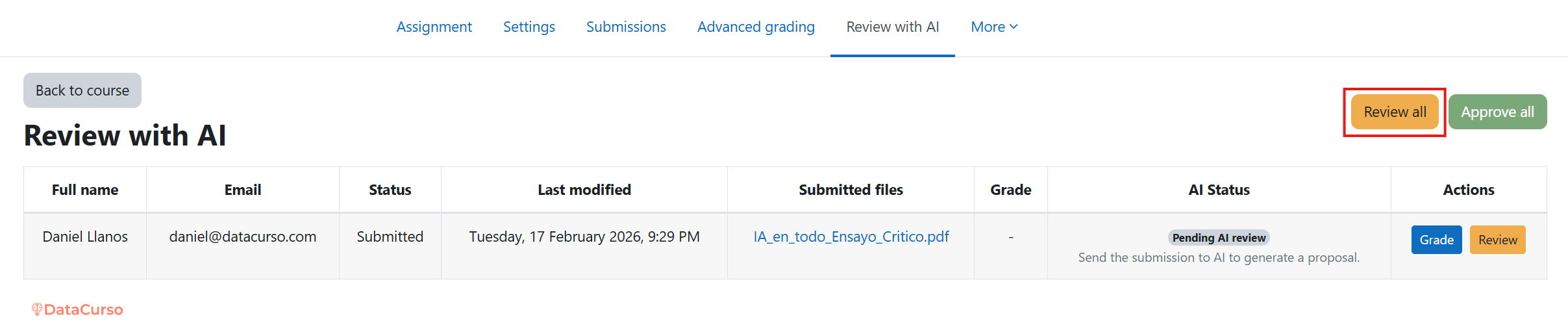
The AI processes submissions through a queue and reviews them one by one.
For each queued submission, AI analyzes the student's file or text and validates it against the assignment title, description, and configured evaluation method (rubric or marking guide).
Common analysis dimensions include:
- clarity and coherence,
- relevance to the task prompt,
- conceptual understanding,
- writing quality and structure,
- argumentative strength.
Review an individual student
If needed, click Review for a specific student submission.
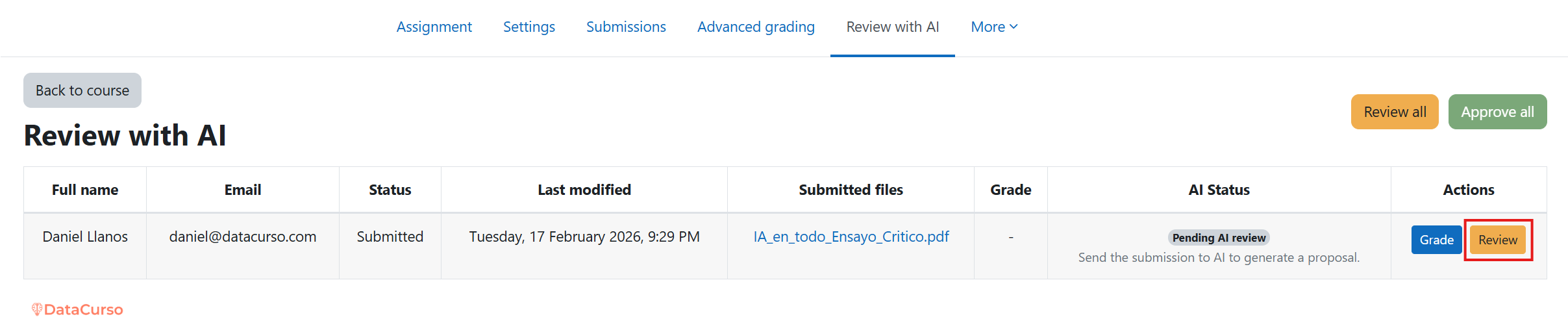
This is useful when teachers want to supervise specific cases before publishing any AI-generated recommendation.
The same analysis logic applies: AI checks the student's file or text using the assignment title, description, and grading configuration.
Submission reviewed by AI
After processing, each submission changes status to show that AI has completed the review and grading proposal.
This status helps teachers identify which attempts are ready for manual validation.
The completed status indicates AI already analyzed the student file or text with the assignment context (title, description, rubric, or marking guide).
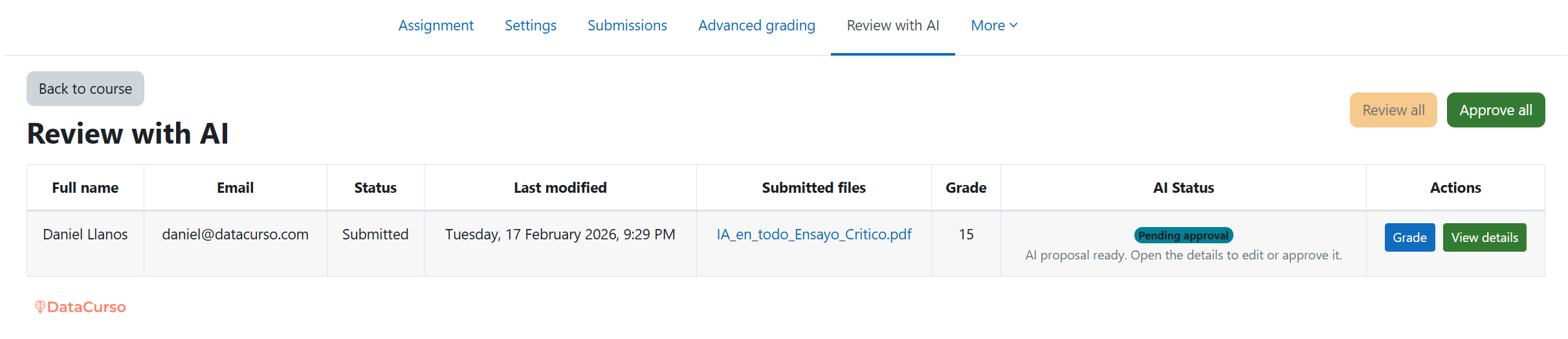
AI feedback details
Click View details to inspect the AI-generated feedback for a specific student.
This feedback is generated after AI analyzes the student file or text using the assignment title, description, and grading setup.
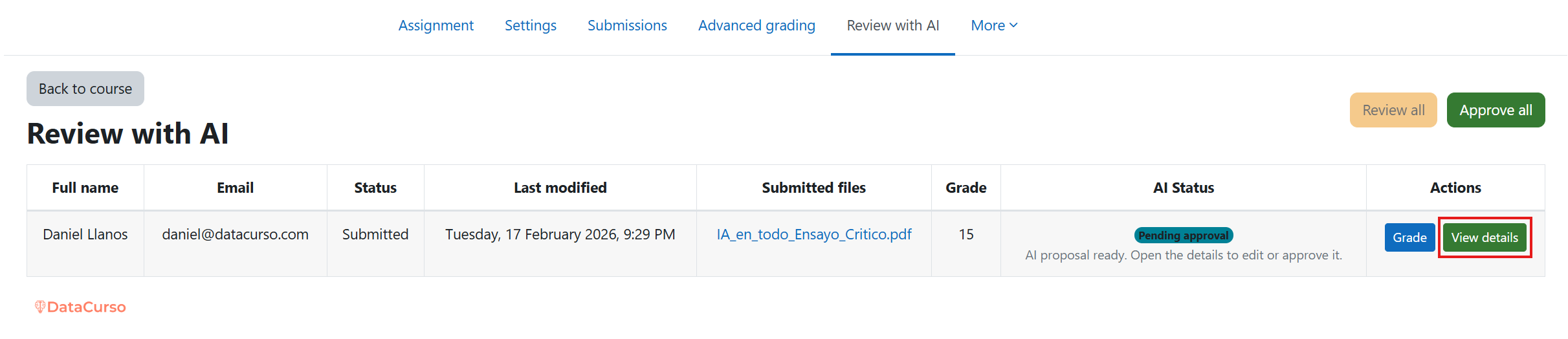
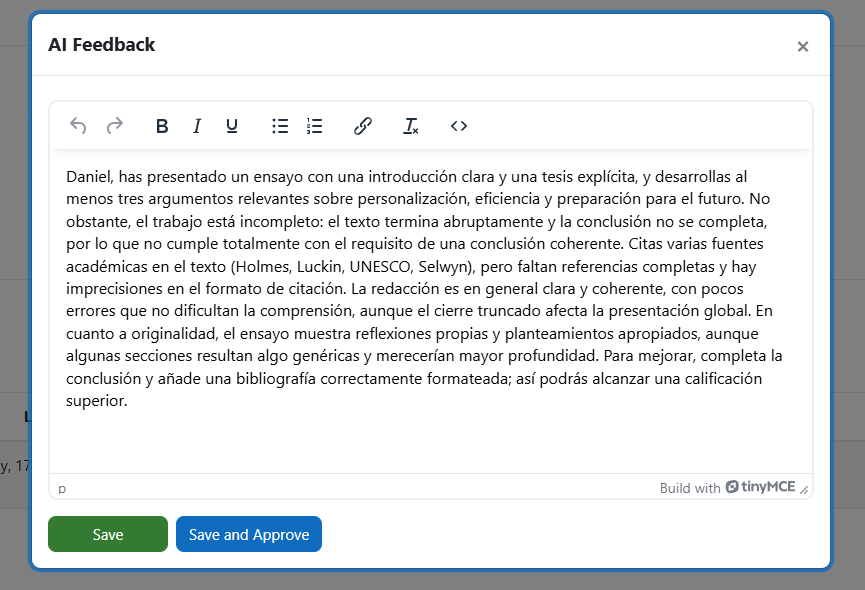
Review details modal
The details modal shows only the AI-generated feedback text.
It does not display grades or other grading details.
Teachers can edit wording and refine pedagogical comments before approval.
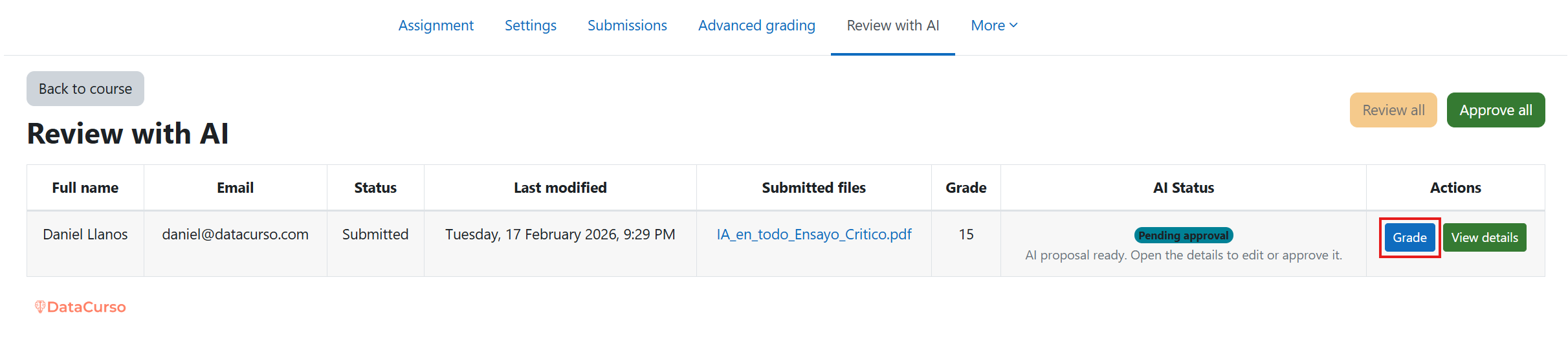
Open Grade view for deeper grading detail
Click Grade to open Moodle's full grading interface.
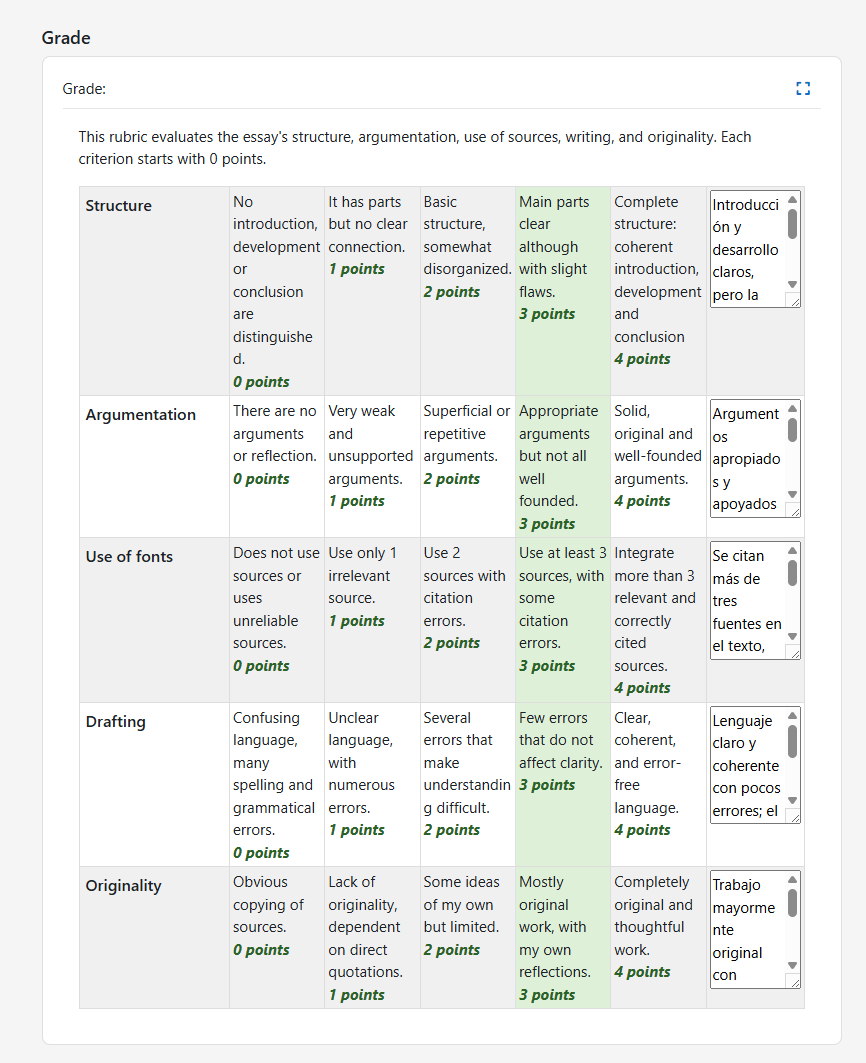
This is especially important when the assignment uses a rubric or marking guide and you need to validate criterion-level scoring.
This grade view is the place to inspect scoring details derived from AI analysis of the student file or text against assignment title, description, and grading configuration.
Validate rubric or guide scores
In the grading view, you can see the score decisions proposed by AI across rubric criteria or grading guide items.
Review these values before approving final publication.
These values are based on the same contextual analysis: student file or text + assignment title + assignment description + rubric/marking guide.
Approve all AI-generated responses
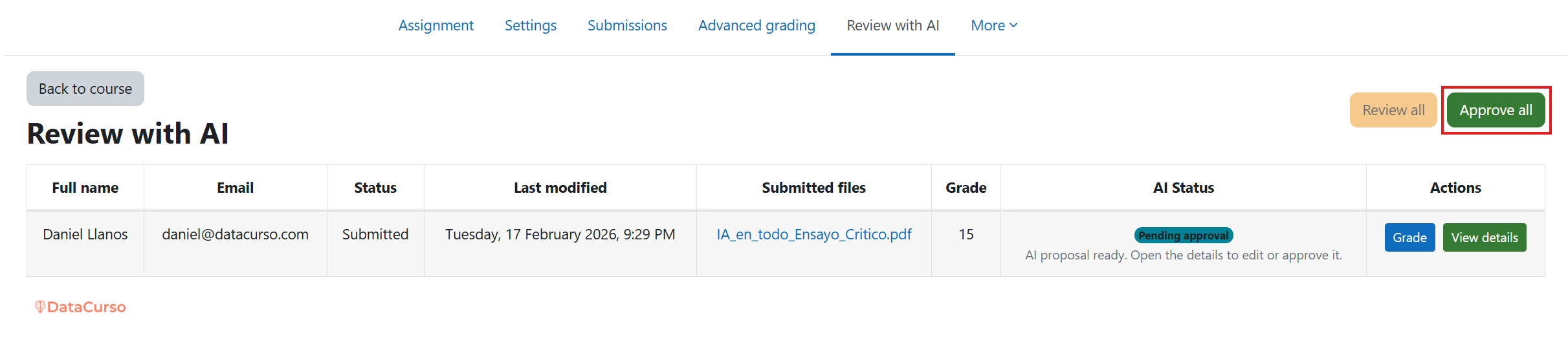
After reviewing pending items, click Approve all to publish the validated grades and feedback.
Use this action only after confirming that proposals match your expected grading standards.
Student view after approval
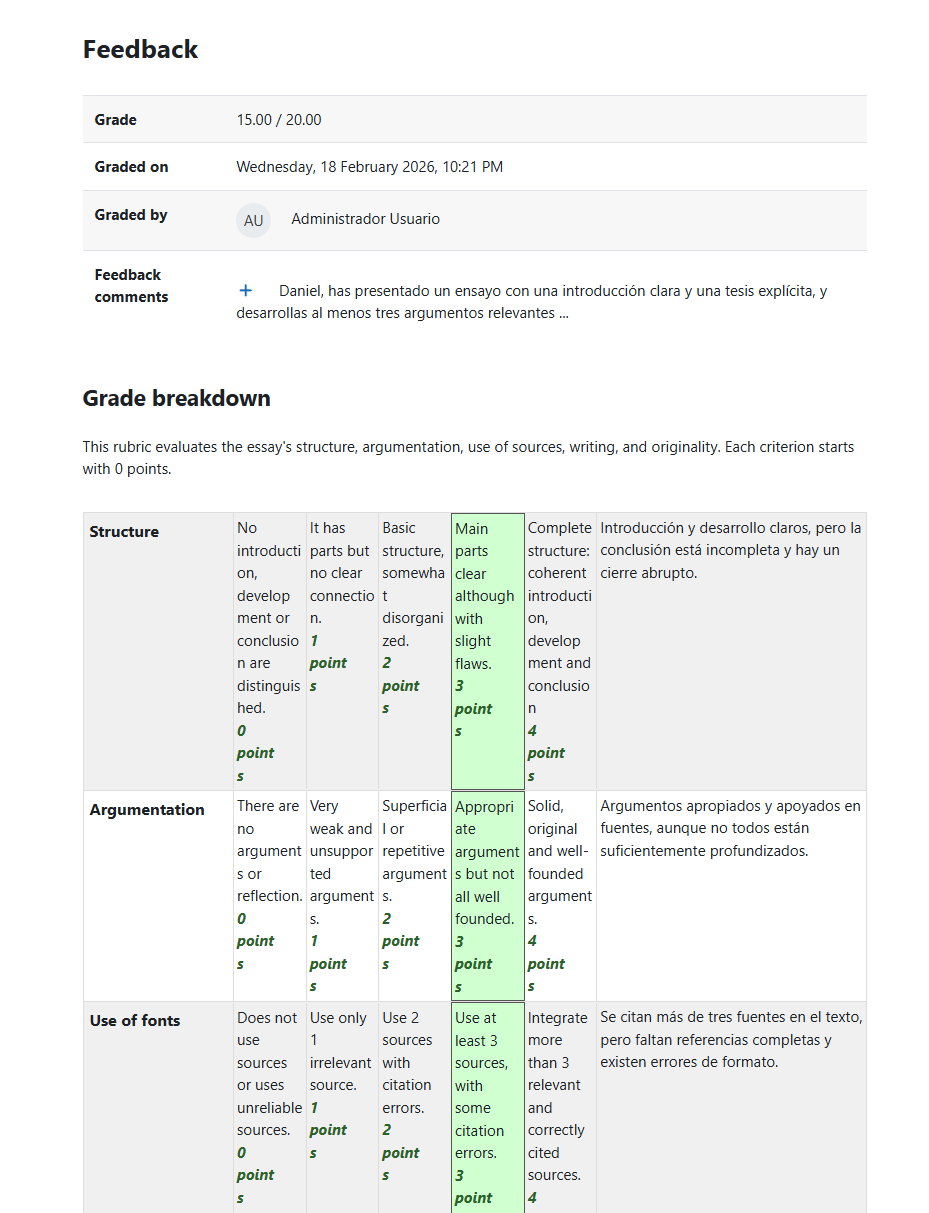
Once approved, students can see the published grade and feedback in the standard Moodle assignment view.