Assignment AI plugin permissions
The following table summarises the main permissions used by the Assignment AI plugin and their default role assignments.
| Name | Description | Default roles |
|---|---|---|
local/assign_ai:review | Access the Review with AI workspace in an assignment, submit student work to the AI service (individual or bulk), monitor progress, and open the review history screen. | Manager, Editing teacher, Teacher |
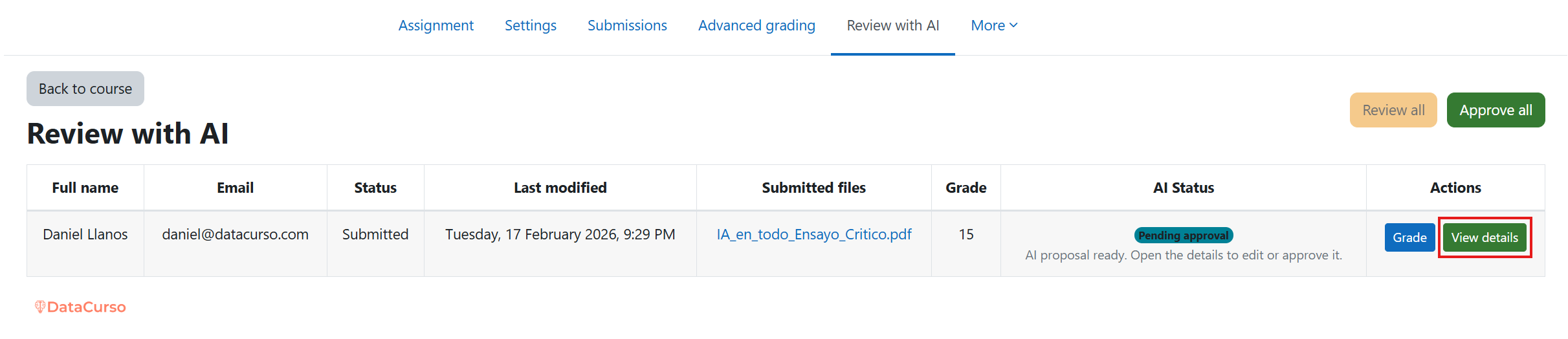
local/assign_ai:viewdetails | Open the View details modal for any reviewed submission and read the AI-generated grade suggestions, rubric entries, and narrative feedback. | Manager, Editing teacher, Teacher |
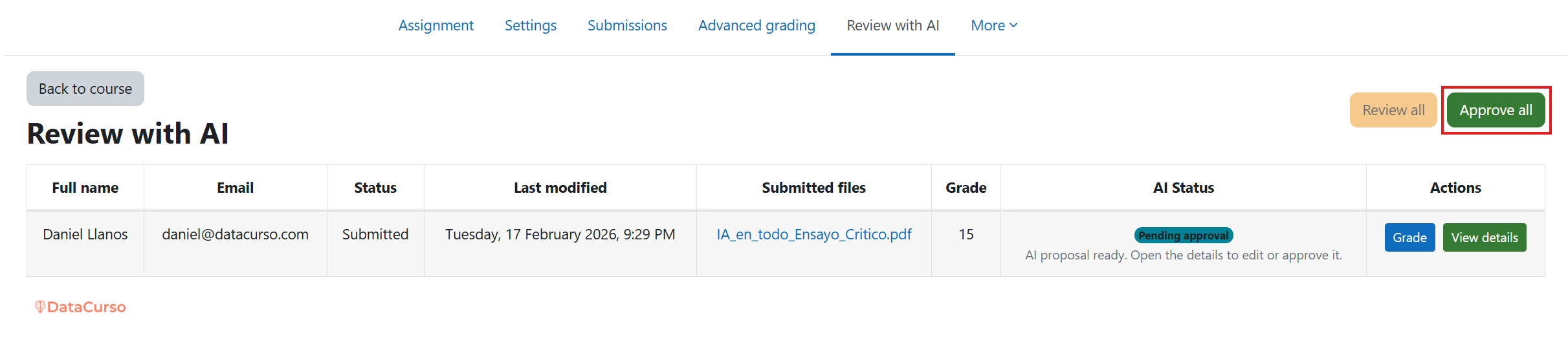
local/assign_ai:changestatus | Edit AI responses, approve or reject them (including the Approve all action), and push the accepted grades and feedback back to the assignment. | Manager, Editing teacher, Teacher |
local/assign_ai:review
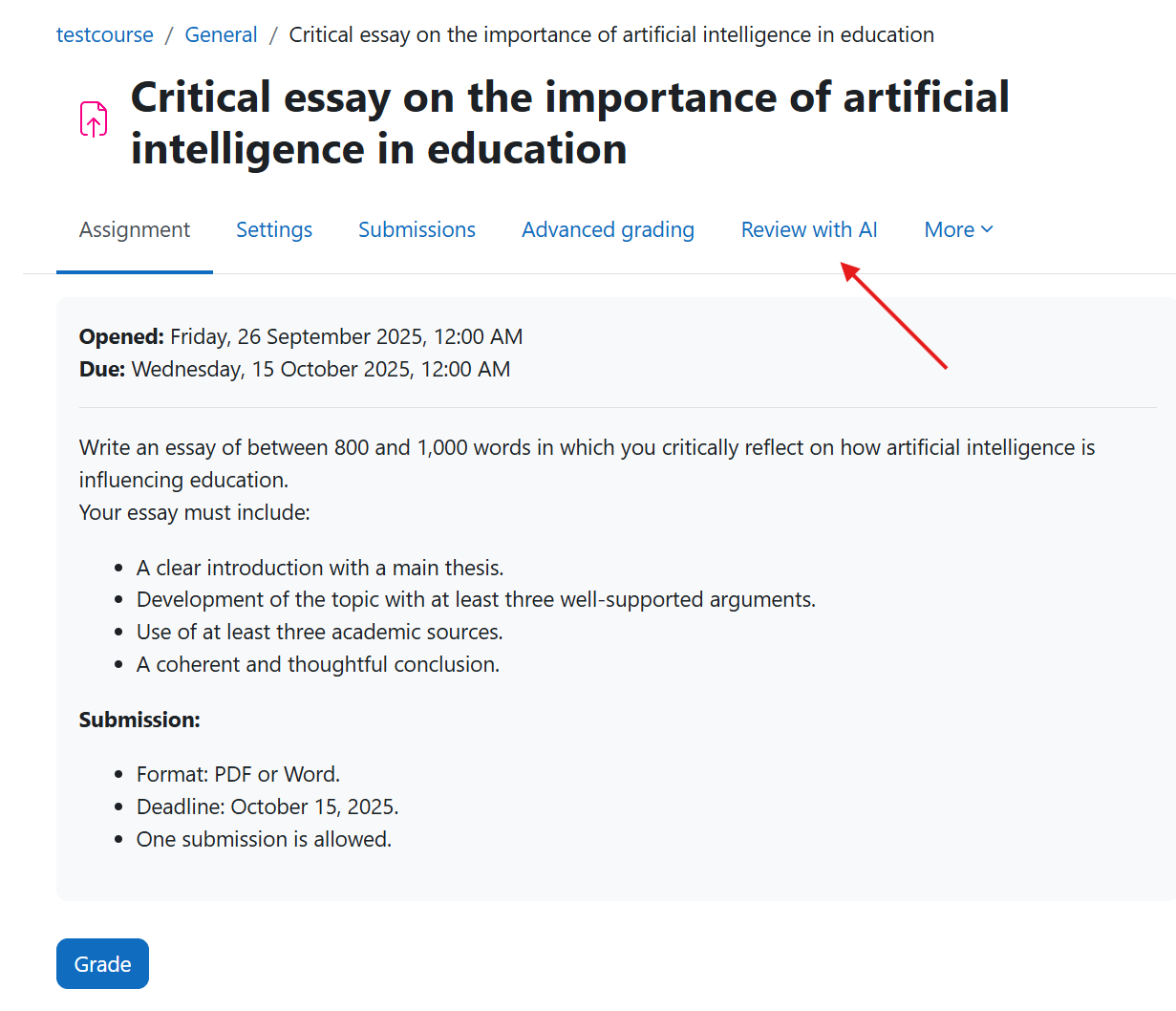
Allows users to enter the Review with AI page that appears under an assignment’s More settings. From there they can:
- View every student submission along with its AI-processing status and the related Review history list.
- Trigger the AI review for a specific student or use Review all to queue the entire class.
- Watch the live progress widget that shows queued, processing, and pending reviews.
Without this permission, the Review with AI navigation entries are hidden and the user cannot initiate AI-assisted reviews.
local/assign_ai:viewdetails
Permits opening the View details button that is shown once the AI has produced feedback for a submission. Users who hold it can:
- Read the full comment suggested by the AI, including rubric/guide suggestions and the proposed grade.
- Keep a trace of the AI message for each learner to support later moderation or appeals.
This capability is useful for tutors who only need to consult the AI output without editing or approving it.
local/assign_ai:changestatus
Grants full control over the final decision for AI-generated feedback. With this capability, a user can:
- Edit the AI message before sharing it, saving drafts as needed.
- Approve or reject a submission so the feedback becomes visible to the student (or is discarded).
- Use Approve all to batch-publish every pending AI response in the activity.
Only grant this permission to staff members who are trusted to publish grades and comments on behalf of the AI assistant.