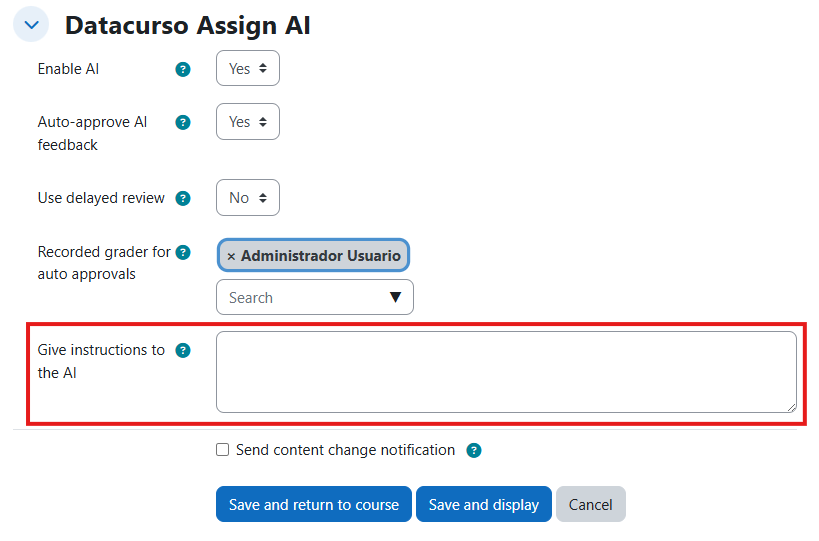
Configure AI functions
This section explains the Assign AI behavior controls available in the plugin configuration.
These settings define how AI-generated grading and feedback are handled: automatic publication, delayed publication, or manual teacher review.
To configure these options, open the assign activity, go to Edit settings, and locate the Datacurso Assign AI section.
These options apply to both grade suggestions and feedback generation for student submissions.
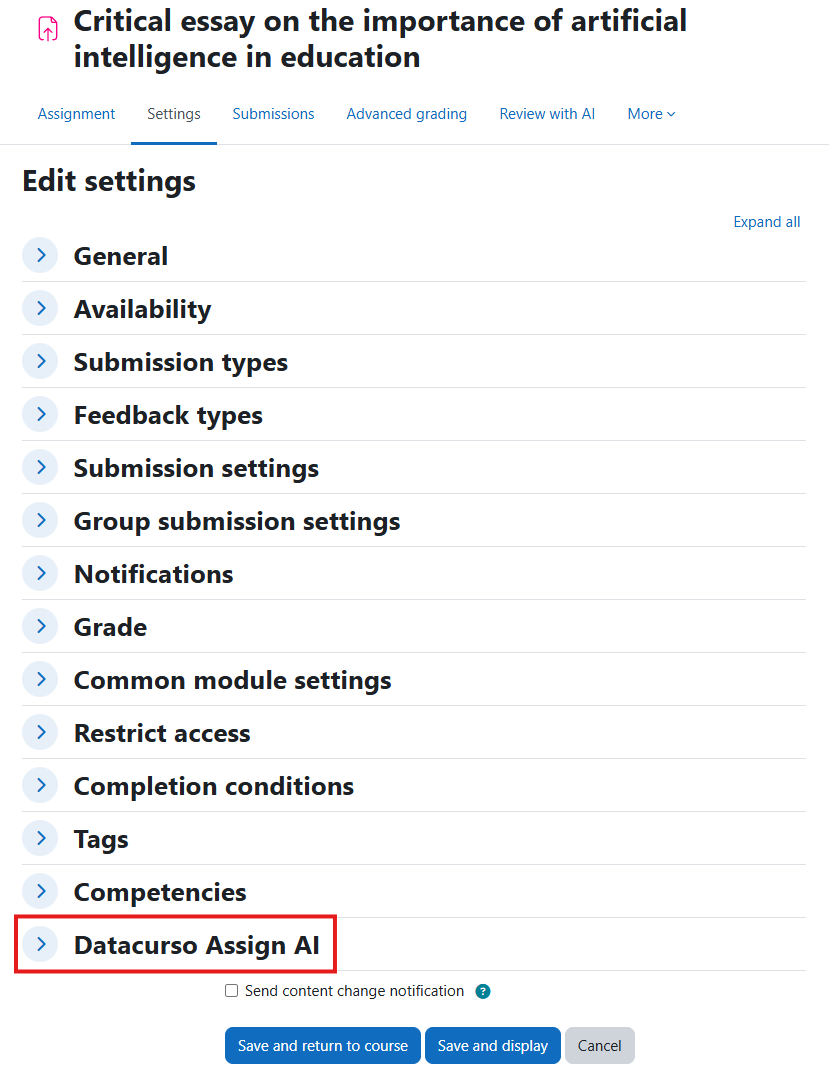
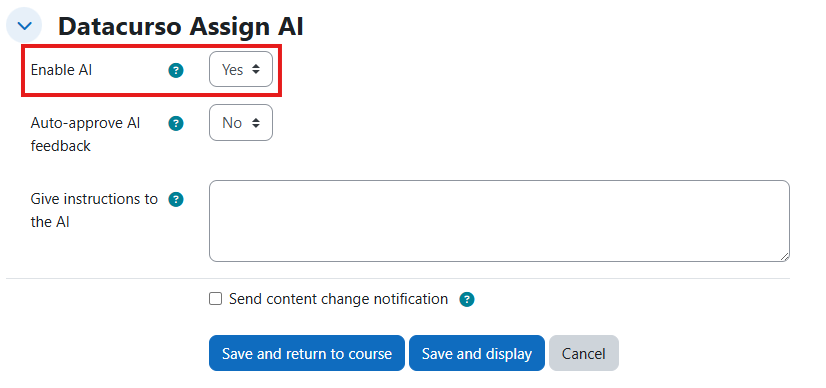
Enable AI
This setting is the main switch for AI functions in the assignment.
When Enable AI is set to No, AI-based grading and AI-generated feedback are disabled for that assignment.
In this state, actions such as automatic/manual AI review, AI feedback generation, and AI-assisted grading workflows will not run.
Enable this option before using any of the remaining AI configuration settings.
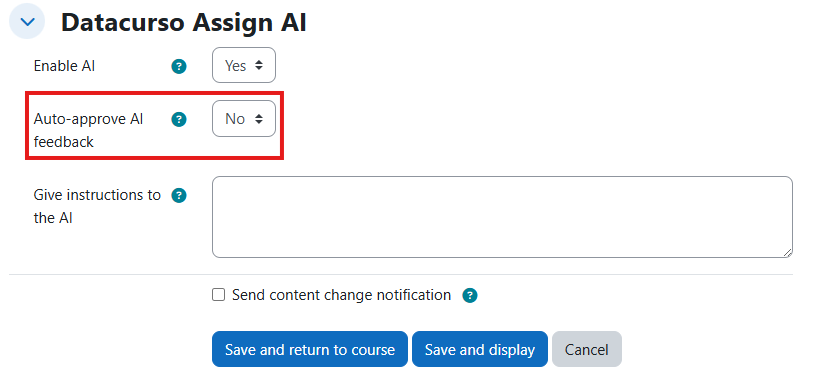
Auto-approve AI feedback: No
When Auto-approve AI feedback is set to No, AI-generated grading results and feedback are not published automatically.
This means a teacher (or authorized reviewer) must manually review and approve each AI grading outcome before students can see the final result.
Use this mode when you want maximum pedagogical control.
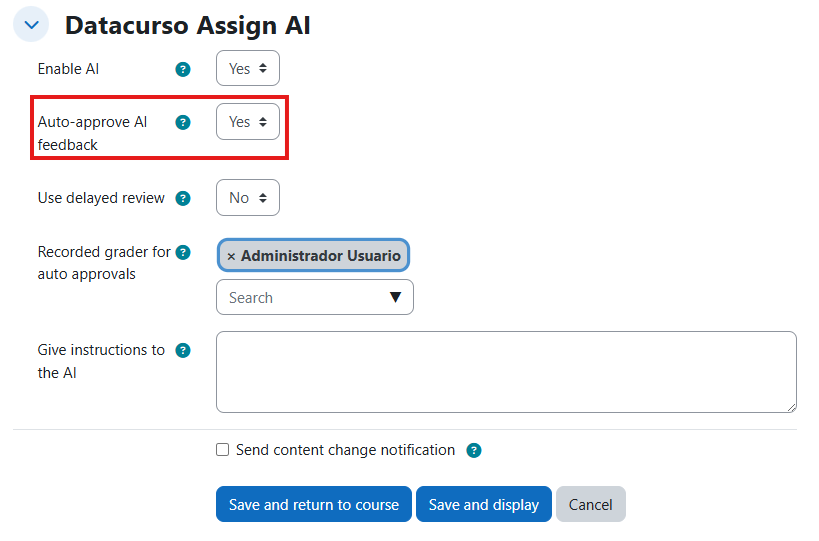
Auto-approve AI feedback: Yes
When Auto-approve AI feedback is set to Yes, AI-generated grading outcomes and feedback are approved automatically.
This reduces grading workload and speeds up result publication, especially in high-volume assignments.
Use this mode only when your institution accepts automated approval without manual validation.
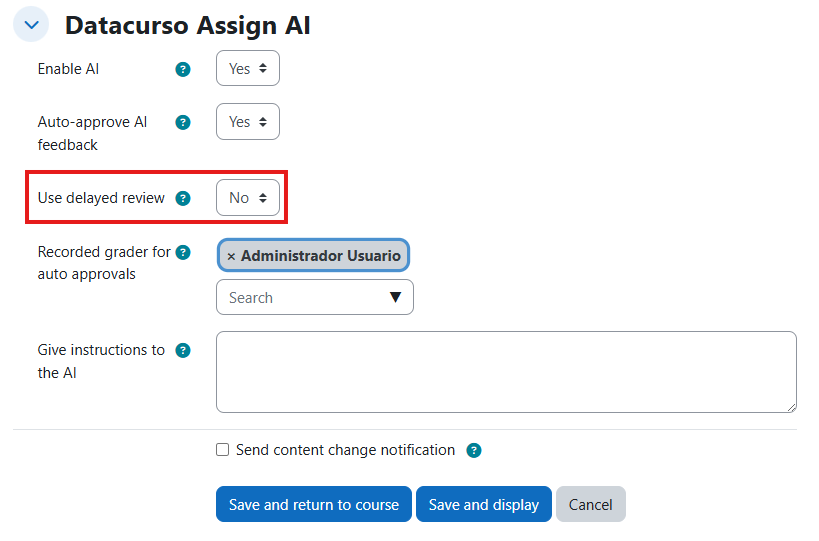
Delayed review: No
When Use delayed review is set to No, grading and feedback are published as soon as the AI result is ready (based on your approval mode).
In practice, this means there is no waiting window after AI processing completes.
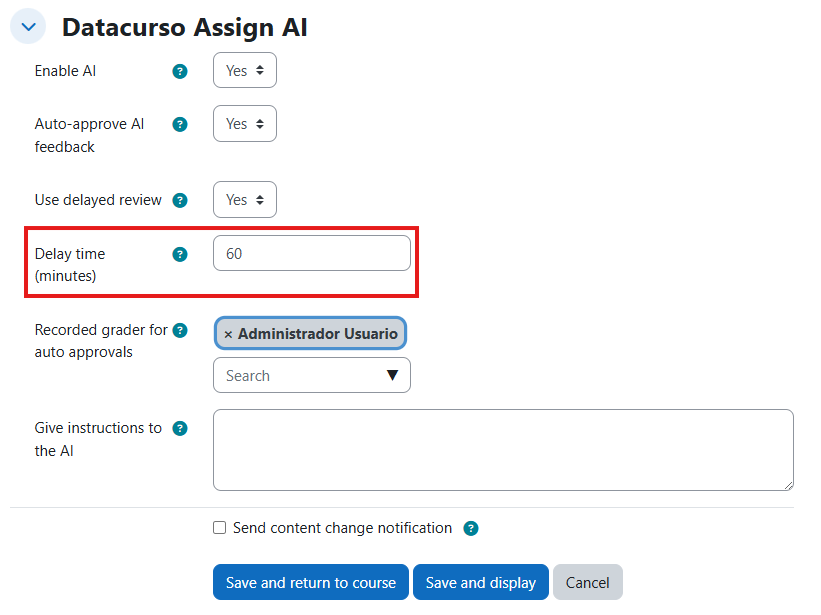
Delayed review: Yes
When Use delayed review is set to Yes, an additional time field appears.
In this field, define how many minutes the system must wait after AI processing before publishing the grade and feedback.
This helps teams schedule publication and avoid immediate release during active grading windows.
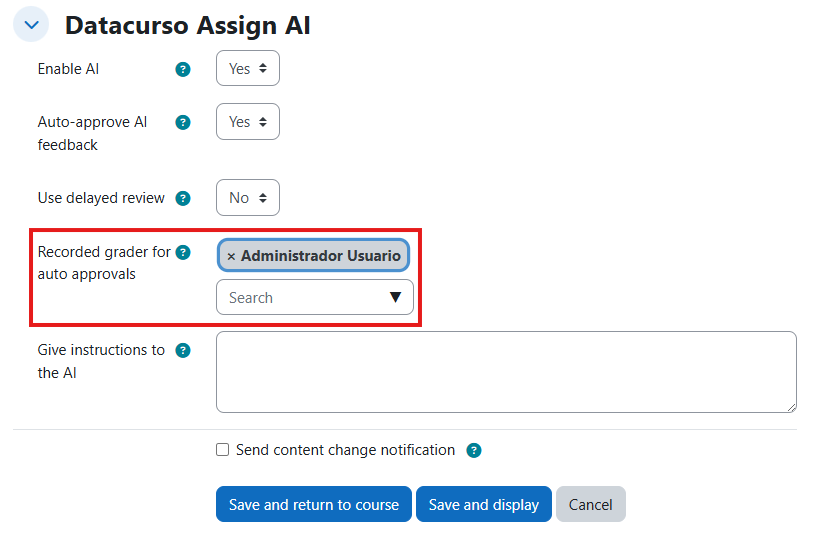
Grader user
The Grader user setting defines which user appears as the grader in Moodle records.
This is useful when you want students to see grades and feedback under a designated grader identity instead of an AI-related identity.
Select the grader account according to your institutional communication policy.
Extra instructions for AI
This field lets teachers provide additional grading guidance for the AI model.
Use it to define course-specific instructions such as expected tone, evaluation emphasis, feedback style, or institutional criteria.
These instructions are used during grading and feedback generation to improve alignment with your academic requirements.
For better consistency, keep prompts clear, concise, and directly related to assignment expectations.