Quickstart + How to use (Tutor AI)
This page combines the Quickstart (get it working fast) and How to use (student/teacher workflows) to avoid duplicated steps.
✅ Outcome: The floating Tutor AI avatar appears in a course and users can complete a full question → streaming answer interaction.
Before you start (critical)
You must have:
- Moodle 4.5+
- Datacurso AI Provider installed and licensed
- Datacurso AI Provider webservice configured (CRITICAL)
If the webservice is not configured, Tutor AI will show: error_webservice_not_configured.
Recommended: verify the provider setup first (see Prerequisites).
Teachers can enable or pause Tutor AI inside a specific course using the Course manager (More → Tutor AI). This is the place to manage availability for learners at the course level.
➡️ See step-by-step: Teacher configuration
Quickstart: Open a course and start a chat
- Enter any course page.
- Look for the floating avatar (bottom corner).
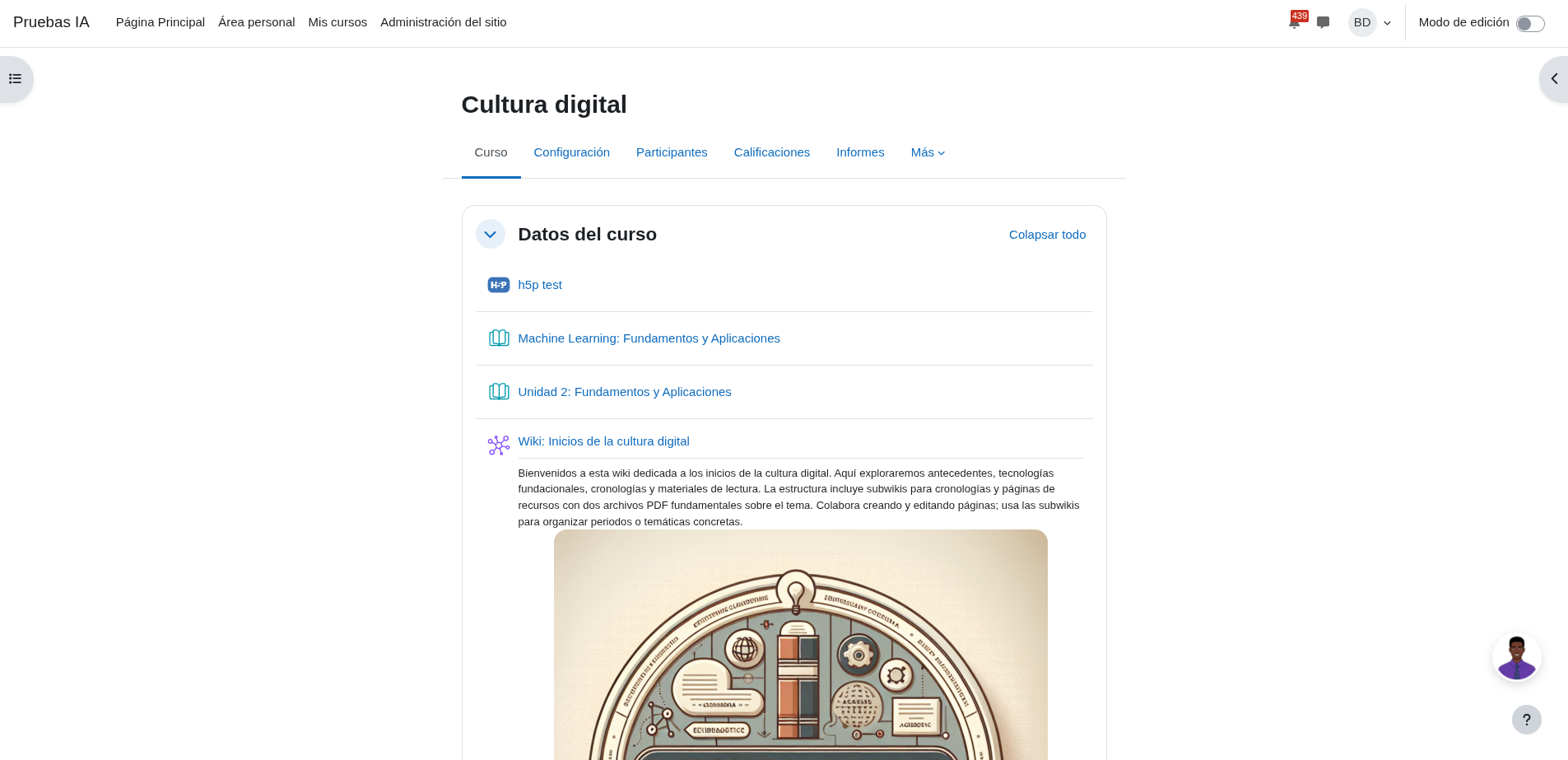
- Click it to open the chat drawer.
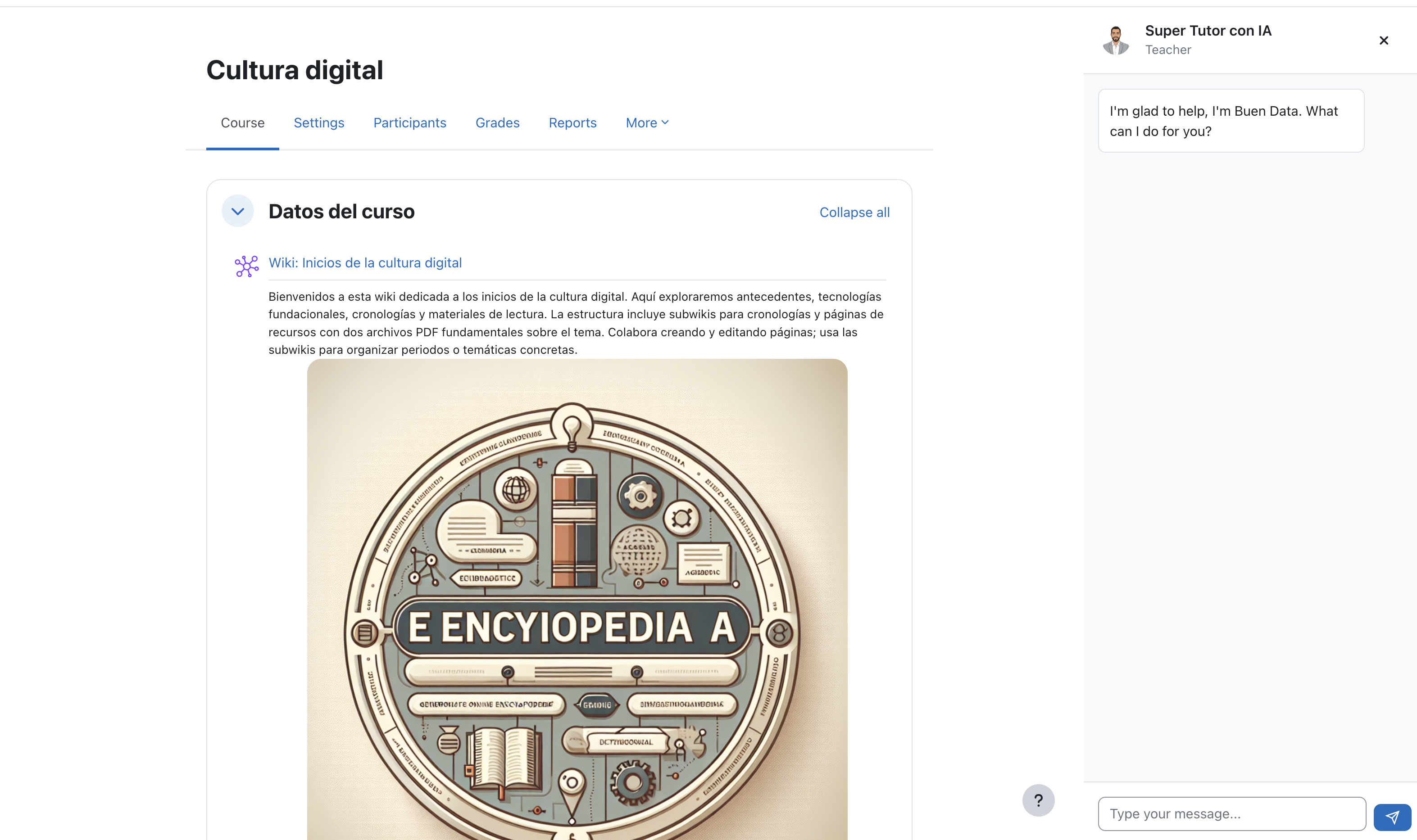
- Ask a simple question, for example:
- “What should I do first in this course?”
- “Summarize what this activity is asking me to do.”
✅ Expected result: Tutor AI replies with a streaming response.
Student: Ask questions inside a course
What students will see
A floating avatar button appears on the course page. Clicking it opens a chat drawer.
What to ask (examples)
- “What should I do first in this course?”
- “Summarize the instructions for this activity.”
- “Explain this concept in simpler terms.”
✅ Expected result: Tutor AI replies in the chat with a streaming response.
Teacher: Support learners faster
Teachers use the same chat UI, but Tutor AI can respond differently based on role (role-aware behavior).
Common teacher uses
- Suggest how to explain an activity more clearly
- Help answer repetitive learner questions
- Summarize what learners are struggling with (based on the current context)
What to ask (examples)
- “How can I explain this activity more clearly?”
- “What are common misunderstandings learners might have here?”
- “Give me a short checklist for students to complete this activity.”
✅ Expected result: Tutor AI provides practical, course-aware guidance.
Course manager: enable the chat for a specific course
To confirm the chat is enabled for a specific course (or to pause/enable it), use the course manager:
- Go to More → Tutor AI inside the course.
- Review the current state and enable/pause the assistant.
- Save changes and wait a moment for synchronization.
➡️ Full steps with screenshots: Teacher configuration
If the chat does not work
- If you see
error_webservice_not_configured, complete the Datacurso AI Provider webservice setup (required):- See Prerequisites.