Teacher configuration
Course manager: enable the chat for a specific course
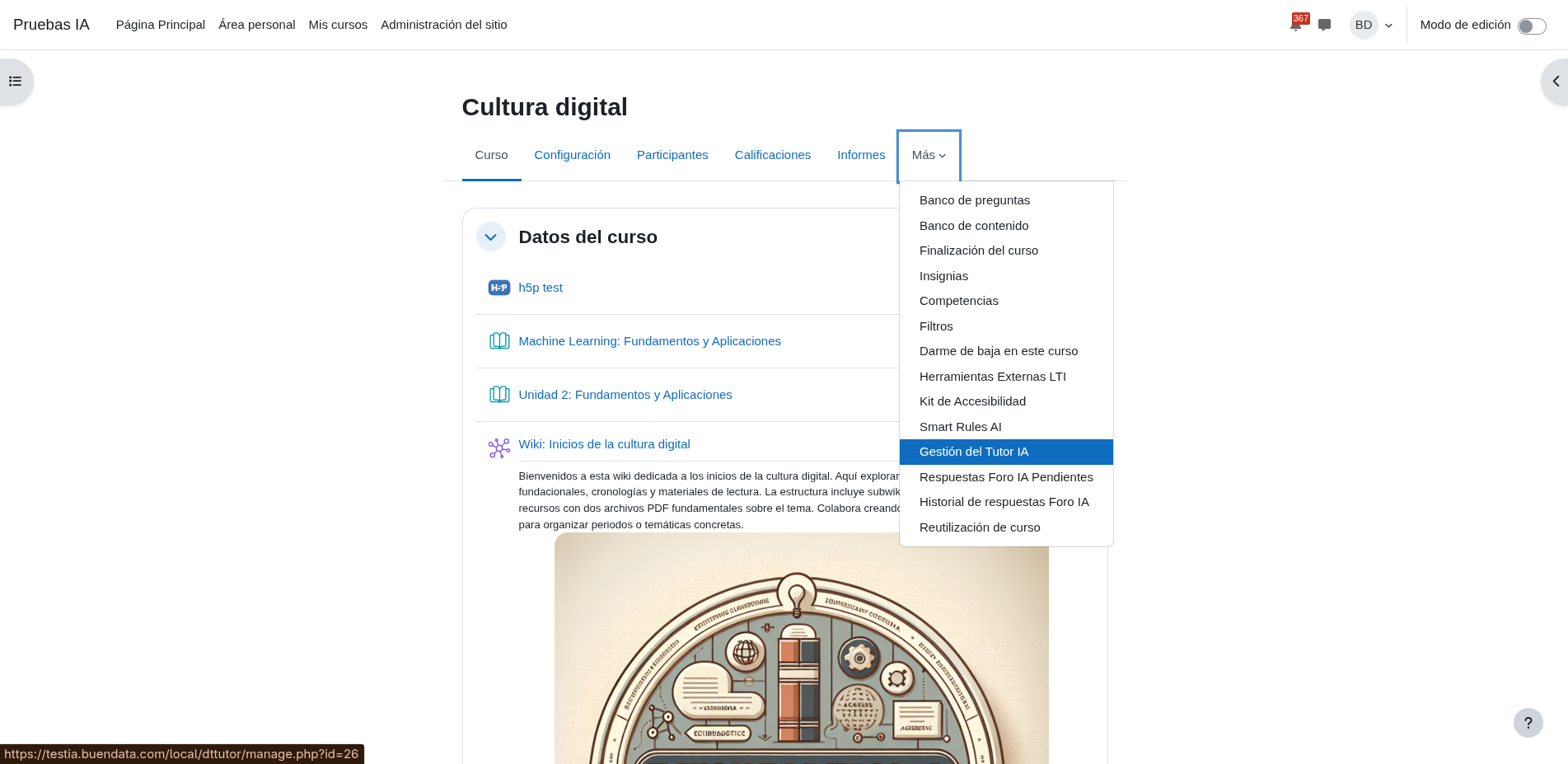
- Open the course, then click More → Tutor AI to reach the course manager.
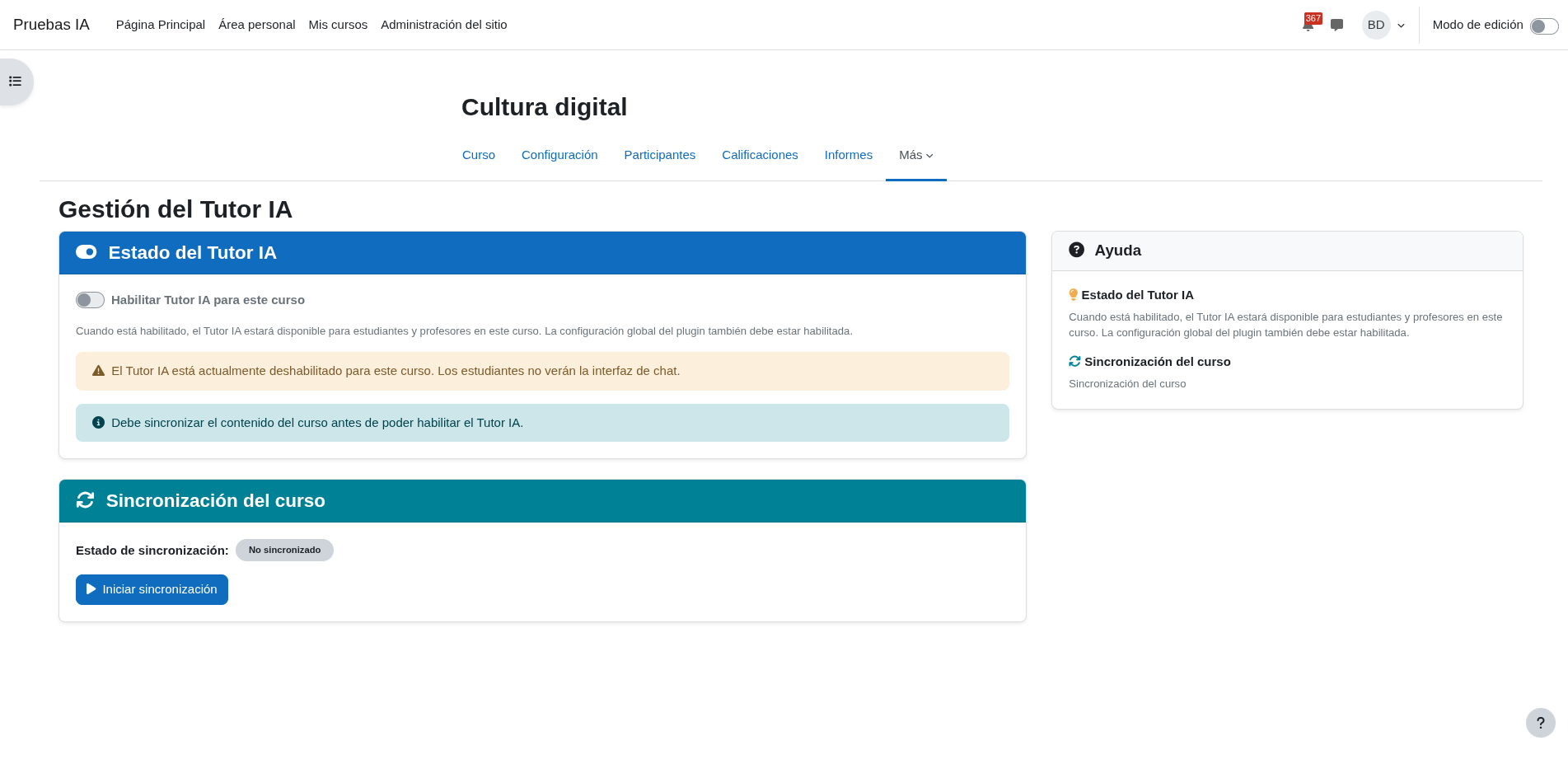
- The manager shows the current chat state and allows you to enable or pause the assistant.
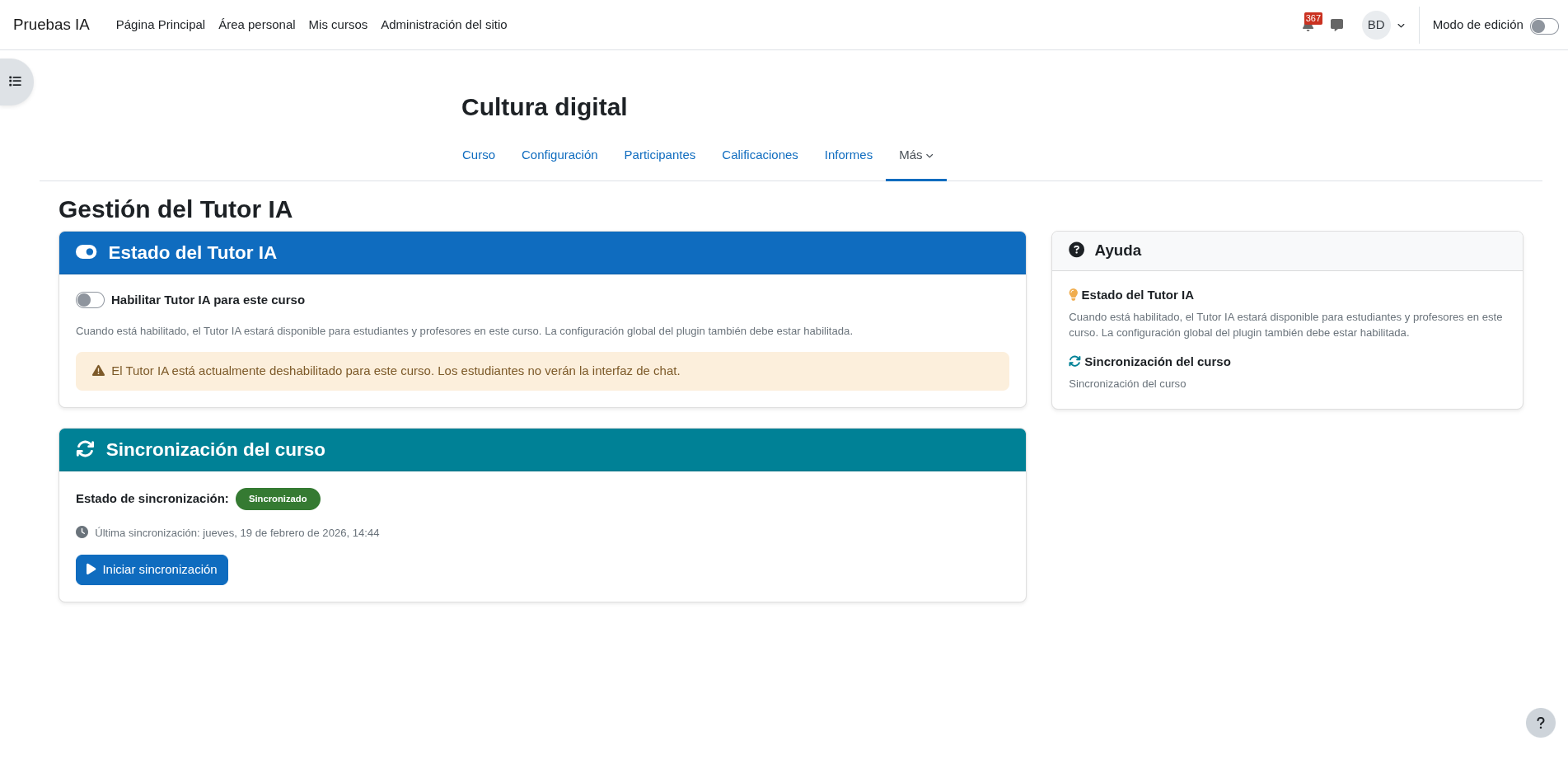
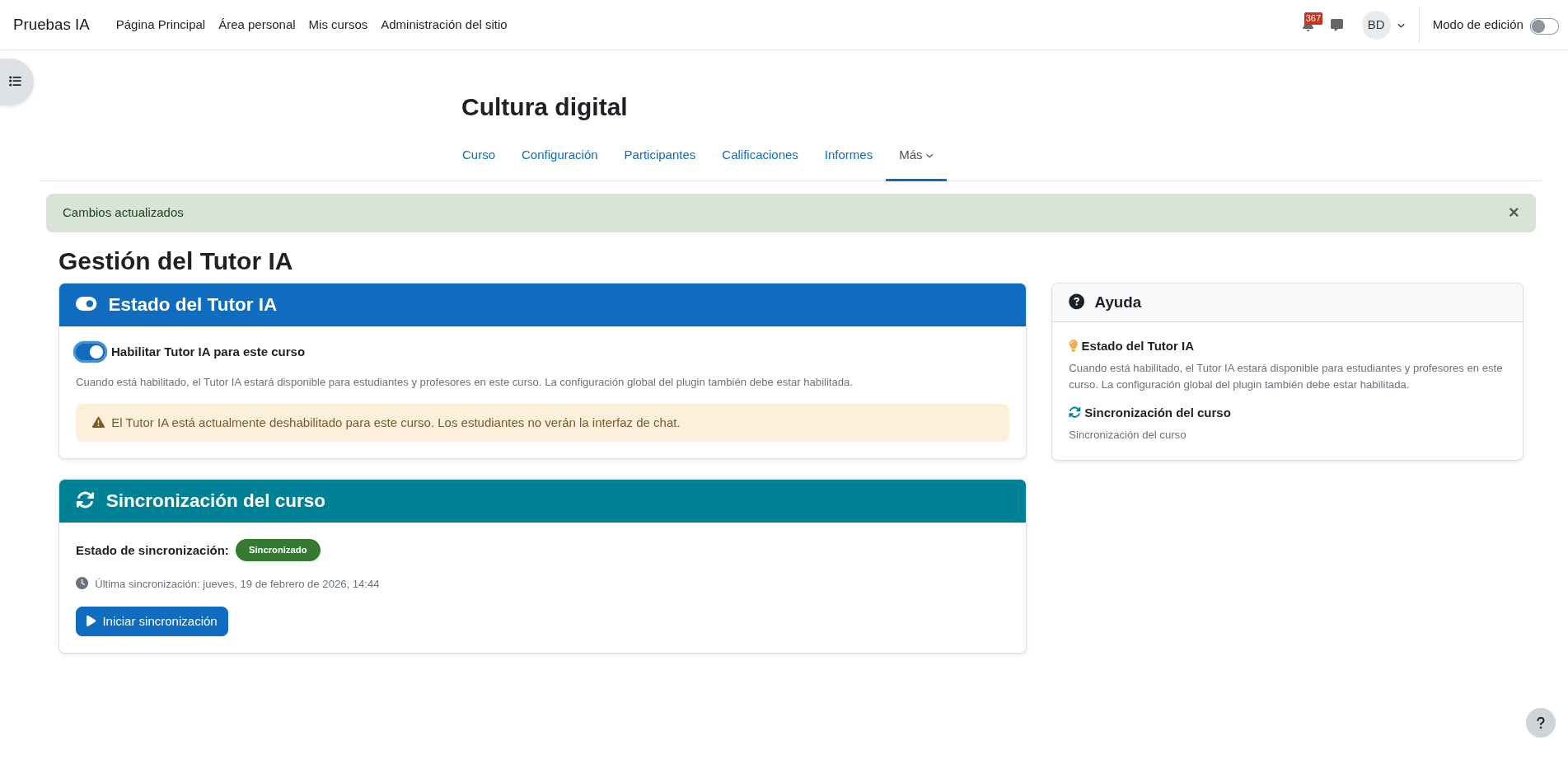
- Save changes and wait a moment for the status to synchronize.
Teacher configuration (use vs. advanced settings)
Tutor AI can be used inside a course without a admin enabling it at the site level (as long as the administrator has installed it and prerequisites are met).
However, to change prompts, the welcome message, tutor name, avatar, or off-topic detection, you need access to the plugin’s global settings (site administrator).
➡️ Full guide: Configuration