Configuration
Who is this for? Site administrators.
Tutor AI is configured at the site level. Use these settings to enable the chat, choose how it appears inside courses, and customize the tutor’s behavior.
1) Open Tutor AI settings
In Moodle, go to:
Site administration → Plugins → Local plugins → Tutor AI
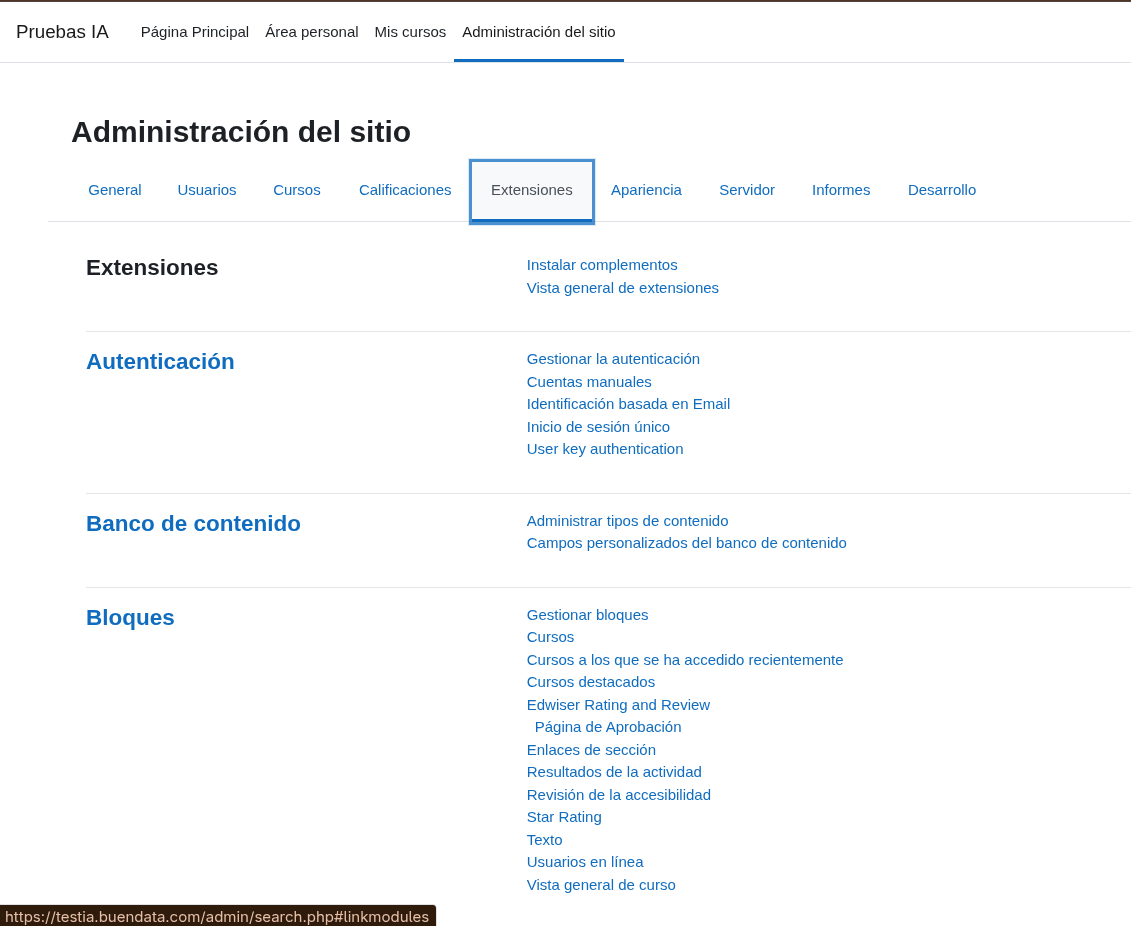
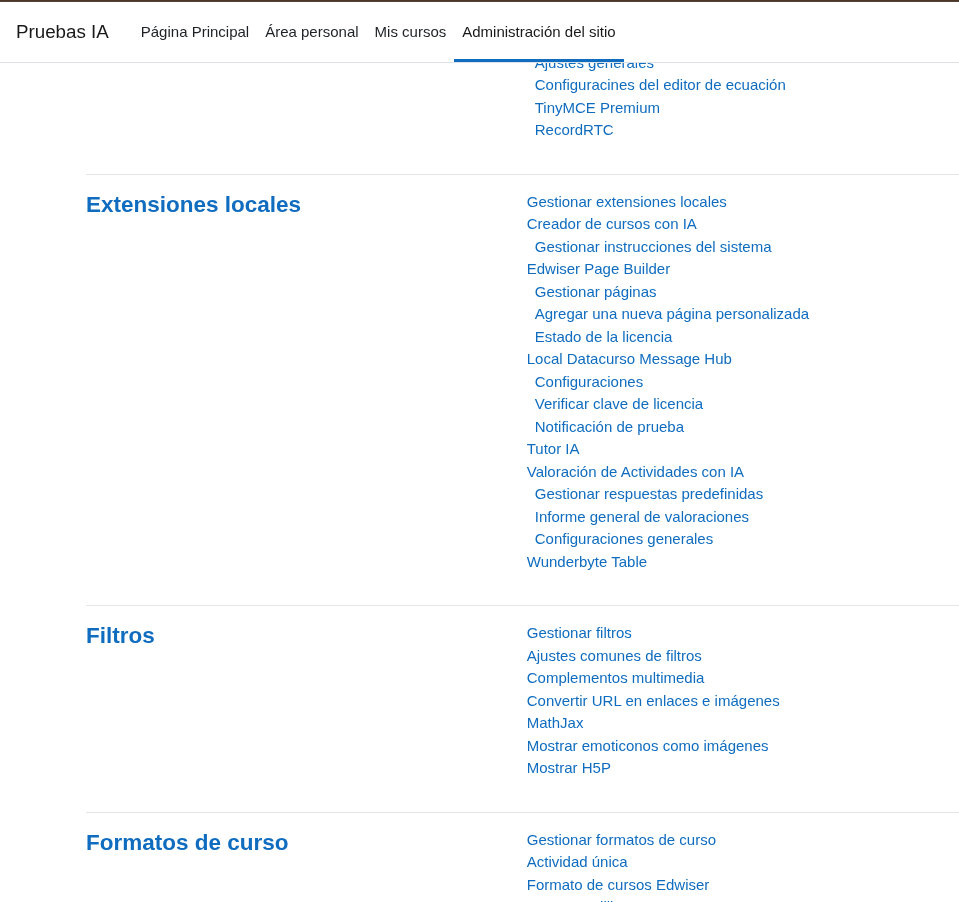
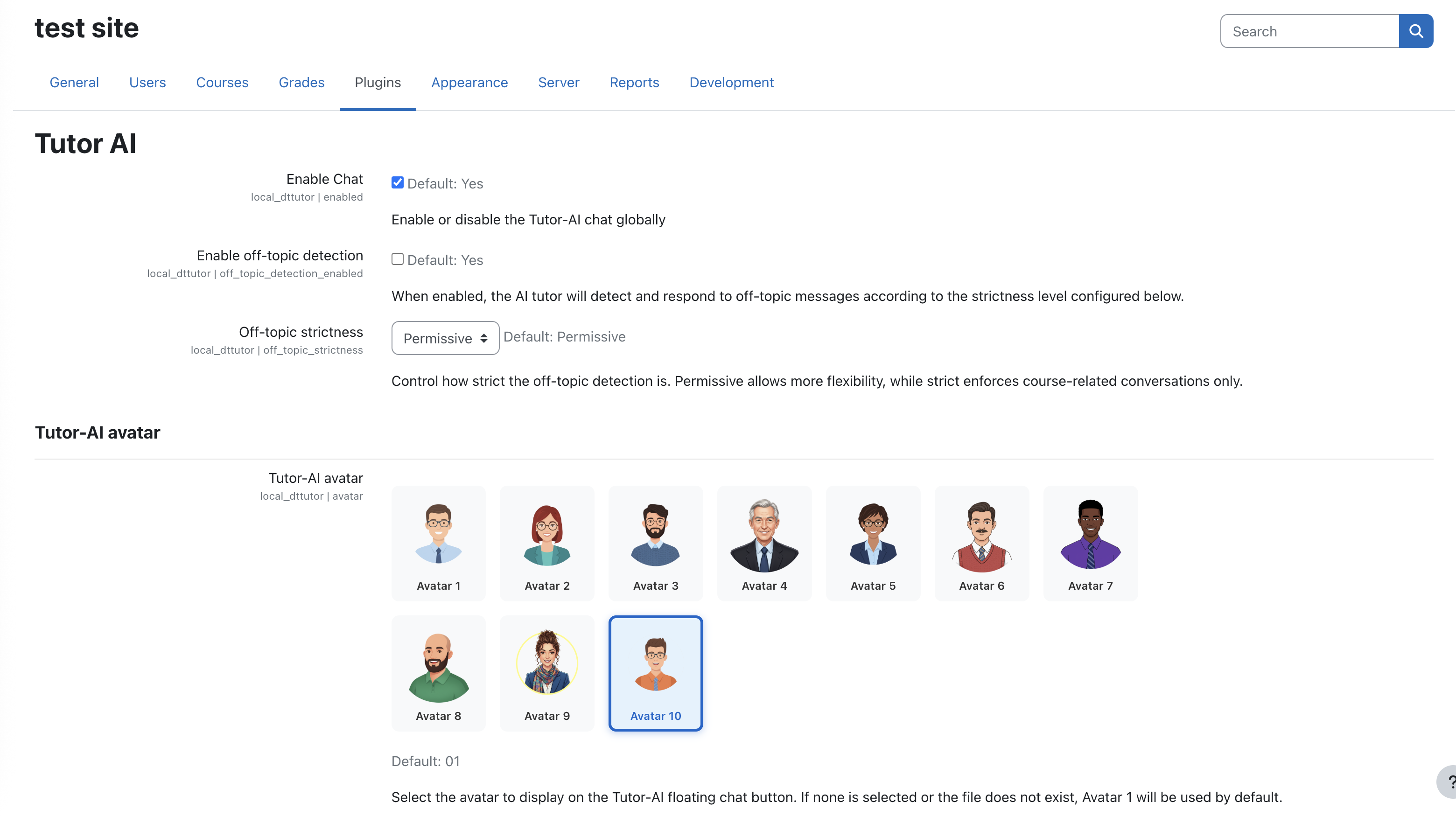
This screenshot captures the top of the settings page (scroll position 1) where the global toggles live.
2) Enable the chat (required)
Turn on Enable chat so the floating avatar shows up inside course pages.
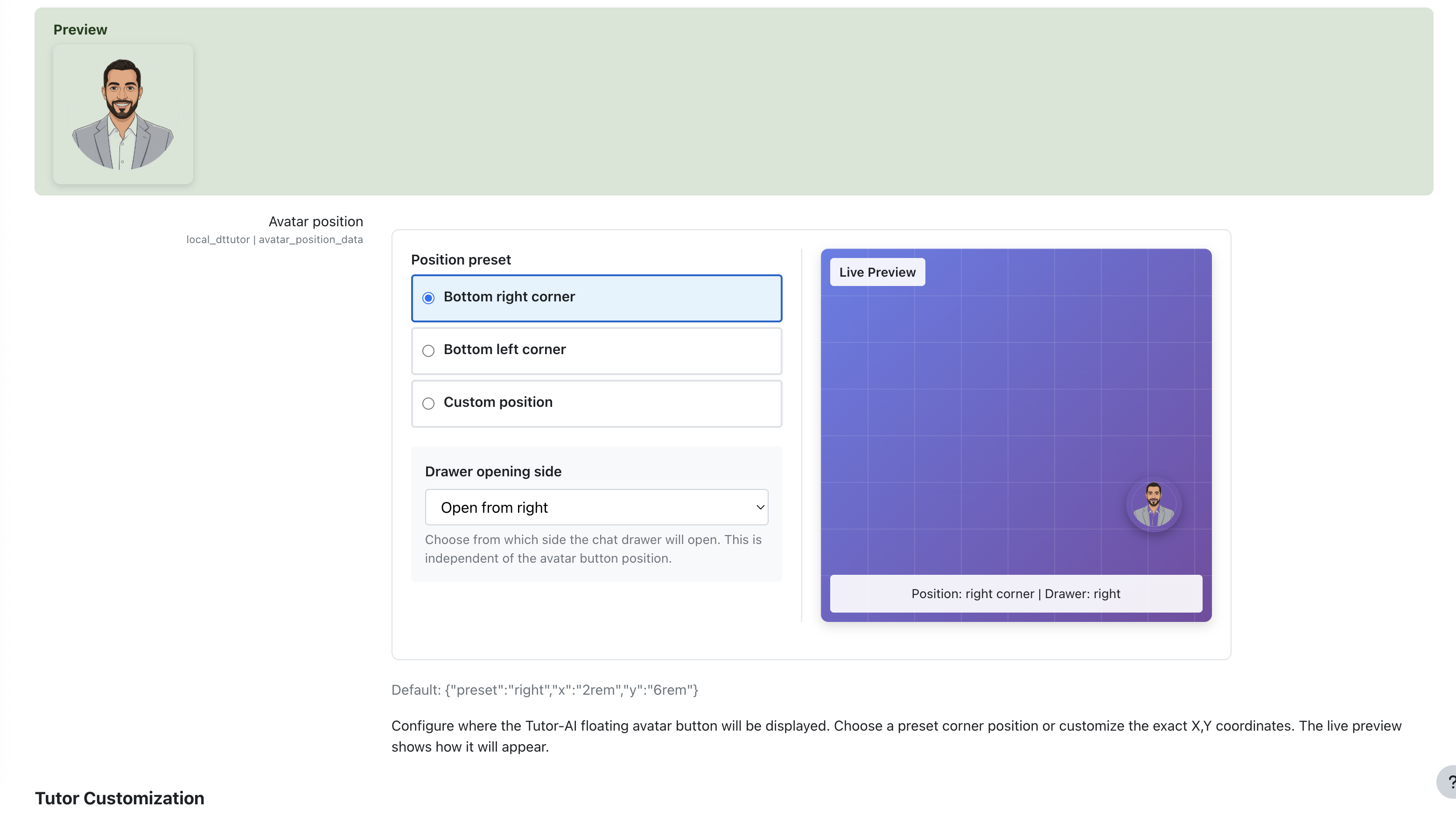
If the avatar does not appear after enabling, verify you saved changes and that the Datacurso AI Provider webservice is configured (see Prerequisites).
3) Off-topic detection (recommended)
Enable Off-topic detection and configure the response behavior to keep Tutor AI focused on course questions.
4) Choose the avatar and drawer layout
Configure:
- Avatar style (or upload/select a character)
- Avatar position on the page
- Chat drawer side (left or right)
- Preview to confirm placement
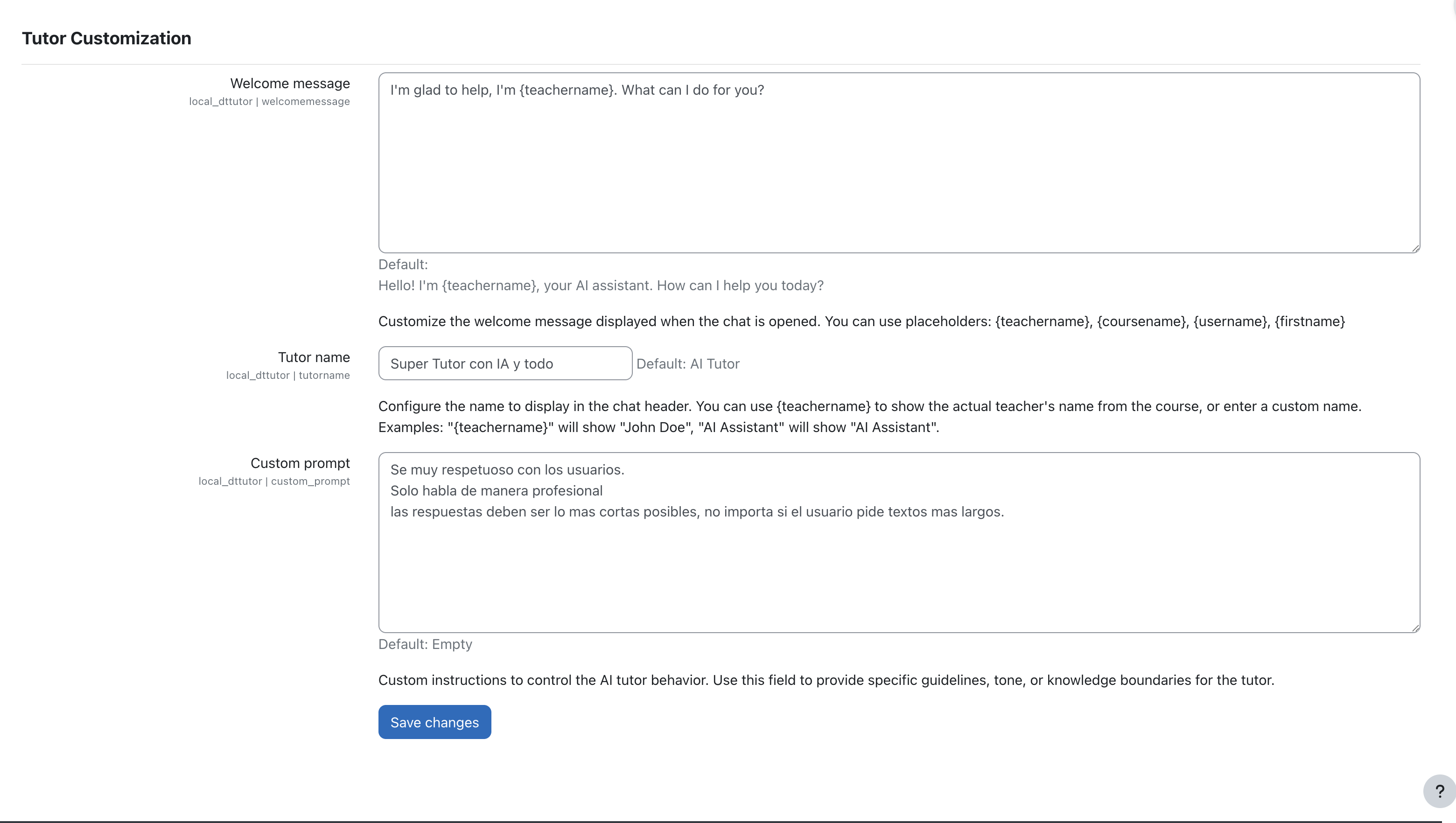
5) Customize the tutor's identity and prompt
Set the Tutor name, Welcome message, and optionally a custom prompt that uses placeholders such as {$a->username}, {$a->fullname}, and {$a->role}.
Keep the prompt short and action-oriented. Start simple, observe real learner questions, then refine.
6) Validate the configuration (fast check)
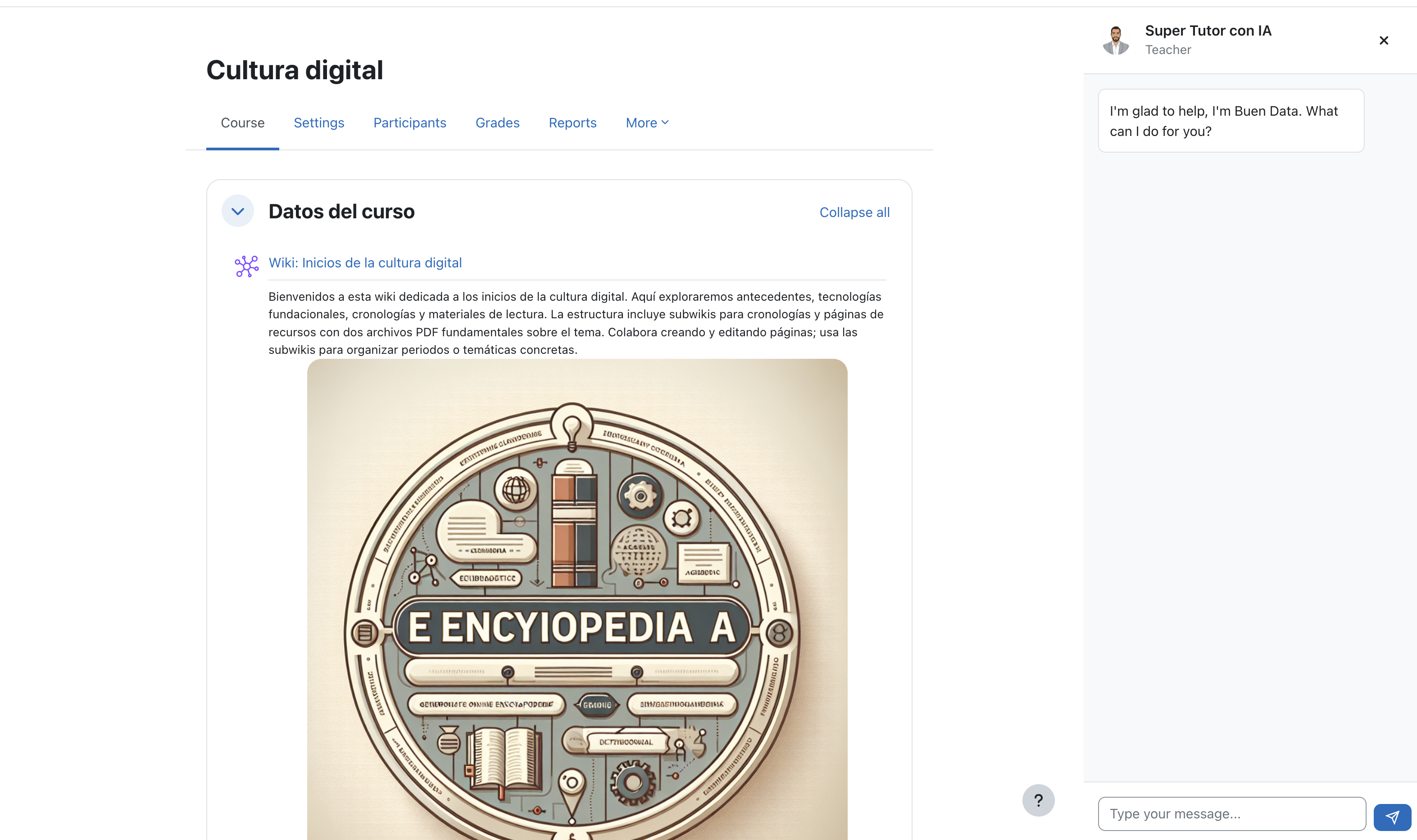
- Open any course page.
- Confirm the floating avatar appears in the corner.
- Open the drawer and ask a quick question to see the streaming response.
If you see error_webservice_not_configured, return to Prerequisites to finish the provider setup.
Troubleshooting
This section lists the most common issues when using Tutor AI and how to resolve them.
Tutor AI opens, but responses never arrive (no streaming reply)
Most common causes:
- Provider webservice/token is not valid.
- Network blocks streaming (SSE) connections.
- Provider is not licensed or not responding.
What to do:
- Verify the provider webservice is configured (see Prerequisites).
- Confirm the Datacurso AI Provider is licensed (license key configured).
- Try from a different network/environment to rule out SSE blocking.
Responses are not course-related (too generic)
Most common causes:
- Custom prompt is too broad or missing.
- Off-topic detection is disabled (optional).
What to do:
- Go to Tutor AI settings and add a short, course-focused prompt.
- Enable off-topic detection if you want the assistant to redirect unrelated questions.
Tip: Use the prompt templates in Use cases (Templates).
Off-topic detection is blocking valid questions
Cause: The setting is too strict for your course context.
What to do:
- Disable off-topic detection temporarily to test.
- Adjust your custom prompt to clearly define what is considered on-topic.
Placeholders in the prompt are not working
Tutor AI supports placeholders in the custom prompt, such as:
{$a->username}{$a->fullname}{$a->role}
What to do:
- Confirm you are using the placeholder exactly as shown.
- Keep placeholders inside the prompt field (do not modify the syntax).