Plugin configuration
Once installed, configure Share Certificate AI from:
Site administration > Plugins > Local plugins > Share Certificate AI
In General settings, review:
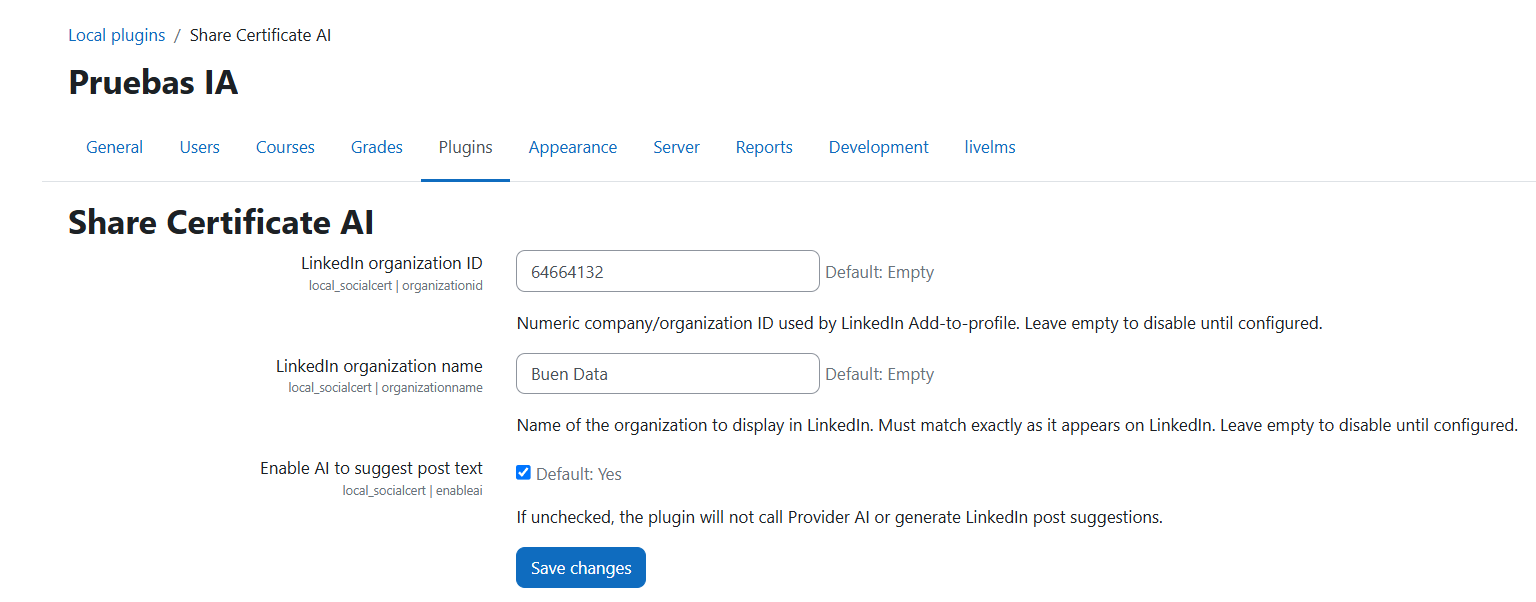
LinkedIn Organization ID (organizationid)
- Required to share.
- While empty, the plugin builds no share link and the share action stays disabled, so no credential is ever published attributed to another organization.
- LinkedIn reference: Associate your LinkedIn Company ID
Organization name (organizationname)
- Recommended field.
- Used only as context for the AI assistant when drafting the post; it is not sent to LinkedIn (LinkedIn resolves the organization from the ID).
- It must match exactly the organization name on LinkedIn (same casing, spacing, and accents).
Enable AI (enableai)
- Global toggle for the AI assistant, enabled by default.
- When enabled, users can use the Generate text for LinkedIn action in the SocialCert panel.
- When disabled, the assistant is hidden and the AI service is never contacted; the share button stays available.
After configuring values, click Save changes.
Recommended: purge caches from Site administration > Development > Purge all caches to ensure frontend updates are visible.
How to find your LinkedIn Organization ID
You must be an administrator of the institution LinkedIn Page.
- Open your organization's LinkedIn Page in admin view.
- Copy the numeric ID from the URL.
Example:
https://www.linkedin.com/company/61803398/admin/...
In this example, the Organization ID is 61803398.
Public verification
To make the published credential verifiable by anyone, also review Public verification of certificates.