Create an activity with AI
This guide reflects the version 2 activity flow.
1) Start activity creation
- Open the course and turn Edit mode on.
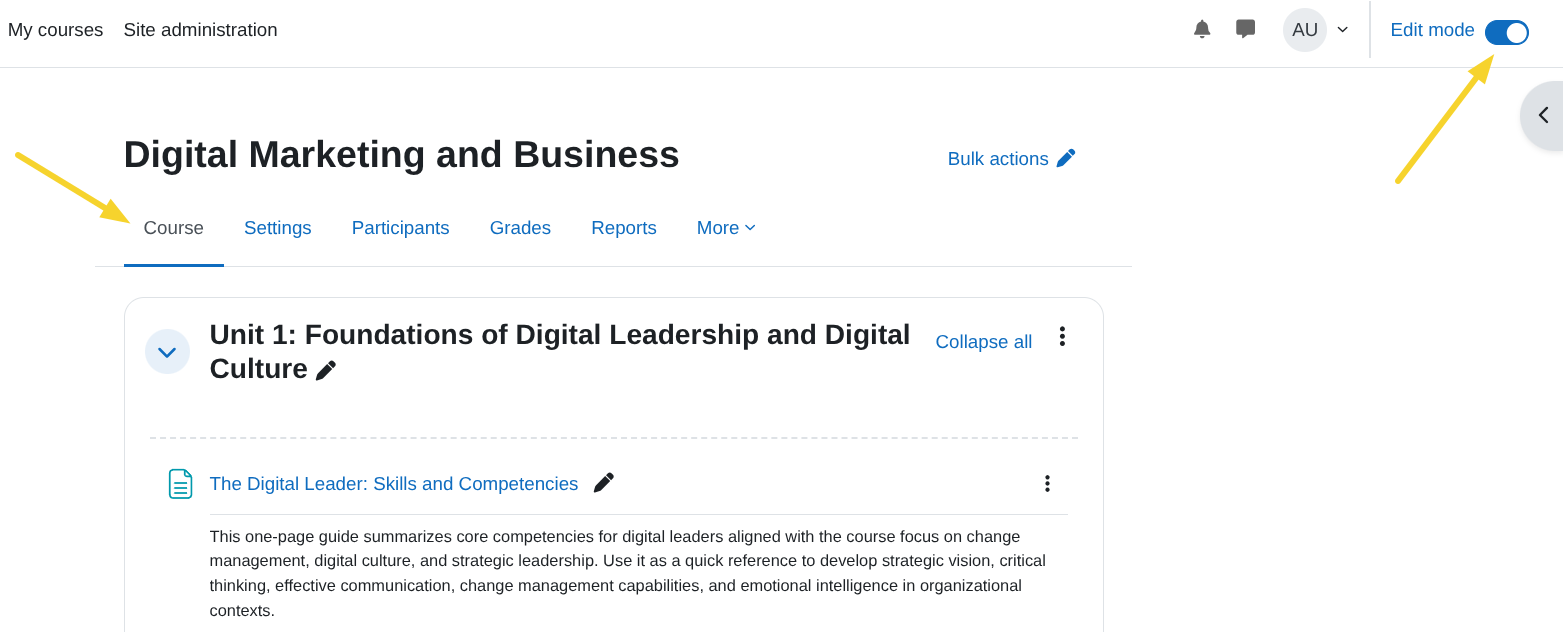
- Click Add activity or resource with AI.
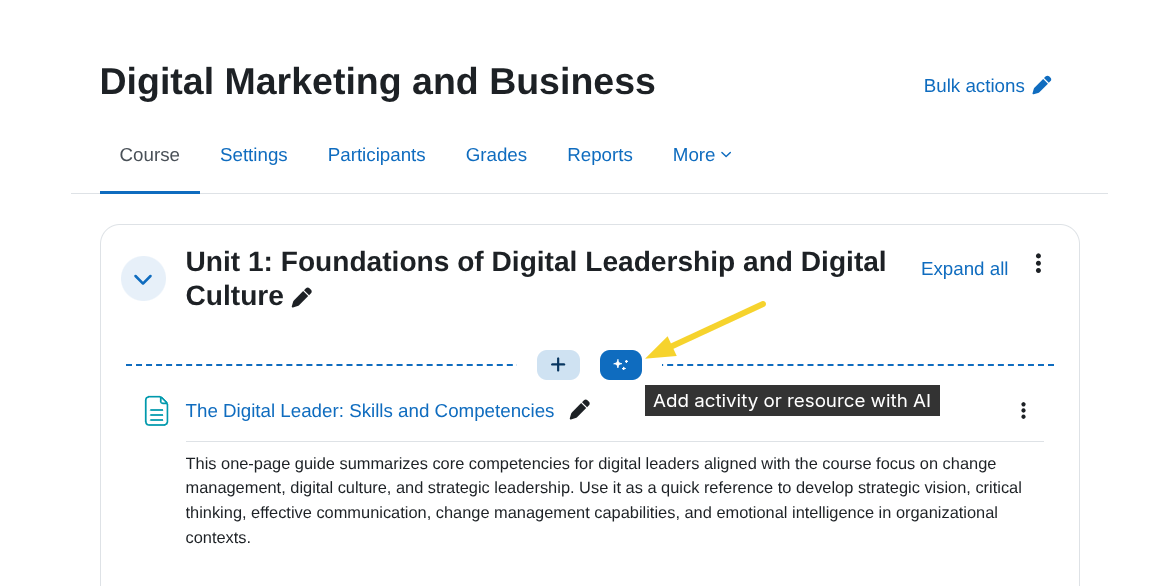
2) Write the prompt and options
In the activity AI modal:
- Write a prompt with activity type, learning objective, and expected criteria.
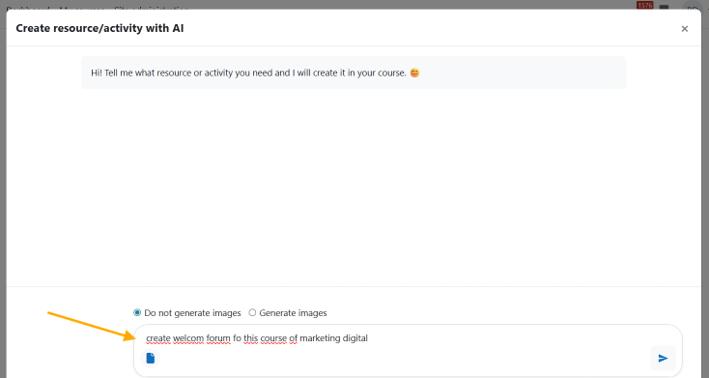
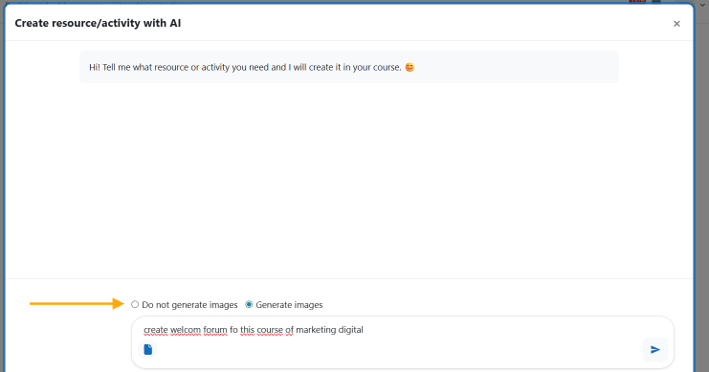
- Choose whether to generate images for the activity.
- Optionally upload a support file to enrich context.
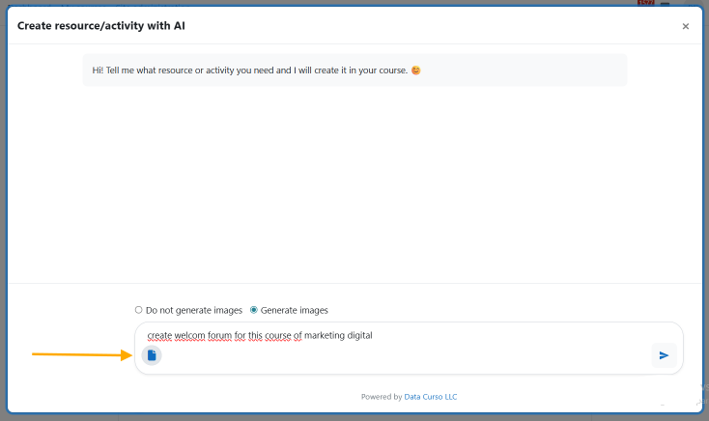
3) Planning and review
- Start the process with Enter or the send button.
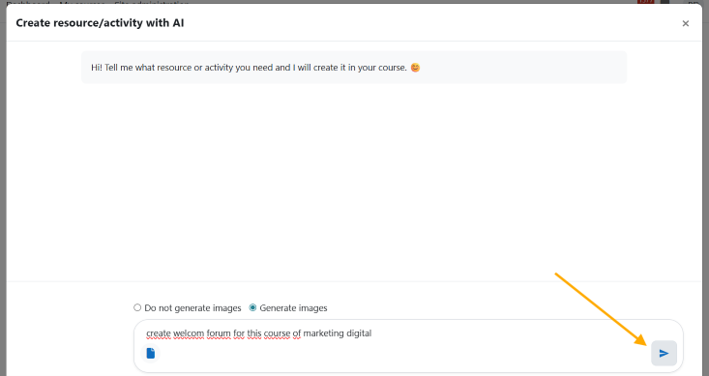
- Real-time progress updates appear during planning.
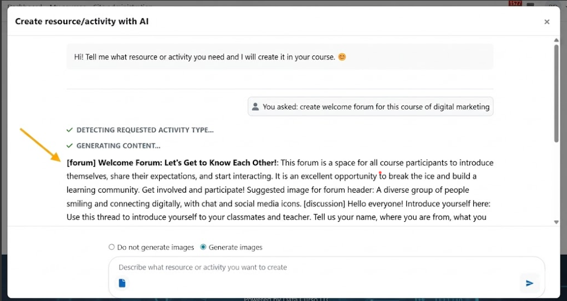
- When the system requests review, you can:
- Accept and create activity, or
- Adjust planning with additional instructions.
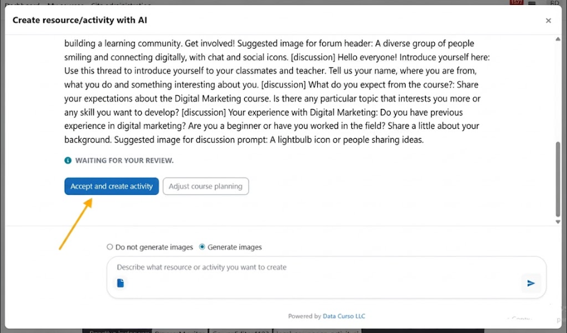
This review step is part of the v2 flow and improves control before final activity creation.
4) Final creation
- After accepting planning, the plugin creates the Moodle activity.
- When completed, the user is redirected to the created activity.

See Activity types for the full list of supported activity types and the settings the AI can generate for each one.
warning
Do not close the modal while planning, review, or creation is active.