Create a course with AI
This guide describes the version 2 flow.
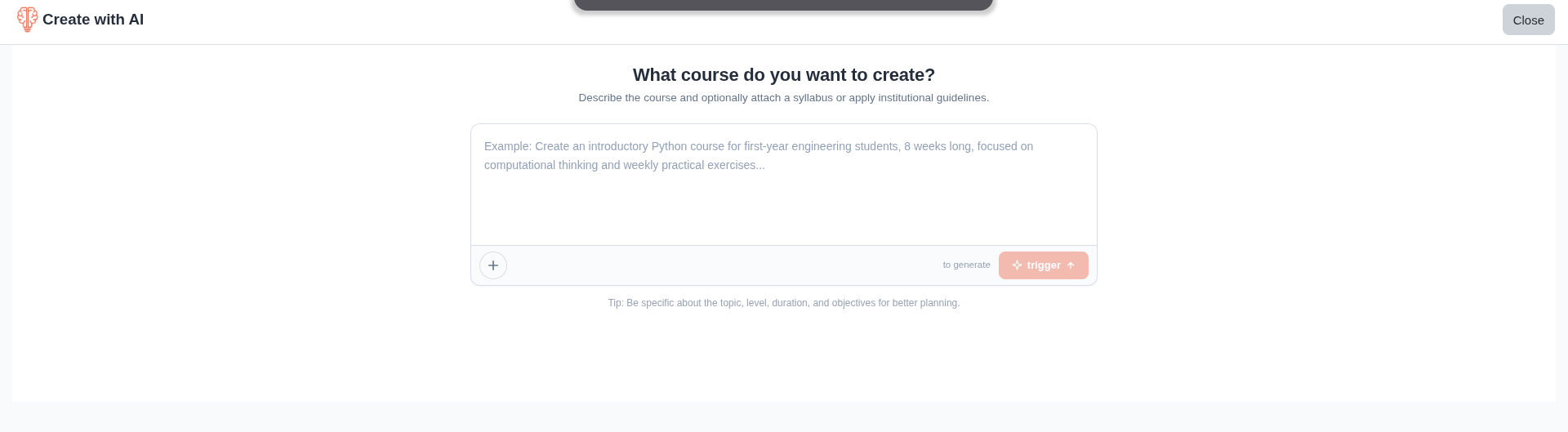
In v2, AI course creation no longer relies on the classic course creation form. The process runs in a dedicated Course Creator AI page.
1) Open the Course Creator AI experience
- Go to My courses and click Create with AI.
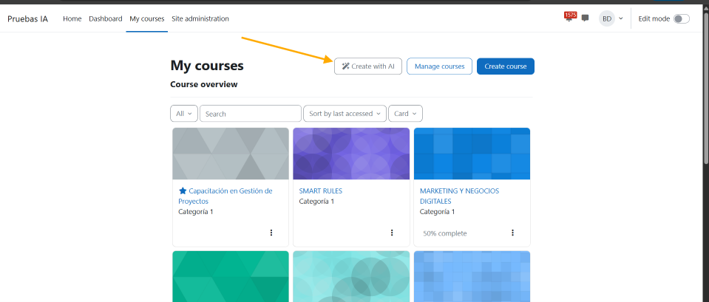
- The dedicated AI course creation page opens.
2) Define the initial AI context
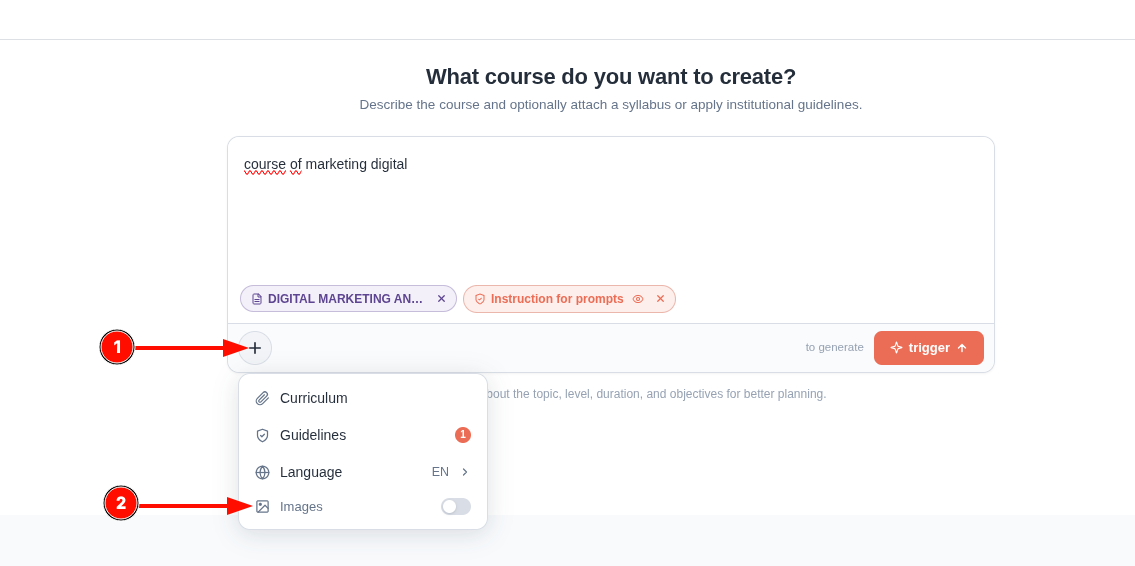
In the Course Creator AI page, define the context AI will use to plan and generate the course:
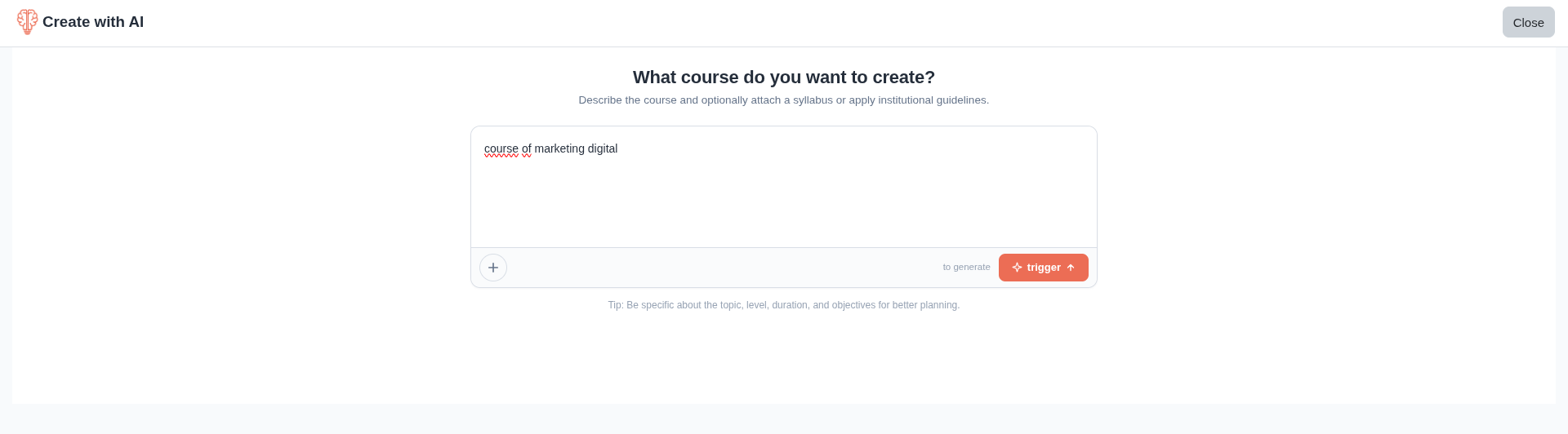
- Syllabus (PDF) or prompt as the context source.
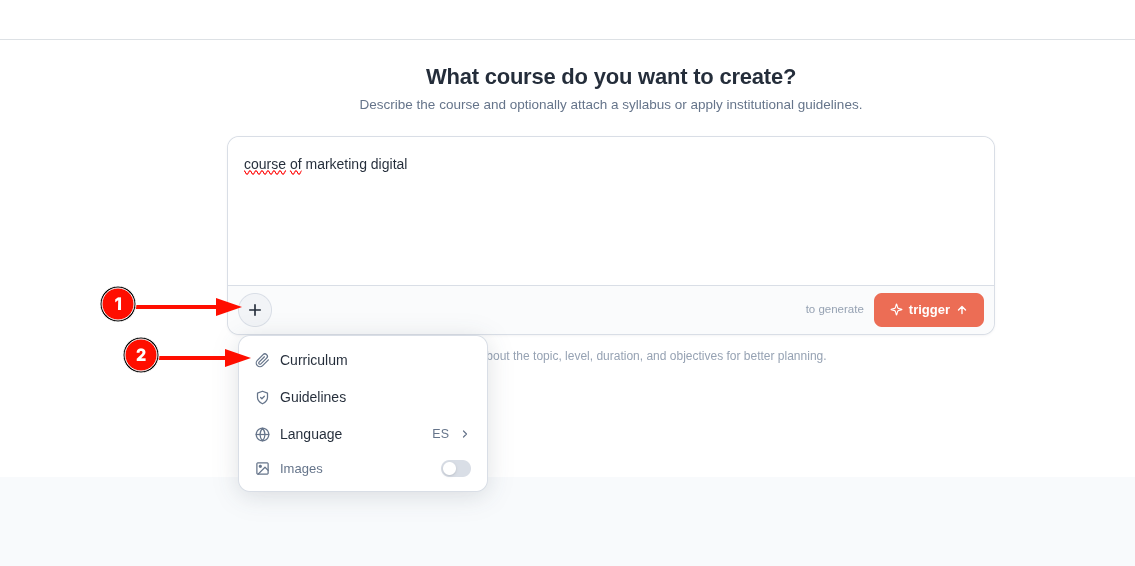
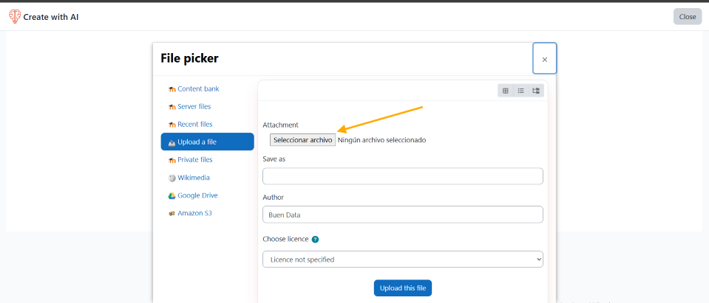
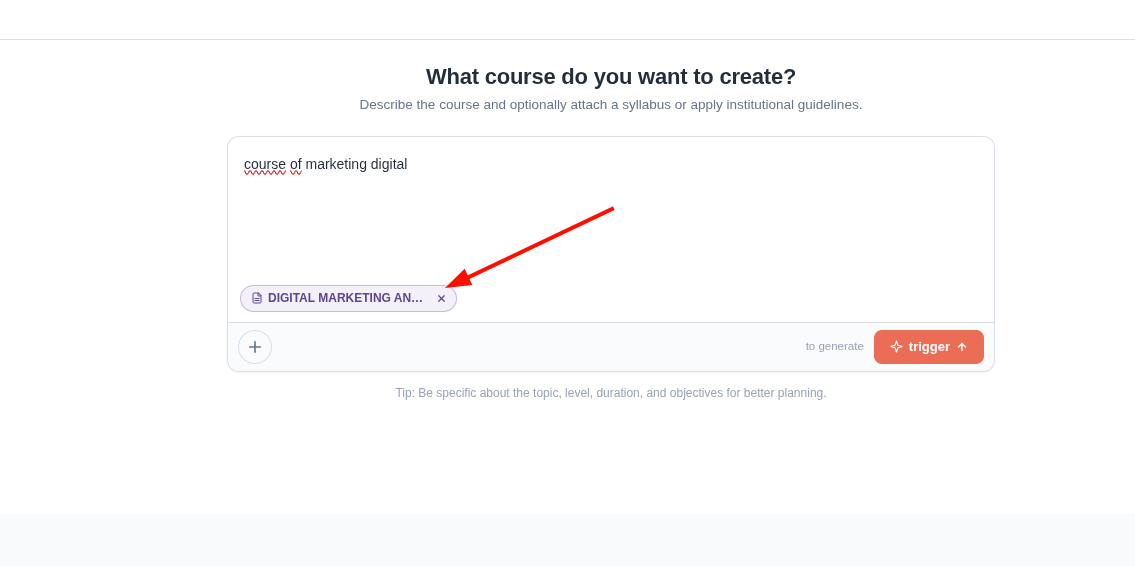
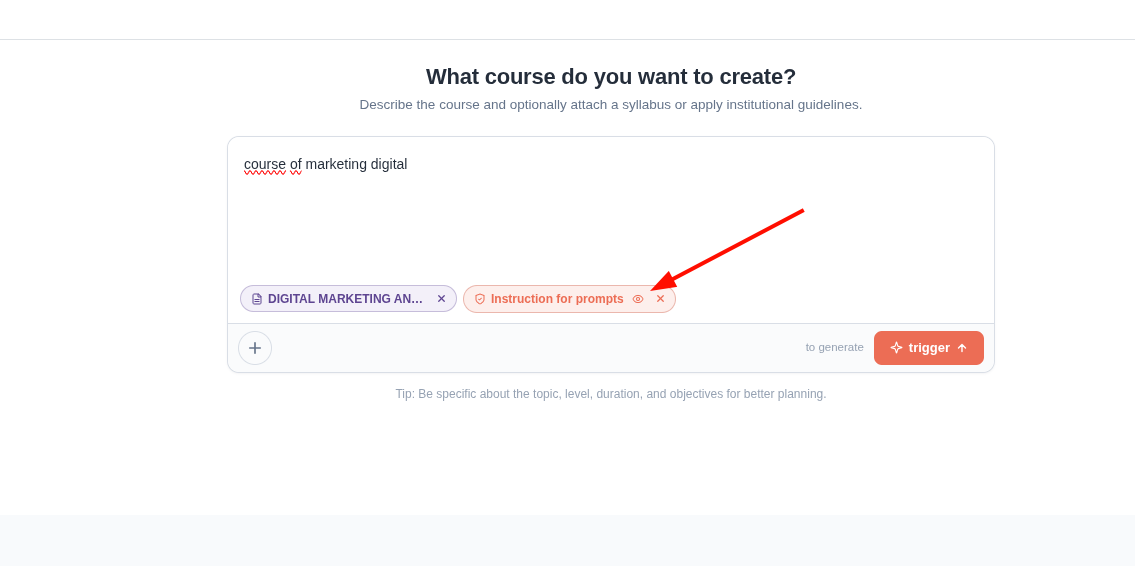
- Optional Guidelines (system instruction).
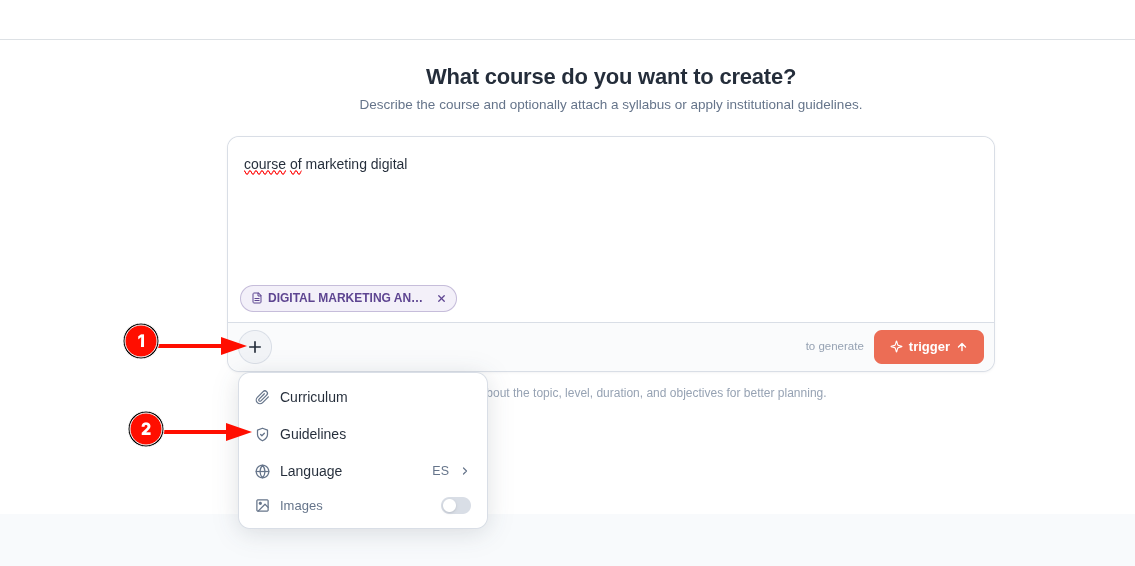
- AI response language.
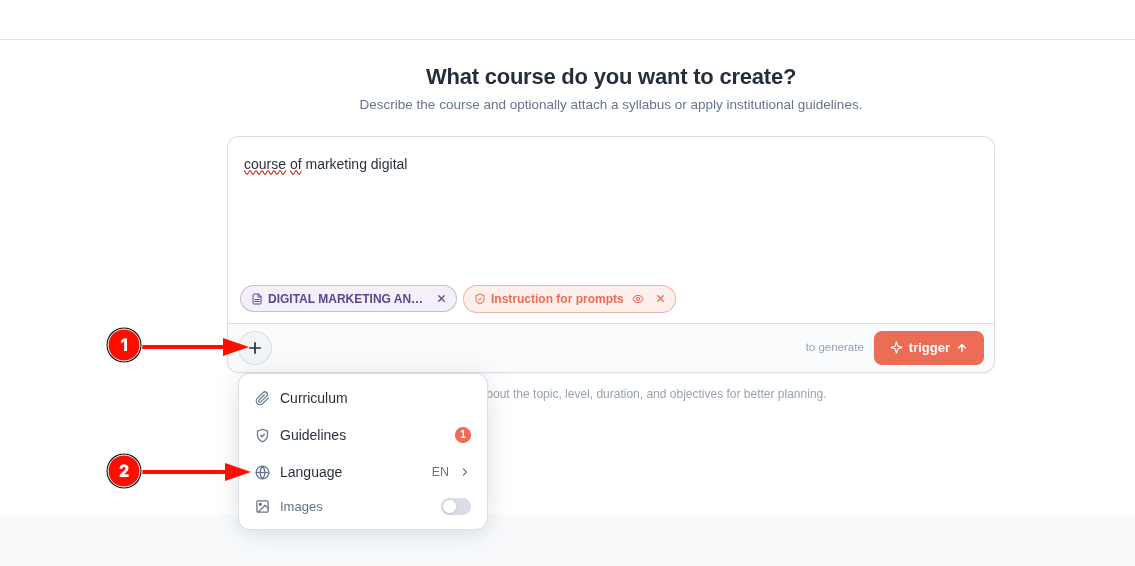
- Image field to enable or disable visual generation.
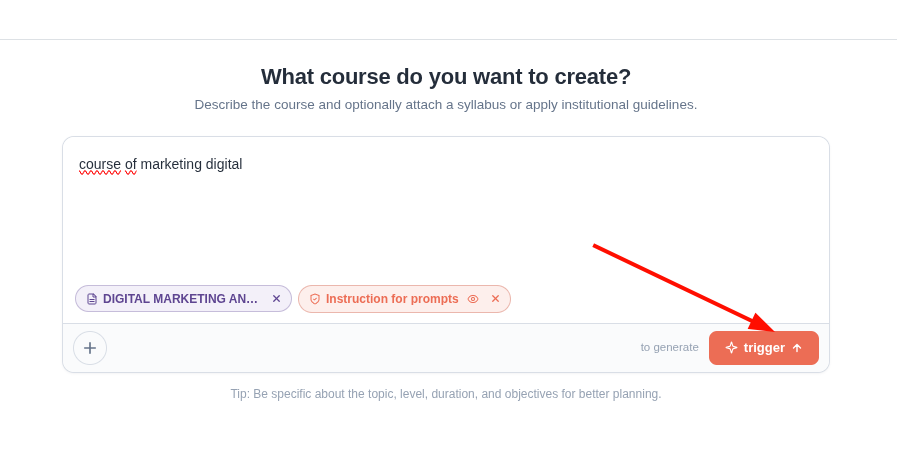
3) Start planning
- Run planning.
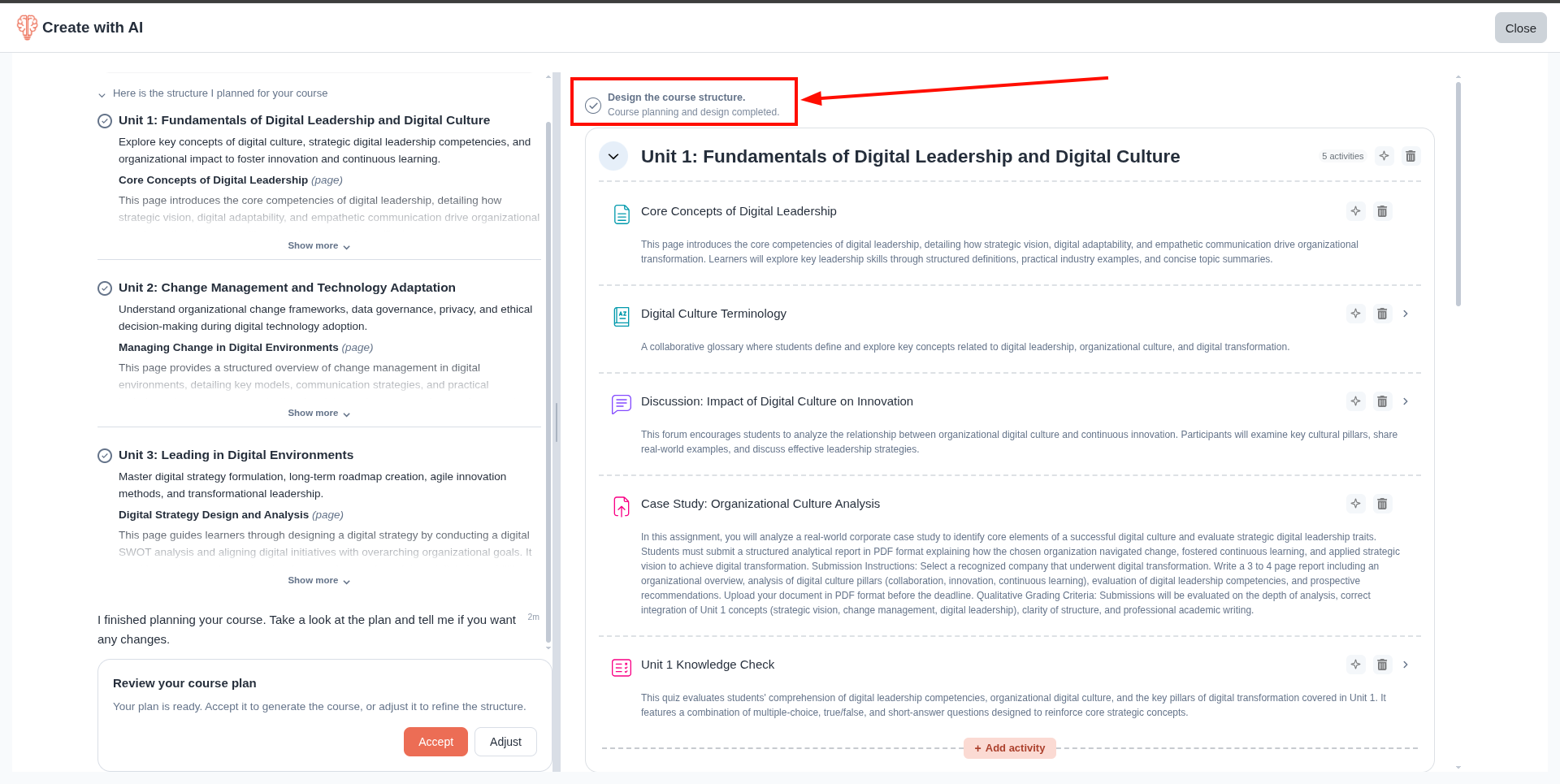
- The platform shows real-time progress.
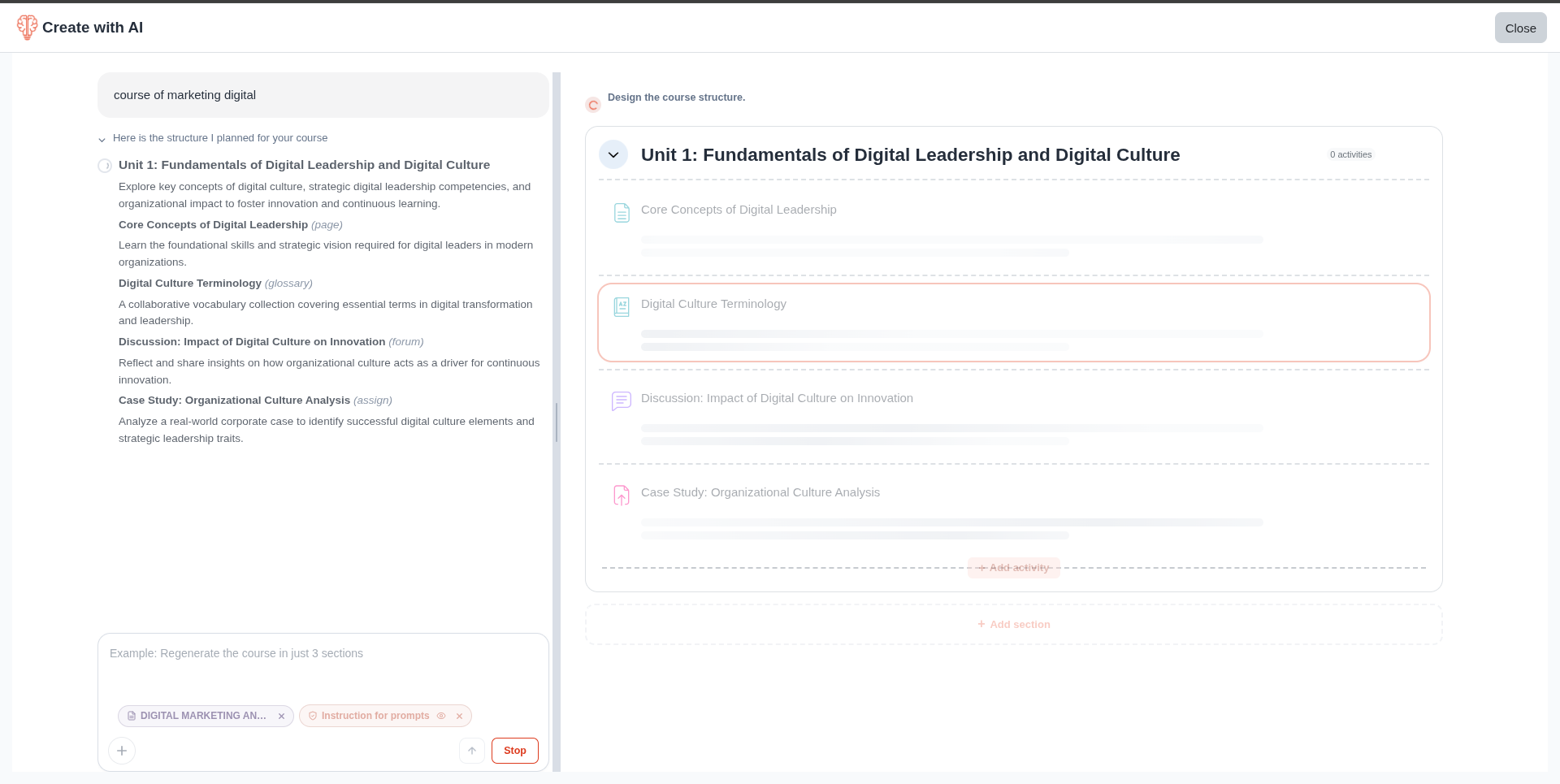
4) Review and adjust results
- Review the generated structure proposal.
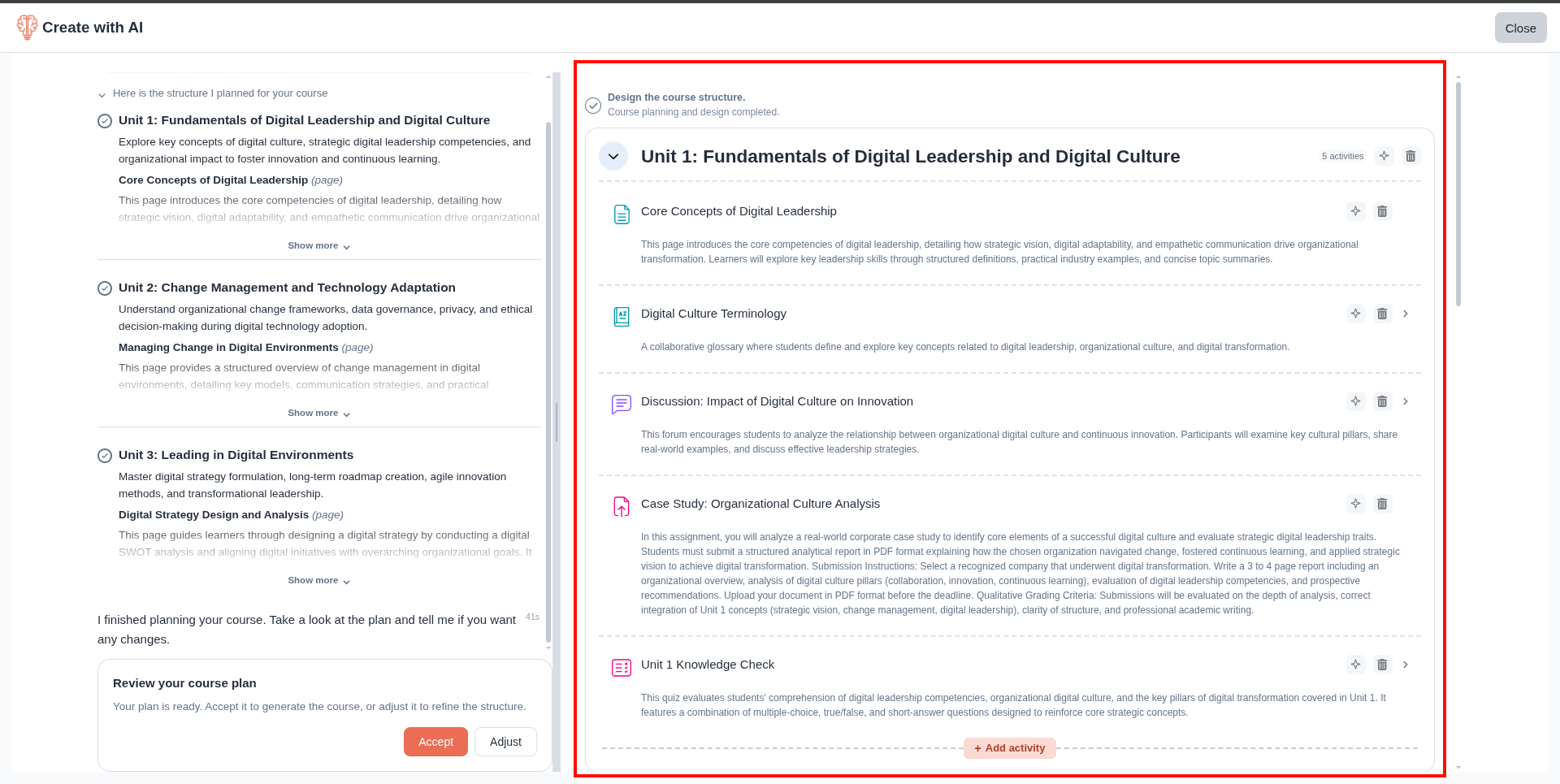
- If needed, send chat adjustments to refine results.
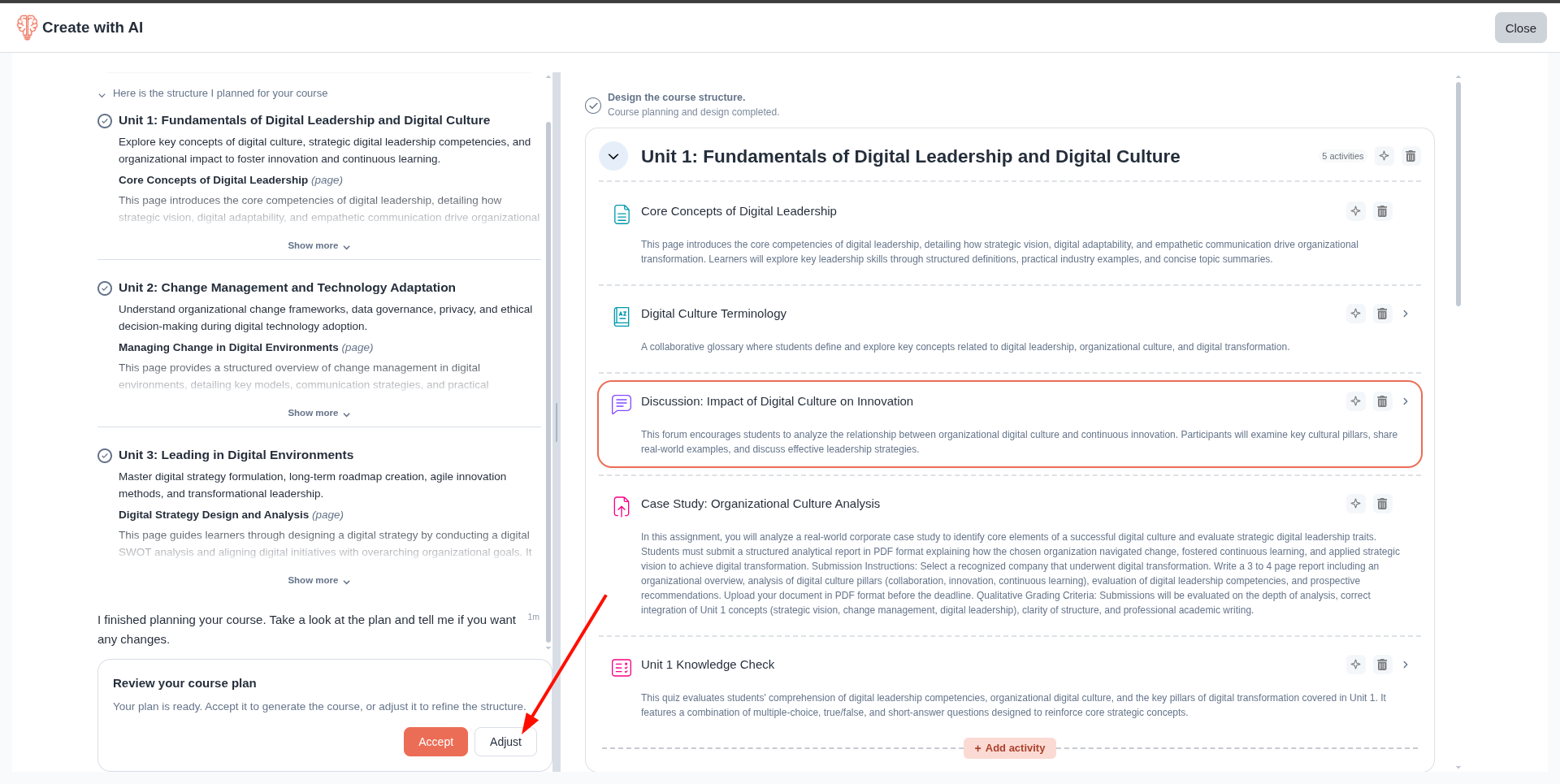
- You can also regenerate a specific planned module or activity.
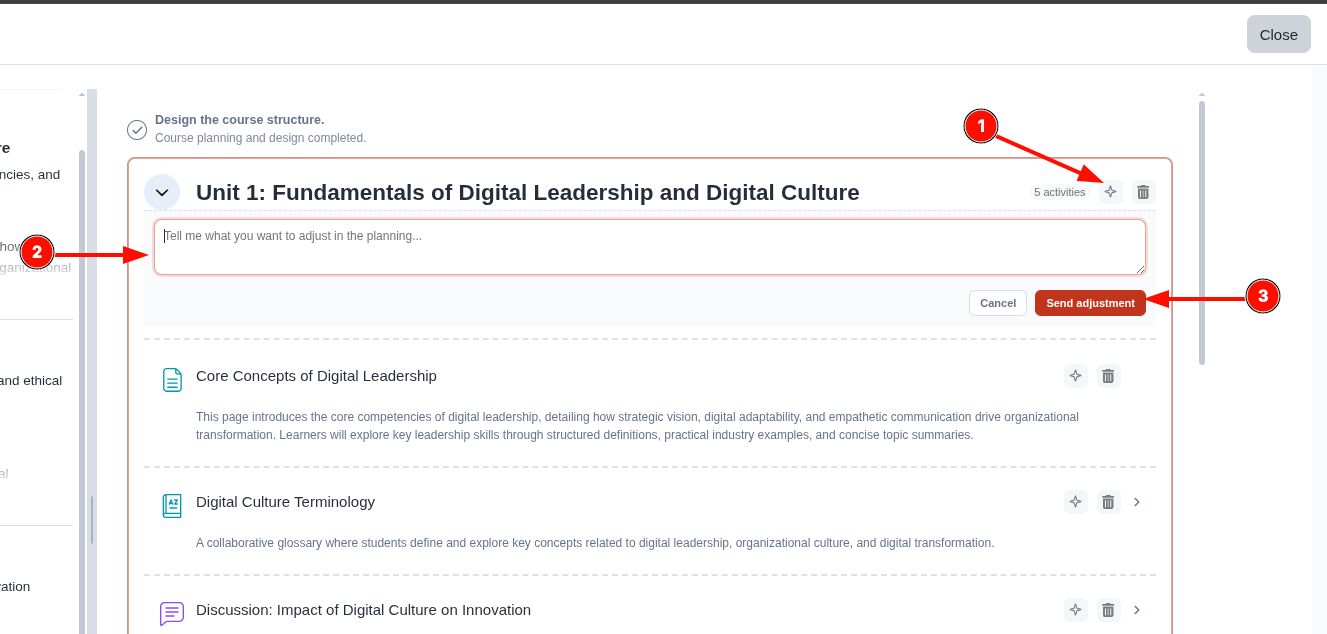
- You can remove a proposed module or activity.
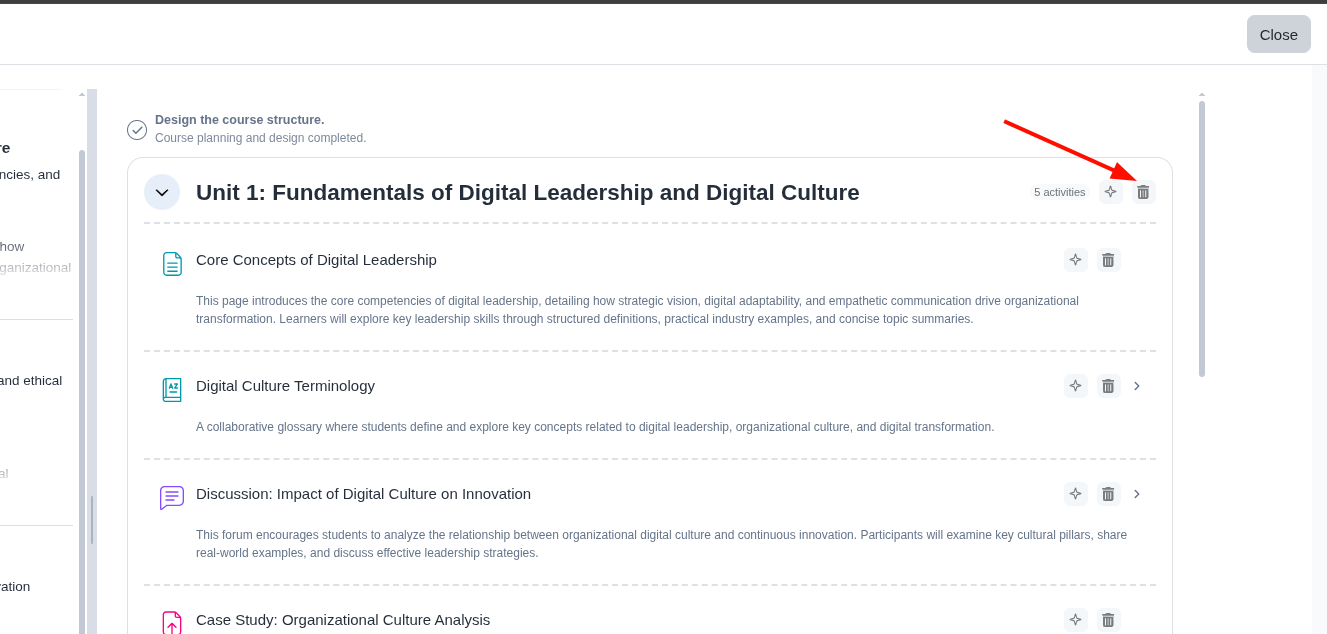
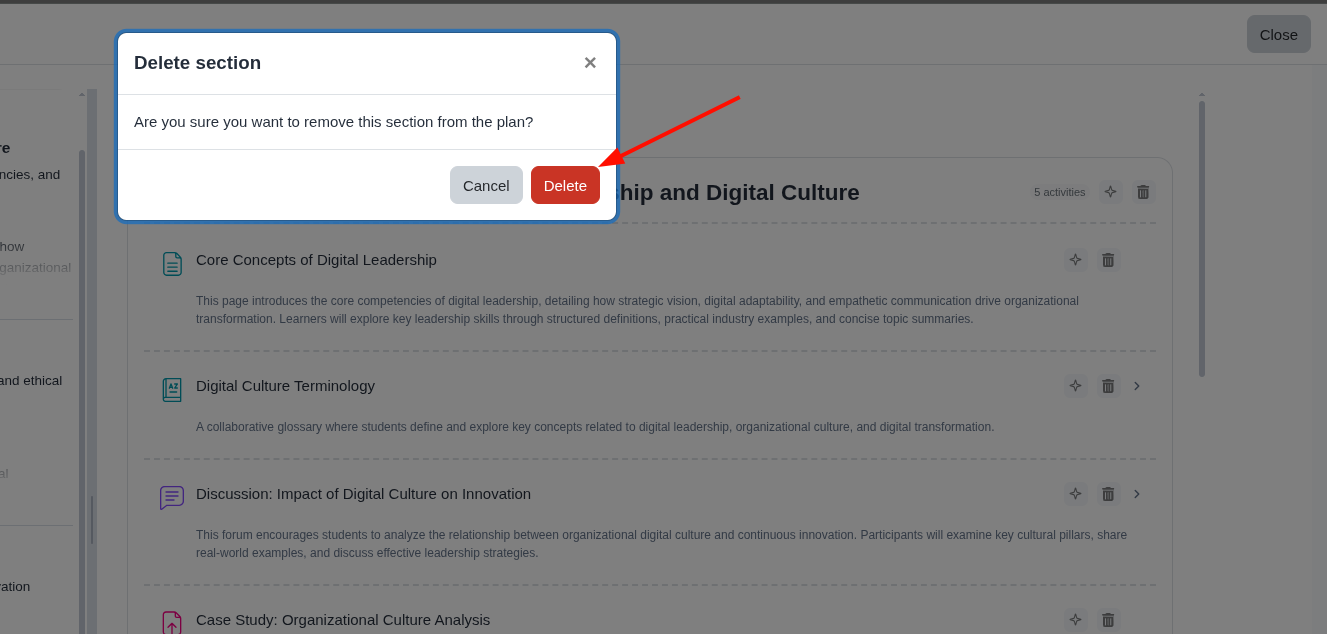
- When results are satisfactory, confirm planning to start Moodle course creation.
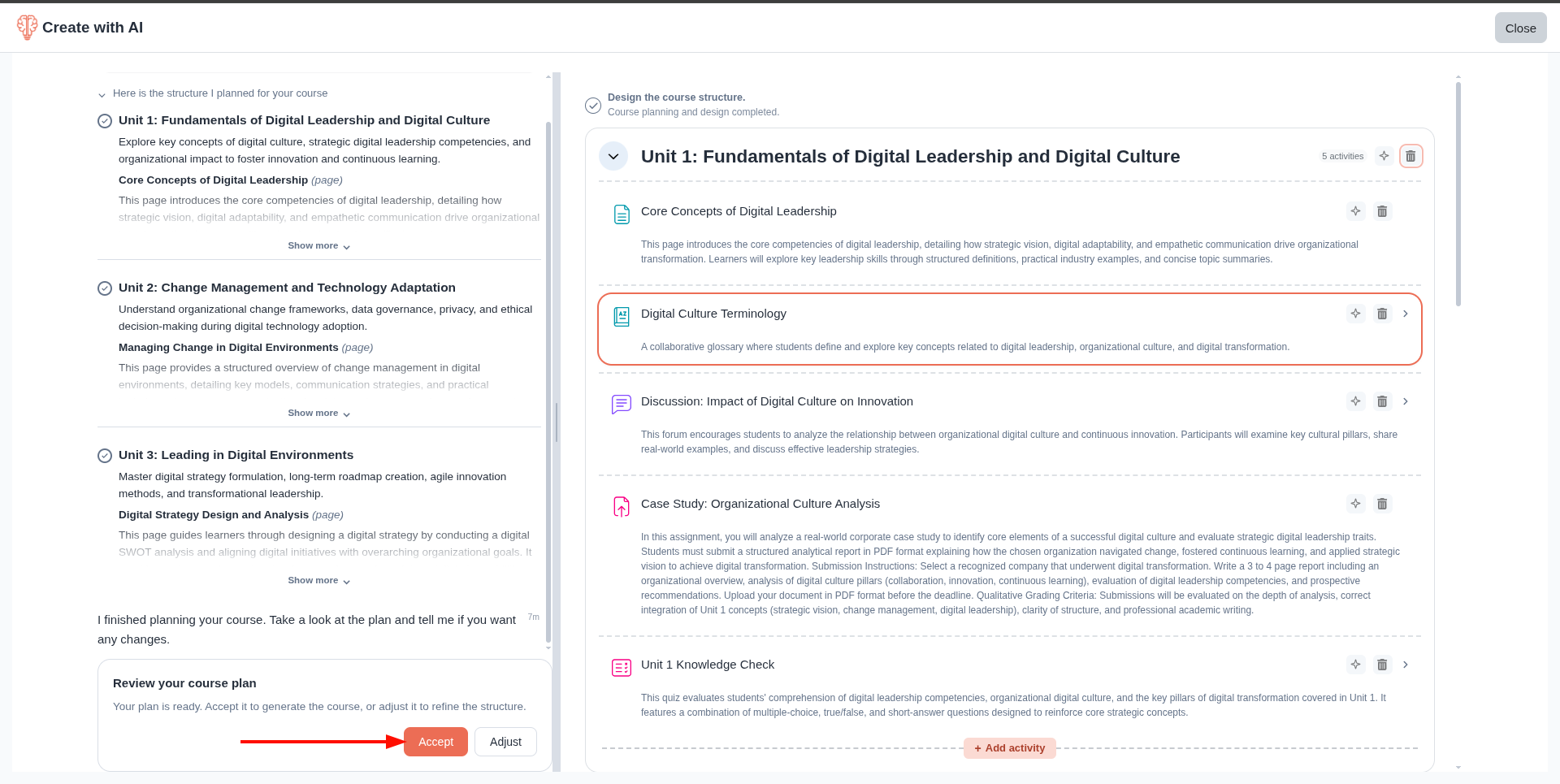
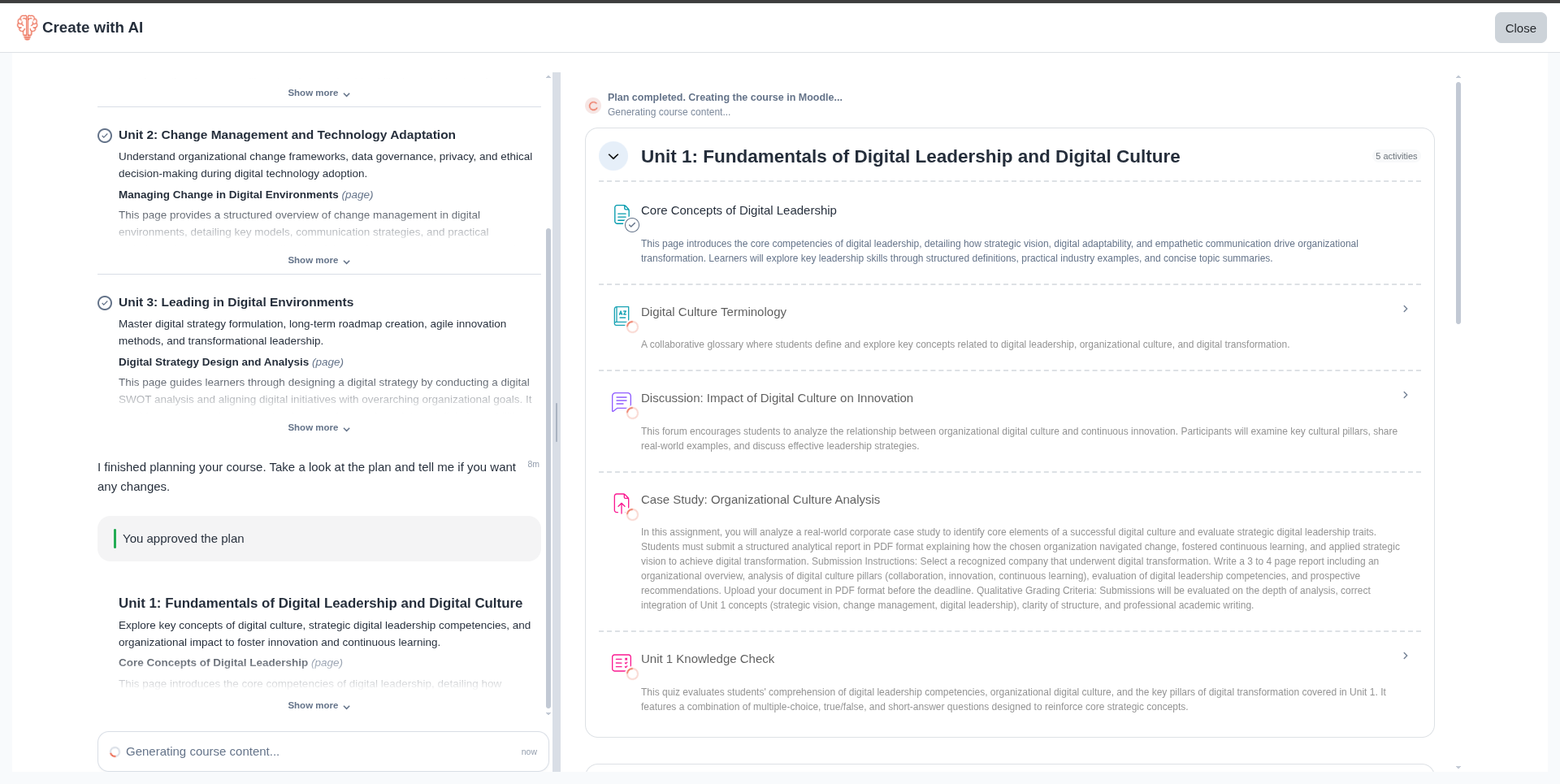
5) Confirm and create the course
- At this stage, Moodle course creation progress is displayed as modules and activities are created from the approved plan.
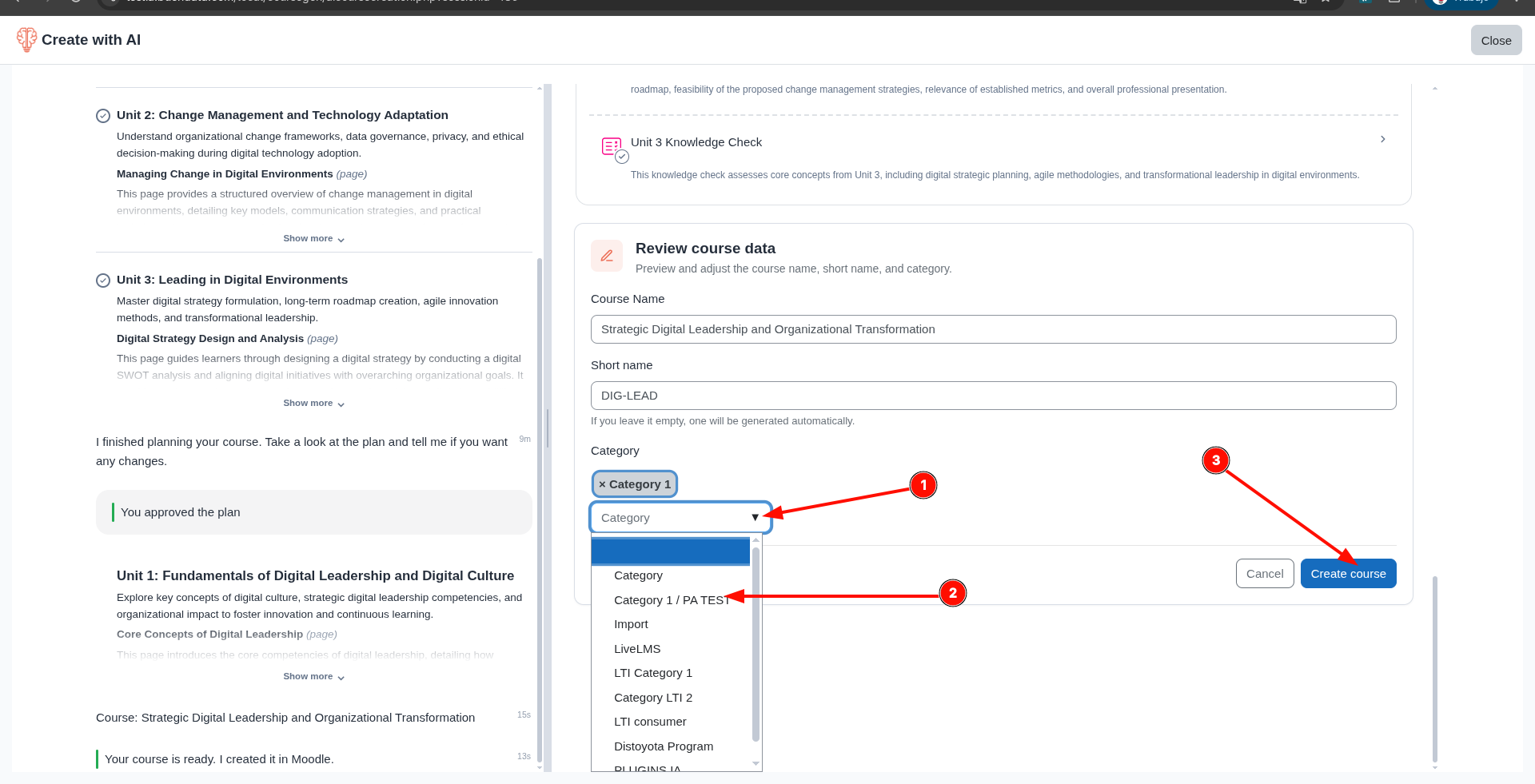
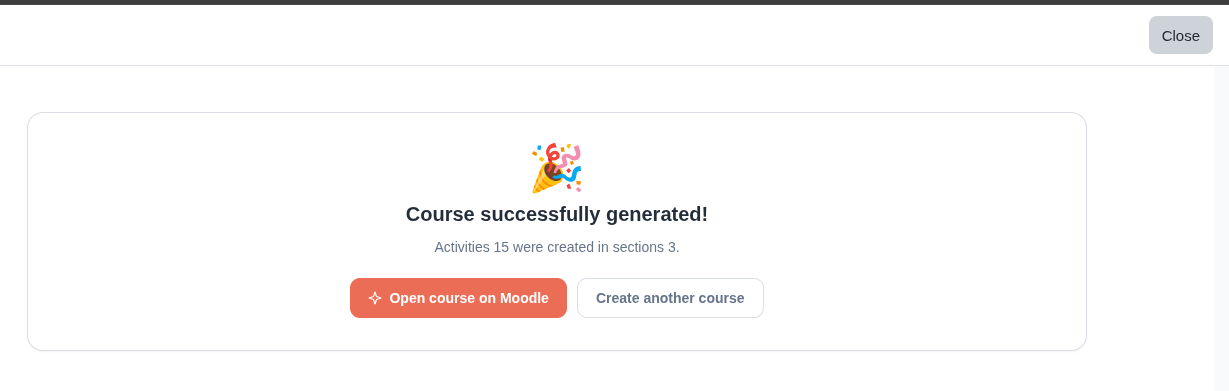
- The platform completes creation and shows confirmation.
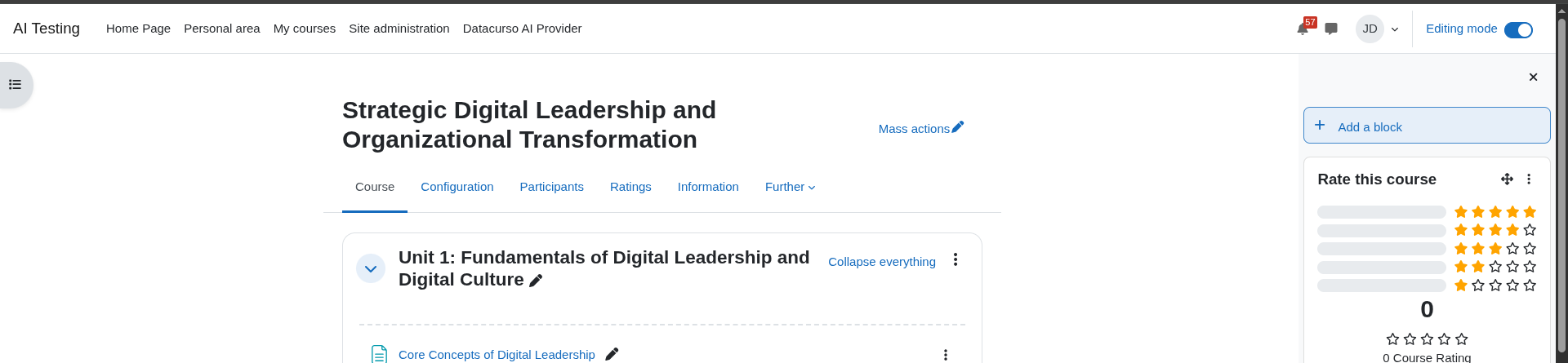
- Clicking Open course in Moodle redirects to the AI-generated course.
6) Continue an in-progress session
- At the top of the Course Creator AI page, hovering over the Datacurso logo displays a menu button to open a sidebar listing active and completed creation sessions.
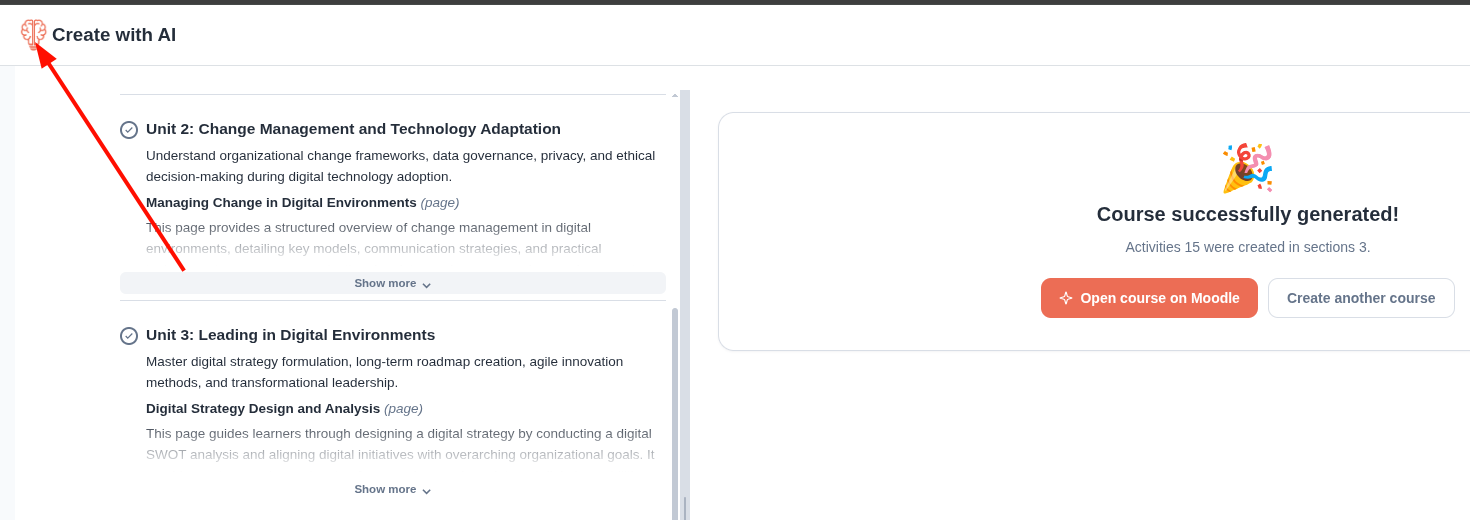
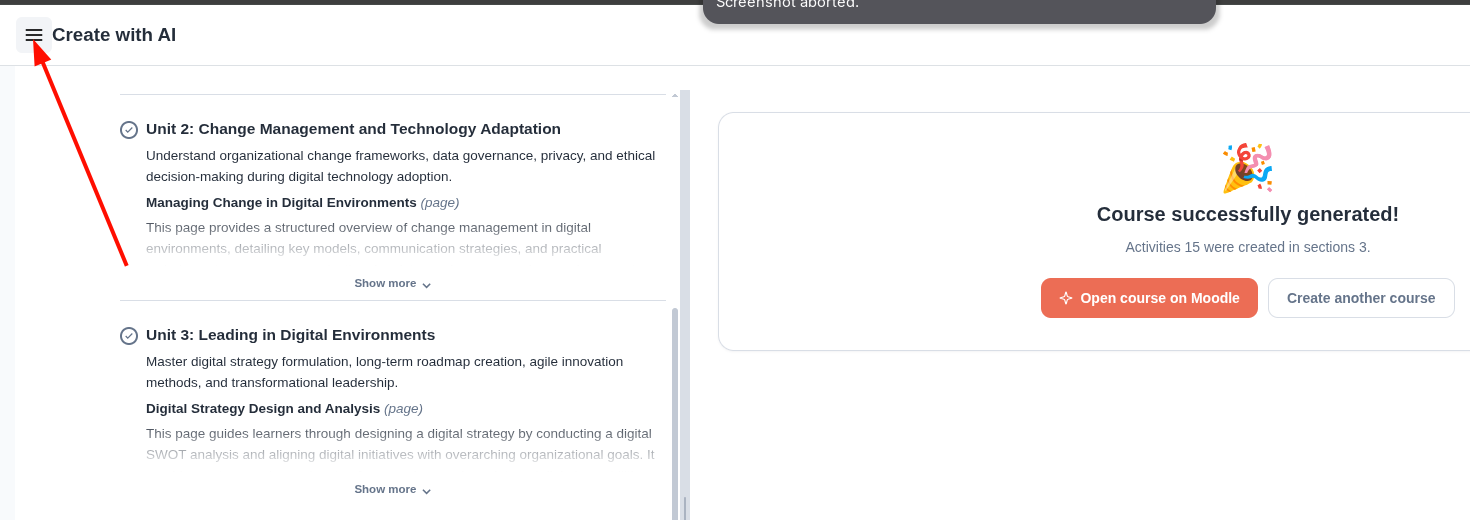
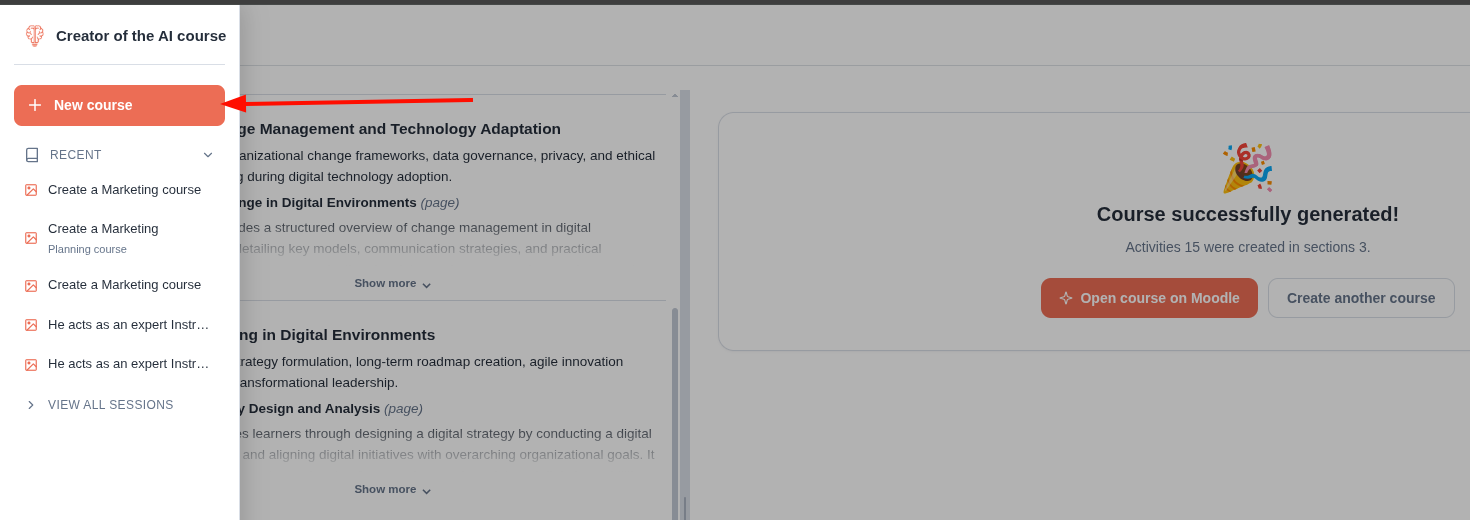
- From the sidebar, click New Course to start a new creation session.
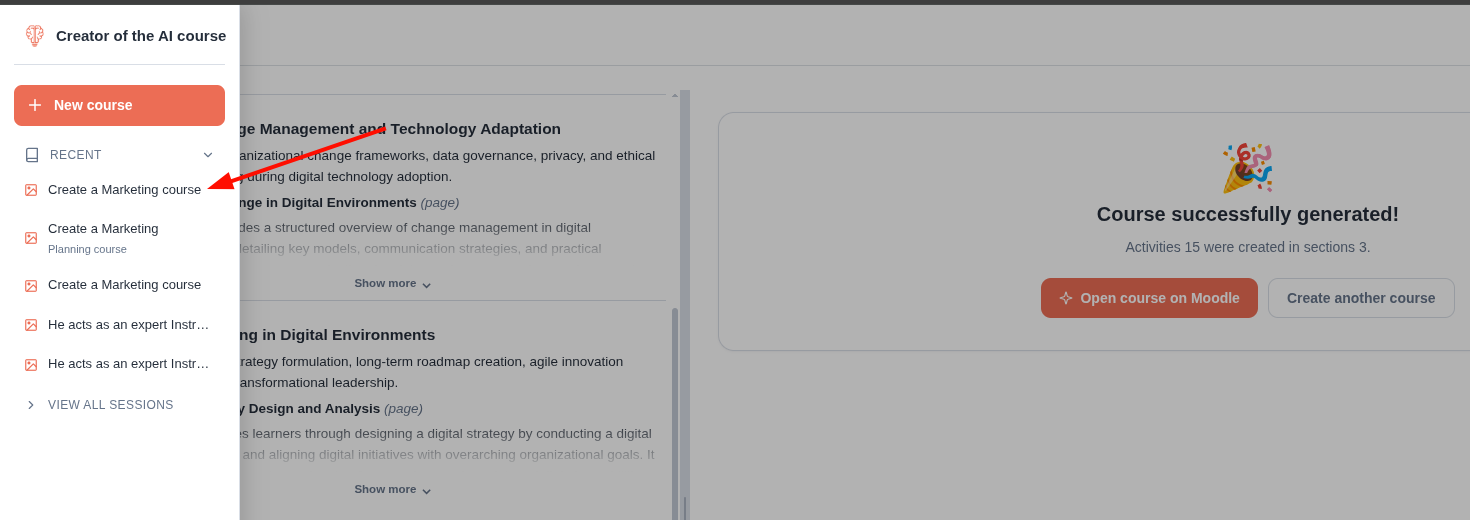
- The last 5 recent sessions are shown. Clicking a session resumes the saved context and progress.
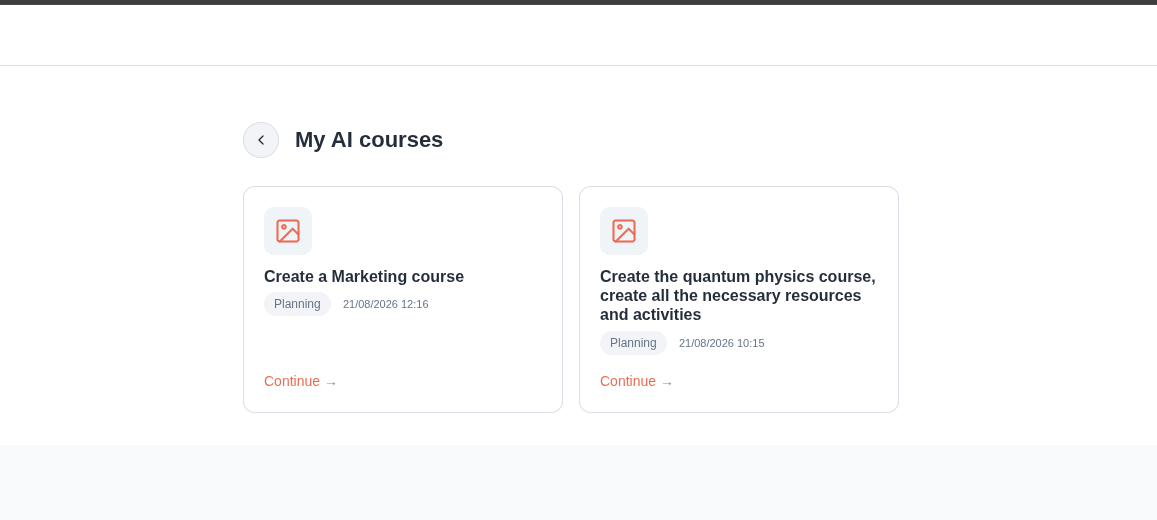
- Under the session list, click View all sessions to open the full session listing page.
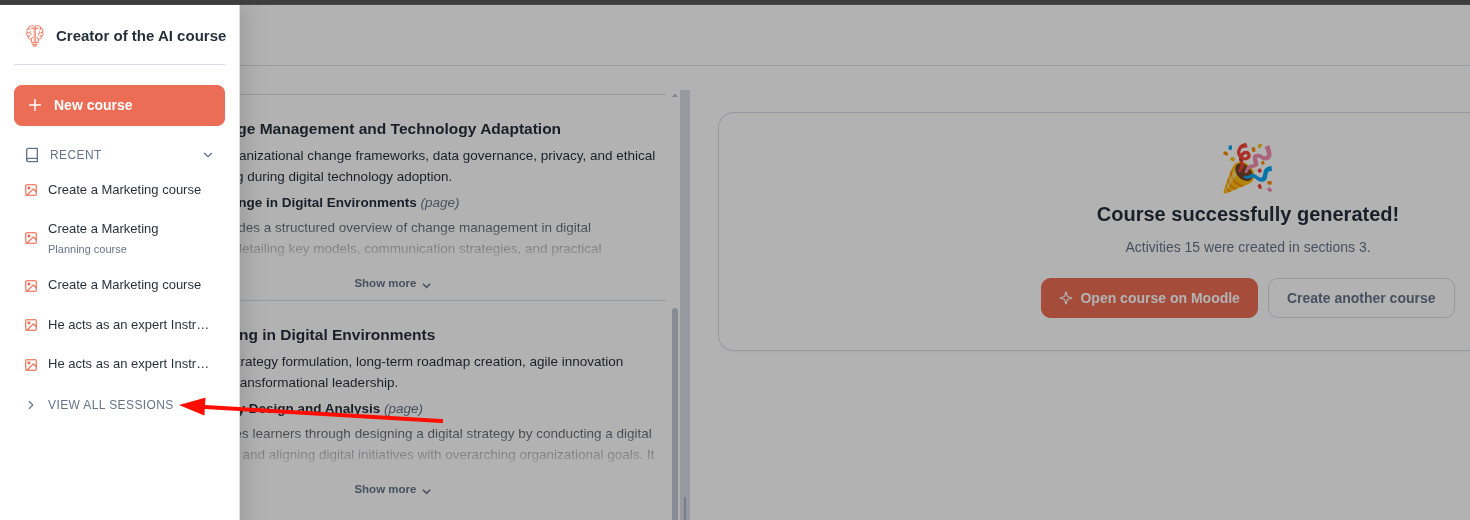
- Full course creation sessions page with continue options.
warning
Do not close the interface while planning or creation is active.