Create an Activity with AI
Check the Datacurso context
Before using the AI activity creator, confirm that the course already has a Datacurso context defined.
If the course already has a context (for example, an Instructional Model or an uploaded Syllabus PDF), the AI will automatically use it to generate the activity.
If the course does not have a context yet, you can set it from the course settings:
- Open the course and click Edit settings.
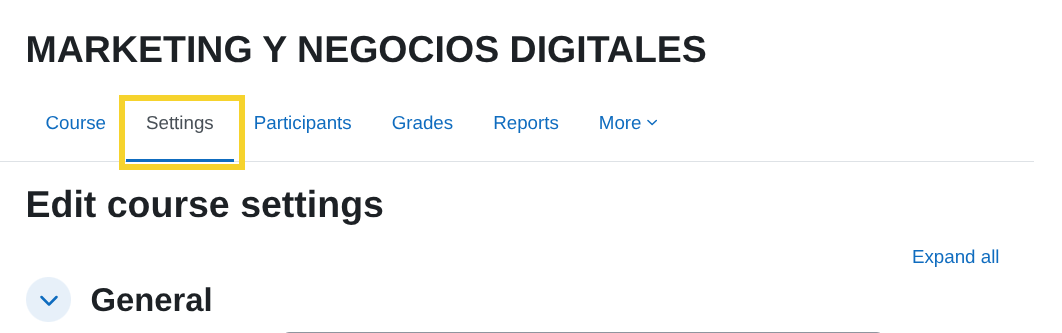
- Go to the Datacurso section. The following options will be displayed:
-
1. Context type
-
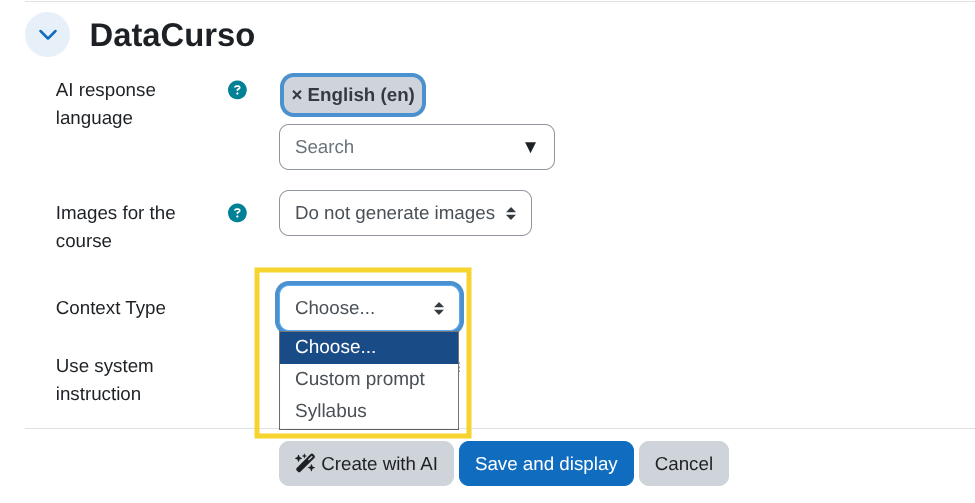
Use the Context Type selector to choose how you will provide the main context for the course:
- Custom prompt: You describe the course context manually.
- Upload Syllabus (PDF): You provide an existing syllabus document.
-
-
2. Context details
-
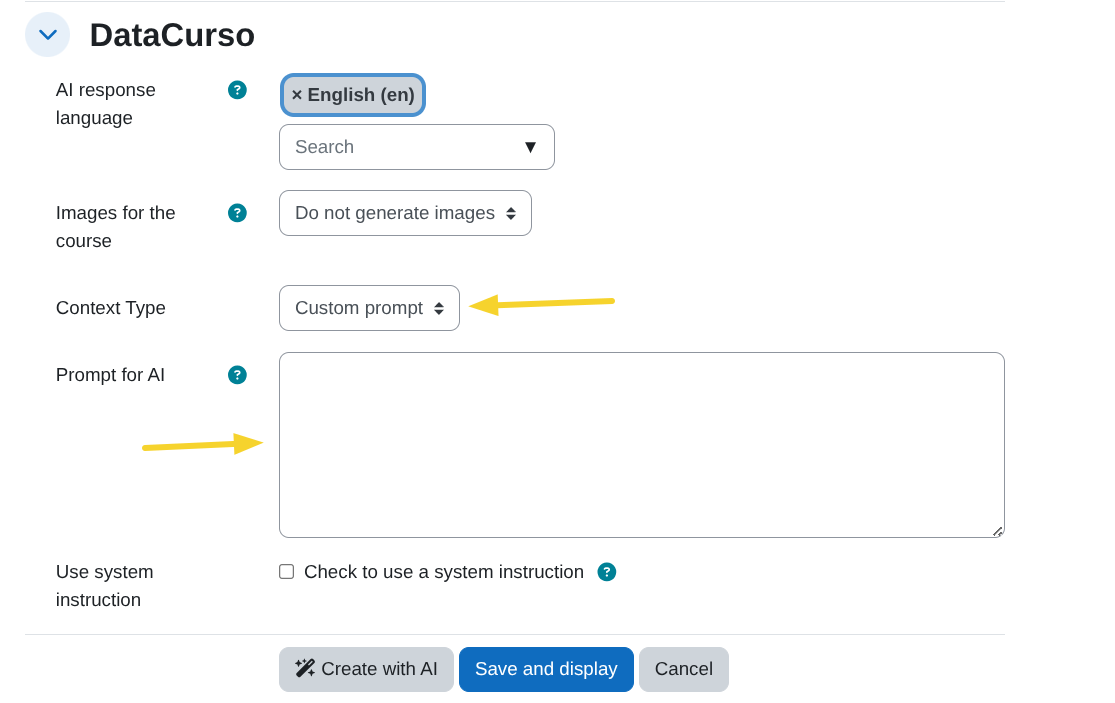
If you choose Custom prompt
- A textarea labeled Prompt for AI appears.
- Enter a clear and detailed prompt that describes how you want the course to be generated (objectives, student profile, content, level, constraints, examples, etc.).
-
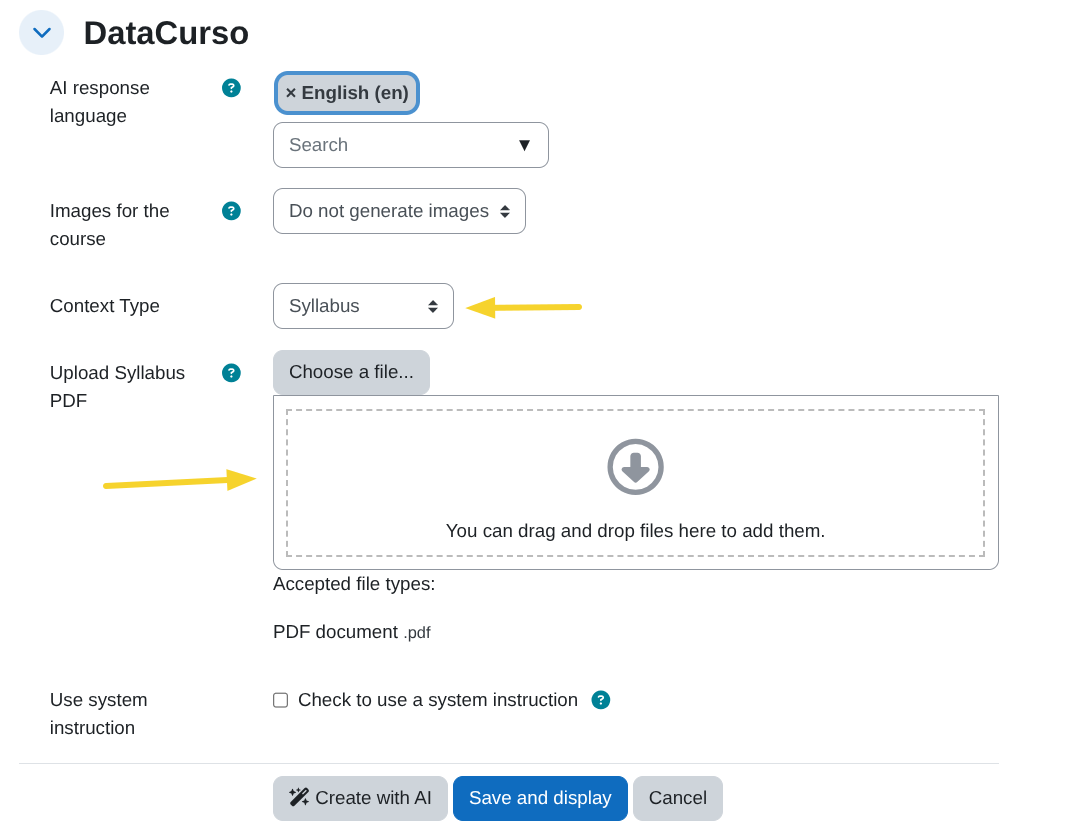
If you choose Upload Syllabus (PDF)
- A file picker labeled Upload Syllabus PDF appears.
- Upload a PDF with the course syllabus. It will be sent to the AI for context analysis.
-
Once the Datacurso context is set at the course level, it will be automatically reused for all AI-generated activities within that course.
Start the activity creation
-
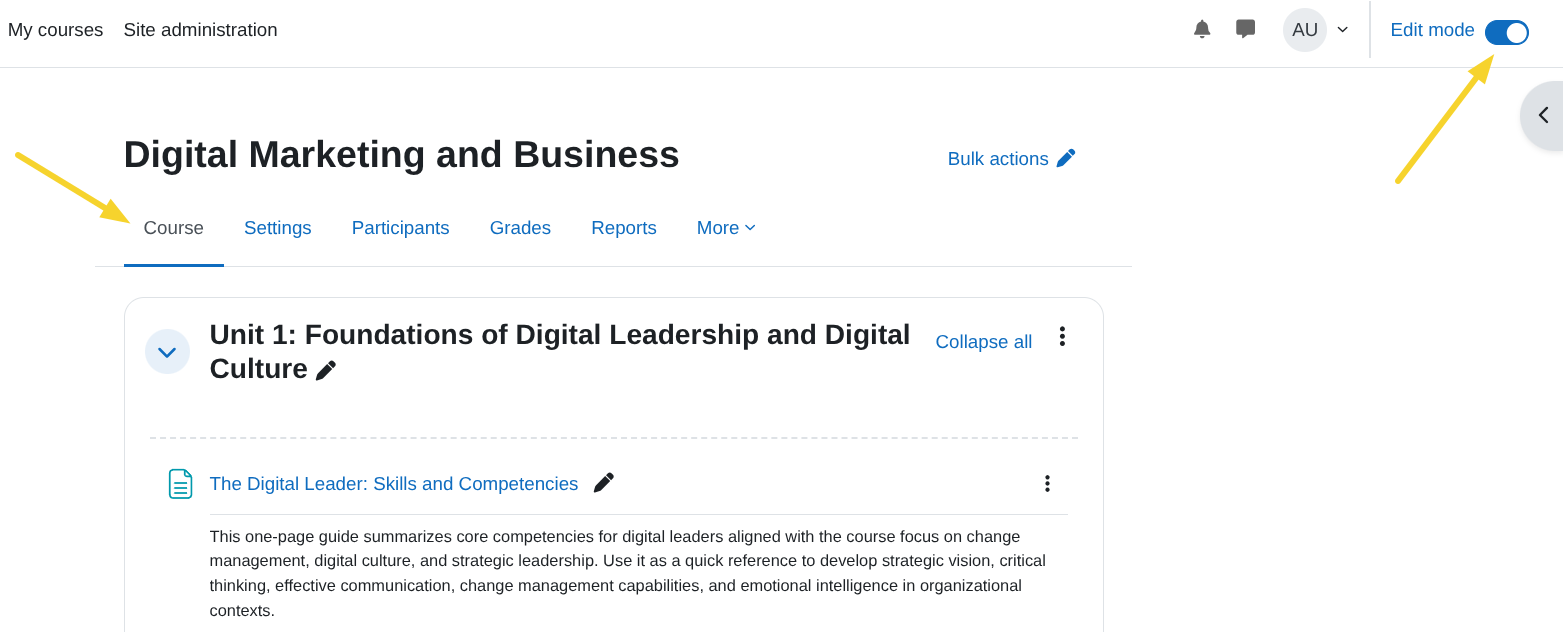
Enter to the course view and turn the Edit mode on.
-
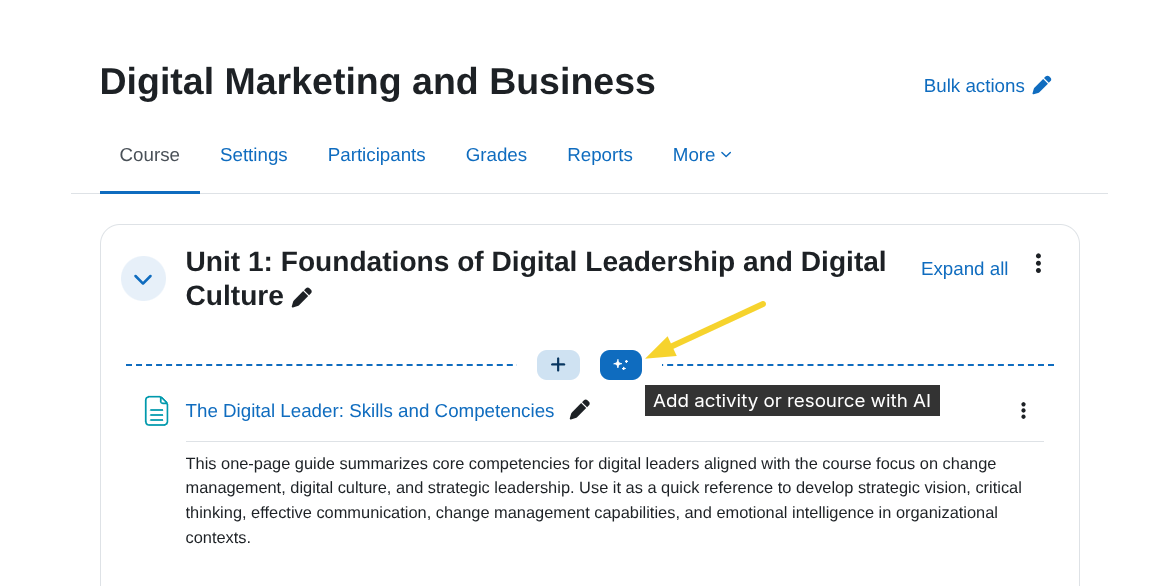
Next to the standard Add activity or resource button, click the new button Add activity or resource with AI.
Provide the activity prompt
-
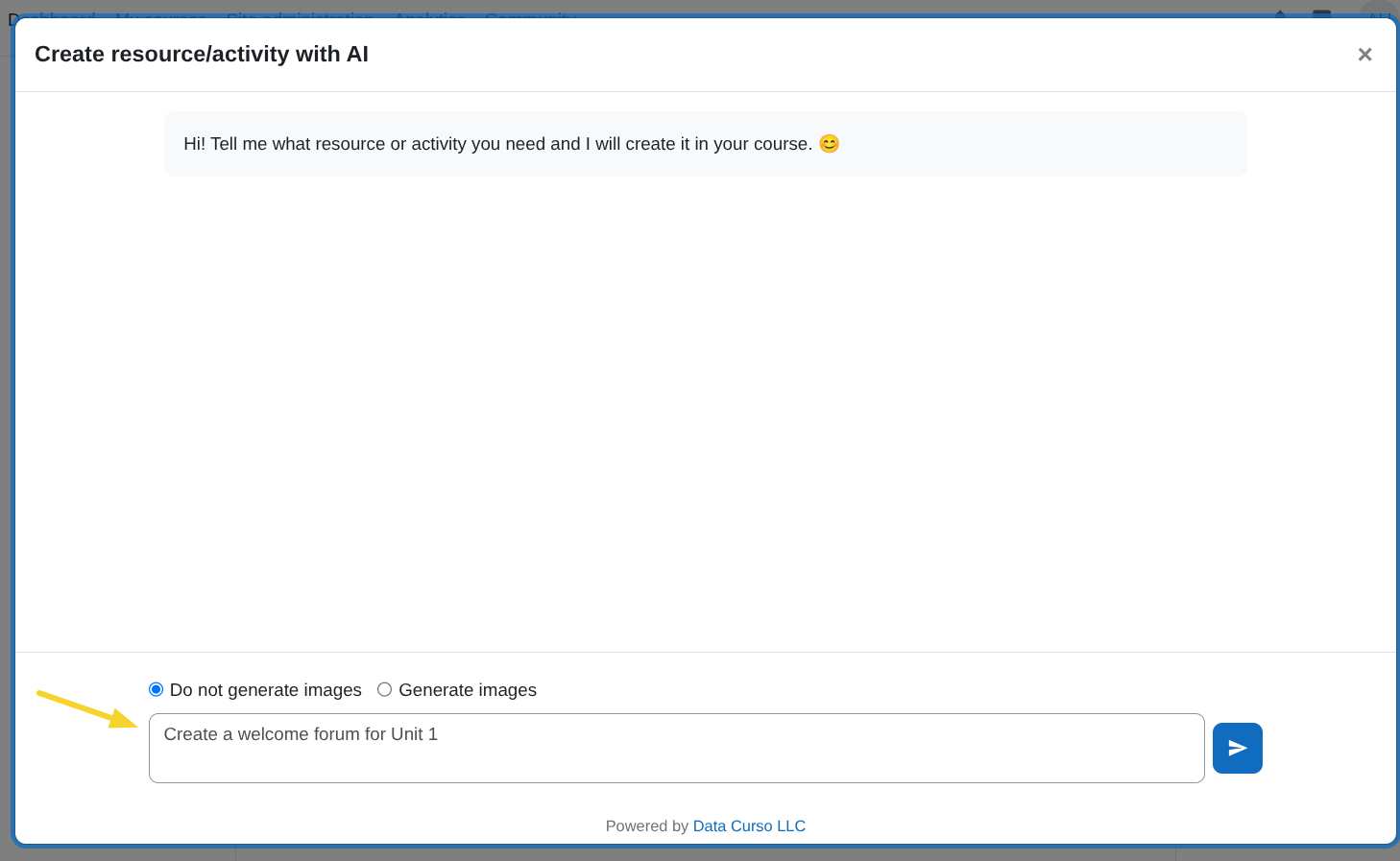
A modal window with a chat input will open. Enter a clear prompt describing the activity you want to create (e.g., type of activity, learning objectives, instructions, etc.).
Optional: Images in the activity
-
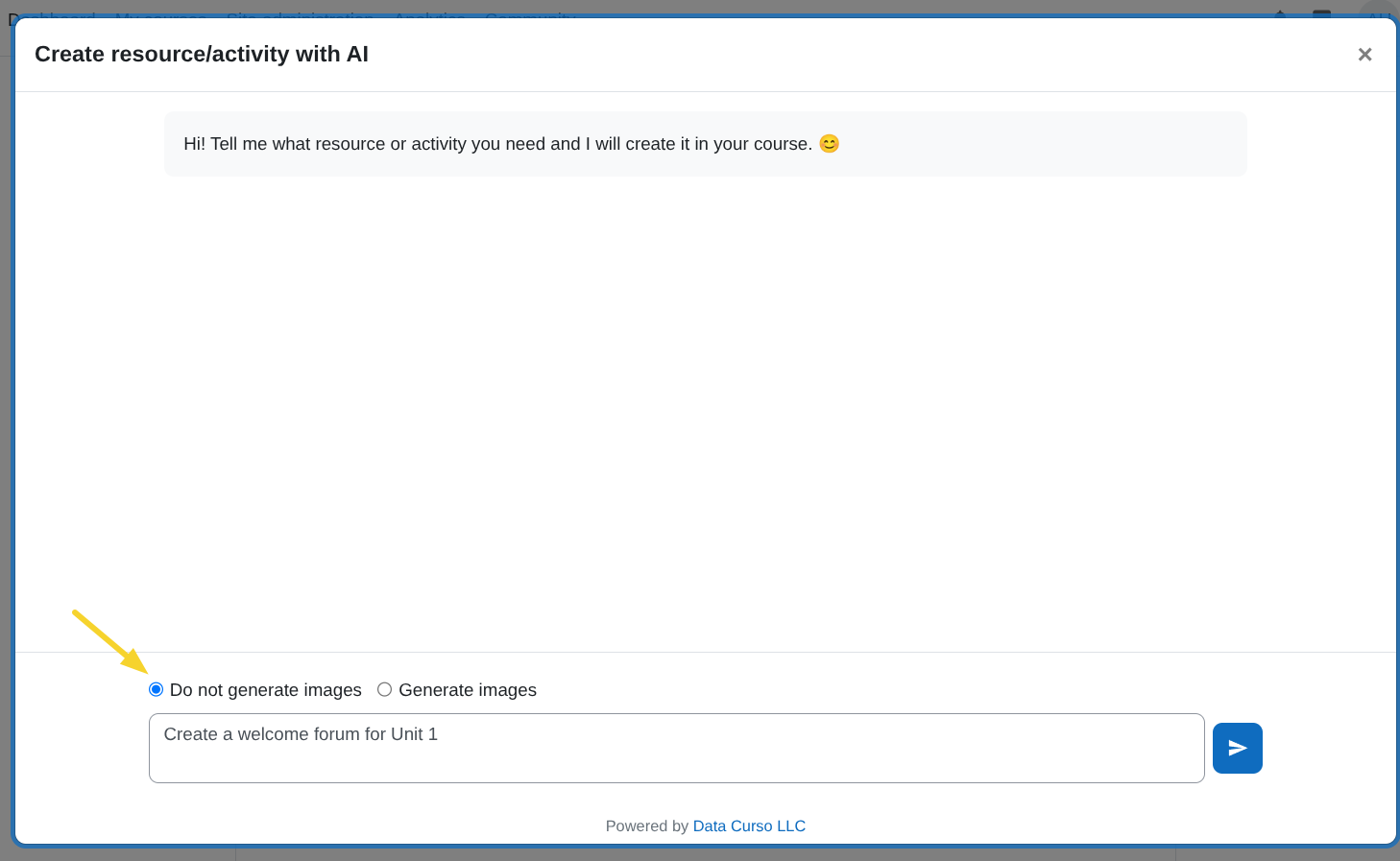
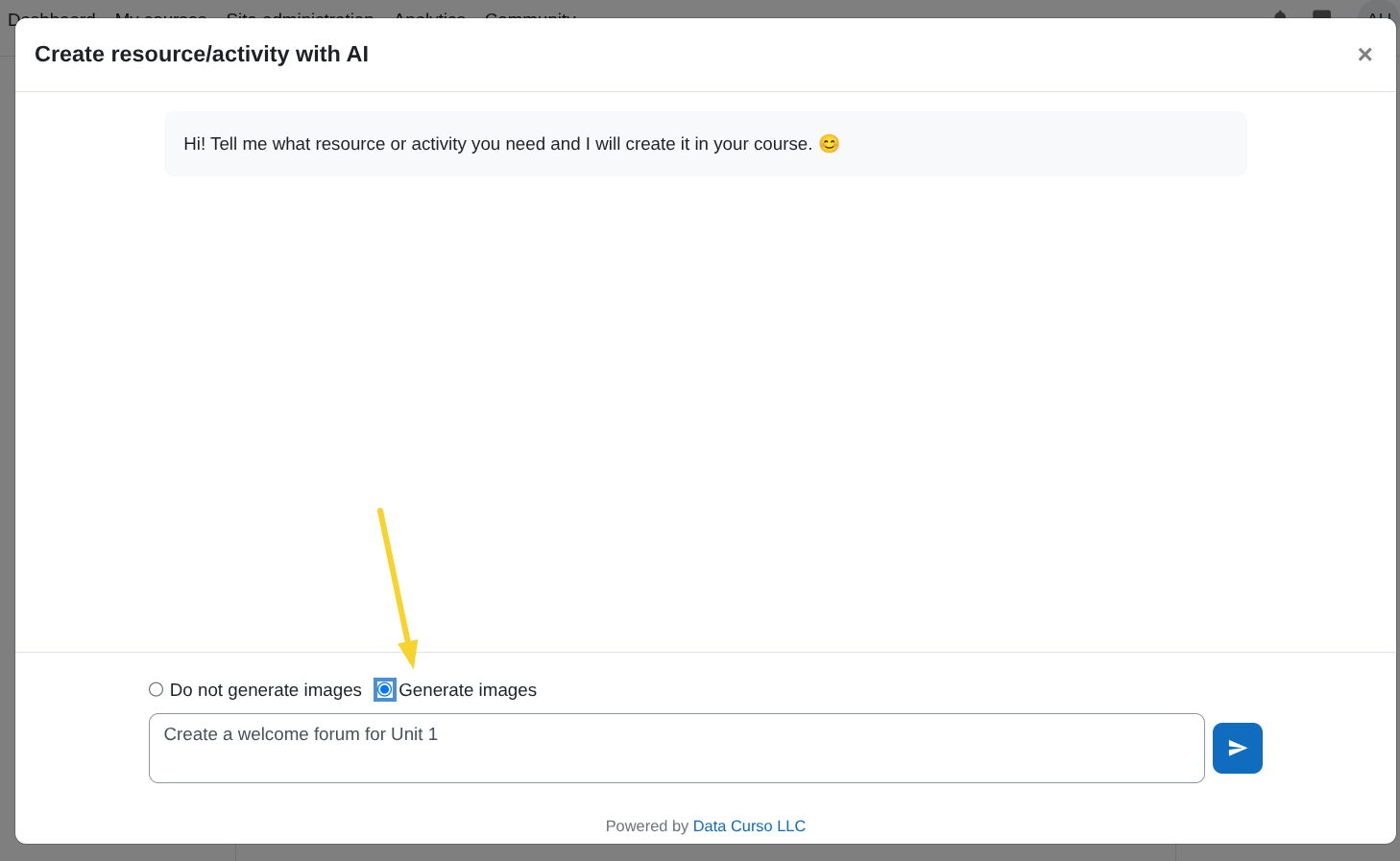
Use the combobox to choose whether the activity should include images. By default this is set to No not generate images.
-
If you want to generate images, select Generate images.
Start creation
-
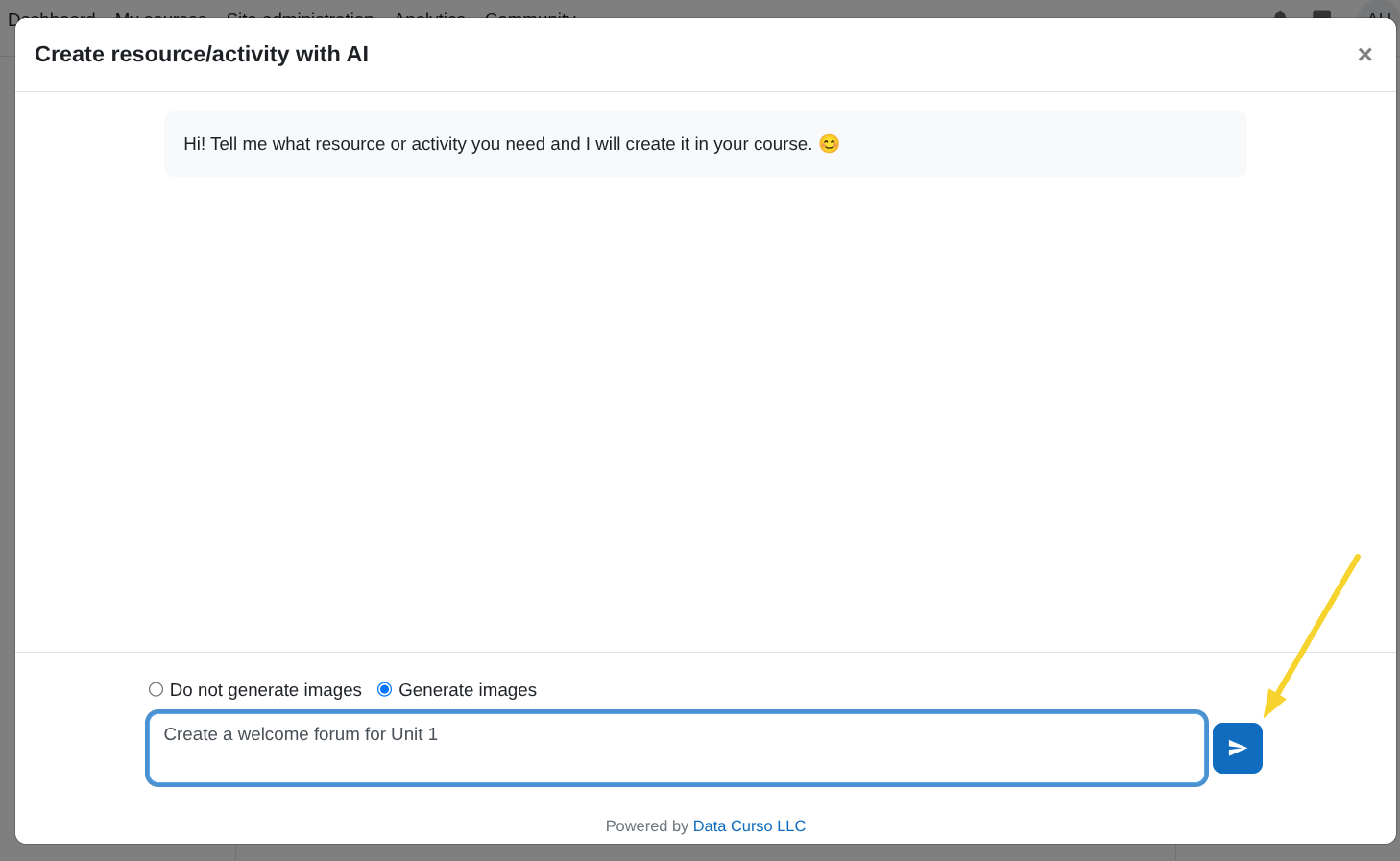
Press Enter in the text field or click the Send icon button to begin creating the activity with AI.
-
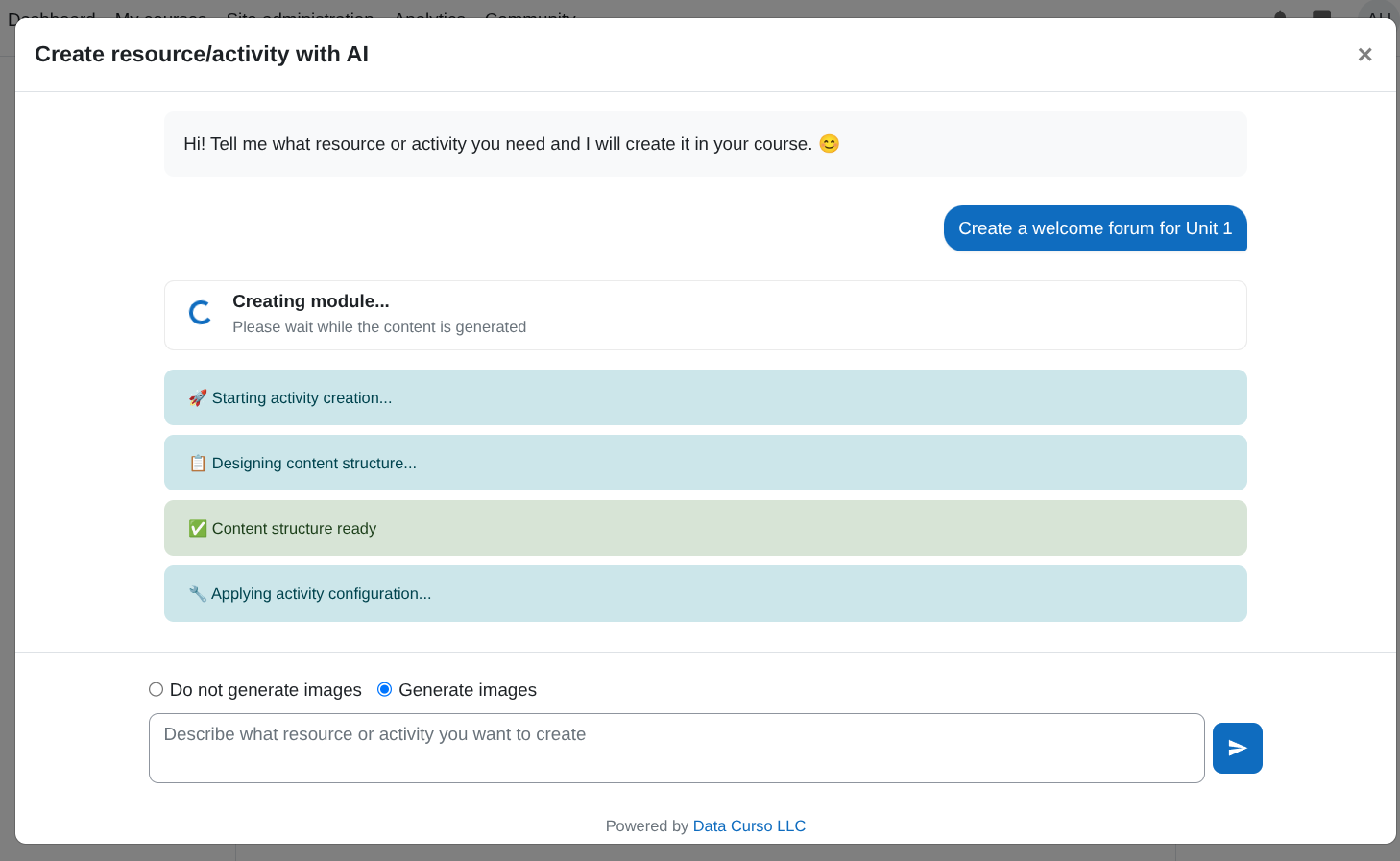
The modal will display real-time progress updates for each phase of the process.
-
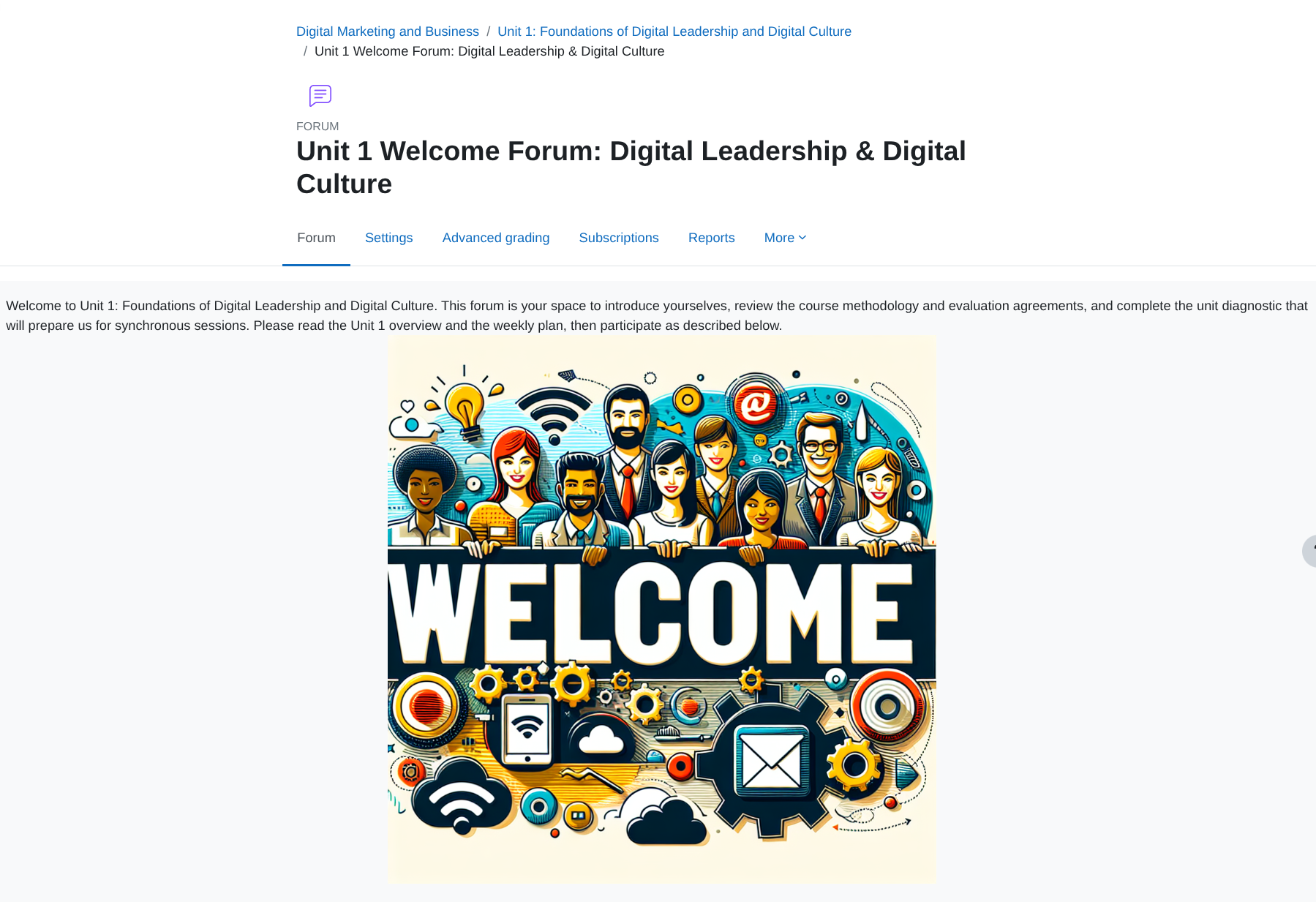
Once the process is completed, it redirects to the created activity.
Do not close the modal window until the process has fully completed to avoid issues with activity creation.