Managing Image Generation
Description of how administrators can manage image generation in the AI Course Creator. This section provides step-by-step instructions to configure and manage the image generation functionality within the plugin.
Opening the Image Generation Administration Section
- Log in to your Moodle site as an administrator and go to
Site administration > Plugins > Local plugins > AI Course Creator > Manage image generation.
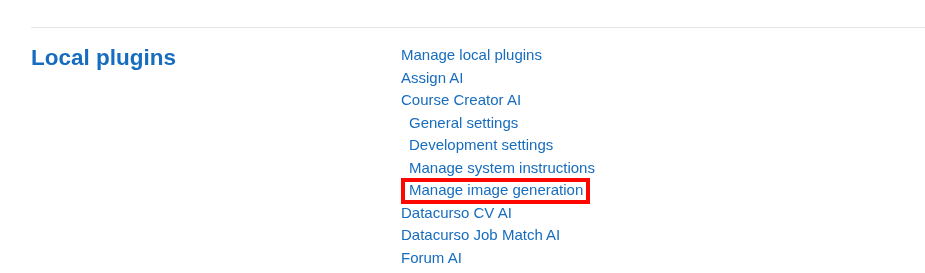
On the image generation administration page, you can configure when and how AI-generated images are created for course content.
Default Behavior
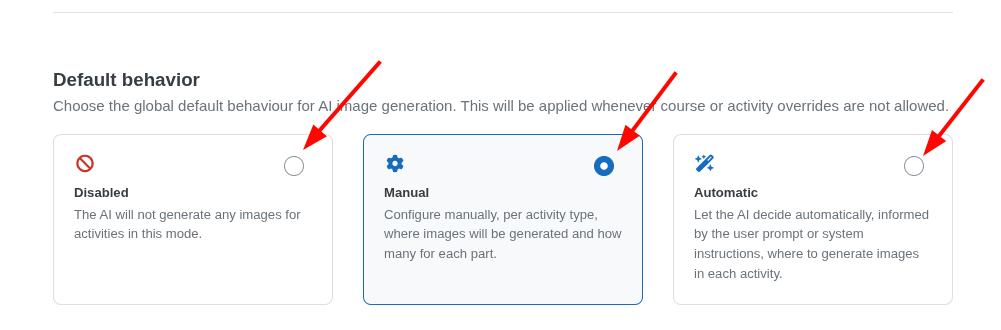
- In the Default Behavior section, choose the global behavior that will apply whenever course or activity overrides are not allowed:
- Disabled: the AI will not generate any images for activities in this mode.
- Manual: manually configure, per activity type, where images will be generated and how many for each part.
- Automatic: let the AI automatically decide, informed by the user prompt or the system instructions, where to generate images in each activity.
Generation Rules
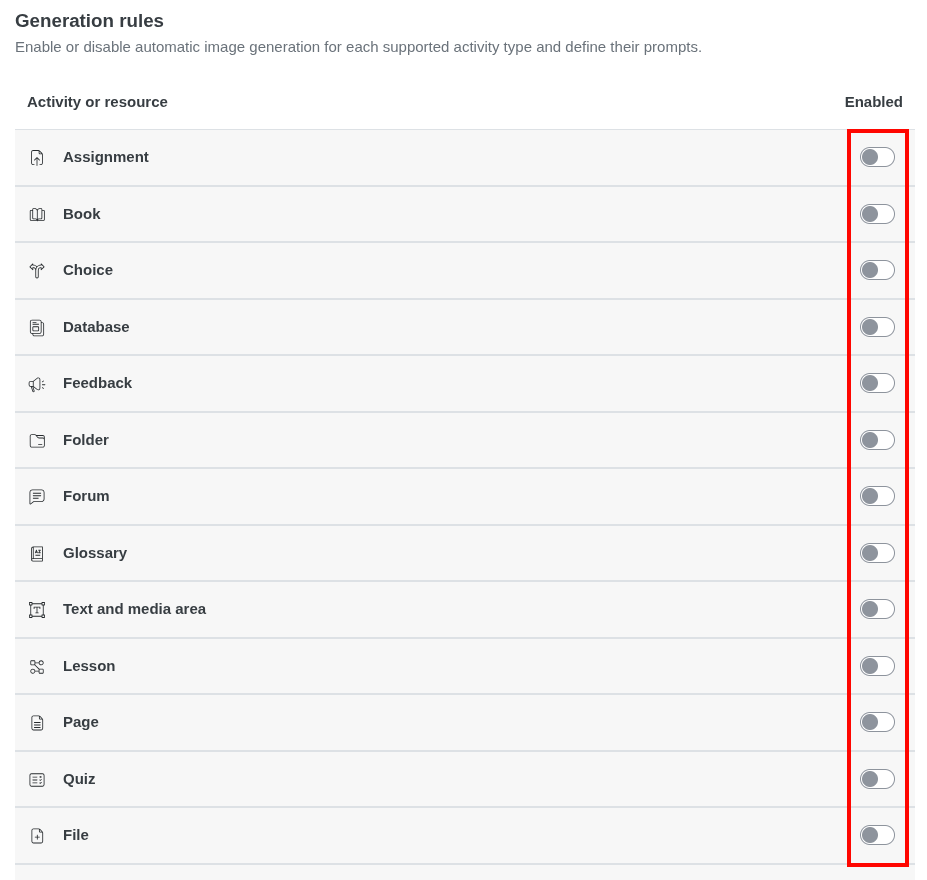
- In the Generation Rules section, enable or disable automatic image generation for each supported activity or resource type (assignment, book, choice, database, feedback, folder, forum, glossary, text and media area, lesson, page, quiz, file, URL, wiki, and workshop) using the corresponding
Enabledtoggle.
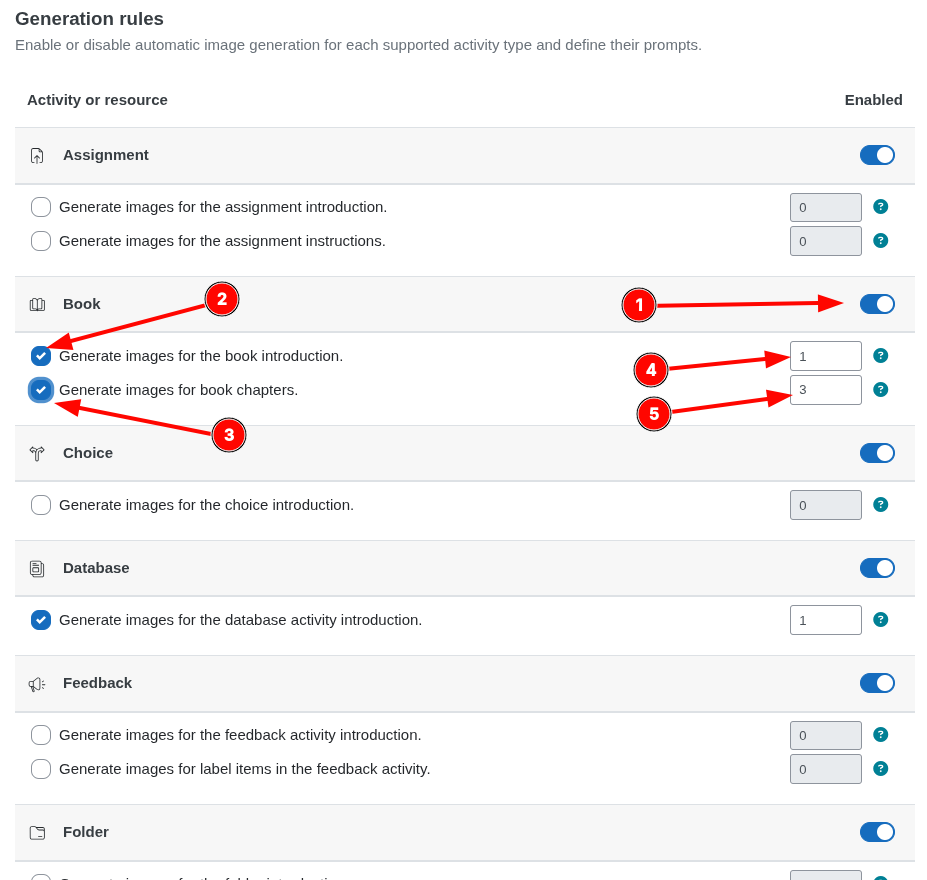
- When you enable an activity, the specific prompts for that activity appear (for example, generating images for the introduction, instructions, chapters, or pages). Check the boxes for the prompts you want to activate and set, in the corresponding numeric field, how many images should be generated for each one.
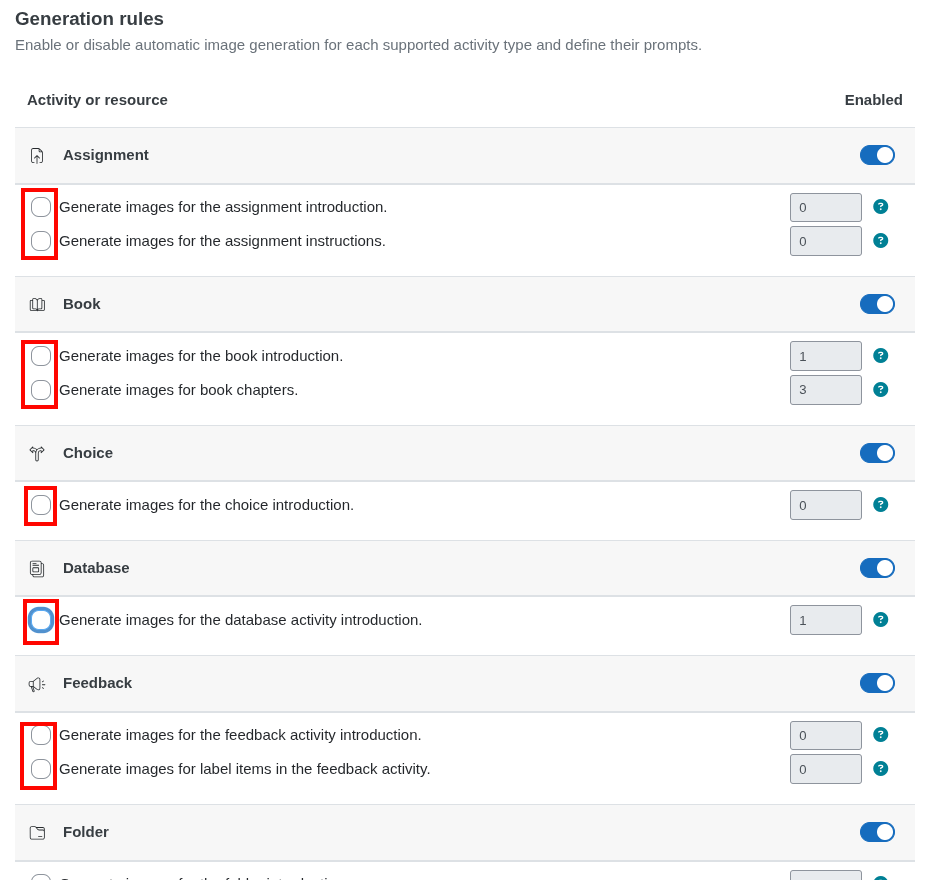
- Repeat this process for each activity type you want to configure. For example, for the Book activity:
- Turn on the
Enabledtoggle. - Check the
Generate images for the book introductionbox. - Check the
Generate images for the book chaptersbox. - Enter the number of images for the introduction (for example,
1). - Enter the number of images for the chapters (for example,
3).
- Turn on the
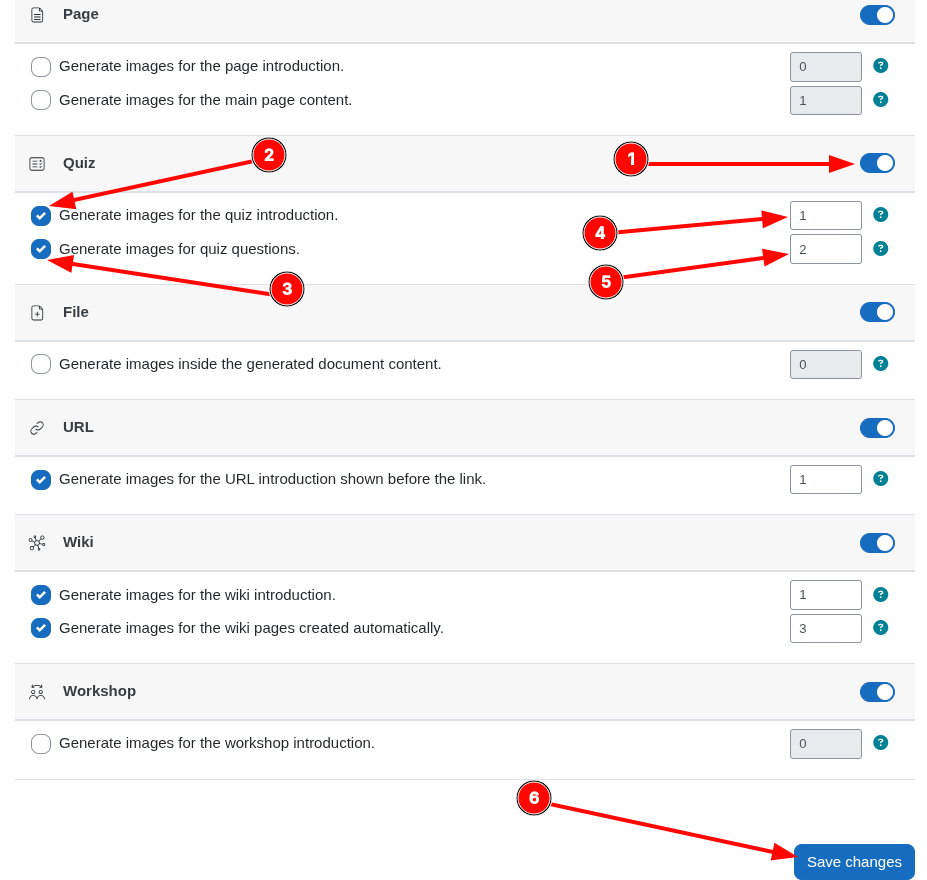
- When you finish configuring the rules for all activities, for example for the quiz activity:
- Turn on the
Enabledtoggle. - Check the
Generate images for the quiz introductionbox. - Check the
Generate images for the quiz questionsbox. - Enter the number of images for the introduction (for example,
1). - Enter the number of images for the questions (for example,
2). - Click
Save changesto apply the configuration.
- Turn on the
note
Make sure to save your changes after configuring the generation rules for each activity. It is not necessary to enable all activities; only those for which you want to generate images.
warning
Image generation consumes additional credits from your DataCurso AI provider license key. Each generated image uses extra credits, so enabling image generation for all activities can significantly increase consumption.