General settings
The General settings page contains the master switches that enable or disable each AI feature of the plugin site-wide.
These switches take precedence over user permissions: when a feature is disabled here, it is hidden and blocked for every user, including administrators, regardless of the roles or capabilities they have.
Open the General settings page
- Log in to your Moodle site as an admin and go to
Site administration > Plugins > Local plugins > Course Creator AI > General settings.

Course AI
Settings for the AI course creator and its associated features.
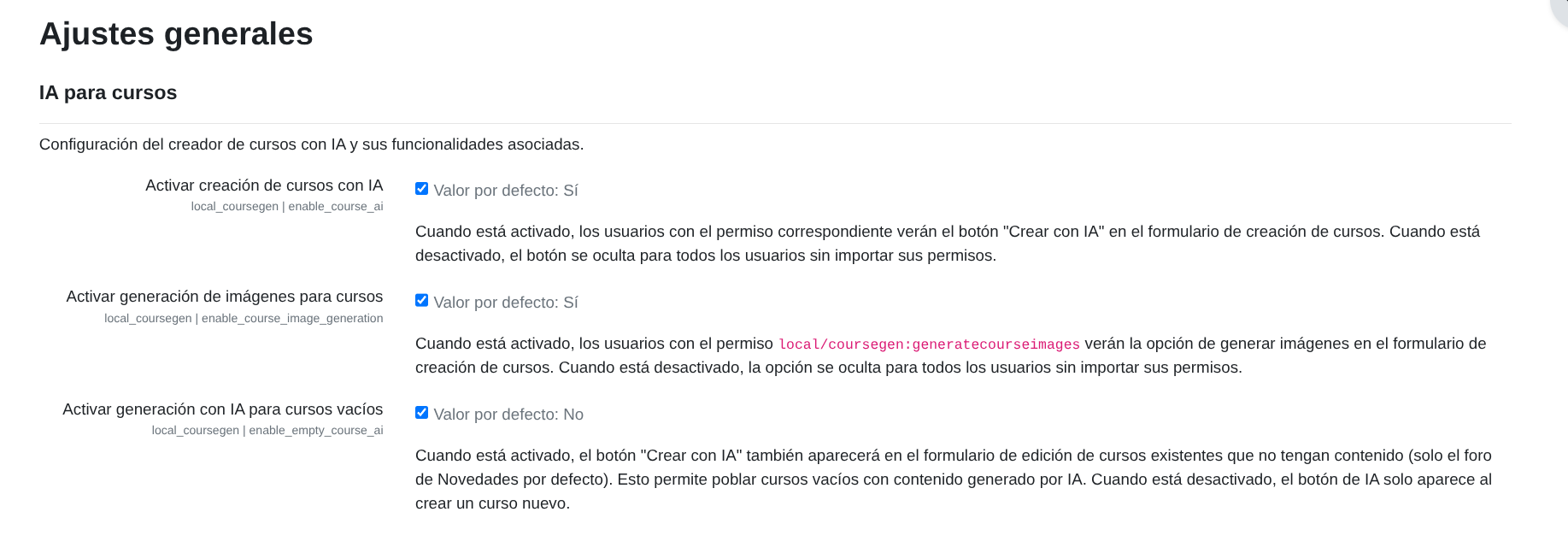
| Setting | Default | Description |
|---|---|---|
| Enable AI course creation | Yes | When enabled, users with the appropriate capability will see the Create with AI button on the new course form. When disabled, the button is hidden for all users regardless of their permissions. |
| Enable image generation for courses | Yes | When enabled, users with the local/coursegen:generatecourseimages capability will see the image generation option on the course creation form. When disabled, the option is hidden for all users regardless of their permissions. |
| Enable AI generation for empty courses | No | When enabled, the Create with AI button will also appear on the edit form of existing courses that have no content (only the default Announcements forum). This allows populating empty course shells with AI-generated content. When disabled, the AI button only appears when creating a new course. |
Enable image generation for courses and Enable AI generation for empty courses depend on Enable AI course creation. If you turn off AI course creation, both settings are hidden from the page and no longer apply.
Image generation consumes additional credits from your DataCurso AI Provider license key. Each generated image uses extra credits, so enabling it site-wide can increase consumption significantly.
Activity AI
Settings for the AI activity and resource creator inside courses.
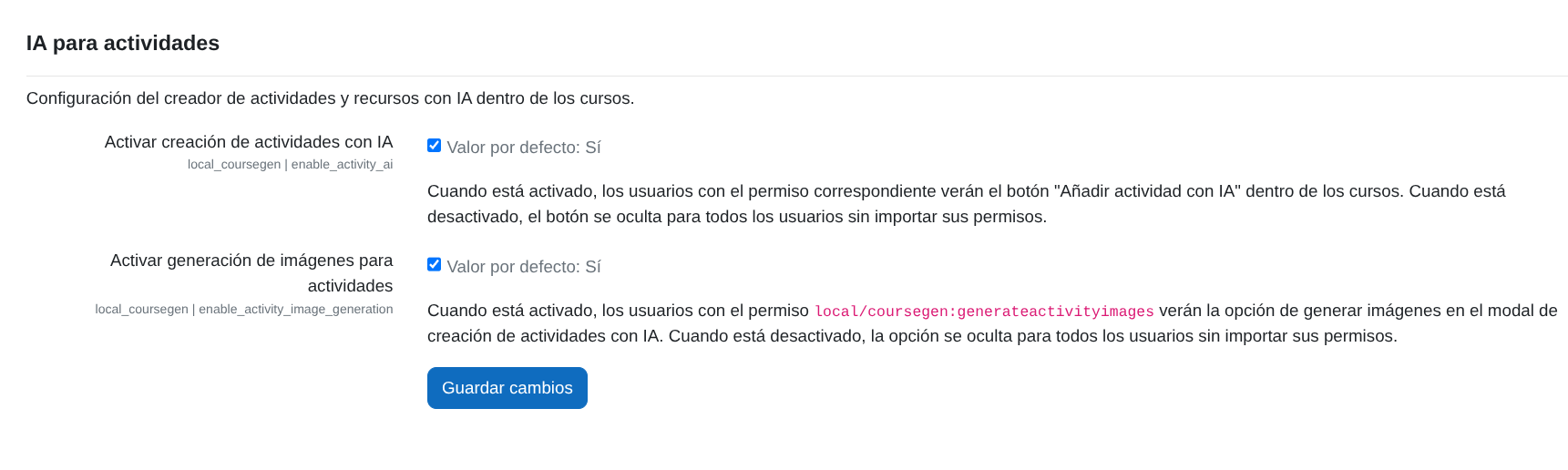
| Setting | Default | Description |
|---|---|---|
| Enable AI activity creation | Yes | When enabled, users with the appropriate capability will see the Add activity with AI button inside courses. When disabled, the button is hidden for all users regardless of their permissions. |
| Enable image generation for activities | Yes | When enabled, users with the local/coursegen:generateactivityimages capability will see the image generation option in the AI activity creation modal. When disabled, the option is hidden for all users regardless of their permissions. |
Enable image generation for activities depends on Enable AI activity creation. If you turn off AI activity creation, the setting is hidden from the page and no longer applies.
After changing any value, click Save changes.
How settings and permissions interact
Every setting on this page works as a master switch paired with permissions. For a user to see and use a feature, both conditions must be met:
- The corresponding setting is enabled on this page.
- The user holds all of the required capabilities in the relevant context.
The setting always wins. If a setting is disabled, the feature is hidden and blocked for every user, even one holding every capability. Conversely, enabling a setting grants nothing on its own — the user still needs the capabilities.
| Feature | Setting | Required capabilities | Context |
|---|---|---|---|
| Create a new course with AI | Enable AI course creation | moodle/course:create + local/coursegen:createcoursewithai | Category |
| Populate an empty existing course | Enable AI generation for empty courses | moodle/course:update + local/coursegen:createcoursewithai | Course |
| Create an activity or resource with AI | Enable AI activity creation | moodle/course:update + moodle/course:manageactivities + local/coursegen:createactivitywithai | Course |
| Generate images for a course | Enable image generation for courses | local/coursegen:generatecourseimages | Category or course |
| Generate images for an activity | Enable image generation for activities | local/coursegen:generateactivityimages | Course |
Two extra conditions apply beyond settings and capabilities:
- Populating an empty existing course also requires the course to be genuinely empty: it must have no activities or resources, apart from the Announcements forum that Moodle adds automatically to every new course. A course with any other content will not show the AI button, even with the setting enabled and every permission granted.
- Creating a new course with AI checks permissions in the category selected on the course form. If no category is selected, the site's default category is used.
See Course Creator AI plugin permissions for the full list of capabilities and their default roles.