Local Datacurso Message Hub Configuration
The local plugin local_datacurso_msghub is the core of the messaging system. It manages the connection between Moodle's notification system and the external providers.
1. Entering Configuration
To start the configuration process, you must access the plugin settings:
- Navigate to
Site administration > Plugins > Local plugins > Local Datacurso Message Hub > Configuration.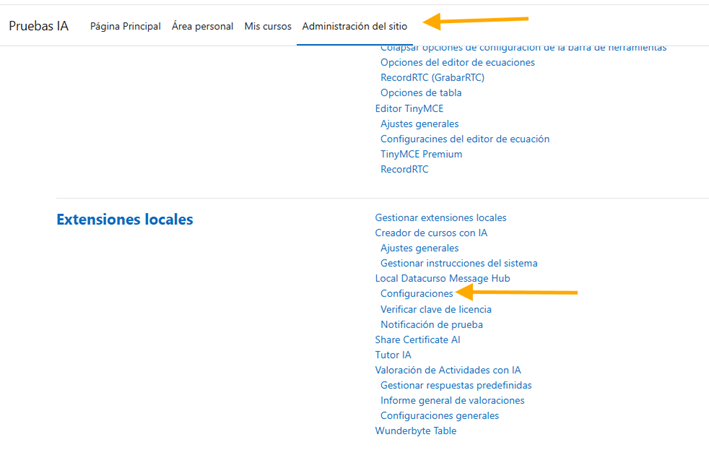
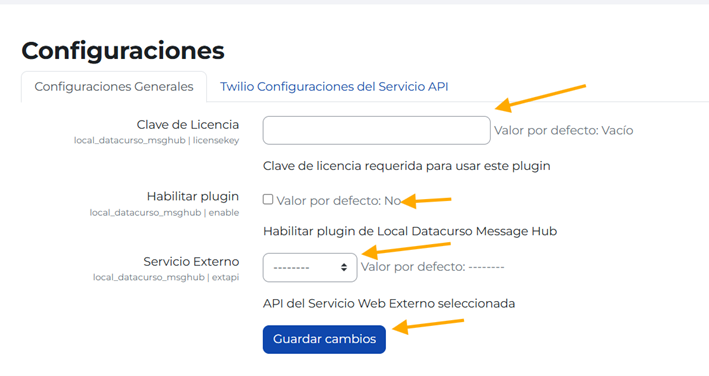
2. General Configuration
In the General Settings tab, you can enable or disable the service and define global notification rules.
3. Twilio Provider Settings
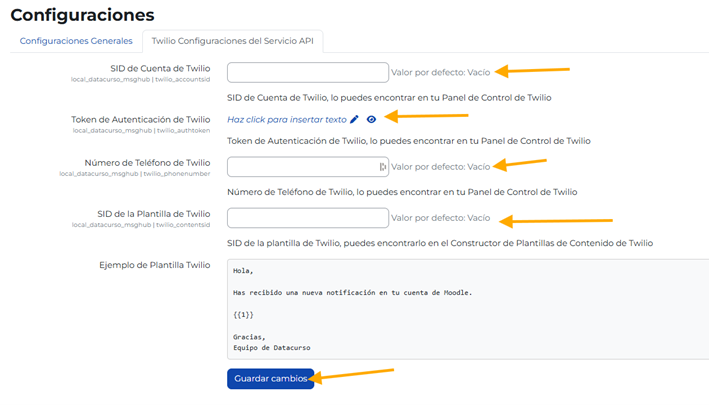
This is where you enter the credentials obtained in the Twilio Configuration guide.
- In the same configuration page, go to the Twilio Settings tab.
- Enter the following values:
- Account SID
- Auth Token
- Twilio Phone Number
- Template SID (for WhatsApp notifications)
4. License Verification
You must verify your license to ensure the plugin functions correctly.
- Navigate to
Site administration > Plugins > Local plugins > Local Datacurso Message Hub > Verify License.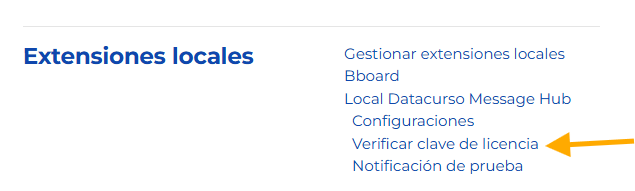
- Enter your license key and click verify.

5. Notification Testing
Once configured, you can test the delivery of notifications.
- Navigate to
Site administration > Plugins > Local plugins > Local Datacurso Message Hub > Notification Test.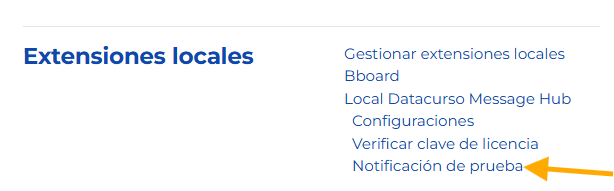
- Send a test message to ensure everything is working correctly.
