Twilio Configuration
To use the Centro de mensajes (Message Hub) plugin with WhatsApp or SMS, you need a Twilio account properly configured. This guide walks you through the process of setting up your account, acquiring a number, and creating message templates.
1. Create a Twilio Account
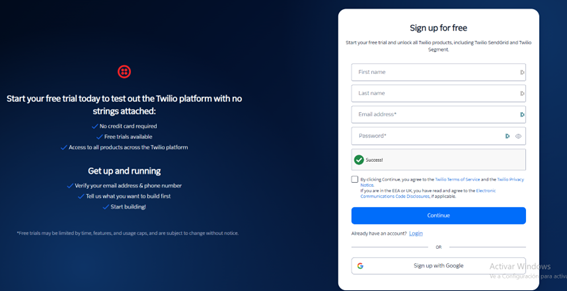
- Go to the Twilio Sign Up page.
- Enter your details and verify your email address.
- Verify a personal phone number to unlock your trial or full account.
- Go to administration panel https://console.twilio.com/
2. Buy a Twilio Phone Number
-
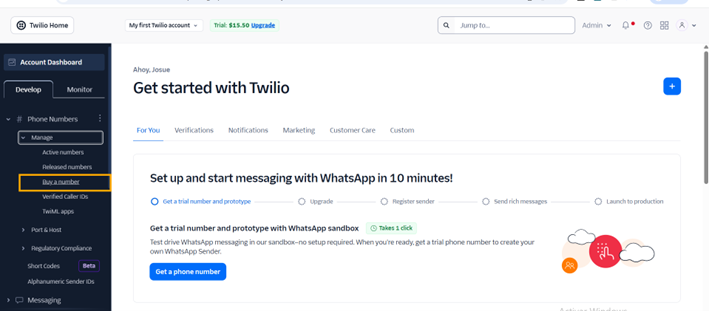
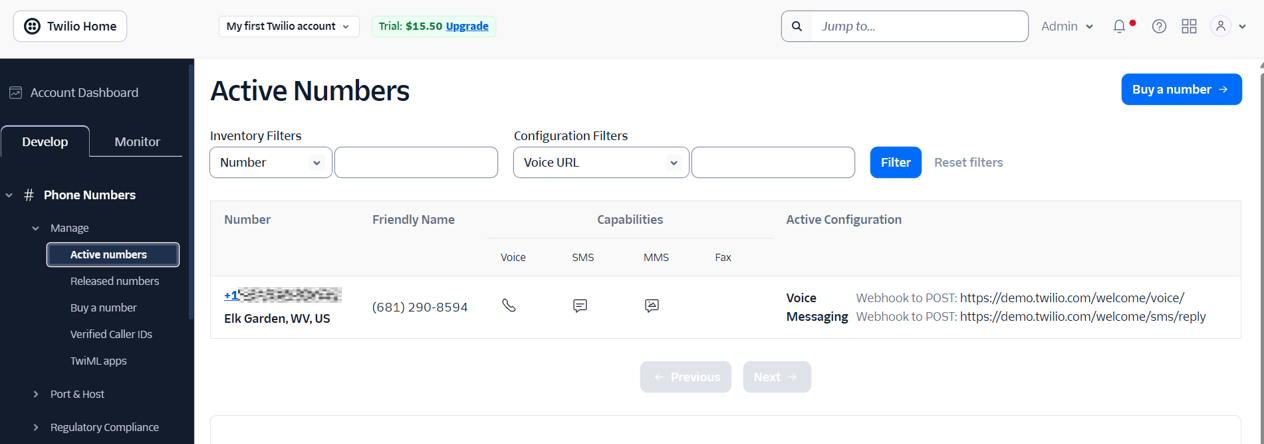
In the Twilio Console, go to Develop > Phone Numbers > Manage > Buy a number.
-
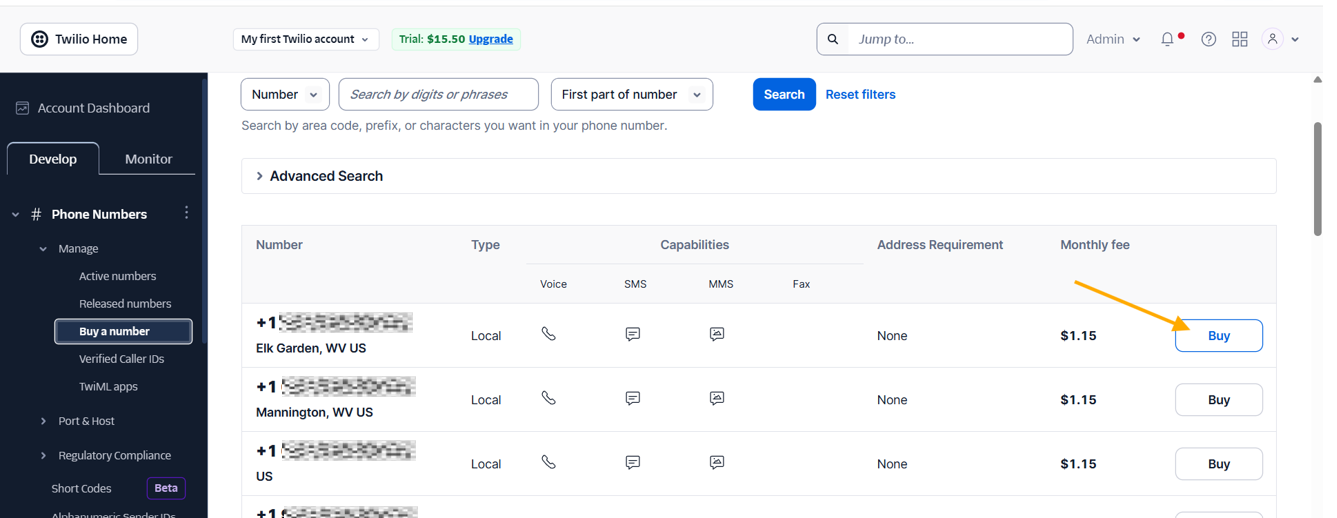
Search for a number in your desired country.
-
Important: Ensure the number has SMS and Voice capabilities. Voice is often required for WhatsApp verification.
-
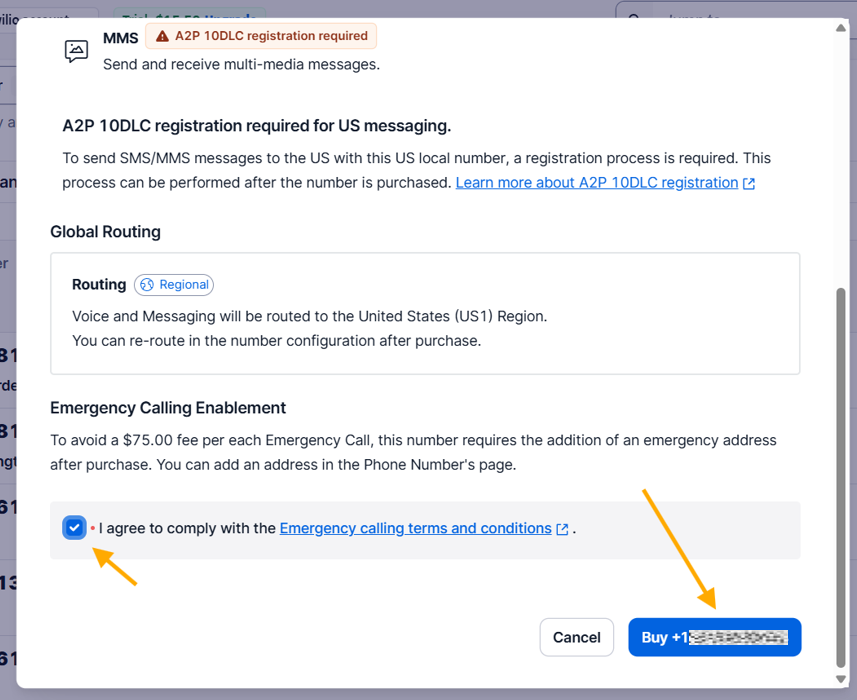
Purchase the number.
3. Set Up WhatsApp Business
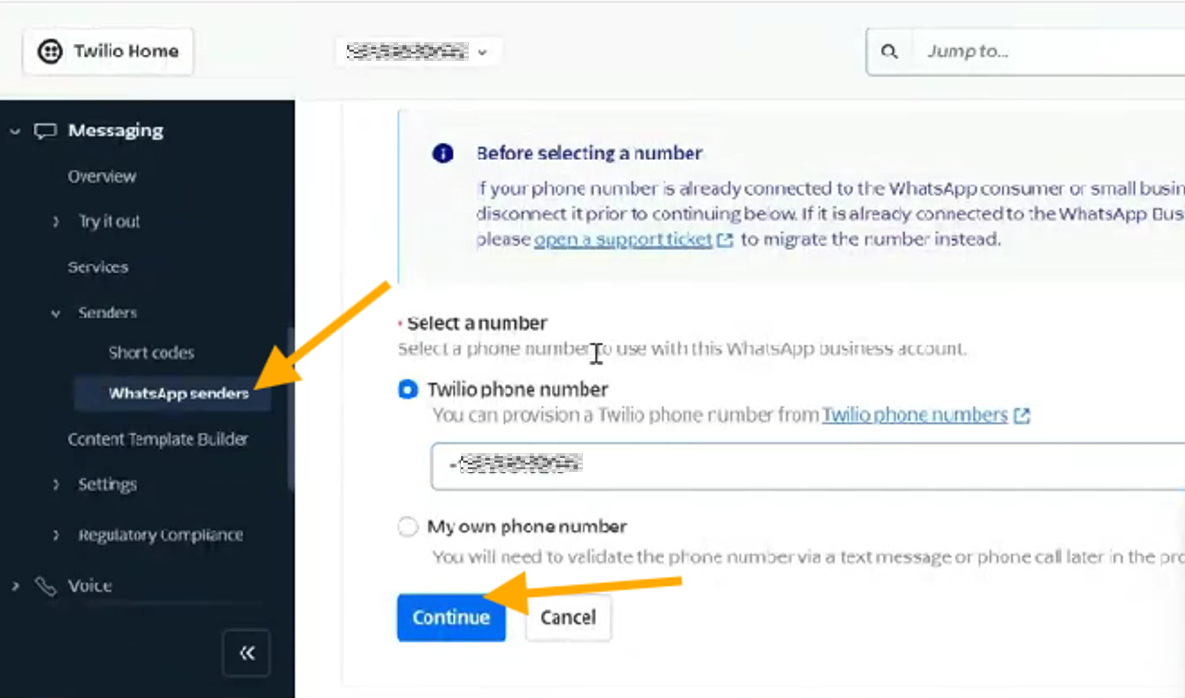
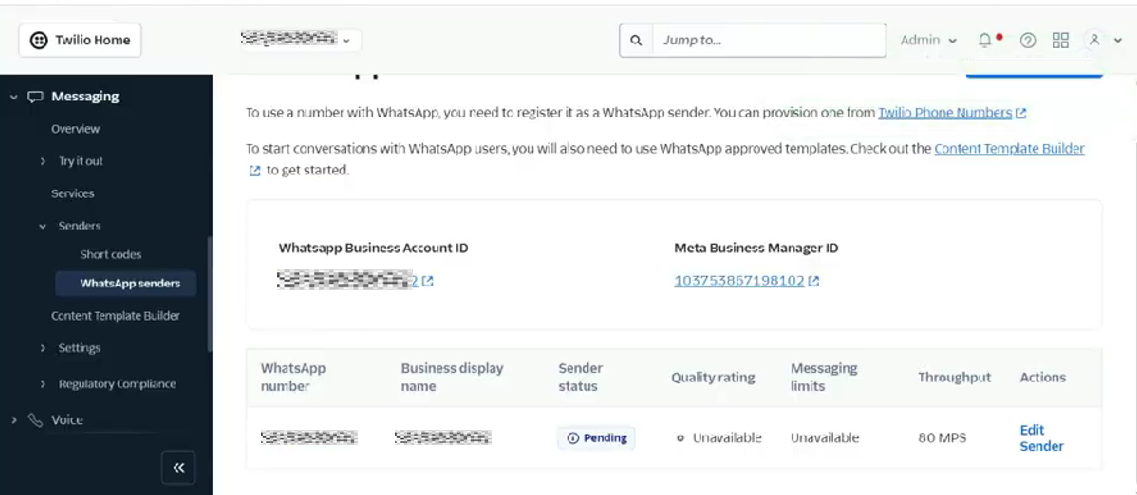
- Navigate to Messaging > Senders > WhatsApp Senders.
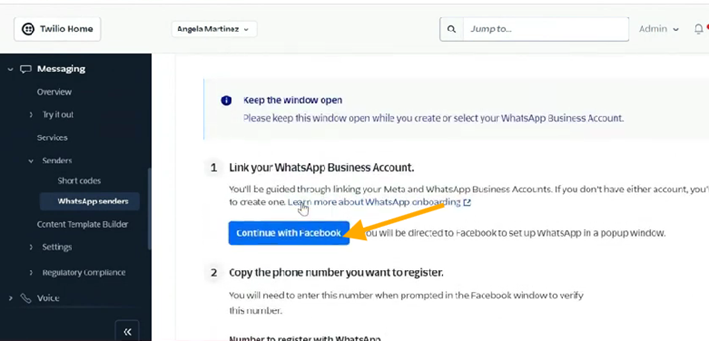
- Click on Sign up with Meta (Cloud API) or the Guided Setup.
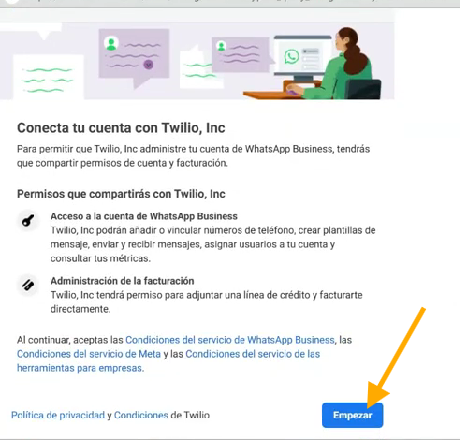
- You will be prompted to log in to your Facebook Business Manager.
- Follow the steps to link your Twilio number with a WhatsApp Business Profile. You can find more details in the Twilio WhatsApp Self-Sign-Up documentation:
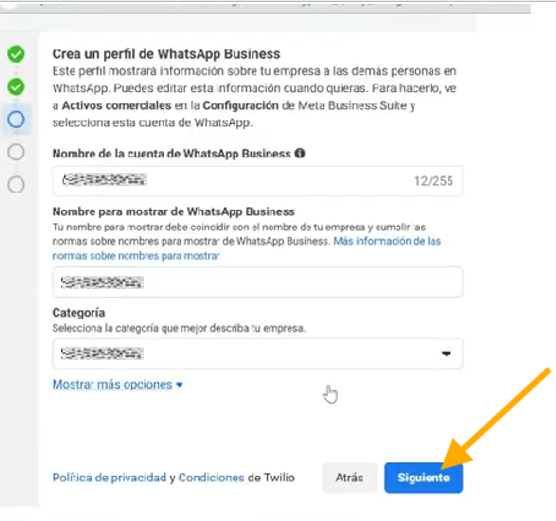
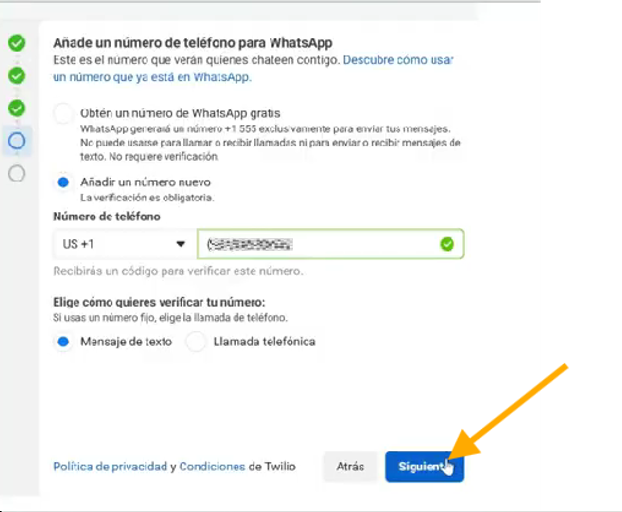
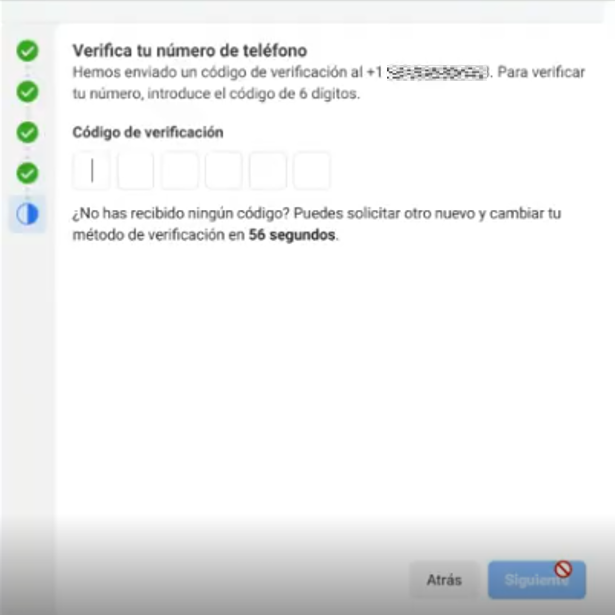
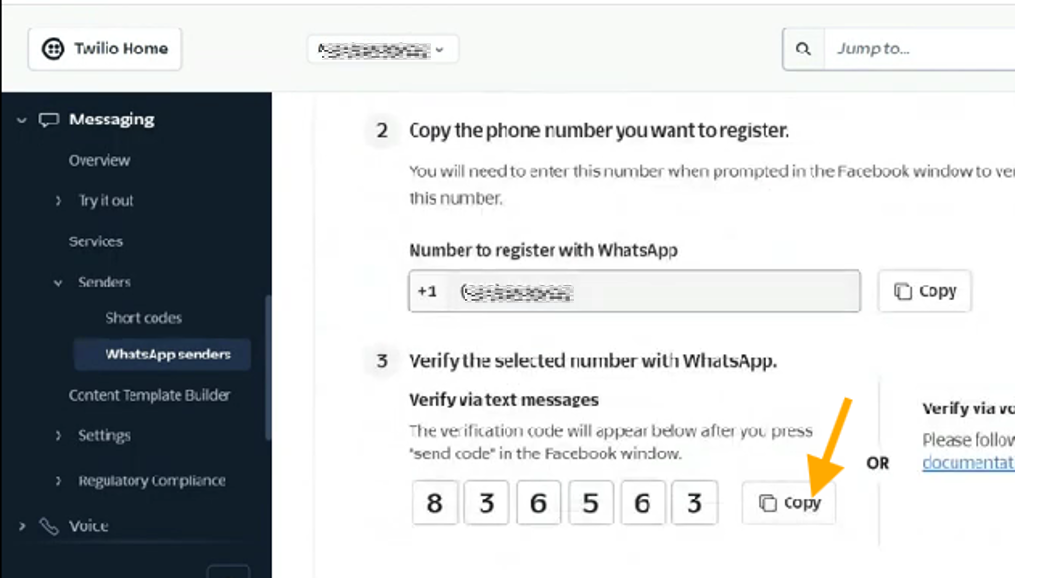
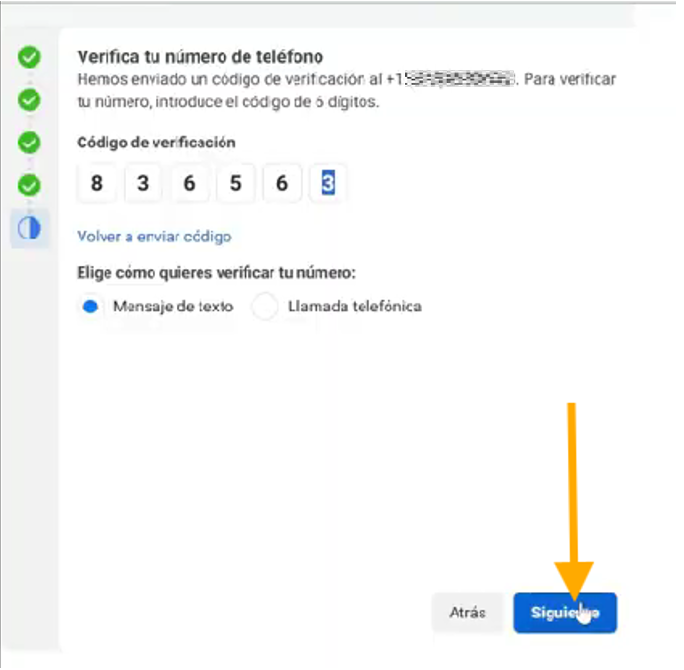
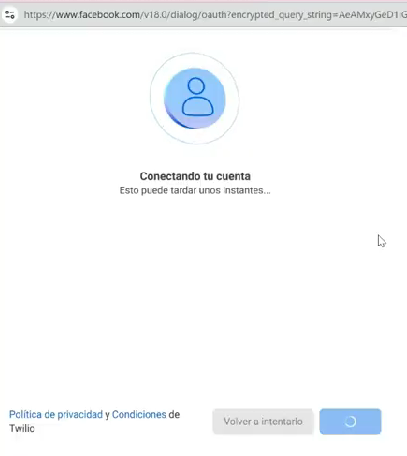
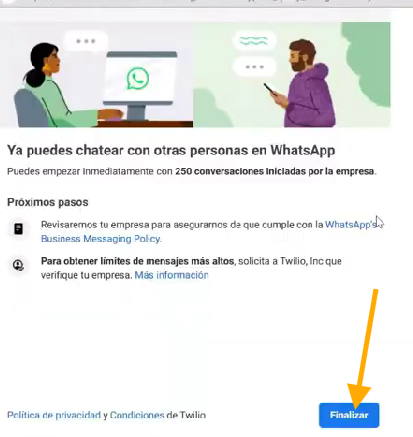
- Verify your phone number via SMS or a phone call through the Twilio console.
- Wait for Meta's approval (usually takes a few minutes to 24 hours).
4. Create a Message Template
WhatsApp requires pre-approved templates for outgoing messages.
- Go to Messaging > Content Editor or WhatsApp Senders > Templates.
- Click Create New.
- Define your template:
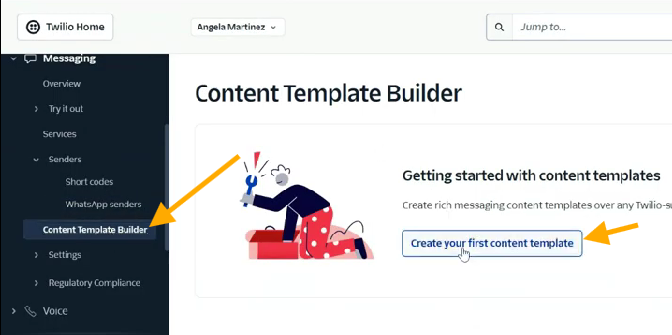
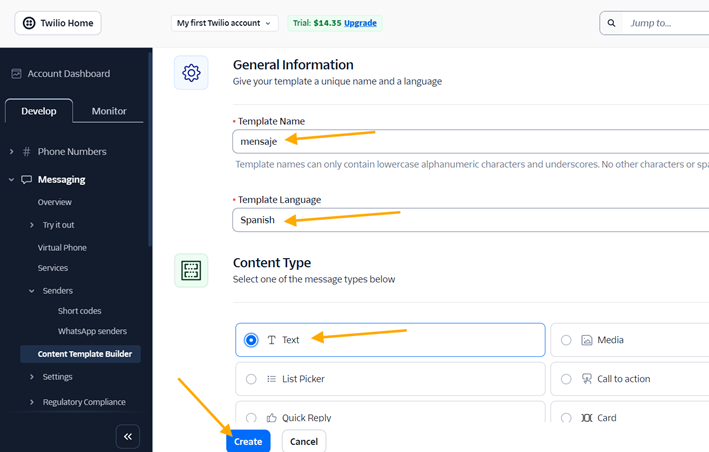
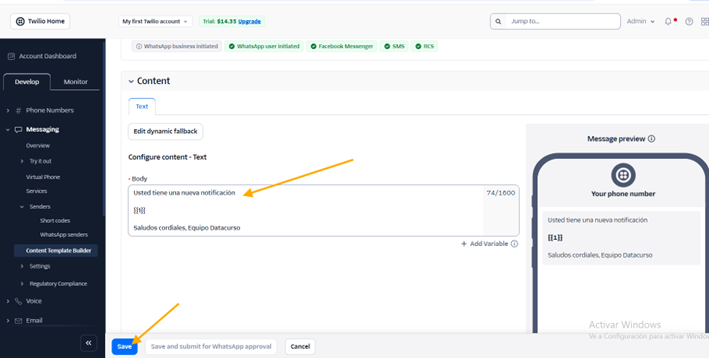
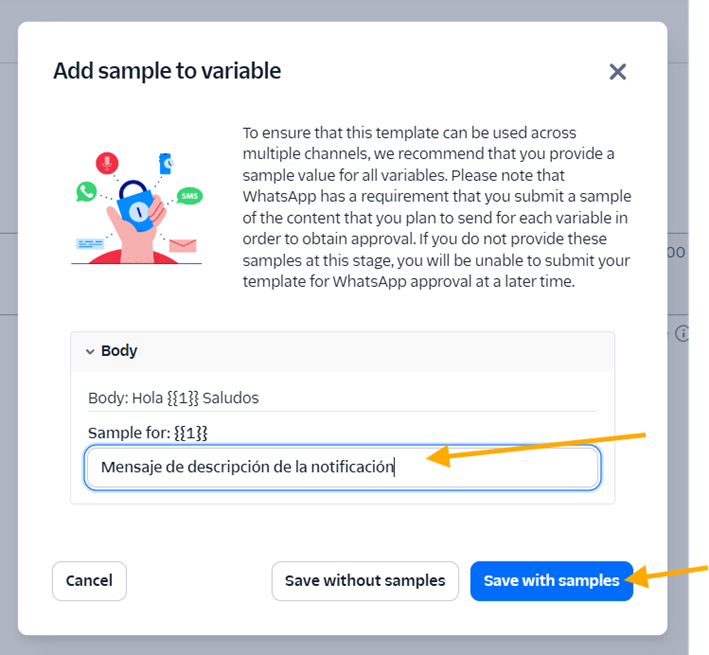
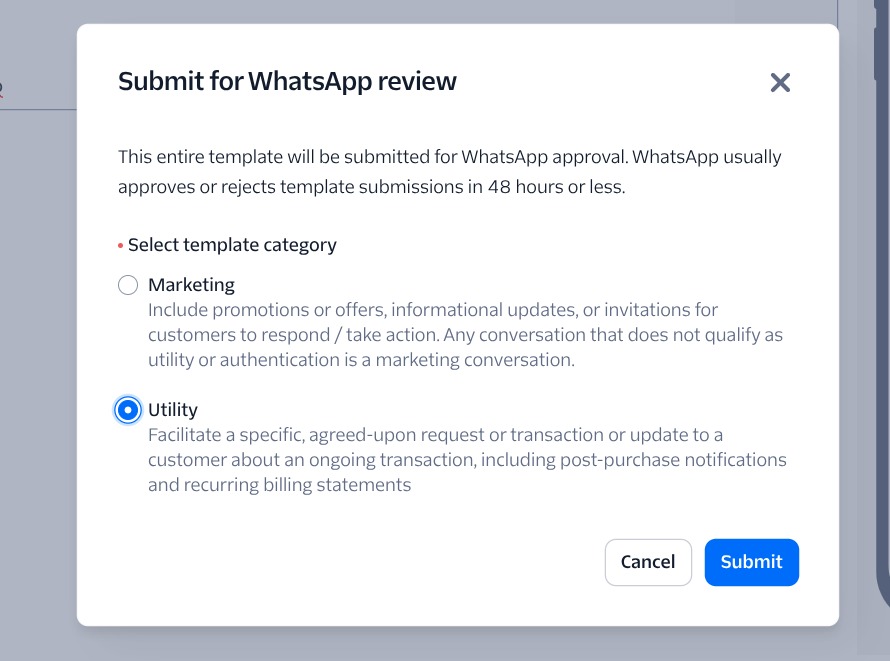
- Submit for approval. Once approved, note down the Template SID (starts with
HX...).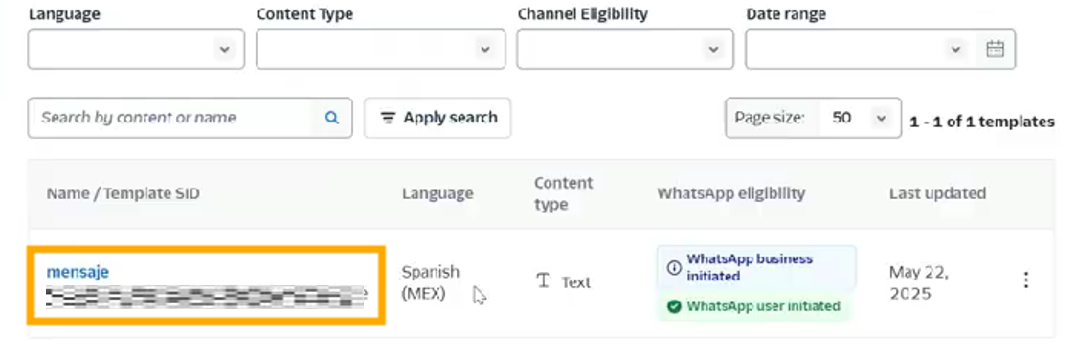
5. Required Values for Moodle
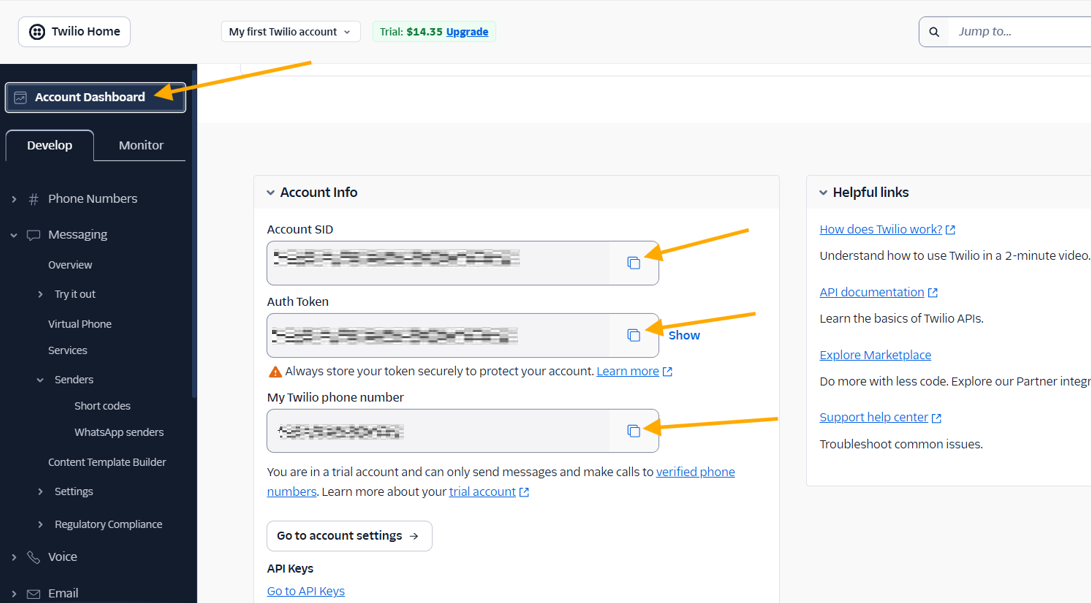
Once everything is configured, you must copy these 4 values into the Moodle plugin settings:
| Value | Description | Where to find it |
|---|---|---|
| Account SID | Your unique account identifier. | Twilio Console Dashboard. |
| Auth Token | Secret key for API access. | Twilio Console Dashboard (keep it secret). |
| Twilio Number | The number you purchased (in E.164 format, e.g., +123456789). | Phone Numbers > Manage. |
| Template SID | The ID of your approved WhatsApp template. | Messaging > Content Editor / Templates. |
[!IMPORTANT] Without a verified WhatsApp Template SID, you will only be able to send messages if the user has messaged you first within the last 24 hours. Approved templates are required to initiate conversations.