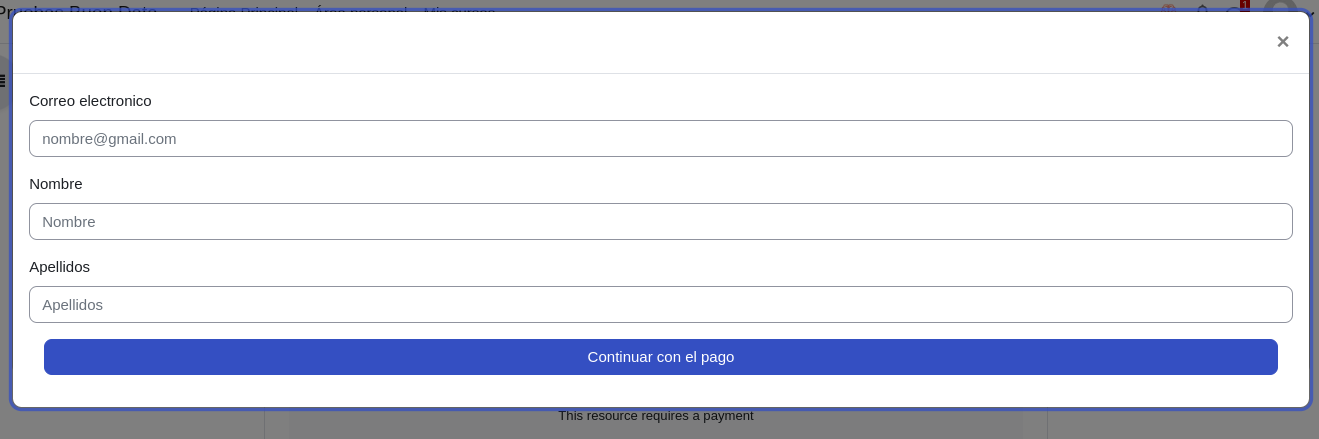
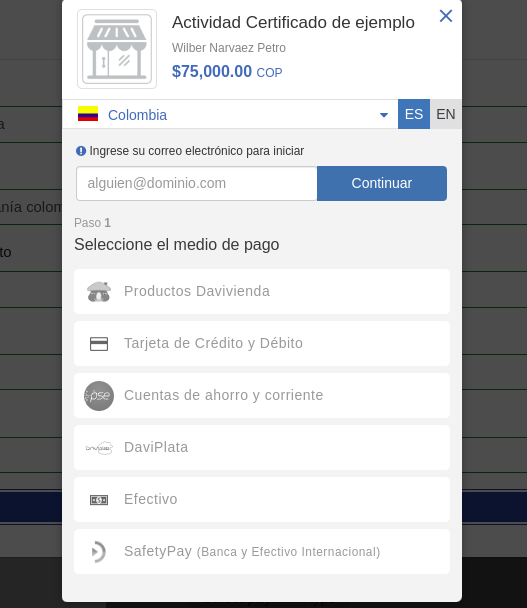
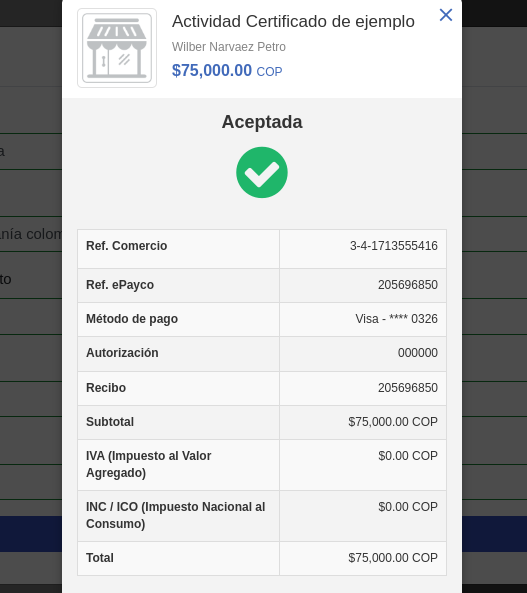
Payment Preview
Payment Preview for a Course Activity
This is how the activity configured in the Configuration for Activities section is displayed to a student.
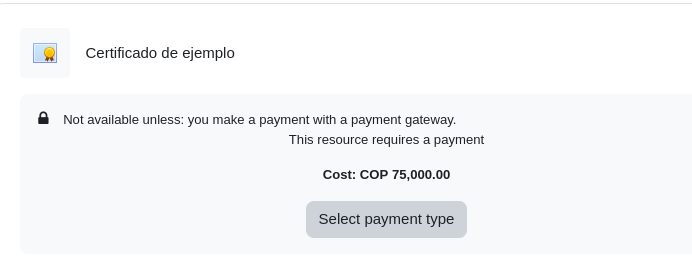
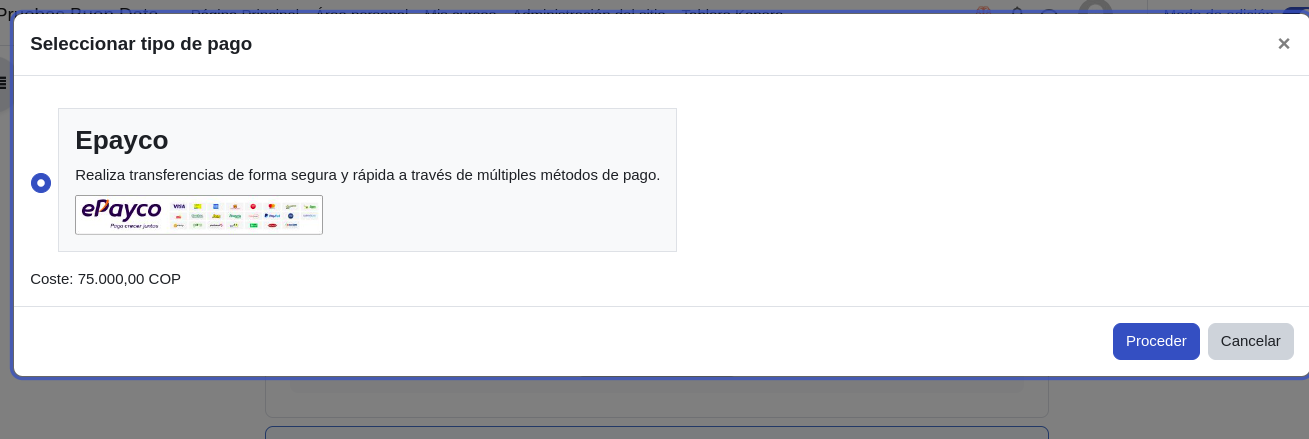
Once the button is clicked to select the payment type, a modal window with the available payment methods appears.
Payment Preview for a Course
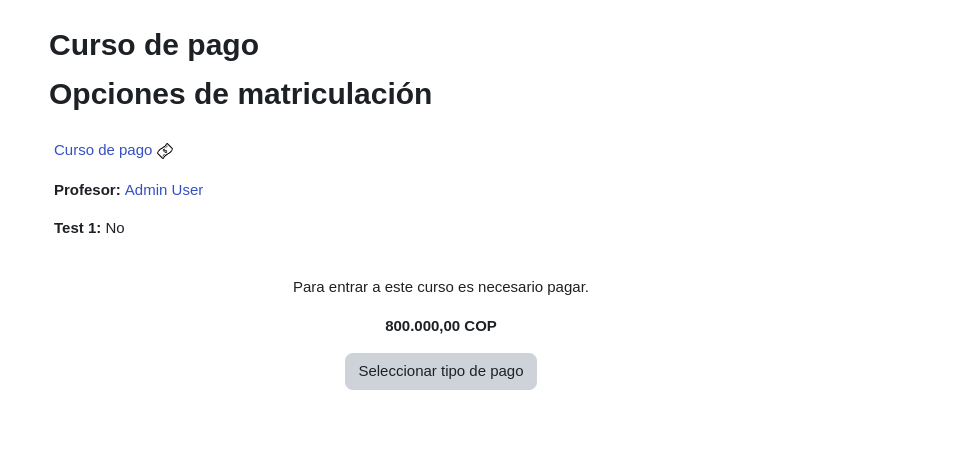
This is how the course configured in the Configuration for Enrollments section is displayed to a student.
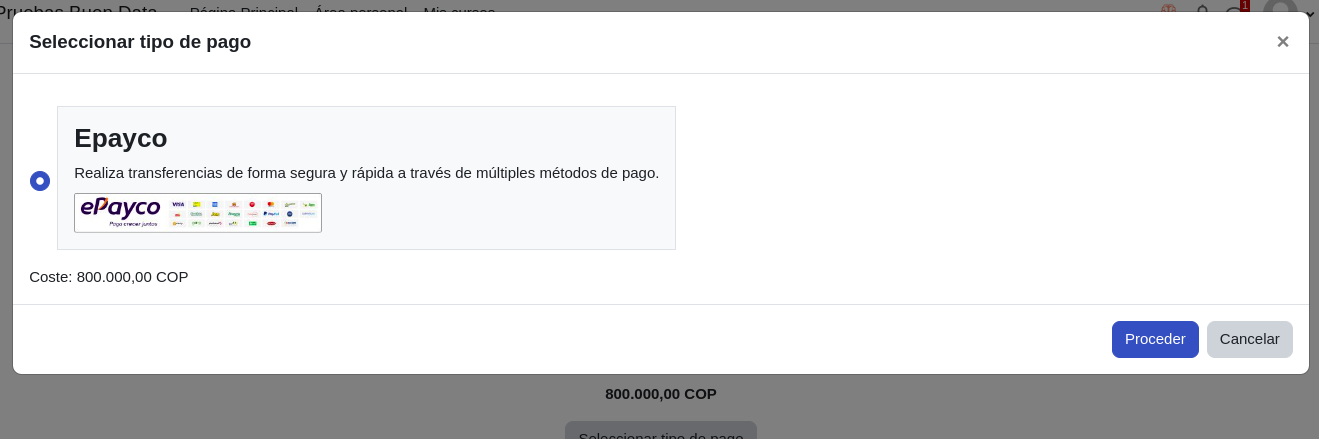
Once the button is clicked to select the payment type, a modal window with the available payment methods appears.
General Preview
After selecting the Epayco payment method in the modal window (whether in the course or activity), the payment process continues as shown below.