User Guide
Once installed, the Recommended Courses Block needs to be added to your Moodle dashboard and configured properly.
Adding the Block to Dashboard
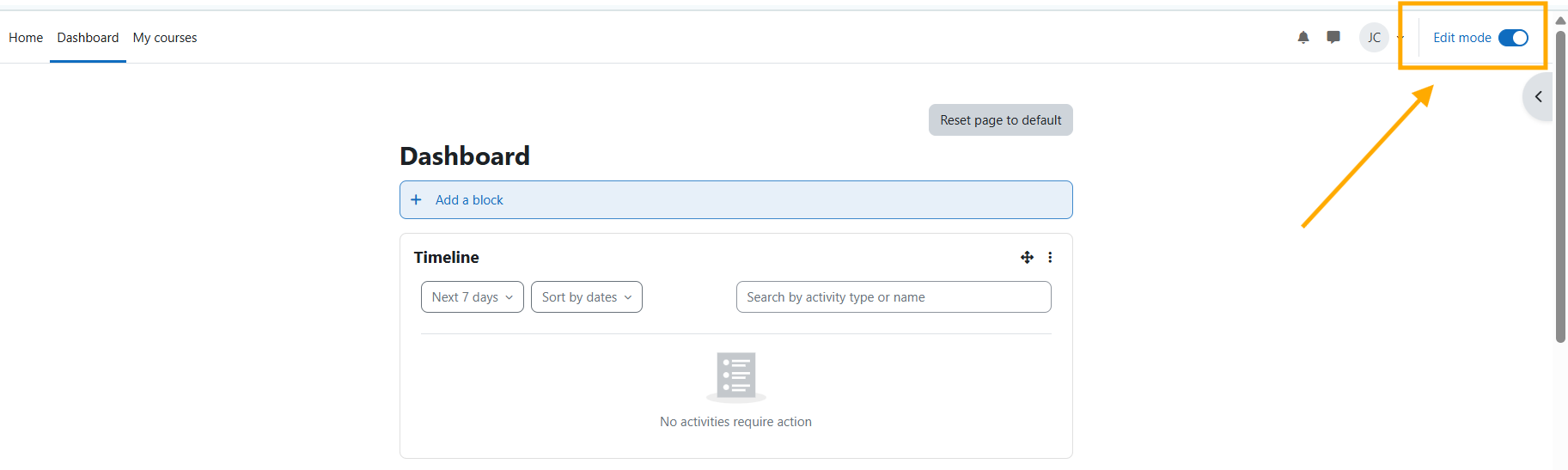
Step 1: Activate Edit Mode
Enable edit mode on your Moodle dashboard to access options for adding blocks.
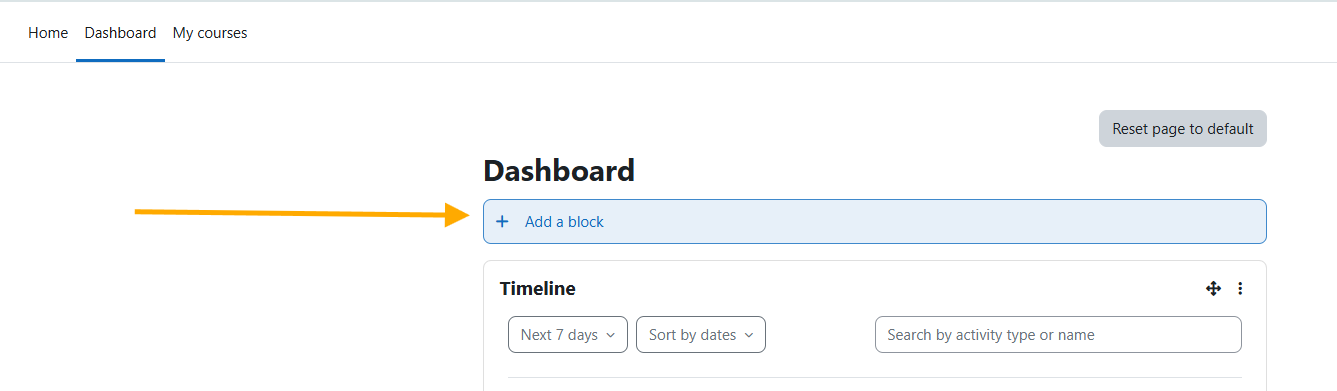
Step 2: Add a Block
Click on the "Add a block" option in the dashboard.
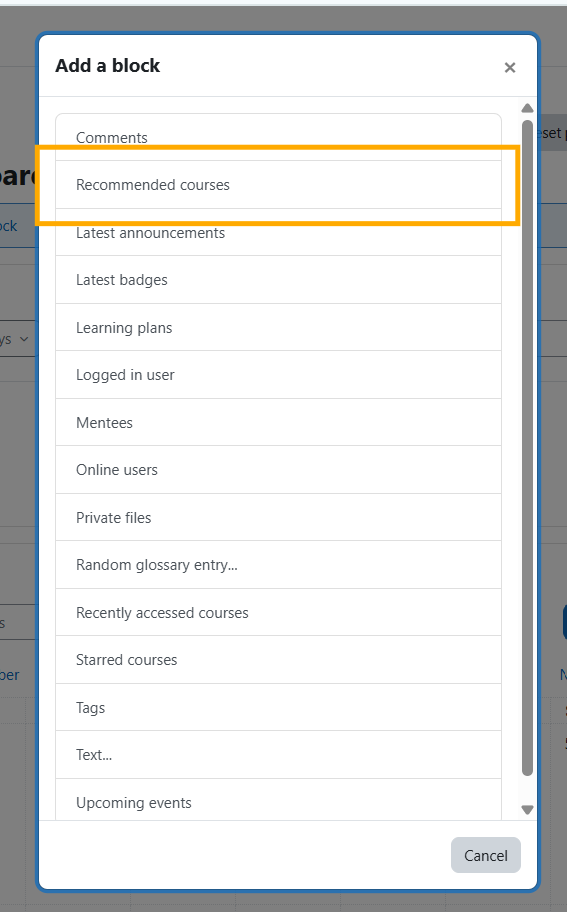
Step 3: Select the Block
Choose Recommended Courses from the list of available blocks.
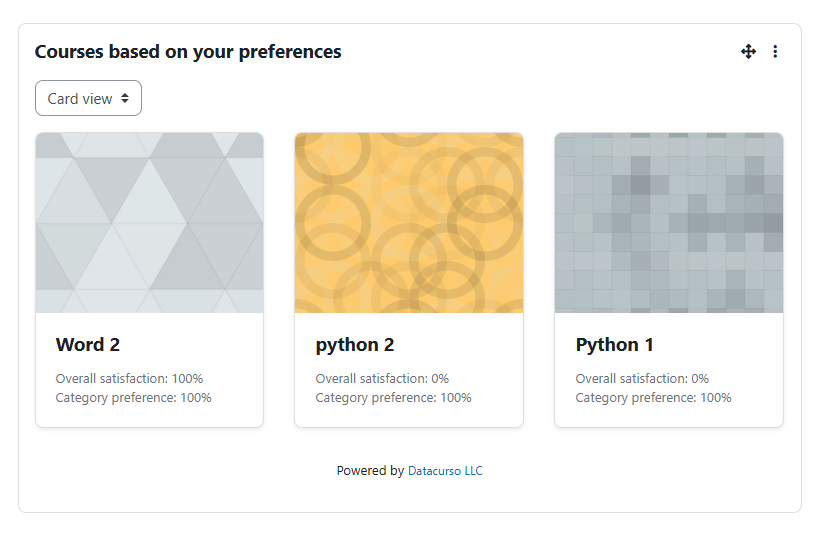
Step 4: View the Block
The block will appear on your page, displaying recommended courses based on the student's activity information from the Ranking Activities AI plugin.
Verifying Dependencies
Ensure that the following plugins are:
- Active: Both Ranking Activities AI and DataCourse AI Provider must be enabled
- Licensed: The DataCourse AI Provider must have a valid license key configured
Display Options
Students can customize their view using the selector to choose between:
- Cards View: Visual layout with thumbnails
- List View: Compact text-based layout