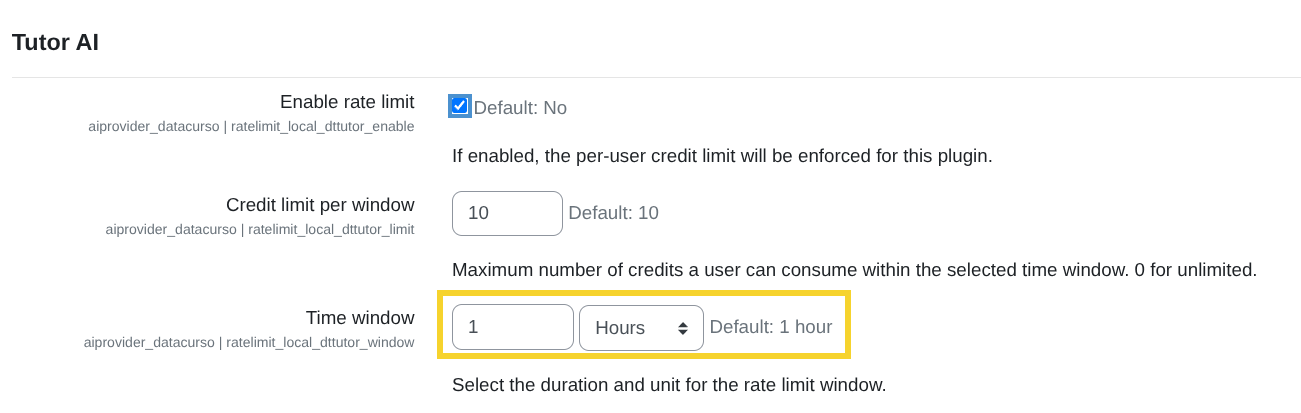
Per-plugin rate limits
Per-plugin rate limits allow you to control how AI credits are consumed per user and per plugin for plugins that use the Datacurso AI Provider.
Access to AI Providers settings
To access these settings in Moodle:
-
Go to
Site administration > General > AI > AI Providers.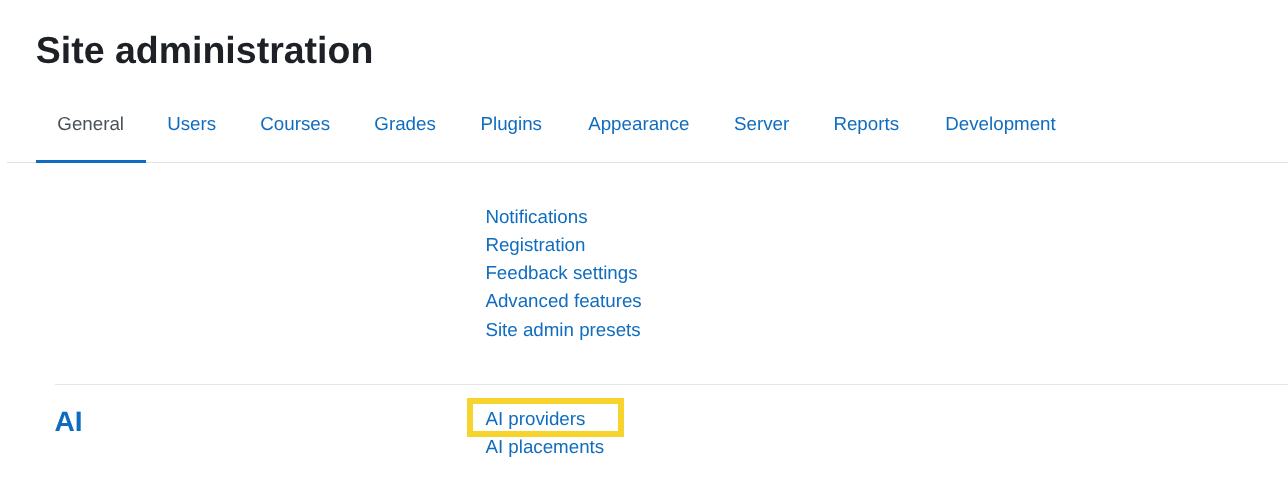
-
In the Datacurso AI Provider row, click Settings.
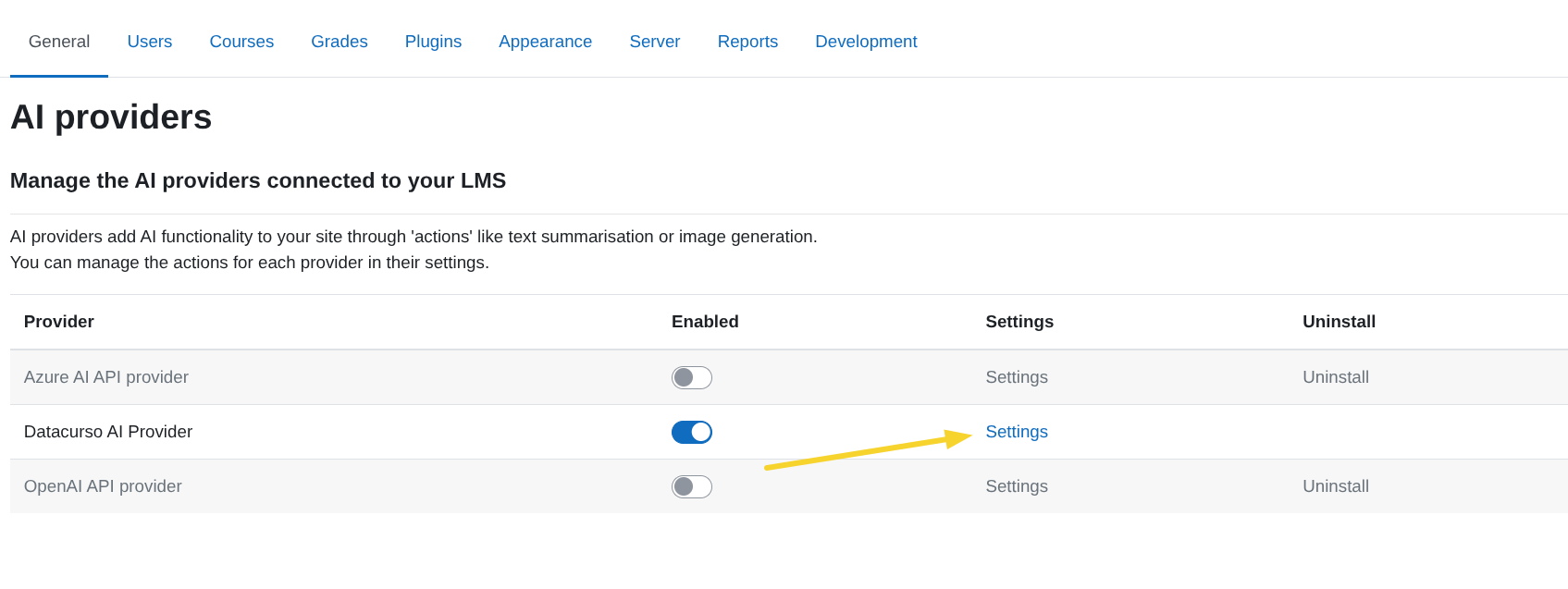
-
Locate the Per-plugin rate limits section.

Assign AI plugin rate limits
This section is where you configure the per-user rate limit settings for the Assign AI plugin.
Enable rate limit
Check this box to enable per-user credit rate limiting for the Assign AI plugin.
- If you enable it, the provider will apply the limits below to each user.
- If you leave it disabled, Assign AI will not have a per-user credit limit.
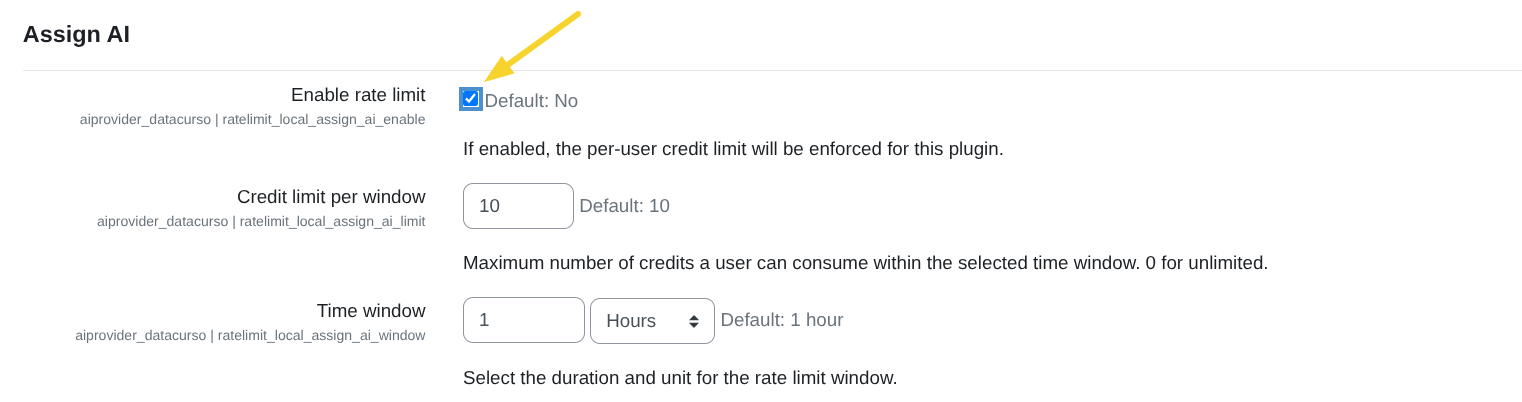
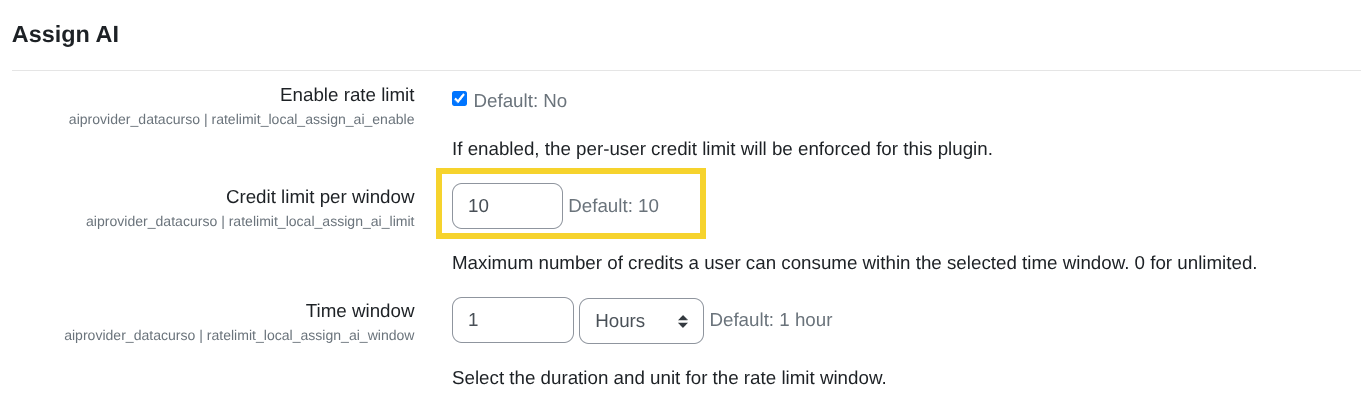
Credit limit per window
This is the maximum number of credits one user can spend in the time period you set below.
- Set it to
0if you do not want any limit.
Example: if you set 10, a user can spend up to 10 credits during each time window.
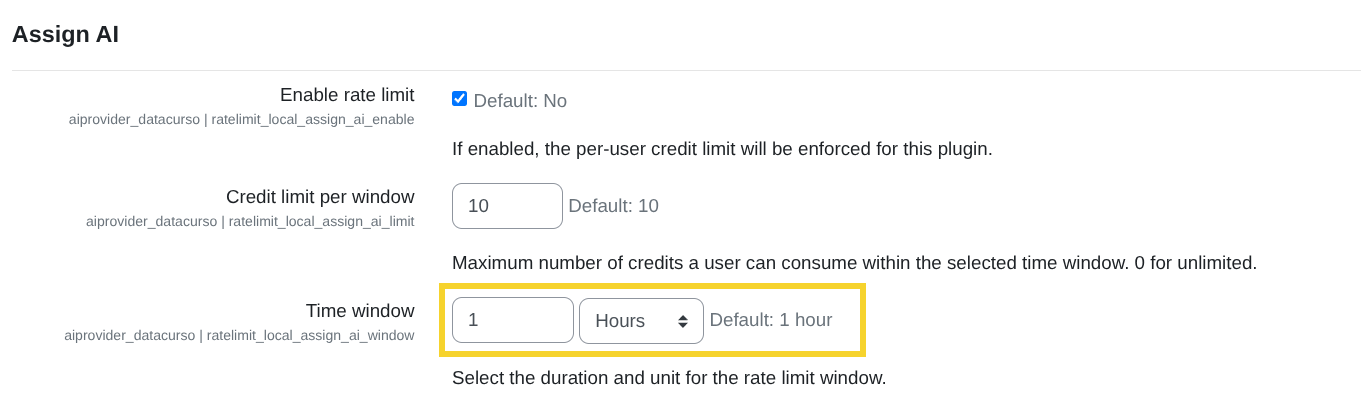
Time window
This setting defines how often the credit limit resets.
Pick a number and a unit (for example 1 + hours). Allowed units are: seconds, minutes, hours, days, weeks, months, years.
Examples:
- If Credit limit per window is
10and Time window is1+ hours, each user can spend up to 10 credits per hour. - If Credit limit per window is
50and Time window is1+ days, each user can spend up to 50 credits per day.
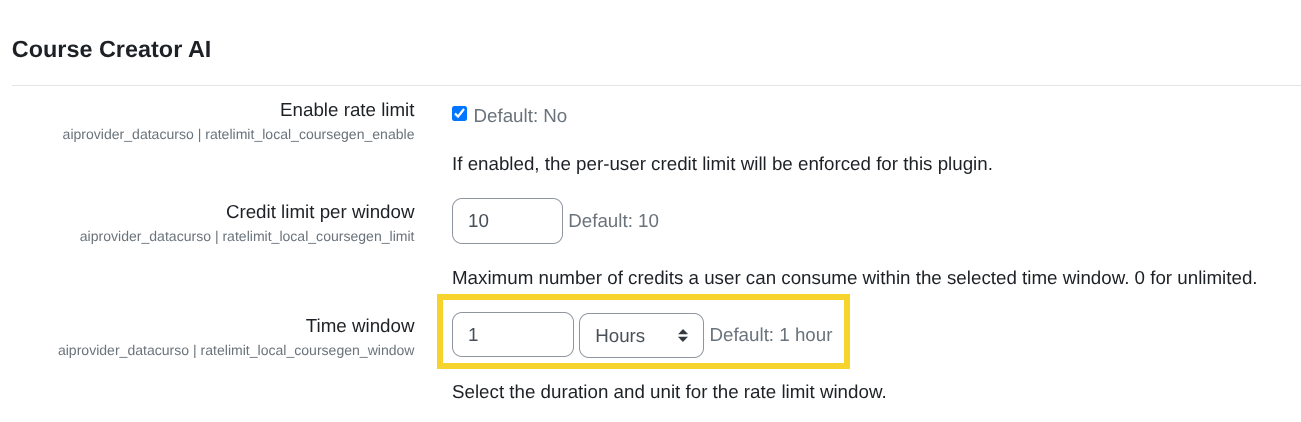
Course Creator AI plugin rate limits
This section is where you configure the per-user rate limit settings for the Course Creator AI plugin.
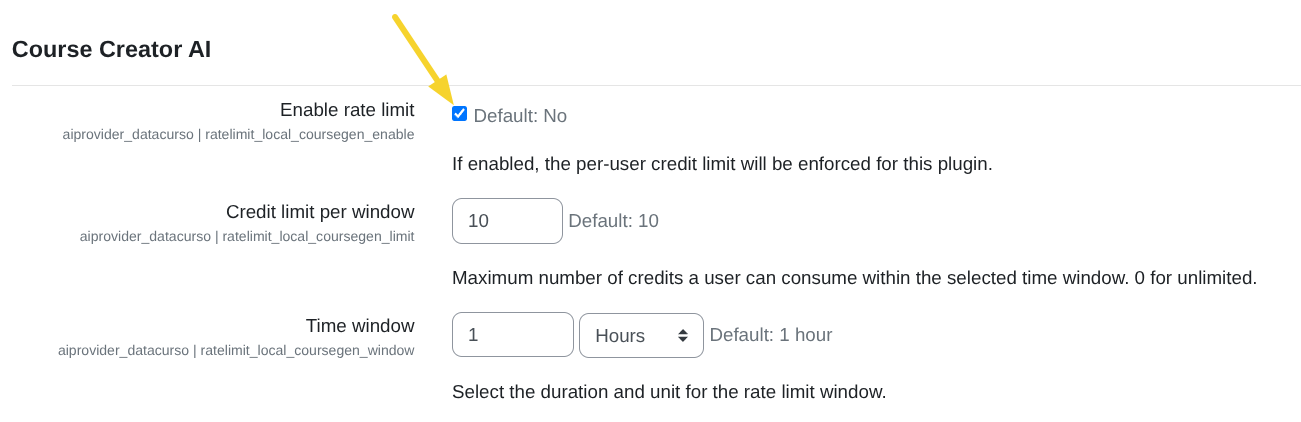
Enable rate limit
Check this box to enable per-user credit rate limiting for the Course Creator AI plugin.
- If you enable it, the provider will apply the limits below to each user.
- If you leave it disabled, Course Creator AI will not have a per-user credit limit.
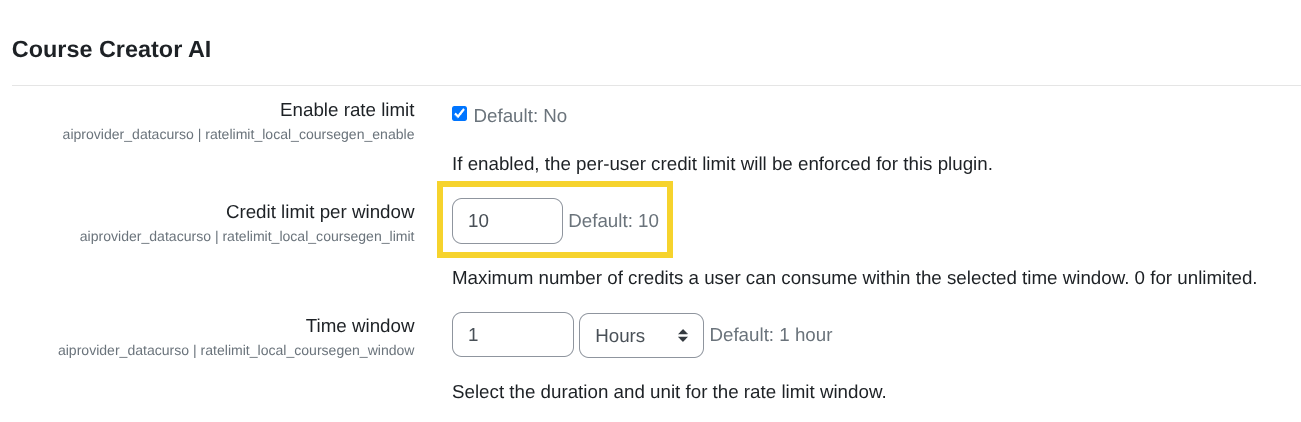
Credit limit per window
This is the maximum number of credits one user can spend in the time period you set below.
- Set it to
0if you do not want any limit.
Example: if you set 10, a user can spend up to 10 credits during each time window.
Time window
This setting defines how often the credit limit resets.
Pick a number and a unit (for example 1 + hours). Allowed units are: seconds, minutes, hours, days, weeks, months, years.
Examples:
- If Credit limit per window is
10and Time window is1+ hours, each user can spend up to 10 credits per hour. - If Credit limit per window is
50and Time window is1+ days, each user can spend up to 50 credits per day.
Forum AI plugin rate limits
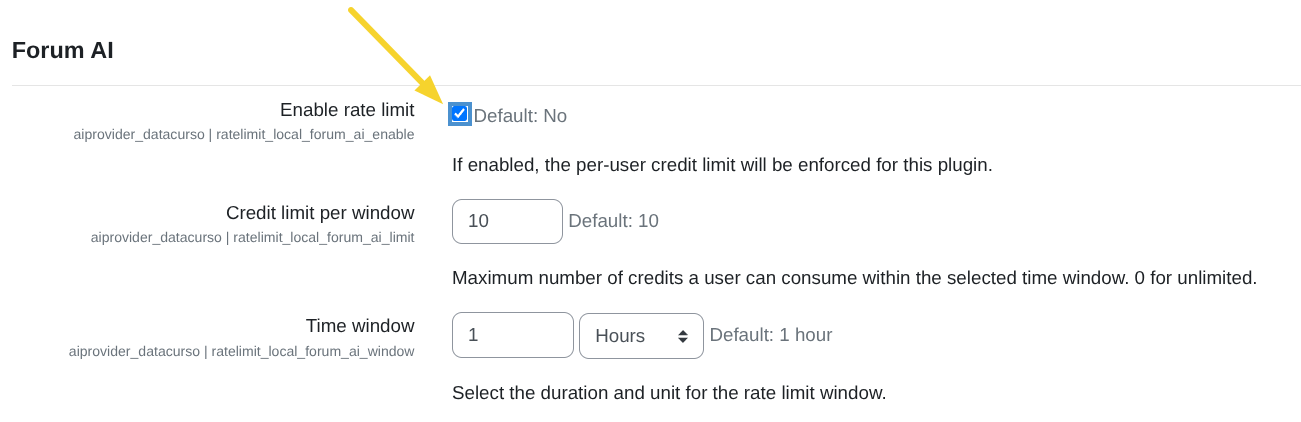
This section is where you configure the per-user rate limit settings for the Forum AI plugin.
Enable rate limit
Check this box to enable per-user credit rate limiting for the Forum AI plugin.
- If you enable it, the provider will apply the limits below to each user.
- If you leave it disabled, Forum AI will not have a per-user credit limit.
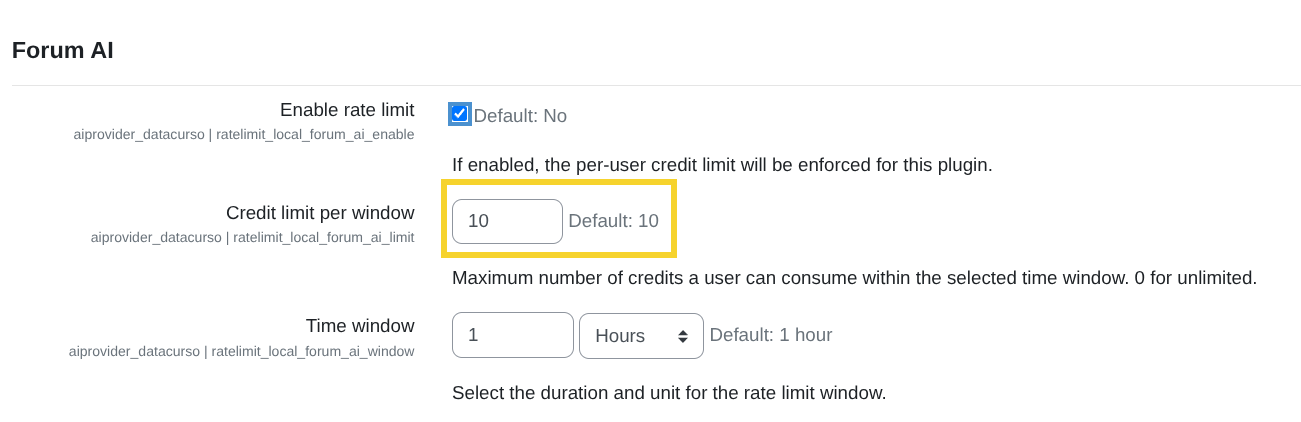
Credit limit per window
This is the maximum number of credits one user can spend in the time period you set below.
- Set it to
0if you do not want any limit.
Example: if you set 10, a user can spend up to 10 credits during each time window.
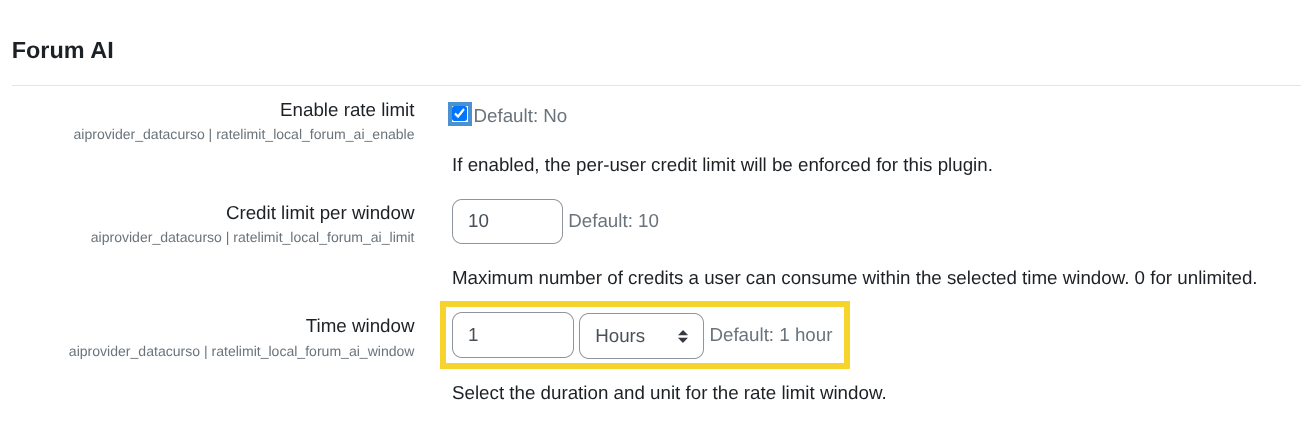
Time window
This setting defines how often the credit limit resets.
Pick a number and a unit (for example 1 + hours). Allowed units are: seconds, minutes, hours, days, weeks, months, years.
Examples:
- If Credit limit per window is
10and Time window is1+ hours, each user can spend up to 10 credits per hour. - If Credit limit per window is
50and Time window is1+ days, each user can spend up to 50 credits per day.
Ranking Activities AI plugin rate limits
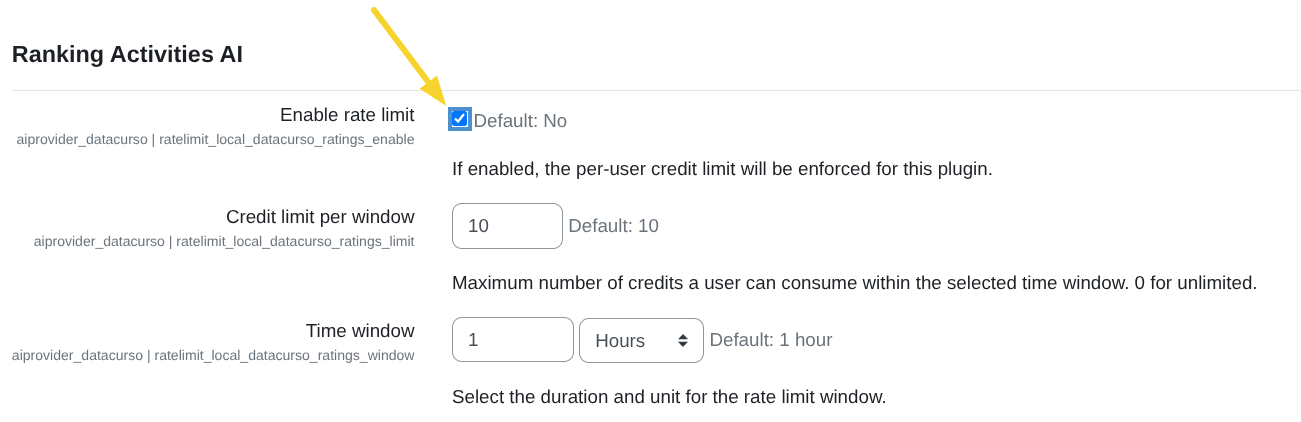
This section is where you configure the per-user rate limit settings for the Ranking Activities AI plugin.
Enable rate limit
Check this box to enable per-user credit rate limiting for the Ranking Activities AI plugin.
- If you enable it, the provider will apply the limits below to each user.
- If you leave it disabled, Ranking Activities AI will not have a per-user credit limit.
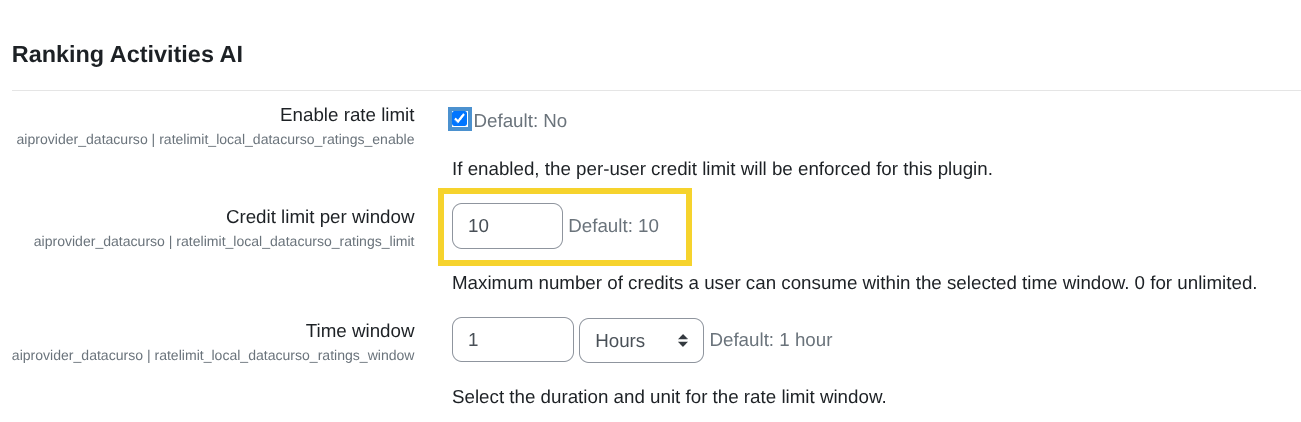
Credit limit per window
This is the maximum number of credits one user can spend in the time period you set below.
- Set it to
0if you do not want any limit.
Example: if you set 10, a user can spend up to 10 credits during each time window.
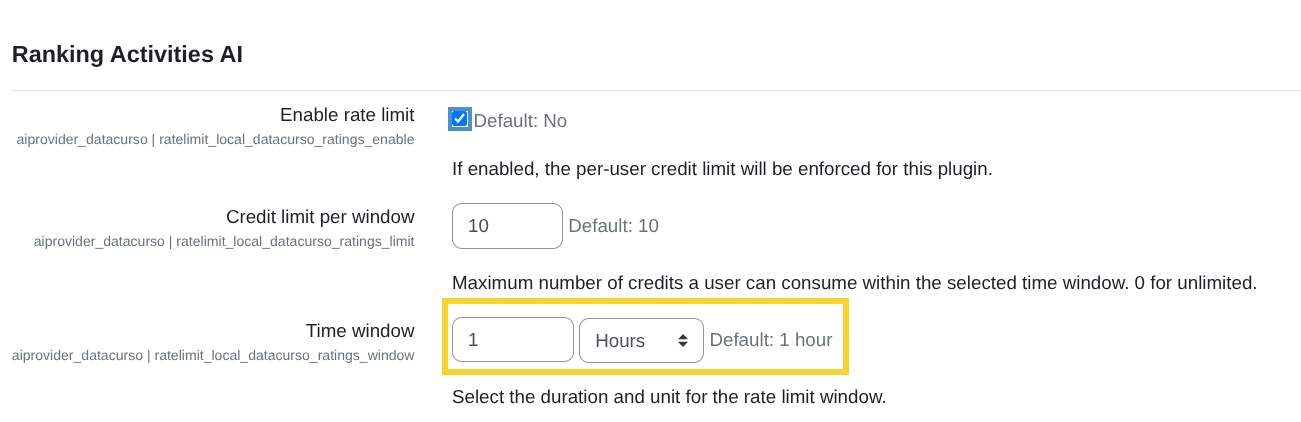
Time window
This setting defines how often the credit limit resets.
Pick a number and a unit (for example 1 + hours). Allowed units are: seconds, minutes, hours, days, weeks, months, years.
Examples:
- If Credit limit per window is
10and Time window is1+ hours, each user can spend up to 10 credits per hour. - If Credit limit per window is
50and Time window is1+ days, each user can spend up to 50 credits per day.
Share Certificate AI plugin rate limits
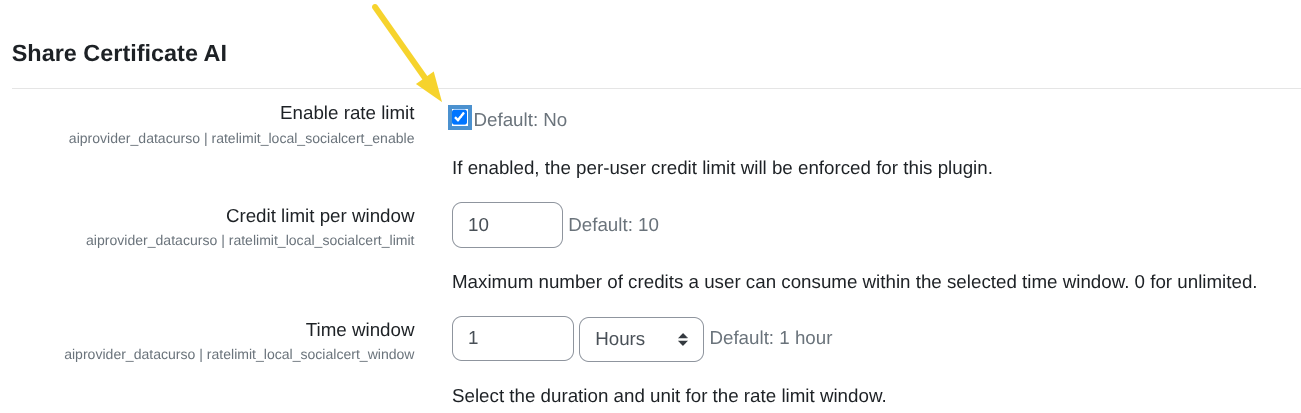
This section is where you configure the per-user rate limit settings for the Share Certificate AI plugin.
Enable rate limit
Check this box to enable per-user credit rate limiting for the Share Certificate AI plugin.
- If you enable it, the provider will apply the limits below to each user.
- If you leave it disabled, Share Certificate AI will not have a per-user credit limit.
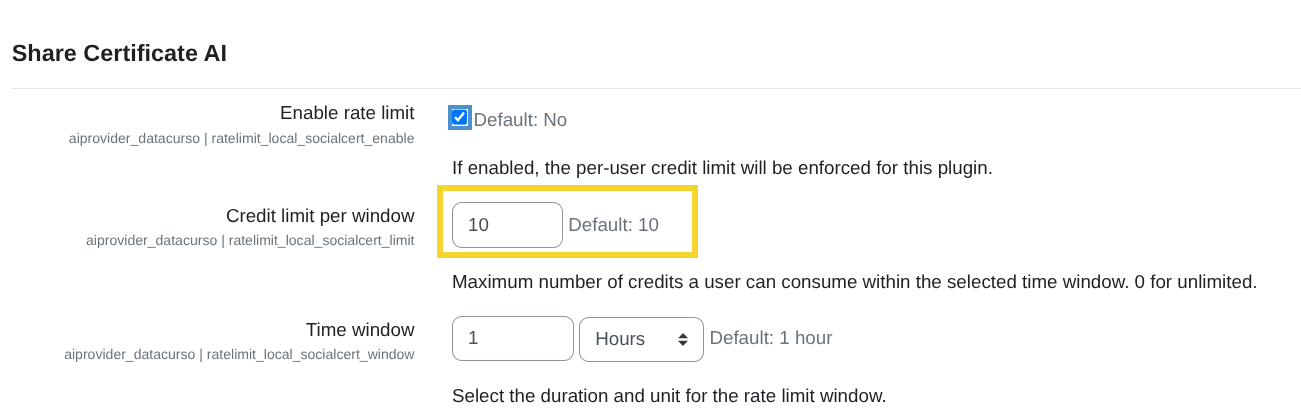
Credit limit per window
This is the maximum number of credits one user can spend in the time period you set below.
- Set it to
0if you do not want any limit.
Example: if you set 10, a user can spend up to 10 credits during each time window.
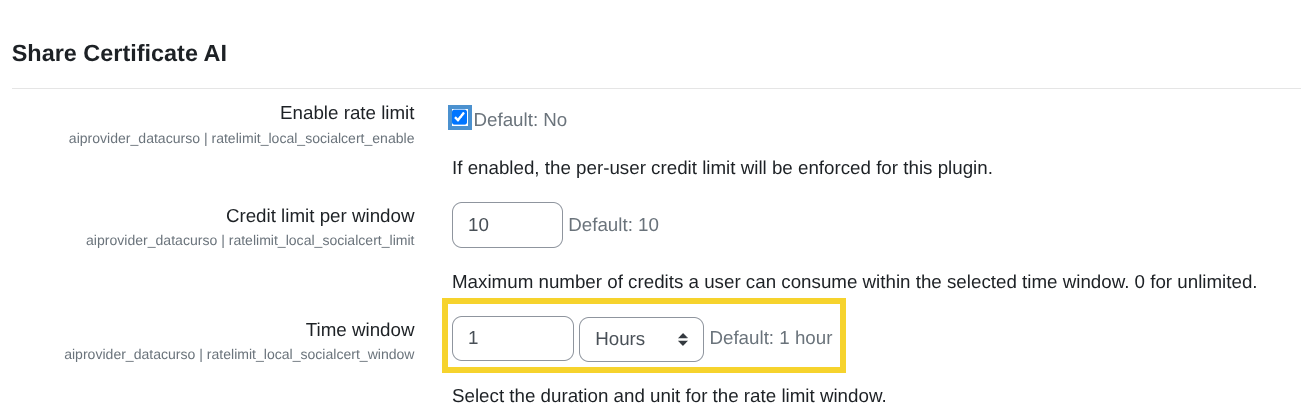
Time window
This setting defines how often the credit limit resets.
Pick a number and a unit (for example 1 + hours). Allowed units are: seconds, minutes, hours, days, weeks, months, years.
Examples:
- If Credit limit per window is
10and Time window is1+ hours, each user can spend up to 10 credits per hour. - If Credit limit per window is
50and Time window is1+ days, each user can spend up to 50 credits per day.
SmartRules AI plugin rate limits
This section is where you configure the per-user rate limit settings for the SmartRules AI plugin.
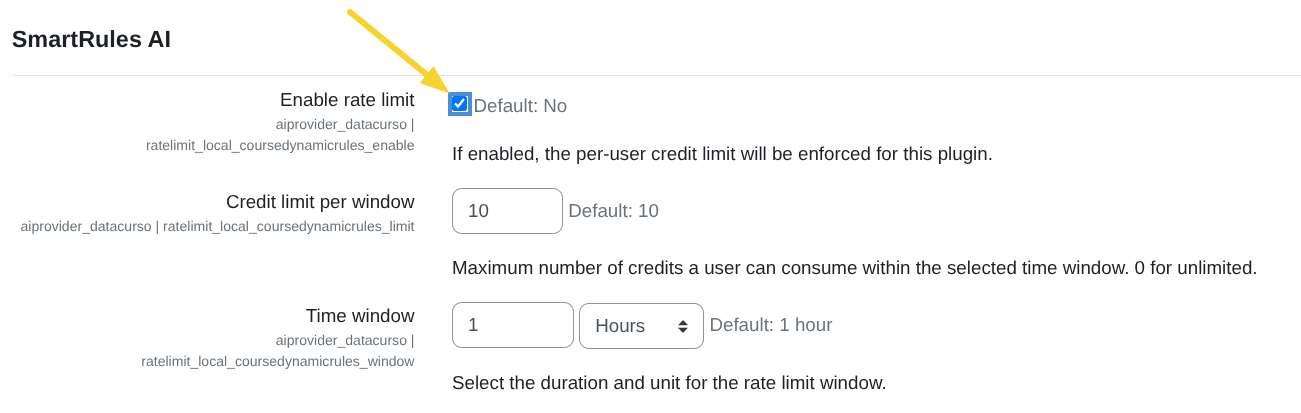
Enable rate limit
Check this box to enable per-user credit rate limiting for the SmartRules AI plugin.
- If you enable it, the provider will apply the limits below to each user.
- If you leave it disabled, SmartRules AI will not have a per-user credit limit.
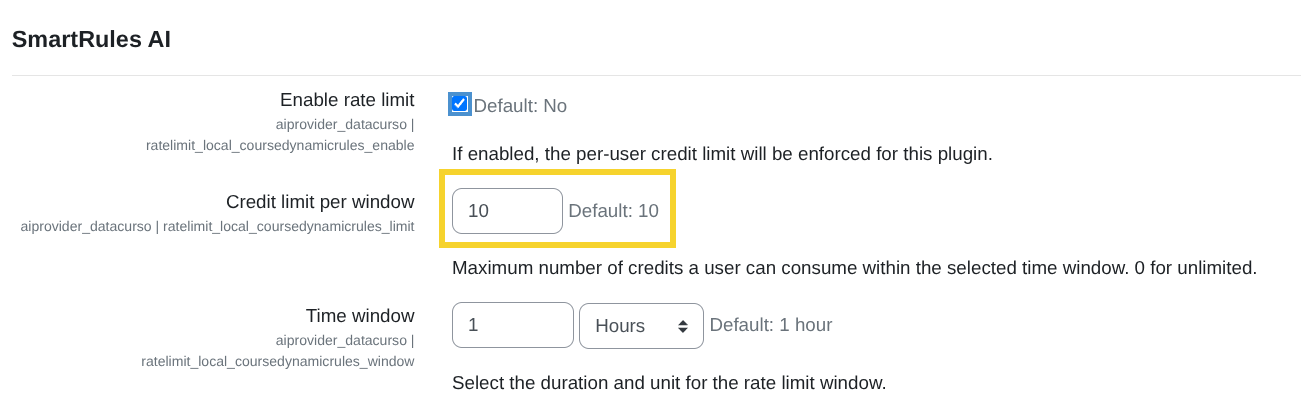
Credit limit per window
This is the maximum number of credits one user can spend in the time period you set below.
- Set it to
0if you do not want any limit.
Example: if you set 10, a user can spend up to 10 credits during each time window.
Time window
This setting defines how often the credit limit resets.
Pick a number and a unit (for example 1 + hours). Allowed units are: seconds, minutes, hours, days, weeks, months, years.
Examples:
- If Credit limit per window is
10and Time window is1+ hours, each user can spend up to 10 credits per hour. - If Credit limit per window is
50and Time window is1+ days, each user can spend up to 50 credits per day.
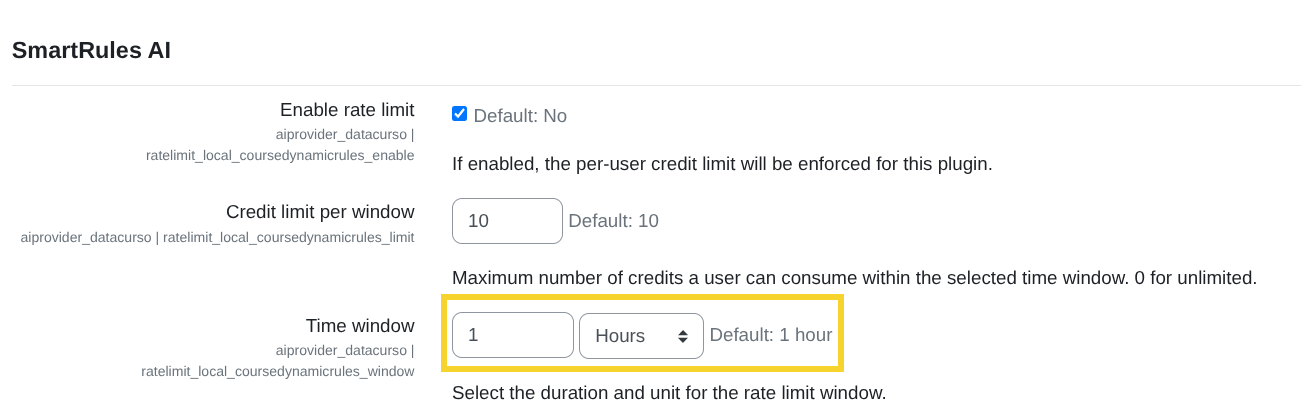
Student Life Story AI plugin rate limits
This section is where you configure the per-user rate limit settings for the Student Life Story AI plugin.
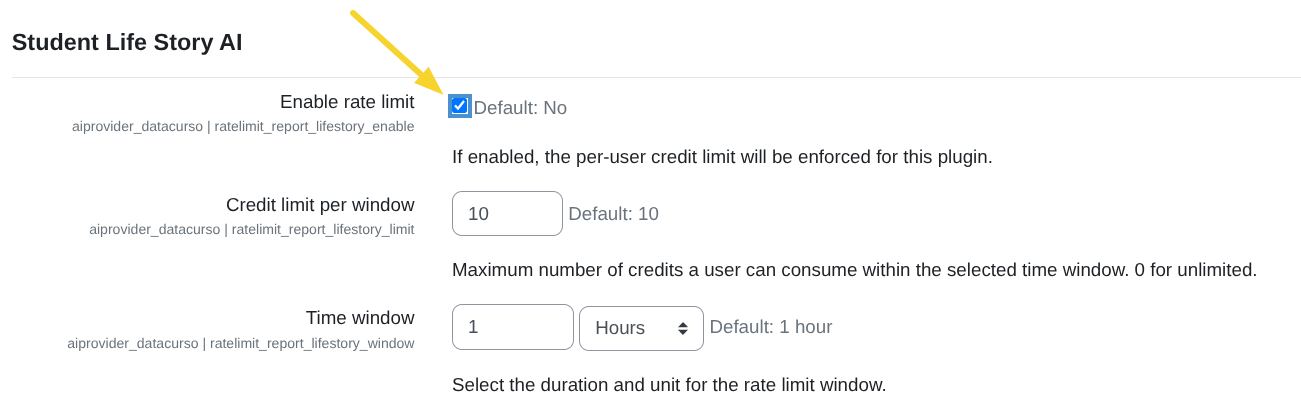
Enable rate limit
Check this box to enable per-user credit rate limiting for the Student Life Story AI plugin.
- If you enable it, the provider will apply the limits below to each user.
- If you leave it disabled, Student Life Story AI will not have a per-user credit limit.
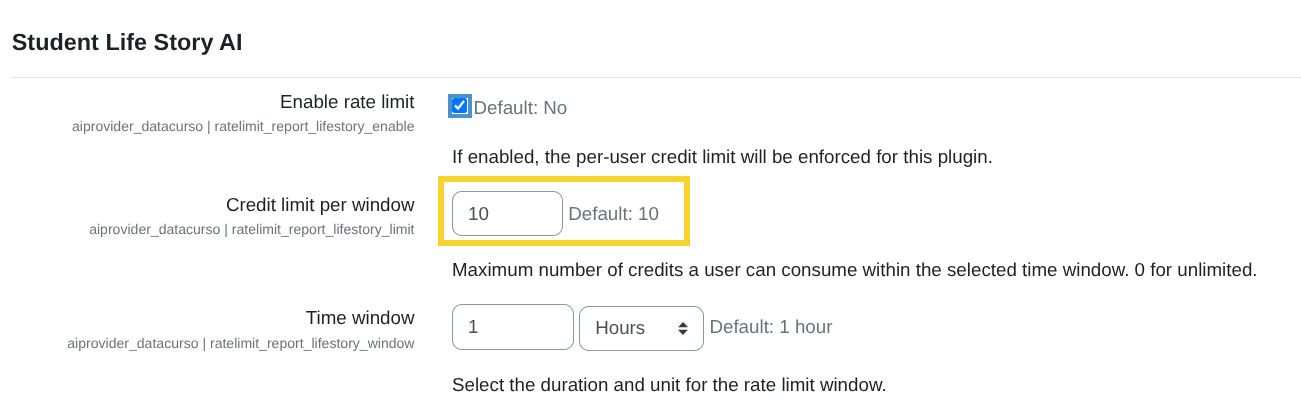
Credit limit per window
This is the maximum number of credits one user can spend in the time period you set below.
- Set it to
0if you do not want any limit.
Example: if you set 10, a user can spend up to 10 credits during each time window.
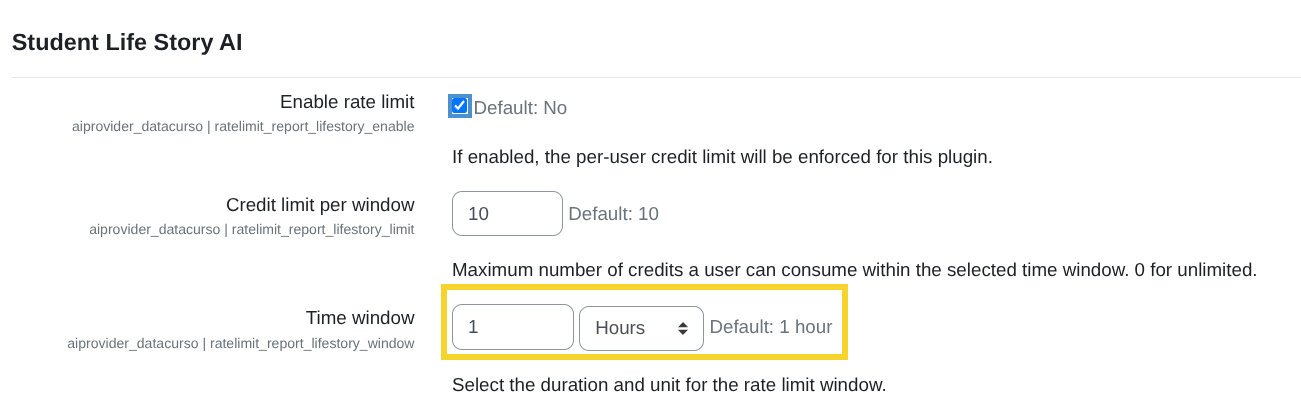
Time window
This setting defines how often the credit limit resets.
Pick a number and a unit (for example 1 + hours). Allowed units are: seconds, minutes, hours, days, weeks, months, years.
Examples:
- If Credit limit per window is
10and Time window is1+ hours, each user can spend up to 10 credits per hour. - If Credit limit per window is
50and Time window is1+ days, each user can spend up to 50 credits per day.
Tutor AI plugin rate limits
This section is where you configure the per-user rate limit settings for the Tutor AI plugin.
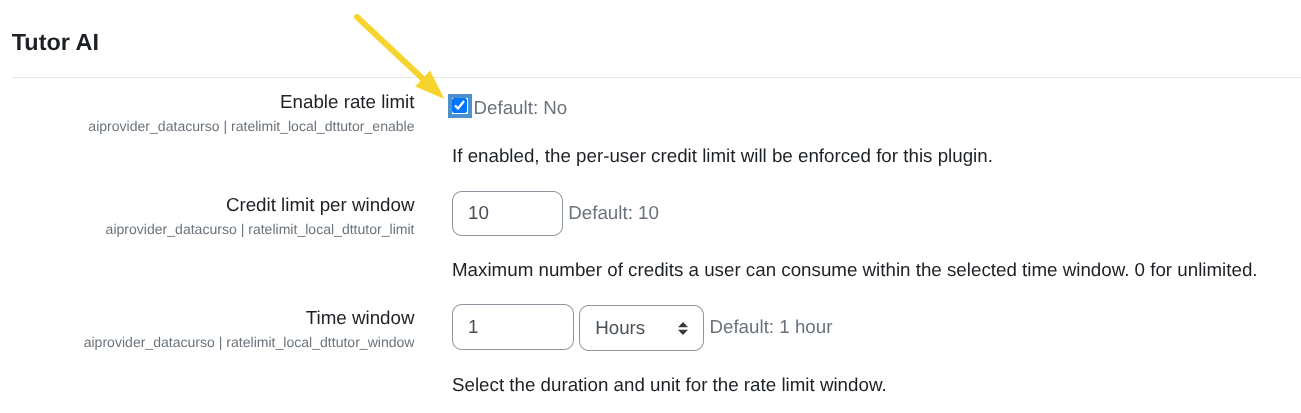
Enable rate limit
Check this box to enable per-user credit rate limiting for the Tutor AI plugin.
- If you enable it, the provider will apply the limits below to each user.
- If you leave it disabled, Tutor AI will not have a per-user credit limit.
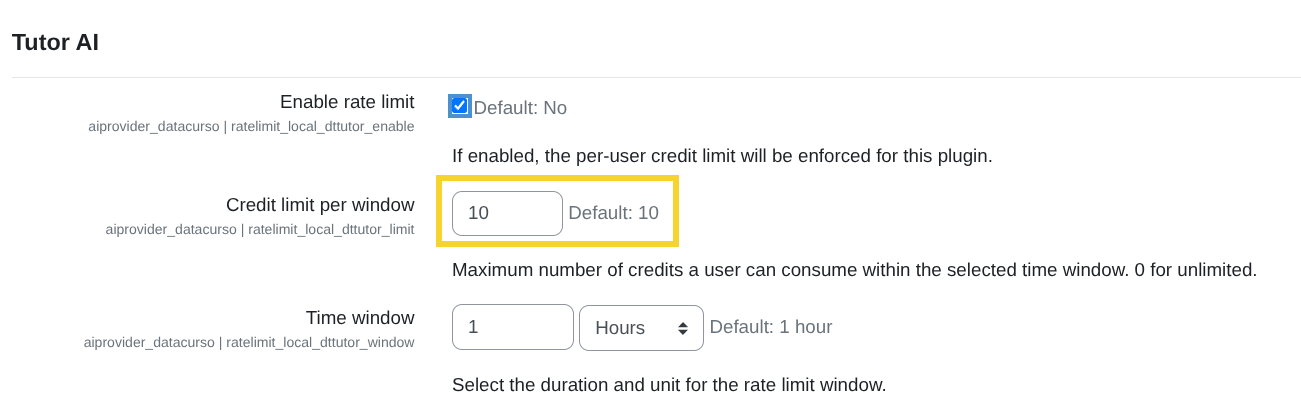
Credit limit per window
This is the maximum number of credits one user can spend in the time period you set below.
- Set it to
0if you do not want any limit.
Example: if you set 10, a user can spend up to 10 credits during each time window.
Time window
This setting defines how often the credit limit resets.
Pick a number and a unit (for example 1 + hours). Allowed units are: seconds, minutes, hours, days, weeks, months, years.
Examples:
- If Credit limit per window is
10and Time window is1+ hours, each user can spend up to 10 credits per hour. - If Credit limit per window is
50and Time window is1+ days, each user can spend up to 50 credits per day.