Student Life Story AI plugin permissions
The table below summarises the permissions used by the Student Life Story AI report and the default Moodle role that receives them.
| Name | Description | Default roles |
|---|---|---|
report/lifestory:view | Access the Student Life Story report, search for learners, review their consolidated history and export CSV snapshots. | Manager |
report/lifestory:generateaifeedback | Trigger AI-based narratives for a selected student and view the generated recommendations. | Manager |
report/lifestory:view
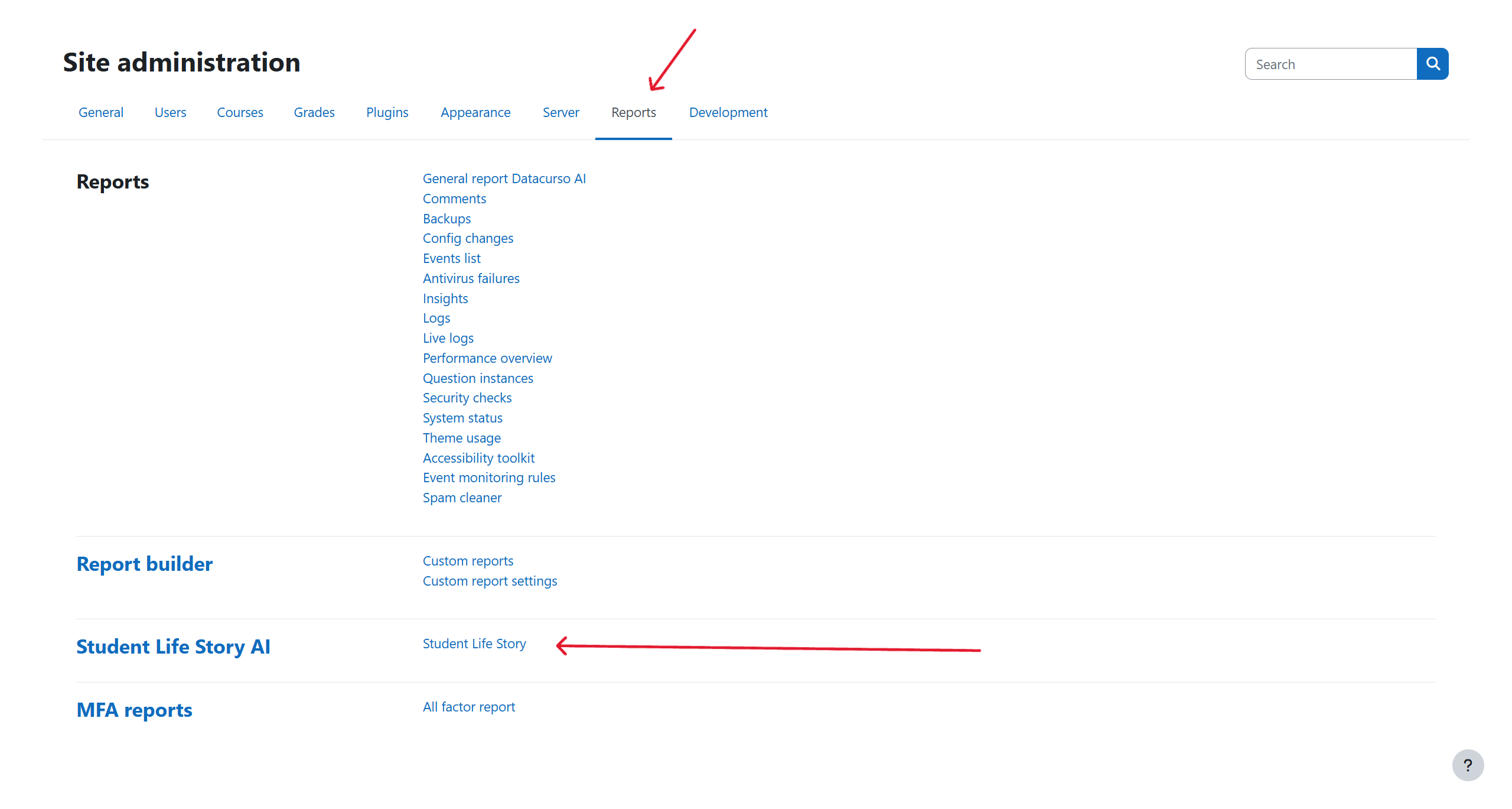
Grants access to the Student Life Story AI report found at Site administration → Reports → Student Life Story AI.
With this permission, a user can:
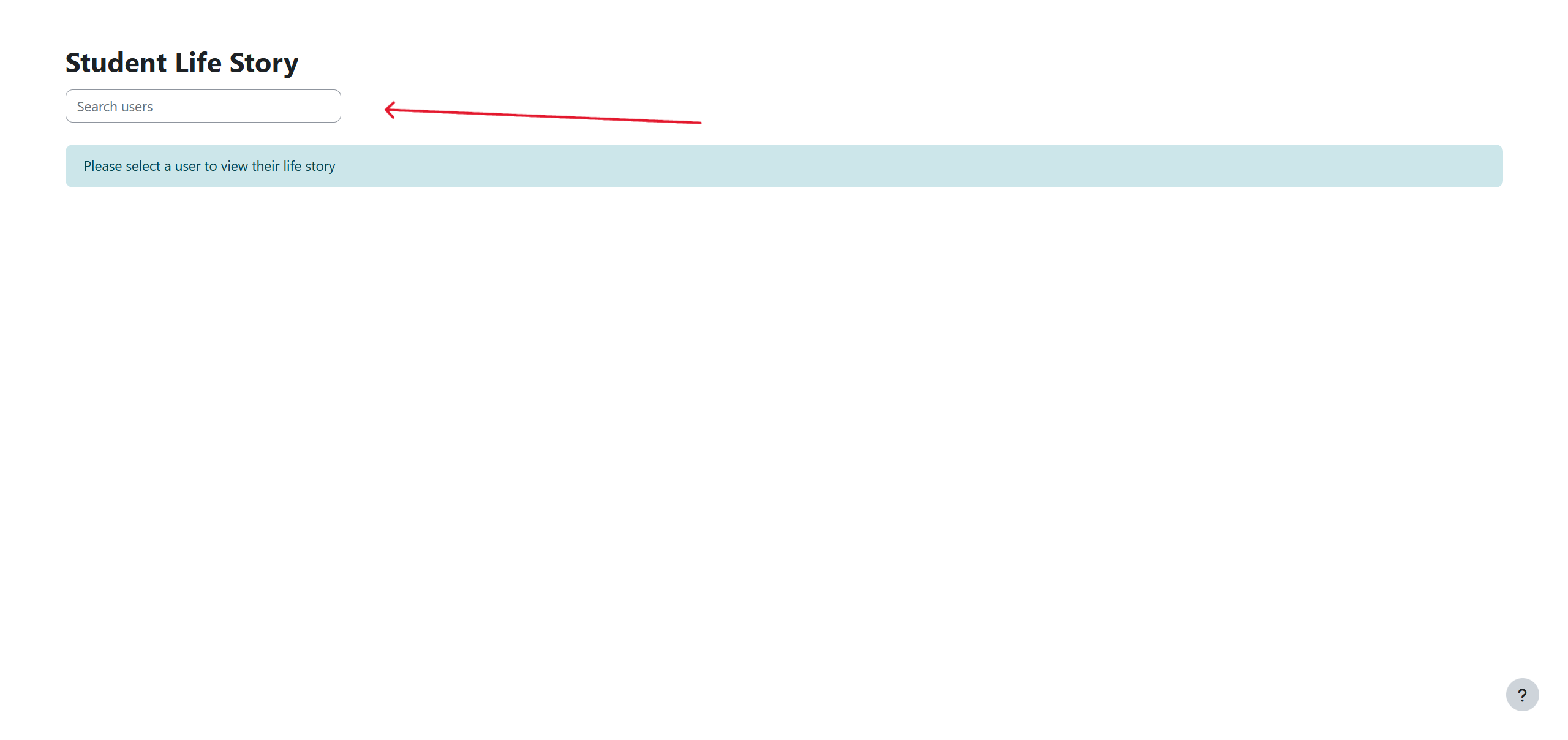
- Open the report interface and search students by name or email.
- Inspect each student’s consolidated academic history, including course grades and progress indicators.
- Download the CSV export that gathers all of the selected learner’s data for offline analysis or record keeping.
This capability should be reserved for trusted academic coordinators or administrators because it exposes sensitive student information and combines data from every enrolled course.
report/lifestory:generateaifeedback
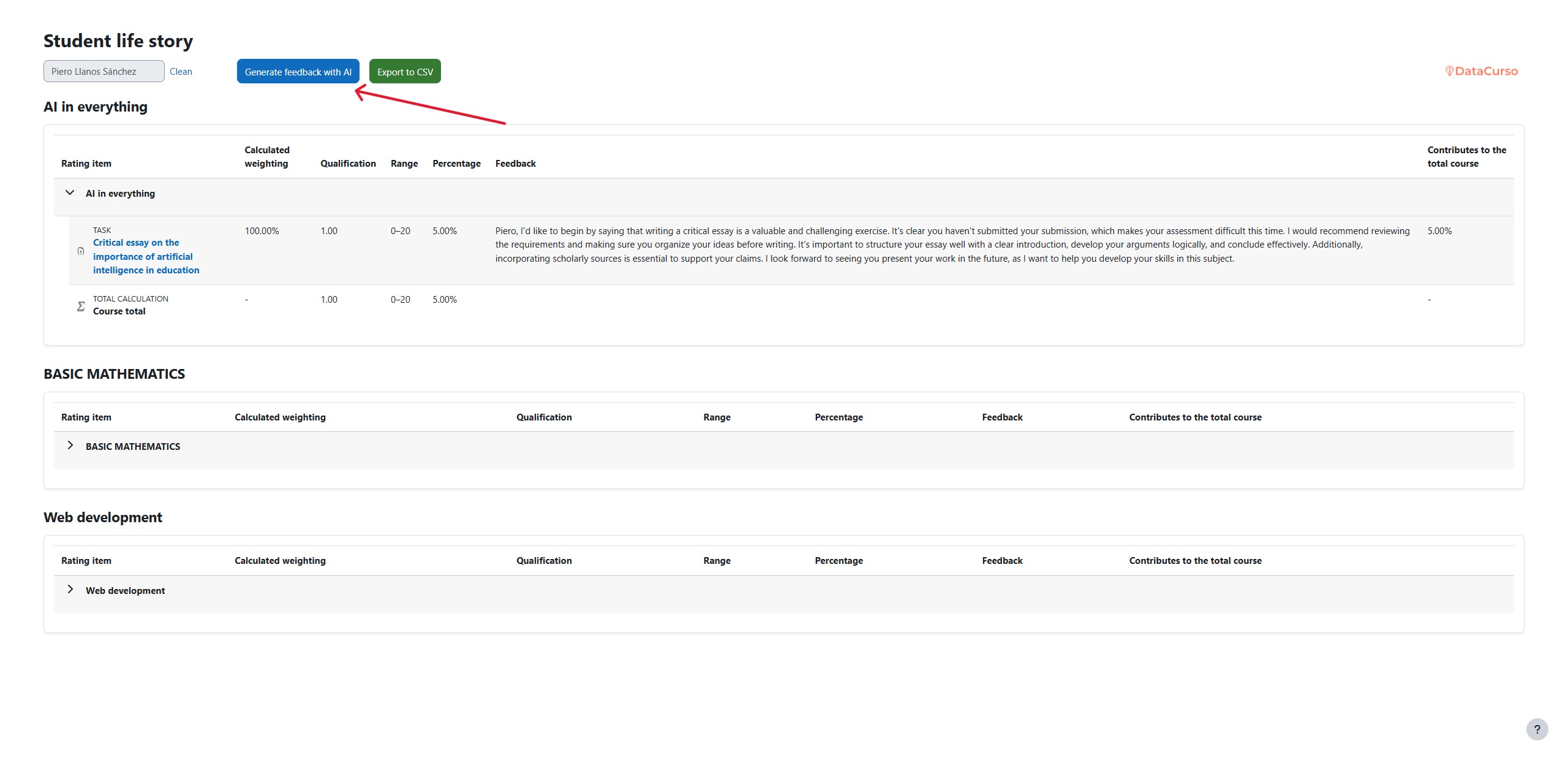
Governs access to the Generate AI feedback button that appears inside the Student Life Story report once a student is selected.
Users with this capability can:
- Send the consolidated academic timeline to the configured DataCurso AI Provider service.
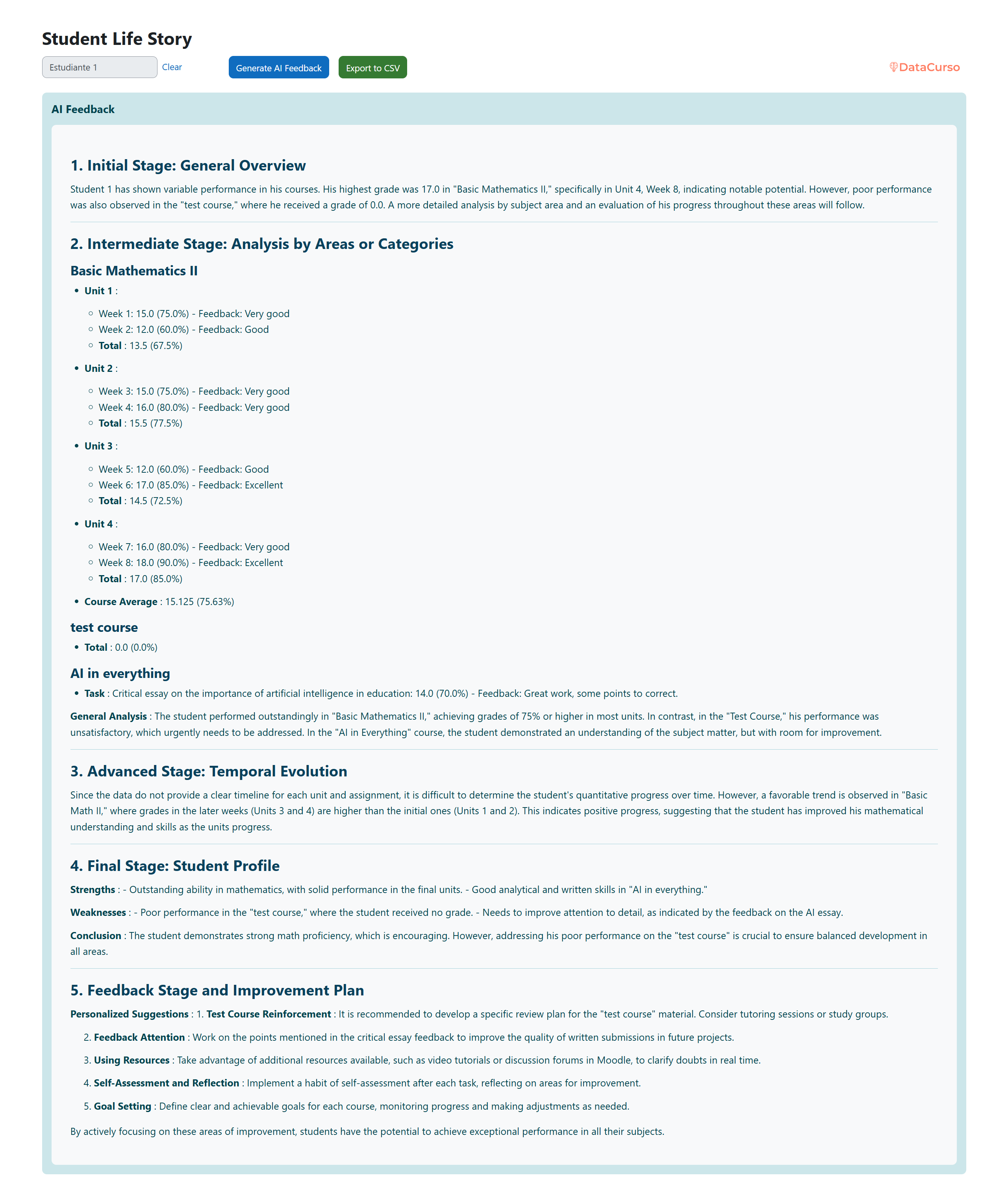
- Receive the AI-generated narrative that interprets performance trends and outlines recommended next steps for the learner.
Institutions typically grant this permission only to managers or similarly senior staff, ensuring that sending student data to the AI service is an intentional, auditable action.